
YLEEBG P30
YLEEBG P30 Android 15 Tablet User Manual
Model: P30 | Brand: YLEEBG
1. Introduction
This manual provides essential instructions for the safe and efficient use of your YLEEBG P30 Android 15 Tablet. Please read this guide thoroughly before operating the device. Keep this manual for future reference.
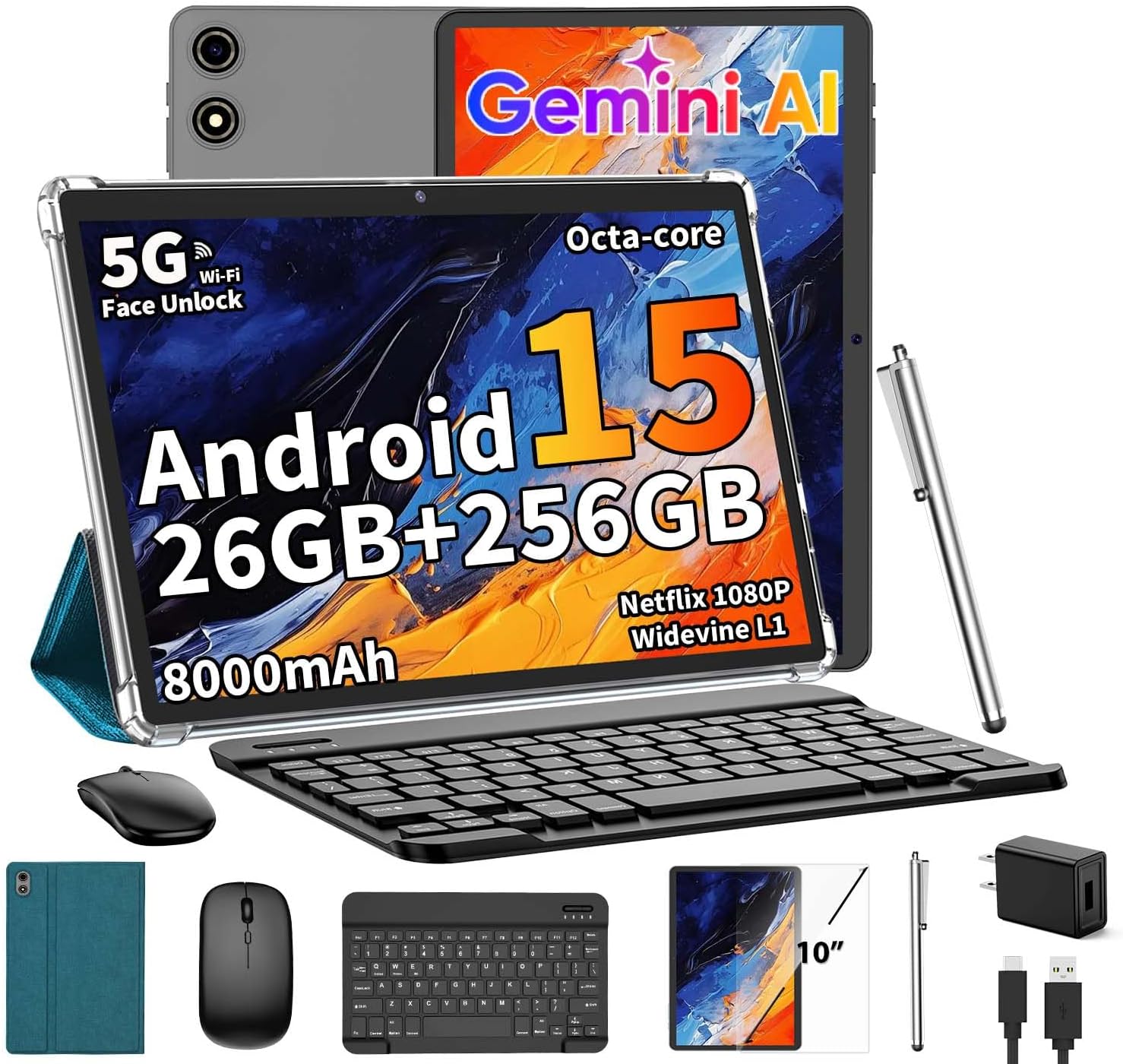
Image: YLEEBG P30 Android 15 Tablet with keyboard, mouse, stylus, and case.
2. What's in the Box
Verify that all items are present in the package:
- 10-inch Tablet
- Bluetooth Keyboard
- Wireless Mouse
- Stylus
- Protective Case
- USB Charger
- USB-C Charging Cable
- User Manual
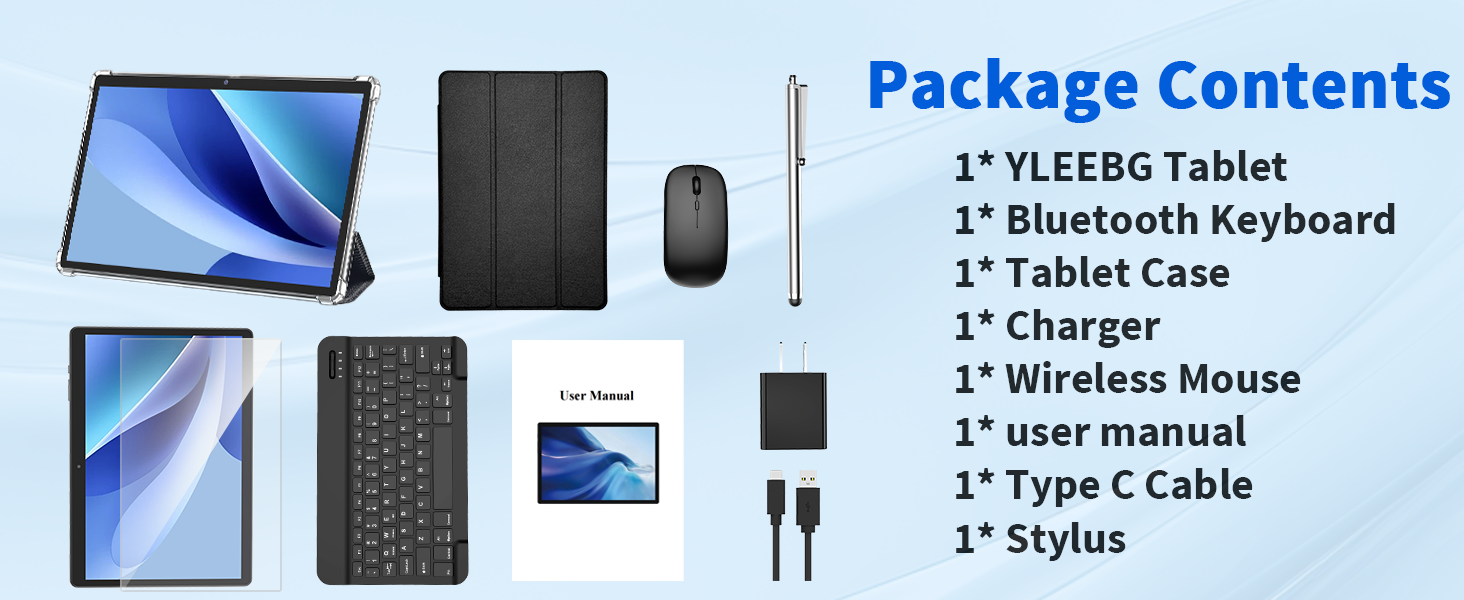
Image: All components included in the YLEEBG P30 tablet package.
Video: Unboxing and overview of the YLEEBG P30 Android 15 Tablet with included keyboard and accessories.
3. Product Overview
3.1 Tablet Components
- Display: 10-inch IPS screen with 1280x800 resolution.
- Front Camera: 5MP for video calls and selfies.
- Rear Camera: 13MP for photos and document scanning.
- Speakers: Dual speakers for enhanced audio.
- Ports: USB-C charging port, 3.5mm auxiliary slot.
- Buttons: Power on/off, Volume +/-.
- MicroSD Card Slot: For expandable storage up to 2TB.
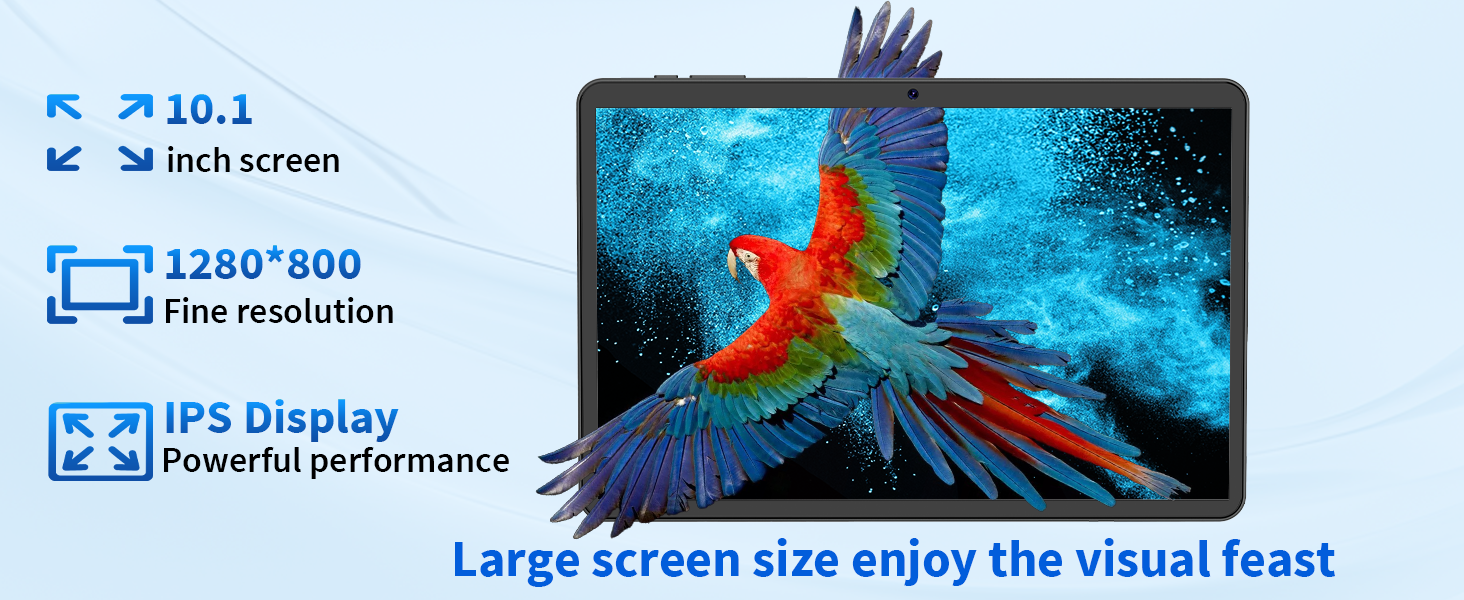
Image: Detailed view of the YLEEBG P30 tablet highlighting its display, cameras, and ports.
3.2 Keyboard and Mouse
The included Bluetooth keyboard and wireless mouse enhance productivity, allowing for a laptop-like experience. The keyboard features standard QWERTY layout and function keys. The mouse is a compact wireless optical mouse.
4. Setup
4.1 Initial Power On
- Ensure the tablet is fully charged before first use.
- Press and hold the Power button for 2-3 seconds until the screen turns on.
- Follow the on-screen instructions to select your language and complete the initial setup.
4.2 Wi-Fi Connection
- Go to Settings > Network & Internet > Wi-Fi.
- Toggle Wi-Fi On.
- Select your desired network from the list and enter the password if prompted.
4.3 Connecting Bluetooth Accessories
To pair the Bluetooth keyboard and mouse:
- Turn on the keyboard/mouse by sliding their respective power switches. For the keyboard, press the 'Connect' button until the Bluetooth indicator light flashes.
- On your tablet, go to Settings > Connected devices > Bluetooth.
- Toggle Bluetooth On.
- Tap Pair new device.
- Select the keyboard or mouse from the list of available devices. Follow any on-screen prompts to complete pairing.
Video: Demonstrating the setup and connection of the tablet with its keyboard and mouse.
5. Operation
5.1 Basic Navigation
- Touch Gestures: Use standard Android touch gestures (tap, swipe, pinch) for navigation.
- Stylus Use: The included stylus can be used for precise input, drawing, and navigation.
- Keyboard & Mouse: Utilize the physical keyboard for typing and the mouse for cursor control, similar to a laptop.
5.2 Camera Functions
The tablet features a 5MP front camera and a 13MP rear camera. Open the Camera app to capture photos and videos.
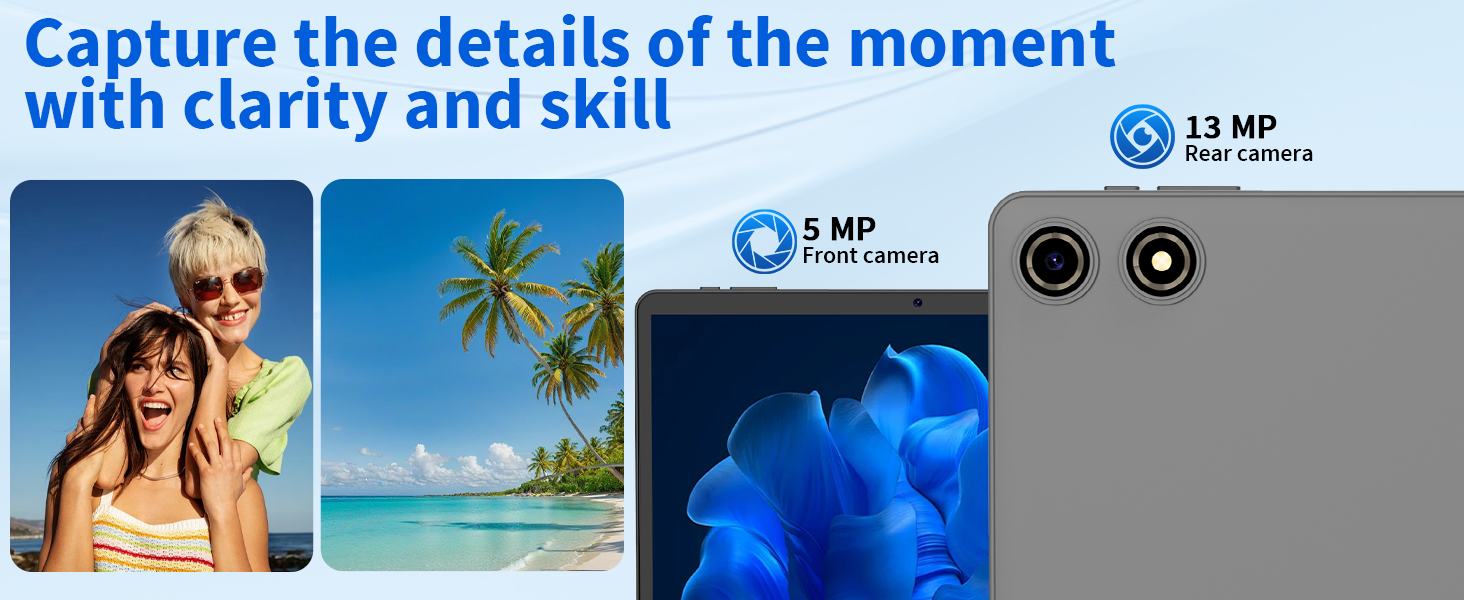
Image: Illustration of the tablet's front and rear camera capabilities.
5.3 Split Screen Mode
Android 15 supports split-screen multitasking. To activate, open an app, then swipe up from the bottom of the screen to reveal the recent apps. Drag one app to the top or bottom of the screen, then select another app to fill the remaining space.
5.4 Gemini AI Integration
The tablet integrates Gemini AI for enhanced performance and user experience. This includes features like intelligent task management and personalized suggestions.
5.5 Widevine L1 Support
With Widevine L1 certification, the tablet can stream high-definition content from popular streaming services, ensuring a clear and immersive viewing experience.
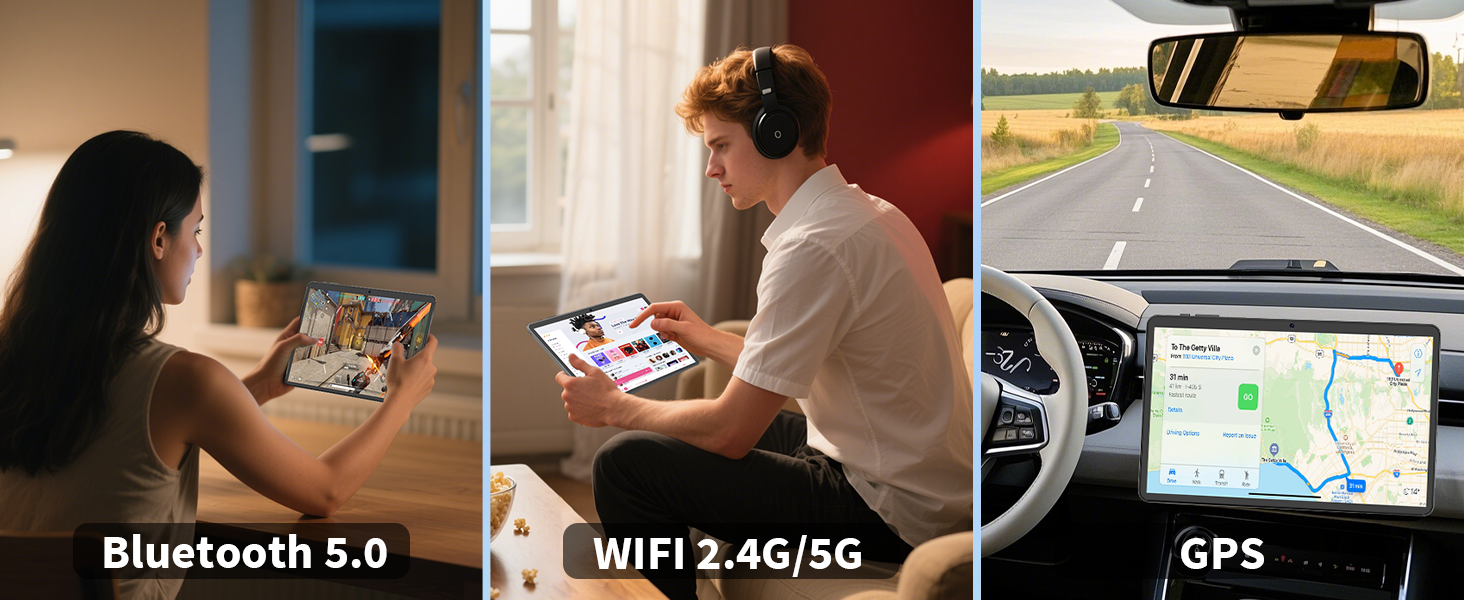
Image: The tablet being used for various activities such as chatting, working, reading, and gaming.
6. Maintenance
6.1 Battery Care
The 8000mAh battery provides extended usage. To prolong battery life, avoid extreme temperatures, fully discharge and recharge the battery at least once a month, and use the provided charger.

Image: Visual representation of the tablet's long-lasting 8000mAh battery.
6.2 Storage Management
The tablet comes with 256GB of internal storage, expandable up to 2TB via a microSD card. Regularly manage your files and uninstall unused apps to maintain optimal performance.

Image: Illustration of the tablet's 26GB RAM, 256GB ROM, and 2TB expandable storage.
6.3 Cleaning
Use a soft, lint-free cloth to clean the screen and body of the tablet. Avoid using harsh chemicals or abrasive materials.
6.4 Software Updates
The tablet runs on Android 15. Periodically check for system updates in Settings > System > System update to ensure your device has the latest features and security patches.
7. Troubleshooting
- Tablet won't power on: Ensure the tablet is charged. If it still doesn't power on, press and hold the power button for 10 seconds to force a shutdown, then try powering on again.
- Cannot connect to Wi-Fi: Check if Wi-Fi is enabled in settings. Ensure the Wi-Fi password is correct. Try restarting your router and the tablet.
- Bluetooth accessories not connecting: Ensure the accessories are powered on and in pairing mode. On the tablet, verify Bluetooth is enabled and try re-pairing the devices.
- Slow performance: Close unused applications, clear cache, or free up storage space. Consider performing a factory reset if issues persist (back up data first).
- Screen unresponsive: Restart the tablet. If the issue continues, ensure the screen is clean and free from damage.
8. Specifications
| Feature | Specification |
|---|---|
| Model Name | P30 |
| Operating System | Android 15 |
| Screen Size | 10 Inches |
| Screen Resolution | 1280 x 800 pixels |
| RAM | 26GB (4GB physical + 22GB virtual) |
| Internal Storage (ROM) | 256 GB |
| Expandable Storage | Up to 2TB via MicroSD card |
| Processor Brand | MediaTek |
| Wireless Type | 802.11ac, 802.11b, 802.11g, 802.11n (2.4G/5G WiFi) |
| Battery Capacity | 8000mAh |
| Average Battery Life | 16 Hours |
| Front Camera | 5MP |
| Rear Camera | 13MP |
| Item Weight | 2.88 pounds |
| Product Dimensions | 10.7 x 7.5 x 2.5 inches |
9. Warranty and Support
For warranty information and customer support, please refer to the contact card included in your package or visit the official YLEEBG website. Keep your purchase receipt for warranty claims.
Ask a question about this manual
Ask about setup, troubleshooting, compatibility, parts, safety, or missing instructions. Manuals+ will review the question and use this page’s manual context to help answer it.