
Introduction
The Avolusion PRO-G2 Series 14TB External Hard Drive provides a high-capacity storage solution for your desktop or laptop. Featuring a fast USB 3.2 Gen 2 interface, it supports data transfer speeds up to 10Gbps, making it suitable for storing and accessing large files, including data, music, photos, and videos. This drive is compatible with both Windows and macOS operating systems. Its durable aluminum enclosure and fan-less design ensure quiet and efficient operation. The PRO-G2 Series is designed for reliable performance and long-term use, offering a secure way to expand your storage or create essential data backups.
What's in the Box
Carefully unpack the contents of your Avolusion PRO-G2 external hard drive package. Ensure all items listed below are present and in good condition.
- Avolusion PRO-G2 14TB USB 3.2 (10Gbps) External Hard Drive
- USB 3.2 Cable (with Type C & Type A adapter)
- Power Adapter
- User Manual (this document)
- Warranty Card (2 Year)
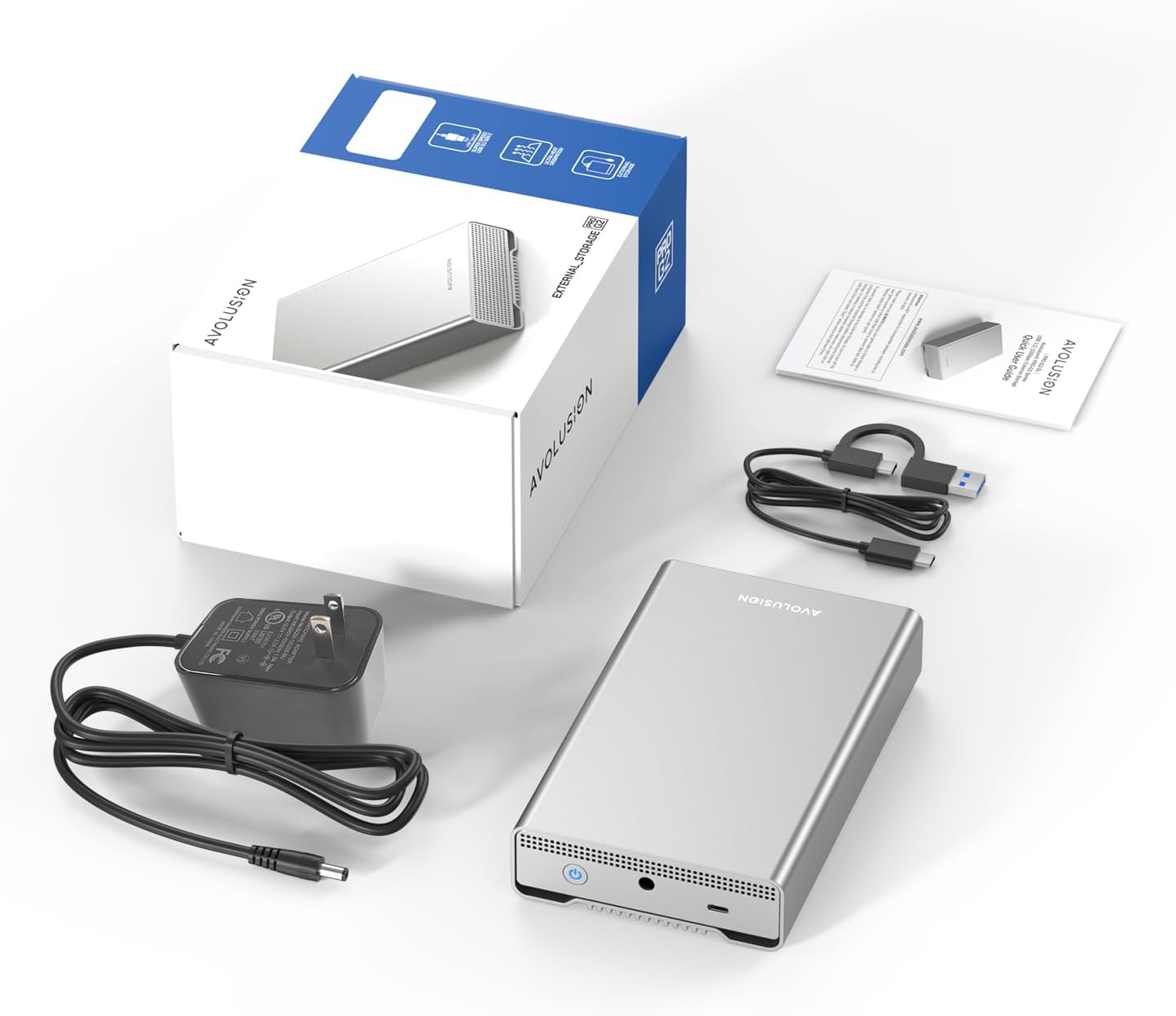
Image: The package contents laid out, showing the Avolusion PRO-G2 external hard drive, power adapter, USB-C to USB-A cable with a USB-A to USB-C adapter, and user manual.
Setup Instructions
1. Physical Connection
- Connect the Power Adapter: Plug the power adapter into the DC input port on the back of the Avolusion PRO-G2 external hard drive. Then, plug the other end of the power adapter into a standard electrical outlet.
- Connect the USB Cable: Connect one end of the provided USB 3.2 cable to the USB-C port on the Avolusion PRO-G2 drive. Connect the other end to an available USB 3.2 Gen 2 (10Gbps) or USB 3.0/2.0 port on your computer. Use the appropriate adapter (Type-C or Type-A) if necessary.
- Power On: Press the power button located on the front of the Avolusion PRO-G2 drive. The power indicator light should illuminate.

Image: The Avolusion PRO-G2 external hard drive is shown connected to a laptop via a USB cable and to a power outlet using its power adapter, illustrating the complete physical setup.
2. Initial Formatting (if required)
The Avolusion PRO-G2 drive comes pre-formatted with the NTFS file system, which is compatible with Windows operating systems. If you intend to use the drive primarily with macOS, it is recommended to re-format it to APFS (Apple File System) for optimal performance and compatibility.
For macOS Users:
- Connect the drive to your Mac.
- Open Disk Utility (Applications > Utilities > Disk Utility).
- Select the Avolusion PRO-G2 drive from the sidebar (ensure you select the top-level drive, not a volume beneath it).
- Click the Erase button in the toolbar.
- Choose a name for the drive, select APFS as the Format, and GUID Partition Map as the Scheme.
- Click Erase to confirm. Warning: This will delete all data on the drive.
For Windows Users:
No re-formatting is typically required. The drive should be recognized automatically. If prompted, you can assign a drive letter.
Operating Instructions
1. Data Transfer
Once the drive is connected and recognized by your computer, you can transfer files to and from it using standard operating system functions:
- Drag and Drop: Click and drag files or folders from your computer's internal storage to the Avolusion PRO-G2 drive icon in File Explorer (Windows) or Finder (macOS).
- Copy and Paste: Right-click (Windows) or Control-click (macOS) on files/folders, select 'Copy', then navigate to the Avolusion PRO-G2 drive, right-click/Control-click in an empty space, and select 'Paste'.
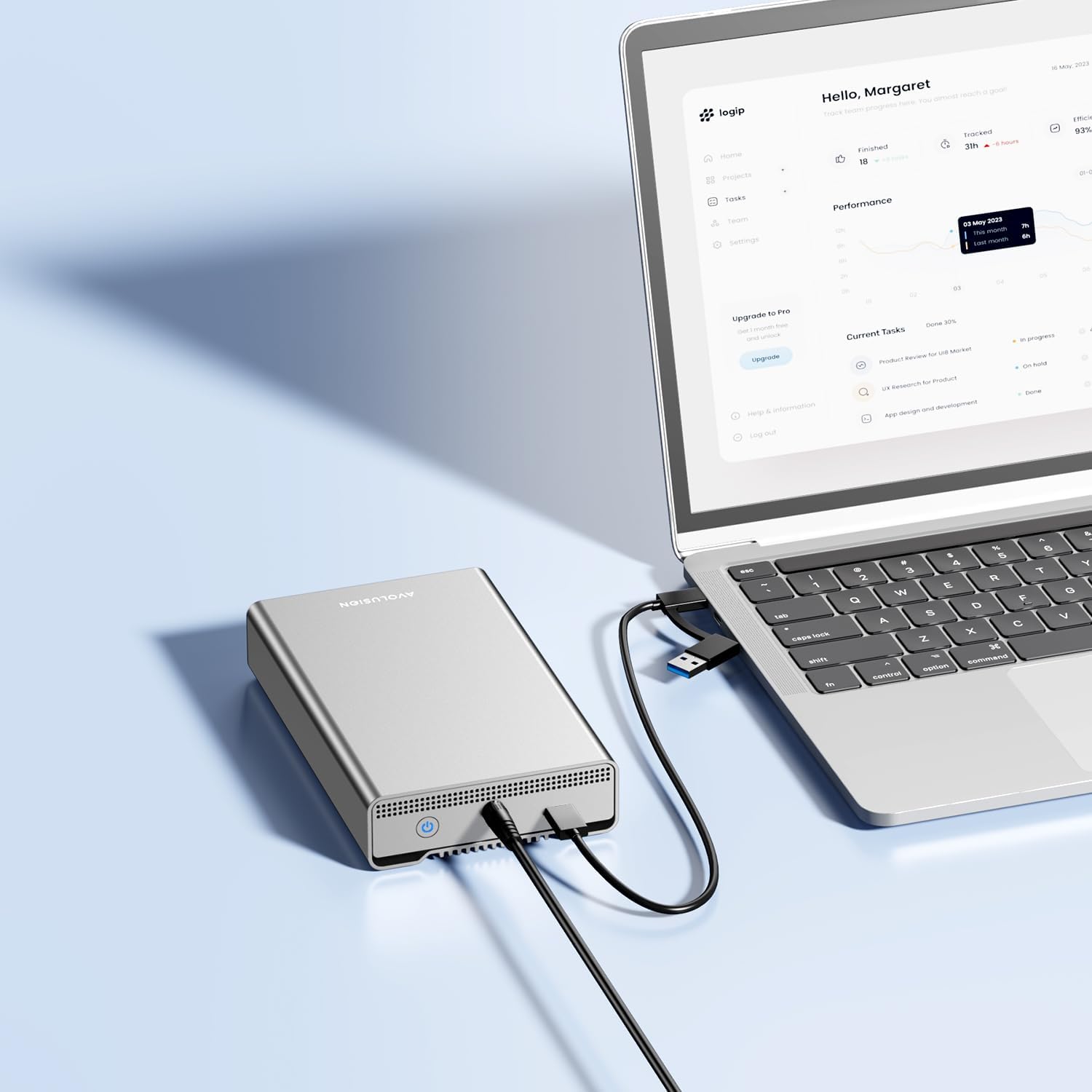
Image: The Avolusion PRO-G2 external hard drive is connected to a laptop, demonstrating its use as an active storage device for data management.
2. Backup Procedures
Regular backups are crucial for data security. The Avolusion PRO-G2 drive is ideal for this purpose.
- Windows Backup: Utilize Windows' built-in backup tools like 'File History' or 'Backup and Restore (Windows 7)' to schedule automatic backups to your external drive.
- macOS Backup: Use 'Time Machine' to create incremental backups of your entire system to the Avolusion PRO-G2 drive.
- Manual Backup: Simply copy important files and folders to the drive periodically.
Maintenance
- Safe Removal: Always safely eject or unmount the drive from your operating system before disconnecting the USB cable or power. This prevents data corruption.
- Cleaning: Use a soft, dry cloth to clean the exterior of the drive. Avoid liquid cleaners or abrasive materials.
- Environment: Keep the drive in a cool, dry place, away from direct sunlight, extreme temperatures, and strong magnetic fields.
- Physical Protection: Avoid dropping or subjecting the drive to physical shocks, as this can damage the internal components.
Troubleshooting
- Drive Not Detected:
- Ensure the power adapter is securely connected and the drive is powered on.
- Try connecting the USB cable to a different port on your computer.
- Ensure the USB cable is fully inserted at both ends.
- Restart your computer.
- Slow Transfer Speeds:
- Ensure you are connected to a USB 3.2 Gen 2 (10Gbps) or at least a USB 3.0 port on your computer. Older USB 2.0 ports will result in significantly slower speeds.
- Avoid transferring many small files simultaneously; large files transfer more efficiently.
- Check for other applications or processes that might be heavily using your computer's resources.
- Drive Requires Formatting (macOS):
- If using macOS, the drive needs to be formatted to APFS. Refer to the "Initial Formatting" section.
- Power Light Not On:
- Verify the power adapter is correctly plugged into both the drive and a working electrical outlet.
- Press the power button firmly.
Specifications
Detailed technical specifications for the Avolusion PRO-G2 14TB External Hard Drive:
| Feature | Specification |
|---|---|
| Digital Storage Capacity | 14 TB |
| Hard Disk Interface | USB 3.0 (Backward Compatible) |
| Connectivity Technology | USB |
| Brand | Avolusion |
| Special Feature | Backward Compatible |
| Hard Disk Form Factor | 3.5 Inches |
| Hard Disk Description | Mechanical Hard Disk |
| Compatible Devices | Desktop, Laptop |
| Installation Type | External Hard Drive |
| Color | Silver |
| Hard Disk Rotational Speed | 7200 RPM |
| Cache Memory Installed Size | 128 MB |
| Data Transfer Rate | 10 Gigabits Per Second (USB 3.2 Gen 2) |
| Hardware Connectivity | USB 3.2 Gen 2 |
| Item Weight | 3 Pounds |
| Item Dimensions (L x W x Thickness) | 8"L x 5"W x 1"Th (203.2mm x 127mm x 25.4mm) |
| Model Number | PROG2GY-14TB-WIN |
| Enclosure Material | Aluminum |
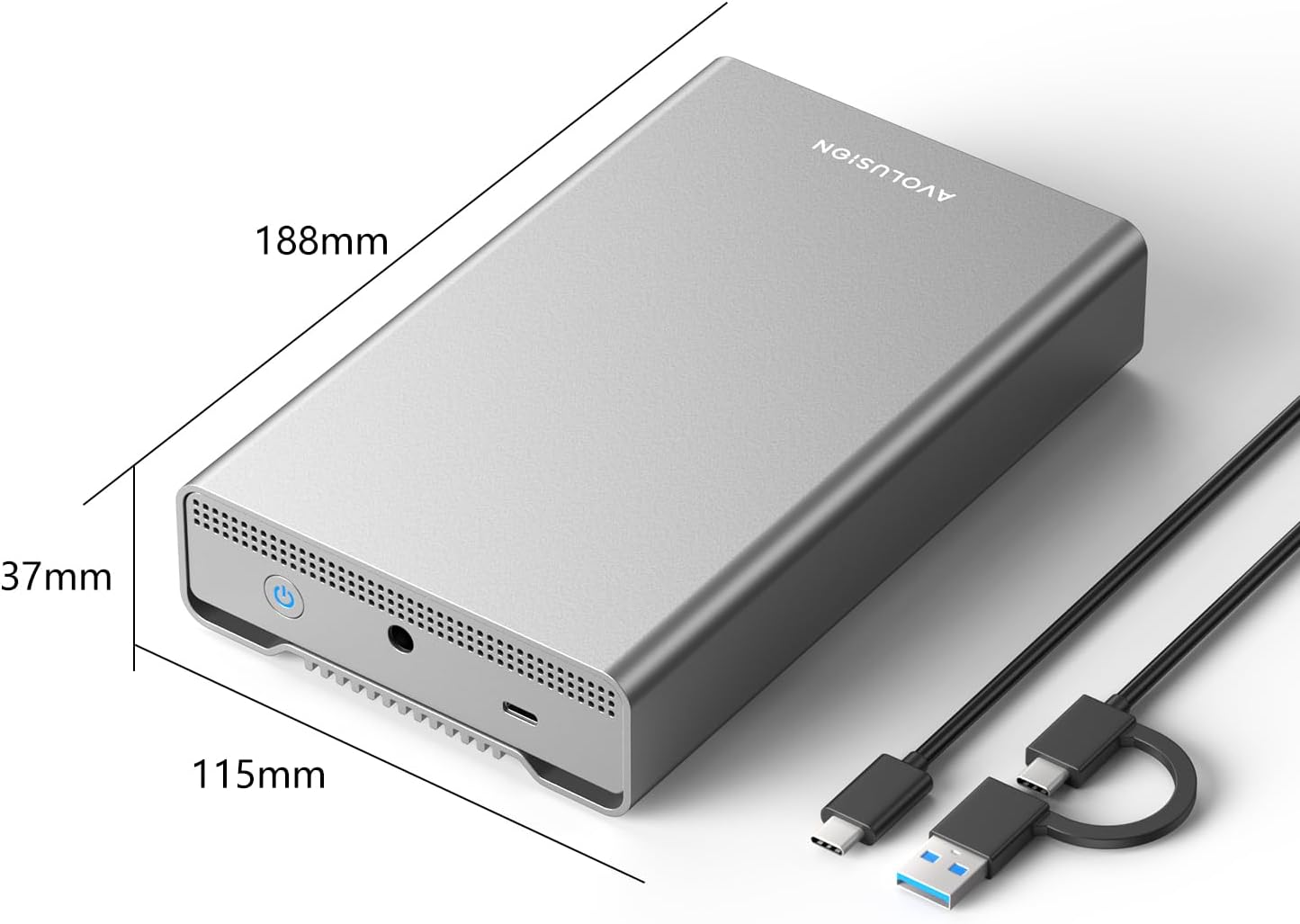
Image: A diagram illustrating the physical dimensions of the Avolusion PRO-G2 external hard drive, including its length, width, and height.
Warranty Information
The Avolusion PRO-G2 External Hard Drive comes with a 2 Years Warranty from Reseller. Please retain your proof of purchase for warranty claims. For specific terms and conditions, refer to the warranty card included in your package or contact your reseller.
Support
If you encounter issues not covered in this manual or require further assistance, please contact the reseller or manufacturer's customer support. Refer to the contact information provided on the warranty card or the official Avolusion website for support channels.