
Introduction
This manual provides instructions for the 2NLF GAD3016WT1 Wireless Security Camera System. This system includes a 10.1-inch touch LCD monitor and 5MP wireless outdoor cameras, designed for reliable home or business surveillance. Please read this manual thoroughly before installation and operation to ensure proper use and maximize the system's capabilities.
1. Package Contents
Verify that all items listed below are included in your package:
- 1 x NVR Host with 10.1-inch HD Screen (500GB HDD installed)
- 4 x Wireless Cameras
- 1 x NVR Power Adapter
- 4 x Camera Power Adapters
- 4 x Screw Packs
- 1 x Network Cable
- 1 x User Manual
- 1 x HDD Screw Pack
- 1 x Reset Pin
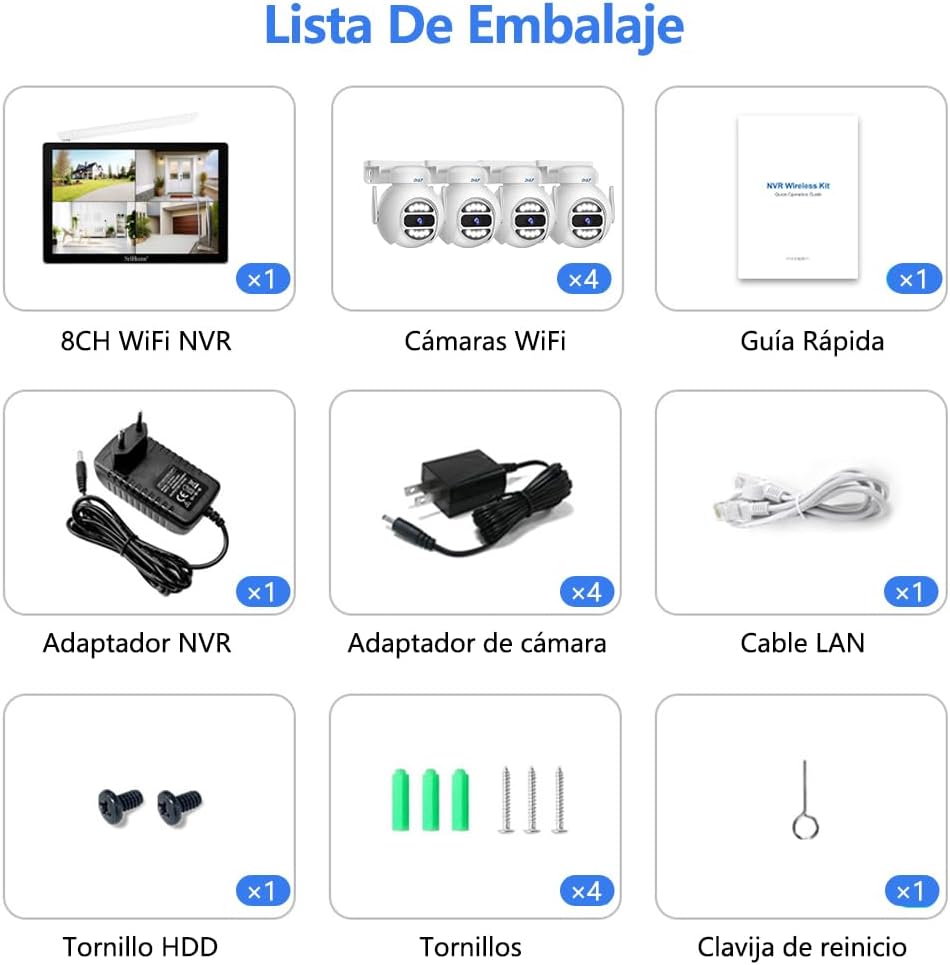
Figure 1: Package Contents. This image displays the NVR host with its 10.1-inch screen, four wireless cameras, power adapters for both NVR and cameras, a LAN cable, screw packs, and the user manual, illustrating all components included in the system.
2. Product Features
2.1 Integrated NVR and 10.1-inch Touch LCD Monitor
The system features an integrated NVR and a 10.1-inch multi-touch LCD screen, simplifying real-time monitoring, playback, and device parameter adjustments without requiring an external computer. The intuitive touch interface allows for easy navigation. Remote viewing is also available via the Srihome mobile application.
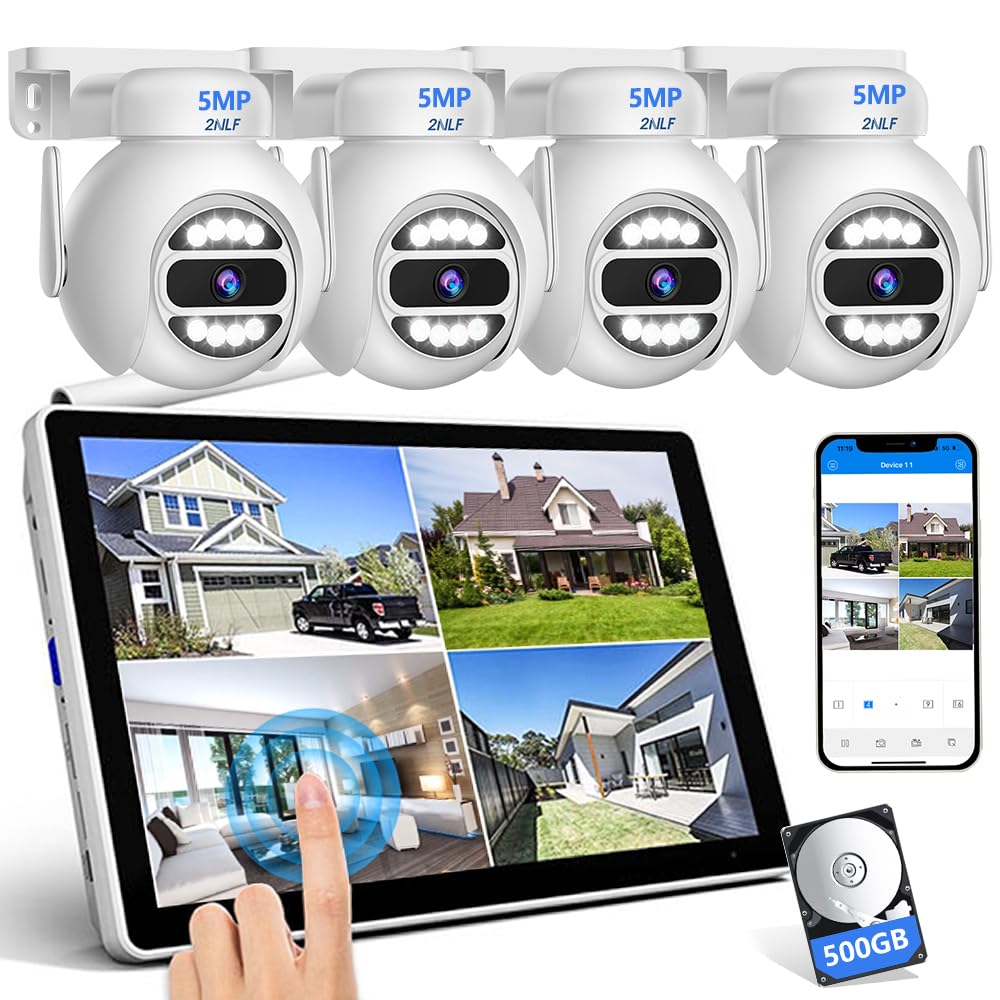
Figure 2: Integrated NVR and Monitor. This image highlights the 10.1-inch touch LCD monitor, demonstrating its ability to display multiple camera feeds simultaneously and its intuitive touch interface. It visually represents the convenience of a combined NVR and monitor unit.
2.2 5MP HD Resolution and Advanced Night Vision
The four included cameras provide 5-megapixel resolution, capturing clear details of visitors during the day. The system supports three night vision modes: infrared, full-color, and smart mode, ensuring clear visibility of movements in low-light conditions. It allows simultaneous viewing of up to 8 channels for comprehensive coverage without blind spots.

Figure 3: 5MP HD Resolution. This image demonstrates the superior clarity of 5-megapixel resolution compared to 2-megapixel, showing finer details in surveillance footage.

Figure 4: Intelligent Night Vision. This image illustrates the difference between color night vision and infrared (IR) night vision, showcasing the system's capability to provide clear images in various low-light environments.
2.3 AI Humanoid Detection and Two-Way Audio
The system incorporates AI human recognition to accurately distinguish human activity, significantly reducing false alarms. Upon detection of an unfamiliar person near your property, an immediate alert is sent to your mobile device. The cameras also feature two-way audio, allowing real-time communication to deter intruders or interact with visitors.

Figure 5: Humanoid and Motion Detection. This image demonstrates the AI-powered detection feature, showing how the system identifies human figures and sends instant alerts to a mobile device, minimizing false alarms.

Figure 6: Two-Way Audio. This image illustrates the two-way audio functionality, allowing users to communicate with individuals at their door through the camera system and a mobile app.
2.4 IP66 Weatherproof Design and Flexible Wireless Installation
The cameras are IP66 rated, providing resistance against wind, rain, dust, and extreme weather conditions, making them suitable for both indoor and outdoor use. The system supports wireless bridge mode with a WiFi coverage range of up to 60 meters, ensuring stable connection even in distant areas of your property. This eliminates location restrictions for installation.

Figure 7: IP66 Weatherproof Design. This image highlights the camera's IP66 waterproof rating and its ability to withstand various weather conditions, along with its wide range of motion for comprehensive surveillance.
2.5 Ample Storage Capacity
The NVR includes a pre-installed 500GB hard drive, capable of storing approximately 15 days of continuous recordings. Storage is expandable up to 16TB. H.265 video compression technology optimizes storage space without compromising video quality, ensuring key recordings are not lost.
3. Setup Guide
This section outlines the basic steps for setting up your 2NLF security camera system. For detailed instructions, refer to the included Quick Guide.
- Unpack and Identify Components: Carefully unpack all items and verify against the "Package Contents" section.
- Connect NVR: Connect the NVR host to its power adapter and plug it into an electrical outlet.
- Connect Cameras: Position each wireless camera in your desired surveillance area. Connect each camera to its respective power adapter and plug into an electrical outlet. The cameras are designed to automatically pair with the NVR.
- Initial Power-On: The NVR monitor will power on automatically. Follow any on-screen prompts for initial setup, such as language selection or time zone.
- Network Connection (Optional for Remote Access): For remote viewing via the Srihome app, connect the NVR to your router using the provided network cable.
- Mounting Cameras: Use the provided screw packs to securely mount the cameras in their final outdoor or indoor locations. Ensure the cameras are within the WiFi range of the NVR (up to 60 meters in open areas).

Figure 8: Product Introduction and Connections. This diagram illustrates the physical components of the NVR monitor and a camera, highlighting their dimensions and available ports for power, network, and video output, which are essential for setup.
4. Operation Guide
4.1 Using the 10.1-inch Touch Monitor
- Live View: The monitor displays live feeds from all connected cameras. Tap on a specific camera view to enlarge it.
- Playback: Access historical recordings by navigating through the on-screen menu. You can select specific dates and times for review.
- System Settings: Adjust camera parameters, network settings, recording schedules, and other system configurations directly from the touch interface.
4.2 Mobile App Remote Viewing (Srihome App)
- Download App: Download the "Srihome" app from your smartphone's app store.
- Add Device: Follow the in-app instructions to add your NVR system. This typically involves scanning a QR code on the NVR or entering its device ID.
- Remote Monitoring: View live feeds, play back recordings, receive motion alerts, and use two-way audio from anywhere with an internet connection.
4.3 Night Vision Modes
- Infrared (IR) Mode: Provides black and white images in complete darkness.
- Color Mode: Utilizes built-in white lights to provide full-color images in low-light conditions.
- Smart Mode: Automatically switches between IR and color mode based on detected motion or light conditions. Configure this setting via the NVR or mobile app.
4.4 Two-Way Audio
To use two-way audio, access the live view of a camera through the NVR monitor or the Srihome app. Activate the microphone icon to speak and the speaker icon to listen.
5. Maintenance
- Regular Cleaning: Periodically clean the camera lenses and the NVR monitor screen with a soft, dry cloth to ensure clear image quality.
- Check Connections: Ensure all power adapters and network cables (if used) are securely connected.
- Firmware Updates: Check the manufacturer's website or the Srihome app for available firmware updates to ensure optimal performance and security.
- Hard Drive Management: The system automatically overwrites older footage when the hard drive is full. If you need to retain specific recordings, back them up to an external device.
6. Troubleshooting
6.1 No Image on Monitor
- Ensure the NVR is powered on and the power adapter is securely connected.
- Check if the monitor's brightness and contrast settings are correctly adjusted.
6.2 Cameras Not Connecting/Offline
- Verify that each camera is powered on and its power adapter is connected.
- Ensure cameras are within the NVR's wireless range (up to 60 meters). Obstacles like thick walls can reduce range.
- Restart the NVR and the cameras.
- If a camera loses connection, you may need to re-pair it with the NVR. Refer to the Quick Guide for pairing instructions.
6.3 False Motion Alerts
- Adjust the sensitivity of the motion detection in the NVR settings or Srihome app.
- Utilize the AI human recognition feature to filter out non-human movements.
- Ensure cameras are not pointed at areas with constant movement (e.g., swaying trees, busy roads) if not intended for monitoring.
6.4 No Audio or Poor Audio Quality
- Check the volume settings on the NVR monitor or the Srihome app.
- Ensure the camera's microphone and speaker are not obstructed.
- Environmental noise can affect audio clarity.
7. Technical Specifications
| Feature | Specification |
|---|---|
| Video Capture Resolution | 1920p (5MP) |
| Number of Items | 1 (Kit) |
| Number of Channels | 8 |
| Wireless Communication Technology | Wi-Fi (2.4GHz exclusive) |
| Form Factor | Dome |
| Installation Type | Screw-in (Wall Mount) |
| Night Vision Range | 10 Meters |
| Item Dimensions (LxWxH) | 25.4 x 21.8 x 32 cm |
| Manufacturer | 2NLF |
| Special Features | Weatherproof, Two-way Audio, App Control, Motion Detector, Night Vision |
| Batteries Required | No |
| Product Weight | 3.24 kg |
| Model Number | GAD3016WT1 |
| Recommended Uses | Outdoor |
| Connectivity Technology | Wireless |
| Indoor/Outdoor Use | Outdoor |
| Compatible Devices | Smartphone |
| Power Source | Corded Electric |
| Mounting Type | Wall Mount |
8. Warranty and Support
8.1 Product Warranty
This 2NLF security camera system comes with a 365-day warranty from the date of purchase. This warranty covers manufacturing defects and malfunctions under normal use. Please retain your proof of purchase for warranty claims.
8.2 Customer Support
For any technical assistance, troubleshooting, or warranty inquiries, please contact 2NLF customer support. Our enhanced support team is available 24/7 and aims to respond to email inquiries within 24 hours. Product replacement services are provided when necessary during the warranty period.
For contact information, please refer to the official 2NLF website or the documentation included with your product.