
1. Introduction
The MIUCDA Zigbee 3.0 Home Assistant Dongle (Model M-GW80-MQTT) is a versatile smart home gateway designed to integrate Zigbee and Thread devices into your home automation system. This device offers multiple connectivity options including Ethernet, Wi-Fi, and USB, ensuring stable and reliable communication. It is compatible with popular smart home platforms such as Home Assistant, Zigbee2MQTT, openHAB, and ioBroker, providing a centralized control point for your smart devices.
This manual provides essential information for the proper installation, operation, and maintenance of your MIUCDA Zigbee 3.0 Home Assistant Dongle. Please read it thoroughly before using the device.
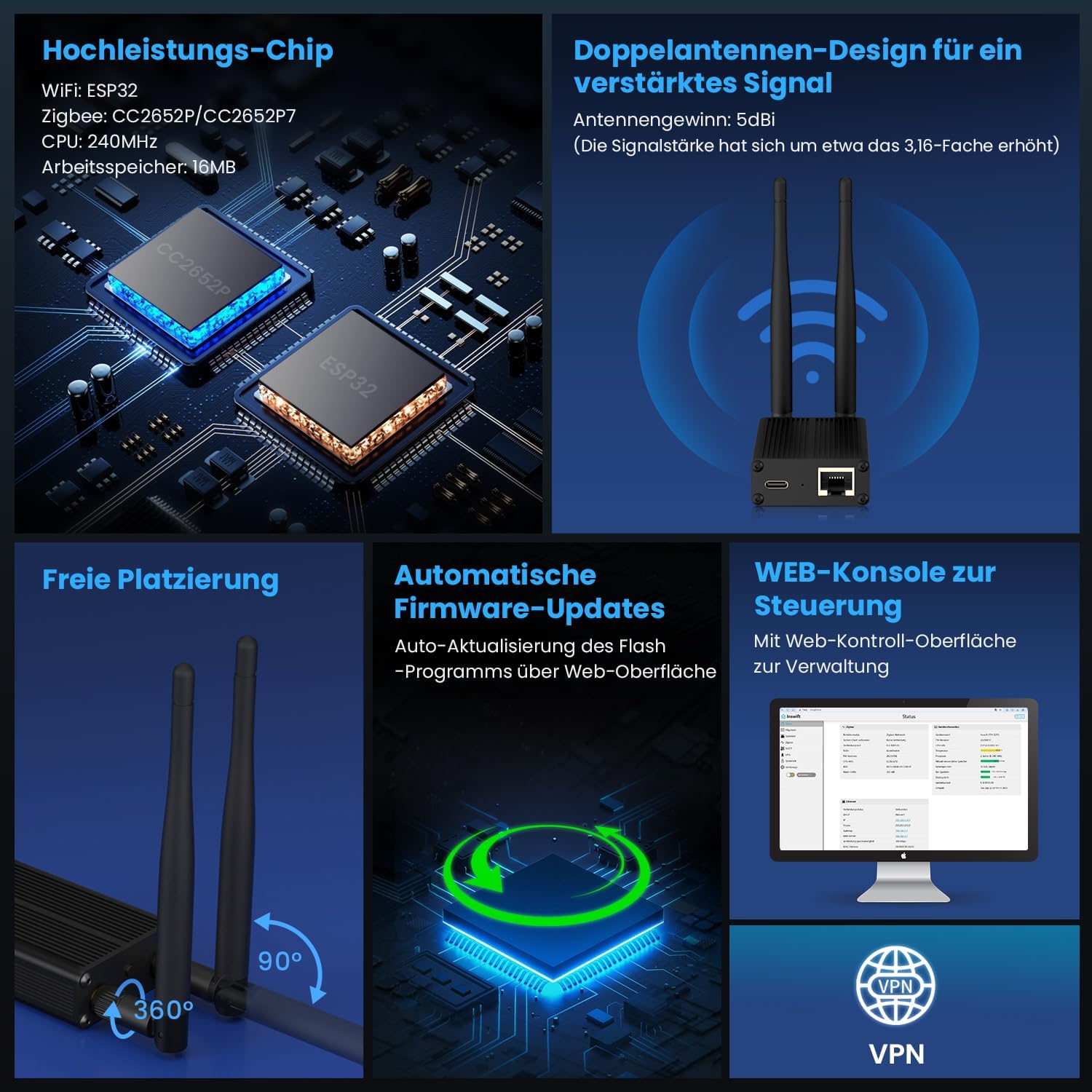
Image 1.1: The MIUCDA Zigbee 3.0 Home Assistant Dongle, featuring dual external antennas for enhanced signal.
2. Safety Information
- Do not expose the device to water or moisture.
- Avoid extreme temperatures and direct sunlight.
- Do not attempt to disassemble or repair the device yourself. Refer to qualified service personnel.
- Use only the specified power supply (5V-1A for Type-C).
- Keep the device away from strong electromagnetic fields.
3. Product Overview
The MIUCDA Zigbee 3.0 Home Assistant Dongle is equipped with advanced features to ensure optimal performance and connectivity for your smart home network.
3.1 Key Features
- High-Performance Chip: Integrates ESP32 for Wi-Fi and CC2652P/CC2652P7 for Zigbee, with a 240MHz CPU and 16MB working memory.
- Dual Antenna Design: Features two 5dBi high-gain antennas, providing a stable wireless connection and approximately 3.16 times increased signal strength. The antennas are adjustable, allowing 360° rotation for optimal coverage.
- Automatic Firmware Updates: Supports automatic firmware updates via a web interface, ensuring your device always has the latest features and security enhancements.
- Web Console for Management: Provides a web-based control interface for easy configuration and monitoring of your Zigbee network.
- Multiple Network Connection Modes: Offers flexible connectivity via Ethernet, Wi-Fi (2.4GHz WLAN), and USB (Type-C to USB cable for USB Zigbee Gateway use).
- Broad Compatibility: Seamlessly integrates with Home Assistant, Zigbee2MQTT, openHAB, and ioBroker.
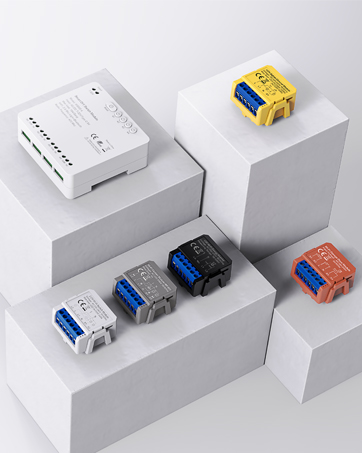
Image 3.1: Features including adjustable dual antennas, an Ethernet port, and options for web or app control.
3.2 Package Contents
Please check the package for the following items:
- MIUCDA Zigbee 3.0 Home Assistant Dongle (M-GW80-MQTT)
- USB Type-C Cable
- User Manual

Image 3.2: Product dimensions and a visual representation of the included accessories.
4. Setup Instructions
Follow these steps to set up your MIUCDA Zigbee 3.0 Home Assistant Dongle.
4.1 Physical Connection
- Connect Antennas: Screw the two external antennas onto the designated ports on the dongle. Adjust their angle (up to 360° rotation and 90° tilt) for optimal signal reception.
- Power On: Connect the provided USB Type-C cable to the dongle and then to a 5V-1A power adapter (not included) or a USB port on your host device (e.g., Raspberry Pi, PC).
- Choose Network Connection:
- Ethernet: For a stable and reliable network signal, connect an Ethernet cable from the dongle to your router or network switch.
- Wi-Fi: The device operates over 2.4GHz WLAN. Configuration for Wi-Fi is typically done via the web interface after initial power-up.
- USB (as Zigbee Gateway): Connect the dongle directly to your host device via the USB Type-C cable to use it as a USB Zigbee gateway.
Image 4.1: Various connection methods: USB, Power over Ethernet (POE), and Wi-Fi.
4.2 Initial Configuration (Web Interface)
After connecting the dongle, you can access its web interface for initial setup and configuration.
- Ensure your computer is on the same network as the dongle (either via Ethernet or by connecting to the dongle's Wi-Fi hotspot if available during initial setup).
- Open a web browser and navigate to http://dongle.local or the IP address assigned to the dongle by your router.
- Follow the on-screen instructions to configure Wi-Fi settings (if using Wi-Fi mode) and set up any necessary network parameters.
4.3 Integration with Smart Home Platforms
The dongle is designed for seamless integration with various smart home platforms.
- Home Assistant: Add the dongle as a new Zigbee coordinator within your Home Assistant instance. Refer to the Home Assistant documentation for specific integration steps.
- Zigbee2MQTT: Configure Zigbee2MQTT to use the dongle as its coordinator. Ensure the correct serial port or network address is specified in the Zigbee2MQTT configuration file.
- openHAB/ioBroker: Follow the respective platform's documentation for adding a Zigbee gateway or coordinator.
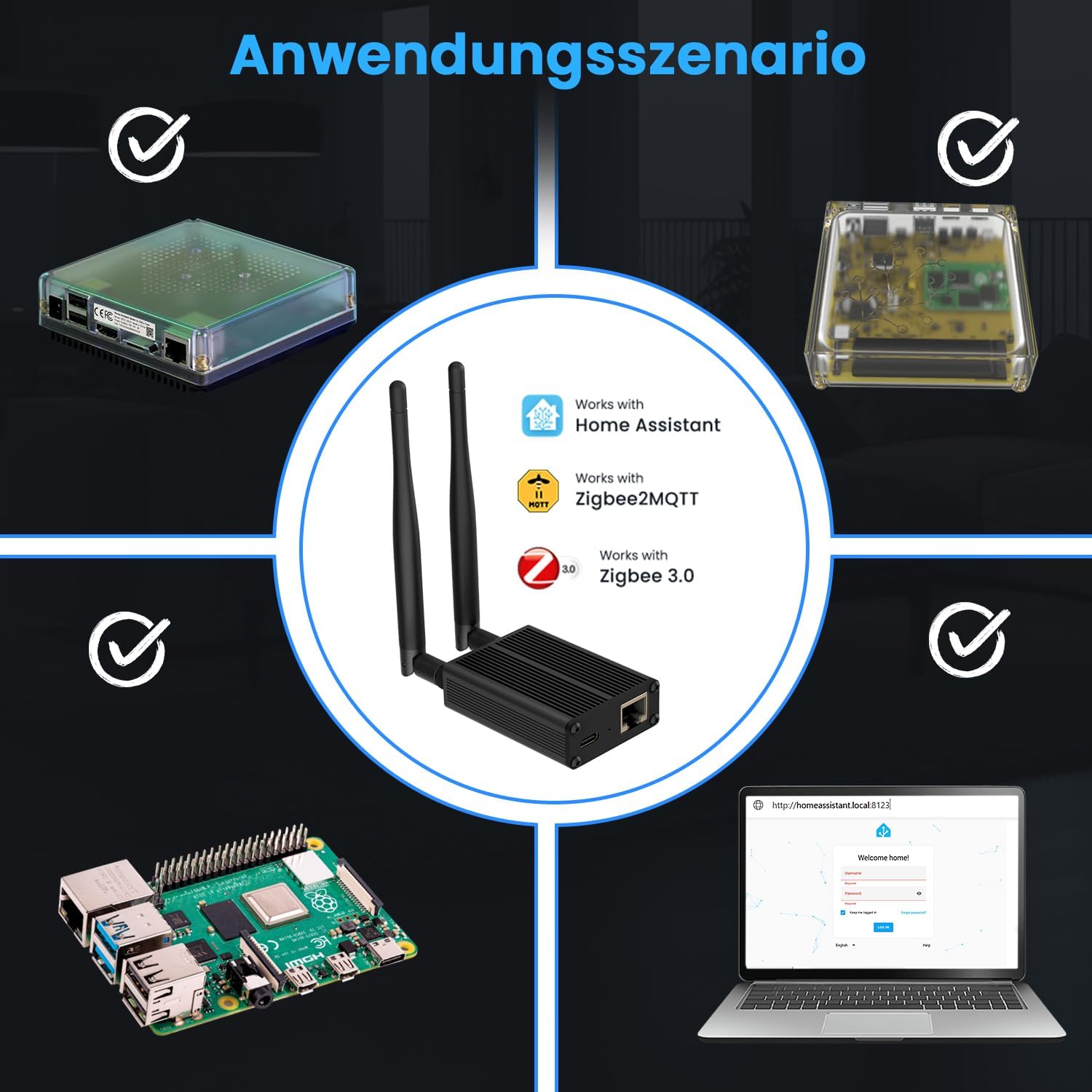
Image 4.2: The dongle's application scenario, demonstrating its role in a smart home ecosystem with Home Assistant and Zigbee2MQTT.
5. Operating Instructions
Once set up, the dongle acts as the central hub for your Zigbee network.
5.1 Adding Zigbee Devices
To add new Zigbee devices to your network:
- Put your Zigbee device into pairing mode (refer to the device's manual).
- Initiate the pairing process from your chosen smart home platform (e.g., Home Assistant, Zigbee2MQTT). The dongle will then discover and connect to the new device.
- Once paired, the device should appear in your smart home platform, allowing you to control and automate it.
5.2 Firmware Updates
Regularly check for and apply firmware updates to ensure optimal performance and security.
- Access the dongle's web interface.
- Navigate to the firmware update section.
- Follow the instructions to check for and install available updates. The device supports automatic updates over the web interface.
6. Maintenance
- Cleaning: Use a soft, dry cloth to clean the device. Do not use liquid cleaners or aerosols.
- Firmware: Keep the firmware updated to benefit from performance improvements and security patches.
- Antenna Position: Periodically check the antenna positions to ensure they are optimally oriented for signal coverage.
7. Troubleshooting
If you encounter issues with your MIUCDA Zigbee 3.0 Home Assistant Dongle, refer to the following common problems and solutions:
| Problem | Possible Cause | Solution |
|---|---|---|
| Device not powering on | Incorrect power supply; loose cable connection | Ensure 5V-1A Type-C power supply is used and cable is securely connected. |
| Cannot access web interface | Incorrect IP address/URL; network issue; device not fully booted | Verify URL (http://dongle.local) or IP. Check network connection. Wait a few minutes after power-on. |
| Zigbee devices not pairing | Device not in pairing mode; interference; distance | Ensure Zigbee device is in pairing mode. Reduce distance to dongle. Check for 2.4GHz interference. |
| Unstable Zigbee network | Antenna position; interference; too many devices | Adjust antenna angles. Check for Wi-Fi channel conflicts. Consider adding Zigbee router devices. |
8. Specifications
| Feature | Detail |
|---|---|
| Model Number | M-GW80-MQTT |
| Input | 5V-1A (Type-C) |
| Wireless Connection | Zigbee 3.0, Wi-Fi IEEE 802.11b/g/n 2.4GHz |
| Working Temperature | -10°C to 60°C |
| Shell Material | Aluminum alloy |
| Antenna Gain | 5dBi |
| Wi-Fi SoC | ESP32 V3 |
| Zigbee SoC | CC2652P/CC2652P7 |
| Ethernet | 100Mbps IEEE 802.3u |
| Dimensions (approx.) | 96mm (L) x 19mm (W) x 115mm (H, with antennas) |
| Weight (approx.) | 120 g |
9. Warranty and Support
MIUCDA products are designed for reliability and performance. For warranty information and technical support, please refer to the documentation included with your purchase or visit the official MIUCDA website. Keep your proof of purchase for warranty claims.