
1. Getting Started
1.1 Package Contents
Before using your Gtonster DV04 camcorder, please verify that all items are present in the package:
- 4K FHD Camcorder
- 64GB SD Card
- Lithium Battery
- Remote Controller
- Lens Cover
- Camera Bag
- USB-C Cable
- HDMI Cable
- User Manual
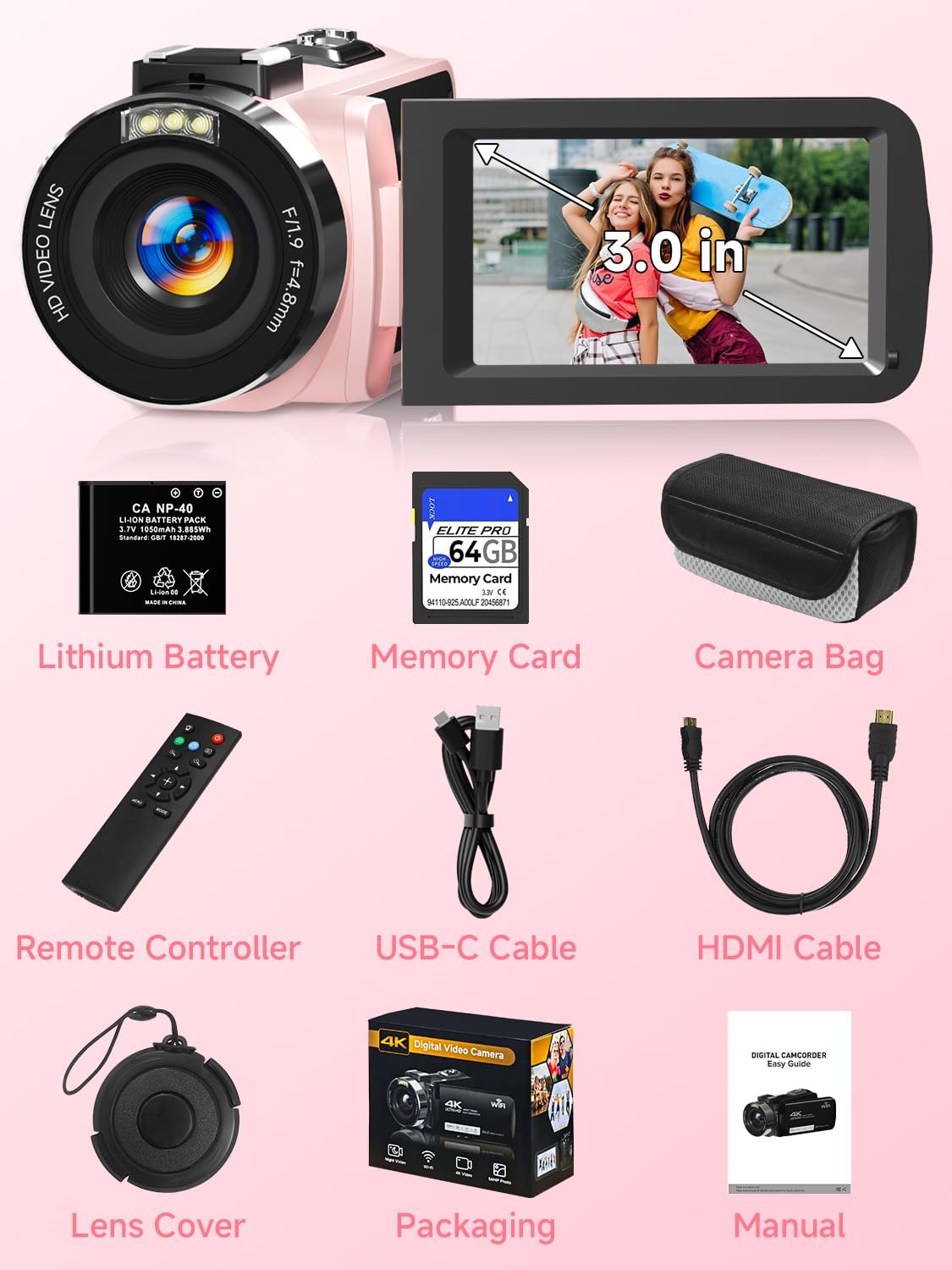
Image: Contents of the Gtonster DV04 Camcorder package.
1.2 Camera Overview
Familiarize yourself with the main components and controls of your camcorder:

Image: Labeled diagram of the Gtonster DV04 Camcorder, highlighting key features like the 3.0-inch screen, IR light, lens, hot shoe, built-in speaker, zoom controls, photo shutter, charge/busy indicator, Power/OK button, Mode button, Menu button, Up/Wi-Fi button, Down button, Rec/Stop button, External MIC Jack, HDMI output interface, and USB interface.
- Lens: Captures video and photo.
- IR Light: Used for infrared night vision.
- 3.0-inch Screen: Rotatable touchscreen display for viewing and control.
- Hot Shoe: For attaching external accessories like an LED light or microphone.
- Buttons: Power/OK, Mode, Menu, Up/Wi-Fi, Down, Rec/Stop for navigation and control.
- Ports: External MIC Jack, HDMI output, USB interface.
1.3 Battery Installation
- Open the battery compartment cover located on the bottom of the camcorder.
- Insert the provided lithium battery, ensuring the correct polarity (+/-) aligns with the markings inside the compartment.
- Close the battery compartment cover until it clicks securely.
1.4 SD Card Installation
- Locate the SD card slot, typically near the battery compartment or on the side.
- Insert the provided 64GB SD card (or another compatible SD card up to 128GB) with the metal contacts facing the correct direction, as indicated by a small diagram near the slot.
- Push the card gently until it clicks into place. To remove, push it again until it springs out.
1.5 Charging the Camera
To charge the camcorder's battery:
- Connect the USB-C cable to the camcorder's USB port.
- Connect the other end of the USB-C cable to a USB power adapter (not included) or a computer's USB port.
- The charge indicator light will illuminate during charging and turn off when fully charged.
2. Operating Instructions
2.1 Powering On/Off
- To Power On: Open the 3.0-inch screen. The camera will automatically power on. Alternatively, press and hold the Power/OK button.
- To Power Off: Close the 3.0-inch screen. The camera will automatically power off. Alternatively, press and hold the Power/OK button.
2.2 Basic Video Recording and Photo Capture
The Gtonster DV04 supports 4K FHD video recording and 56MP still photography.

Image: The camcorder capturing 4K video, showing the 270-degree rotatable screen.

Image: Demonstrating various photo resolutions, including 56MP, captured by the camcorder.
- Select Mode: Use the 'Mode' button to switch between video recording mode and photo capture mode. The current mode will be displayed on the screen.
- Start/Stop Recording (Video): Press the 'Rec/Stop' button to start recording. Press it again to stop.
- Take Photo (Photo): In photo mode, press the 'Photo Shutter' button to capture a still image.
2.3 Using the Touchscreen and 270° Flip Screen
The 3.0-inch touchscreen allows for intuitive control and menu navigation. The screen can be rotated 270 degrees, which is useful for self-recording (vlogging) or shooting from various angles.
2.4 18X Digital Zoom
The camcorder features an 18X digital zoom to magnify distant subjects.

Image: The camcorder's 18X digital zoom capability and its use as a webcam.
Use the 'Zoom In' (T) and 'Zoom Out' (W) buttons, typically located near the lens or on the top of the camera, to adjust the digital zoom level.
2.5 Infrared Night Vision
For low-light conditions, activate the infrared night vision feature.
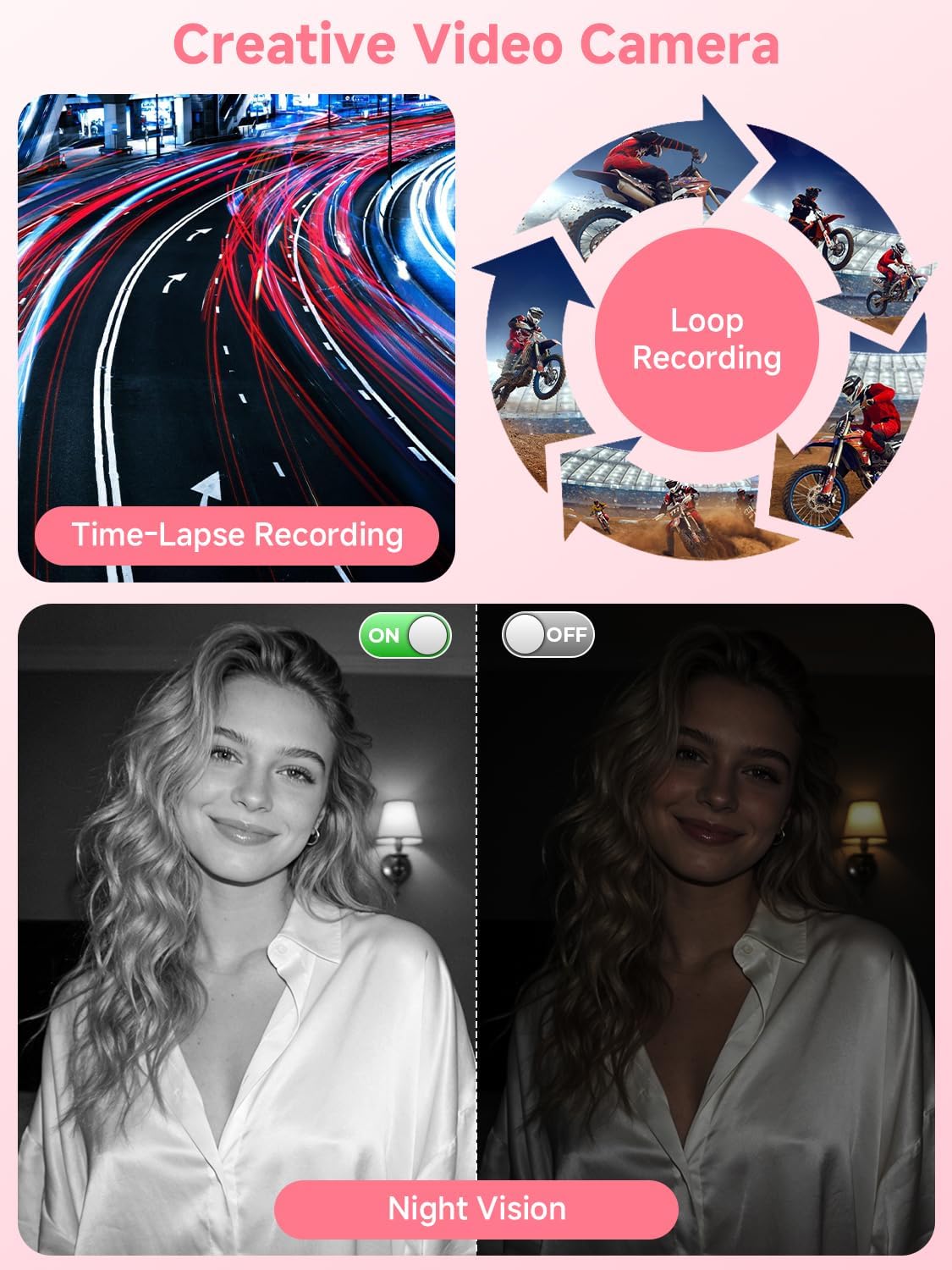
Image: Illustrates Time-Lapse Recording, Loop Recording, and the effect of Night Vision (color vs. monochrome).
Press the 'IR Light' button (often integrated with the Power/OK button or a dedicated button) to toggle night vision on or off. In night vision mode, recordings will appear in monochrome.
2.6 Webcam Function
The camcorder can be used as a webcam for live streaming or video calls.
Connect the camcorder to your computer using the USB-C cable. On the camera's screen, select 'PC Camera' from the pop-up menu. Your computer should recognize the camcorder as a webcam.
2.7 Remote Control Operation
The included remote control allows for convenient operation from a distance.
Point the remote control at the front of the camcorder. Use the buttons on the remote to start/stop recording, take photos, and navigate menus without touching the camera.
2.8 WiFi Connectivity
Transfer photos and videos wirelessly to your smartphone or tablet.
Activate Wi-Fi on the camcorder via the menu. On your mobile device, connect to the camcorder's Wi-Fi network. Use the dedicated app (if applicable, refer to the full manual for app details) to transfer files.
2.9 HDMI Output
View your recordings on a larger screen.
Connect the camcorder to a TV or monitor using the provided HDMI cable. Switch your TV's input source to the corresponding HDMI port. The camcorder's display will be mirrored on the TV.
2.10 Advanced Shooting Modes
The DV04 camcorder offers several advanced features:

Image: Multi-functional video camera modes including Slow Photography, Auto Photo, Continuous Shooting, and Timer Photo.
- Slow-motion Recording: Captures video at a higher frame rate for slow-motion playback.
- Loop Recording: Records video in segments, overwriting the oldest footage when the memory card is full.
- Burst Mode: Takes multiple photos in quick succession.
- Time-lapse Photography: Captures images at set intervals to create a time-lapse video.
- Self-timer: Delays photo capture by a set number of seconds (e.g., 3s, 5s, 10s).
- Multiple Filter Options: Apply various color filters to your photos and videos (e.g., Automatic, Daylight, Cloudy, Fluorescent, Incandescent).
Video: An overview of the Gtonster 4K Video Camera's features and capabilities.
3. Maintenance
3.1 Cleaning
- Lens: Use a soft, lint-free cloth specifically designed for camera lenses. Do not use abrasive materials or harsh chemicals.
- Screen: Wipe the touchscreen gently with a microfiber cloth. For stubborn smudges, use a screen cleaning solution sparingly.
- Body: Use a dry, soft cloth to clean the camera body. Avoid getting moisture into ports or openings.
3.2 Battery Care
- Charge the battery fully before first use.
- Avoid exposing the battery to extreme temperatures.
- If storing the camera for an extended period, remove the battery.
3.3 Storage
Store the camcorder in a cool, dry place away from direct sunlight and excessive humidity. Use the provided camera bag for protection against dust and scratches.
4. Troubleshooting
If you encounter issues with your Gtonster DV04 camcorder, refer to the following common problems and solutions:
| Problem | Possible Cause | Solution |
|---|---|---|
| Camera does not power on. | Low battery; Battery not installed correctly; Faulty battery. | Charge the battery; Reinstall battery correctly; Try a different battery if available. |
| Cannot record video or take photos. | SD card full; SD card not inserted; SD card error; Incorrect mode. | Delete files or use a new SD card; Insert SD card; Format SD card (this will erase all data); Switch to correct mode (video/photo). |
| Poor image/video quality. | Lens is dirty; Insufficient lighting; Incorrect settings. | Clean the lens; Ensure adequate lighting or use night vision; Adjust resolution or exposure settings. |
| Wi-Fi connection issues. | Wi-Fi not enabled; Incorrect password; Distance too far. | Enable Wi-Fi on camera; Re-enter password; Move closer to the camera. |
| Remote control not working. | Battery low in remote; Obstruction between remote and camera; Not pointing correctly. | Replace remote battery (1 AAA battery required); Ensure clear line of sight; Point remote directly at the camera's IR receiver. |
5. Specifications
Key technical specifications for the Gtonster DV04 4K Video Camera Camcorder:
- Brand: Gtonster
- Model Number: DV04
- Photo Sensor Technology: CMOS
- Video Capture Resolution: 4K (3840 Pixels Effective)
- Effective Still Resolution: 56 MP
- Digital Zoom: 18x
- Screen Size: 3 Inches (270° Rotatable Touchscreen)
- Flash Memory Type: SD (Supports up to 128GB, 64GB included)
- Connectivity Technology: HDMI, USB, Wi-Fi
- Features: Night Vision, Webcam Function, Remote Control, Slow-motion Recording, Loop Recording, Burst Mode, Time-lapse Photography, Self-timer, Multiple Filter Options, Digital Image Stabilization
- Battery: 1 Lithium Battery (included)
- Supported Image Format: JPG
- Video Capture Format: MOV
- White Balance Settings: Auto, Cloudy, Fluorescent, Incandescent
- Focus Type: Auto Focus
- Minimum Focal Length: 10 Millimeters
- Maximum Focal Length: 70 Millimeters
6. Warranty Information
The Gtonster DV04 4K Video Camera Camcorder comes with a 1 Year Manufacturer Warranty. Please retain your proof of purchase for any warranty claims. For detailed terms and conditions, refer to the warranty card included in your package or contact Gtonster customer support.
7. Support
For further assistance, technical support, or inquiries regarding your Gtonster DV04 camcorder, please refer to the contact information provided in your product packaging or visit the official Gtonster website. Ensure you have your model number (DV04) and purchase details ready when contacting support.