1. Introduction
This manual provides detailed instructions for the setup, operation, maintenance, and troubleshooting of your MAMBASNAKE ATTACK SHARK R85 HE Wired Rapid Trigger Mechanical RGB Gaming Keyboard. Please read this manual thoroughly to ensure proper use and to maximize your gaming experience.

Figure 1: The R85 HE keyboard, showcasing its compact design and vibrant RGB lighting.
2. What's in the Box
Verify that all items are present in the package:
- Keyboard x1
- Keycap and Switches Puller x1
- User Manual x1
- Dust Cover x1
- USB-C Cable x1
- ATTACK SHARK Sticker x2

Figure 2: All components included in the R85 HE keyboard package.
3. Setup
3.1 Connecting the Keyboard
- Locate the USB-C port on the keyboard, typically on the rear or side.
- Connect the provided USB-C cable to the keyboard.
- Connect the other end of the USB-C cable to an available USB port on your computer (PC or Mac).
- The keyboard will automatically be recognized by your operating system.
3.2 Initial Power-On and Lighting
Upon connecting, the keyboard's RGB lighting will illuminate. You can adjust lighting effects and brightness using the keyboard's function keys or the dedicated web driver software.
3.3 Web Driver Software Installation
For advanced customization of key functions, macros, and lighting effects, download and install the official web driver software. Refer to the included user manual for the web driver link or search for 'ATTACK SHARK R85 HE driver' online.

Figure 3: The web driver interface for customizing keyboard settings and lighting.
3.4 Quick Calibration Guide (via Web Driver)
- Open the web driver or the downloaded software.
- In the “Keyboard Setting” panel, find “Travel Calibration” on the right side and click it.
- In the pop-up window, select “Start Calibration.”
- Follow the on-screen instructions, then click “Calibration Complete” to finish.
4. Operating Instructions
4.1 Basic Key Functions
The R85 HE features a 75% layout. Standard alphanumeric keys function as labeled. Special functions are typically accessed via the Fn key in combination with other keys.
4.2 RGB Lighting Control
The keyboard features a custom top-mounted RGB lightbox and per-key RGB backlighting. Lighting effects can be customized:
- On-board Controls: Use Fn key combinations (refer to the user manual for specific key combinations) to cycle through various dynamic lighting effects, adjust brightness, and change colors.
- Web Driver: The web driver software allows for free customization of multiple dynamic lighting effects, including individual key color mapping and advanced patterns.

Figure 4: The keyboard's distinctive top-mounted RGB lightbox.
4.3 Magnetic Switches and Rapid Trigger
The premium esports magnetic switches offer adjustable actuation distance and rapid trigger functionality. These settings can be fine-tuned using the web driver software to suit individual preferences and gaming styles, allowing for precise control and quick key resets.
Video 1: Demonstrates the typing experience and RGB lighting of the ATTACK SHARK R85HE Mechanical Keyboard.
Video 2: Overview of the MAMBASNAKE & ATTACK SHARK R85 Gaming Keyboard's features and design.
4.4 Mac/PC Compatibility
The keyboard includes a switch for Mac/PC compatibility, allowing seamless use across different operating systems. Locate the switch on the rear or side of the keyboard and set it to the appropriate mode for your device.
5. Features Overview
- Compact 75% Layout: Balances functionality for typing and gaming while saving desk space. The stylish webbing strap enhances portability.
- Ultra-low Latency Performance: Features an 8000Hz Polling Rate, 0.08ms race-grade latency, and a custom high-frequency gaming chip for lightning-fast responsiveness.
- 0.005mm RT Accuracy: Ensures greater accuracy for emergency stops and rapid-fire sequences with zero dead zone design, crucial for high-intensity esports.
- Premium Esports Magnetic Switches: Uniquely tuned switch body curve supports multiple types of esports magnetic switches and hybrid configurations. Delivers stable tactile feedback and rapid actuation with HIFI-grade audio.
- Five-layer Noise-cancelling Design: A precision combination of PE sandwich foam, IXPE shaft-mounted pads, PET acoustic damping pads, shaft-seat noise-cancelling foam, and silicone base neutralizes noise for a clear, pure Hi-Fi listening experience. An aluminum alloy positioning plate ensures stable operation.
- Web-driven Customization: Supports web-driven adjustments for bespoke key functions, macros, and dynamic lighting effects, enhancing operational efficiency and aesthetics.

Figure 5: Key features of the R85 HE Magnetic Gaming Keyboard.

Figure 6: Detailed view of the keyboard's five-layer noise-cancelling design.
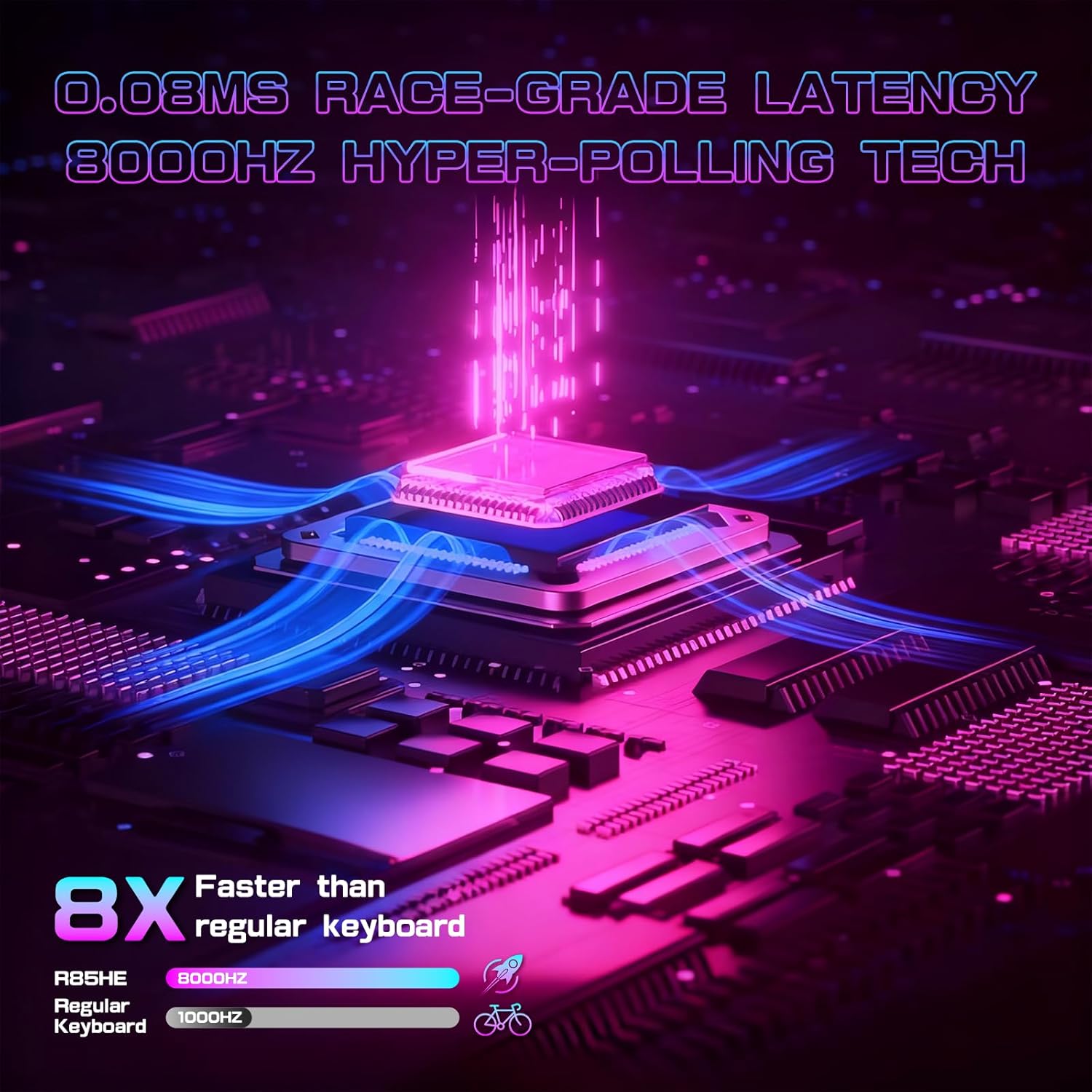
Figure 7: Visual representation of the keyboard's ultra-low latency and high polling rate.

Figure 8: Illustration of the rapid trigger magnetic switch mechanism.

Figure 9: Highlighting the 0.005mm RT accuracy and zero dead zone for precise input.
6. Maintenance
- Cleaning: Use a soft, dry cloth to wipe the keyboard surface. For deeper cleaning, use the provided keycap puller to remove keycaps and clean dust or debris with compressed air.
- Storage: When not in use, store the keyboard in a dry, cool place. Use the provided dust cover to protect it from dust accumulation.
- Handling: Avoid dropping the keyboard or exposing it to excessive force, liquids, or extreme temperatures.
7. Troubleshooting
- Keyboard not responding:
- Ensure the USB-C cable is securely connected to both the keyboard and the computer.
- Try connecting the keyboard to a different USB port on your computer.
- Restart your computer.
- Lighting not working/incorrect:
- Check the keyboard's on-board lighting controls (Fn key combinations) to ensure lighting is enabled and set correctly.
- Verify settings in the web driver software.
- Ensure the keyboard is receiving sufficient power.
- Keys not registering or double-typing:
- Clean under the affected keycaps using the keycap puller and compressed air.
- If using the web driver, ensure no conflicting macros or key bindings are active.
- Perform a calibration via the web driver software (refer to Section 3.4).
- Software/Web Driver issues:
- Ensure your operating system is up to date.
- Reinstall the web driver software.
- Check the manufacturer's website for updated drivers or FAQs.
8. Specifications
| Feature | Description |
|---|---|
| Product Dimensions | 12.6 x 5.71 x 1.38 inches (13"L x 6.5"W x 1.5"H) |
| Item Weight | 2.49 pounds |
| Brand | MAMBASNAKE |
| Model Number | R85 |
| Compatible Devices | MAC, PC |
| Connectivity Technology | USB-C |
| Keyboard Description | Magnetic Mechanical Gaming Keyboard |
| Special Features | 256K scanning rate, 5 Layer Filling, 8KHz Polling Rate, 0.08ms Latency, 0.05mm RT Accuracy, Custom RGB Lightbox, Hall Effect Magnetic Switch, Hot-Swappable, Programmable Web Driver |
| Keyboard Backlighting | RGB |
9. Warranty and Support
For warranty information and technical support, please refer to the official MAMBASNAKE website or contact their customer service directly. Keep your purchase receipt as proof of purchase.