1. Introduction
This manual provides comprehensive instructions for the installation, operation, and maintenance of your new Generic Ninkear N15 Pro Laptop Keyboard. Please read this manual thoroughly before installation to ensure proper function and longevity of the product. This keyboard features an English US layout and is not backlit.
2. Product Overview
The Generic Ninkear N15 Pro Laptop Keyboard is a replacement component designed for specific Ninkear N15 Pro laptop models. It features a standard English US layout and a black finish. This model does not include backlighting.
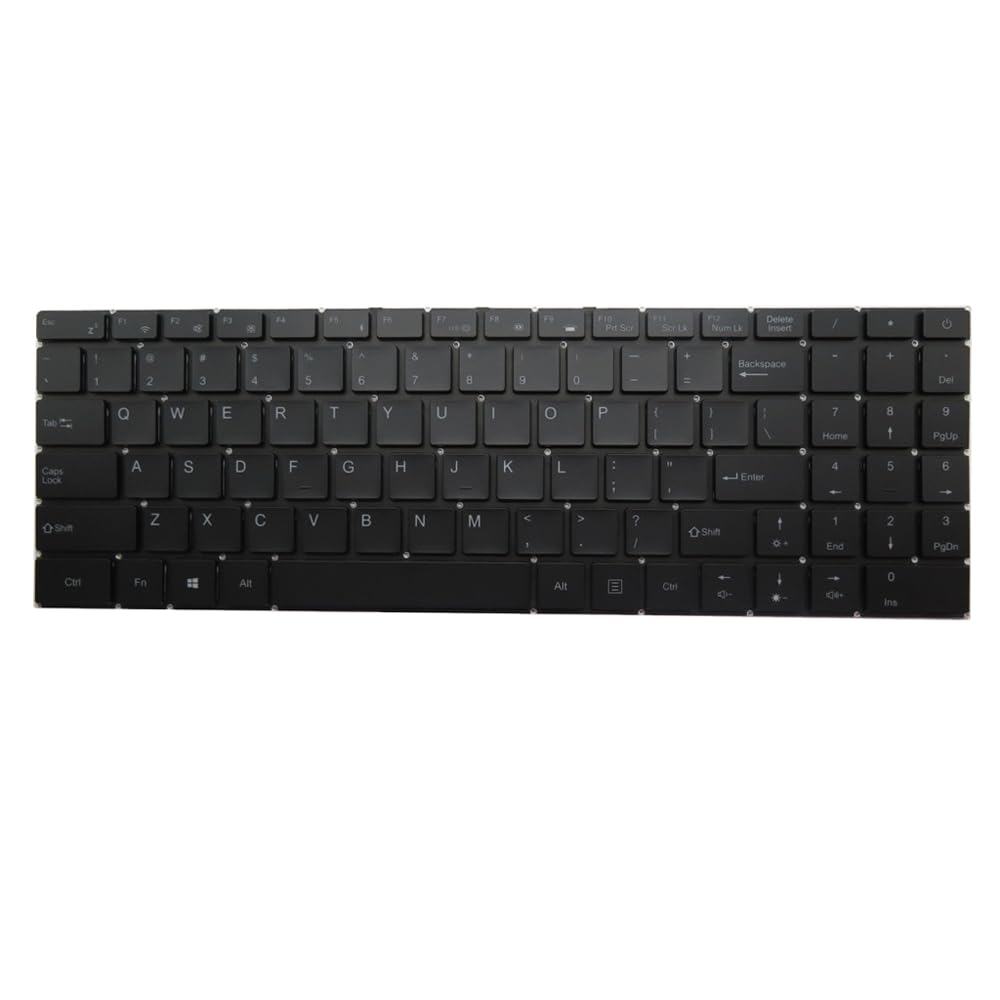
Figure 1: Front view of the Generic Ninkear N15 Pro Laptop Keyboard. This image displays the full keyboard layout, including alphanumeric keys, function keys, and the numeric keypad on the right. The keys are black with white legends, and there is no visible backlighting.
3. Setup and Installation
This keyboard is intended as a replacement part. Professional installation is recommended. Incorrect installation may damage your laptop or the keyboard.
- Compatibility Check: Before proceeding, verify that this keyboard is compatible with your specific Ninkear N15 Pro laptop model. Refer to your laptop's service manual or the product's part number.
- Power Off: Ensure your laptop is completely powered off and disconnected from all power sources, including the battery.
- Disassembly: Carefully disassemble your laptop to access the existing keyboard. This typically involves removing screws, prying open clips, and disconnecting ribbon cables. Consult your laptop's service manual for precise steps.
- Remove Old Keyboard: Disconnect the ribbon cable(s) of the old keyboard from the motherboard and remove the old keyboard.
- Install New Keyboard: Connect the ribbon cable(s) of the new Generic Ninkear N15 Pro keyboard to the corresponding connectors on the motherboard. Ensure the cables are seated securely and correctly.
- Secure Keyboard: Place the new keyboard into its housing and secure it with any clips or screws that were removed during disassembly.
- Reassembly: Carefully reassemble your laptop, ensuring all components are correctly placed and secured.
- Initial Test: Reconnect the battery and power adapter. Power on your laptop and test all keys to ensure they are functioning correctly.
4. Operating Instructions
Once installed, the Generic Ninkear N15 Pro keyboard functions as a standard laptop keyboard. No special drivers are typically required for basic operation, as it uses standard HID (Human Interface Device) protocols.
- Standard Typing: Use the alphanumeric keys for text input.
- Function Keys (F1-F12): These keys often have secondary functions (e.g., volume control, brightness adjustment, Wi-Fi toggle) when pressed in combination with the Fn key. Refer to your laptop's specific documentation for these combinations.
- Numeric Keypad: If present, use the numeric keypad for efficient number entry. Ensure Num Lock is active if required.
5. Maintenance
Proper maintenance ensures the longevity and performance of your keyboard.
- Cleaning: Regularly clean the keyboard surface with a soft, lint-free cloth. For stubborn dirt, slightly dampen the cloth with water or a mild, non-abrasive cleaner. Avoid excessive moisture.
- Dust Removal: Use compressed air to remove dust and debris from between the keys. Hold the can upright and spray in short bursts.
- Avoid Spills: Keep liquids away from the keyboard to prevent damage to internal components.
- Gentle Use: Avoid excessive force when typing to prevent premature wear of the key mechanisms.
6. Troubleshooting
If you encounter issues with your keyboard, try the following troubleshooting steps:
- Keys Not Responding:
- Ensure the keyboard ribbon cable is securely connected to the motherboard.
- Restart your laptop.
- Check for any physical obstructions under the keys.
- Incorrect Key Output:
- Verify that the correct keyboard layout is selected in your operating system settings.
- Ensure no sticky keys or accessibility features are inadvertently enabled.
- Keyboard Not Detected:
- Re-check all internal connections.
- Update or reinstall keyboard drivers through your operating system's Device Manager.
- If possible, test with another compatible keyboard to rule out a laptop motherboard issue.
If these steps do not resolve the issue, contact the seller or a qualified technician for further assistance.
7. Specifications
| Model | N15 Pro (Compatible) |
| Layout | English US |
| Backlight | No |
| Color | Black |
| Product Dimensions | 16.93 x 7.09 x 2.76 inches |
| Item Weight | 10.6 ounces |
| Manufacturer | Generic |
| ASIN | B0FWZ5BQZ2 |
8. Warranty and Support
As this product is listed as "Generic" and sold by a third-party seller, specific warranty details are not provided in this manual. For information regarding warranty coverage, returns, or technical support, please contact the seller directly through your purchase platform. Keep your purchase receipt as proof of purchase.
For general laptop maintenance and troubleshooting, refer to your Ninkear N15 Pro laptop's official documentation or support resources.


