
Vorally VIKA-CHANZH-809A
Vorally Android 13 Car Player User Manual
Model: VIKA-CHANZH-809A
1. Introduction
This manual provides detailed instructions for the installation, operation, and maintenance of your Vorally Android 13 Car Player. This head unit features a 7-inch retractable screen, Android 13 operating system, GPS navigation, Bluetooth 5.1, Wi-Fi connectivity, CarPlay, and Android Auto support. Please read this manual thoroughly before use to ensure proper functionality and safety.
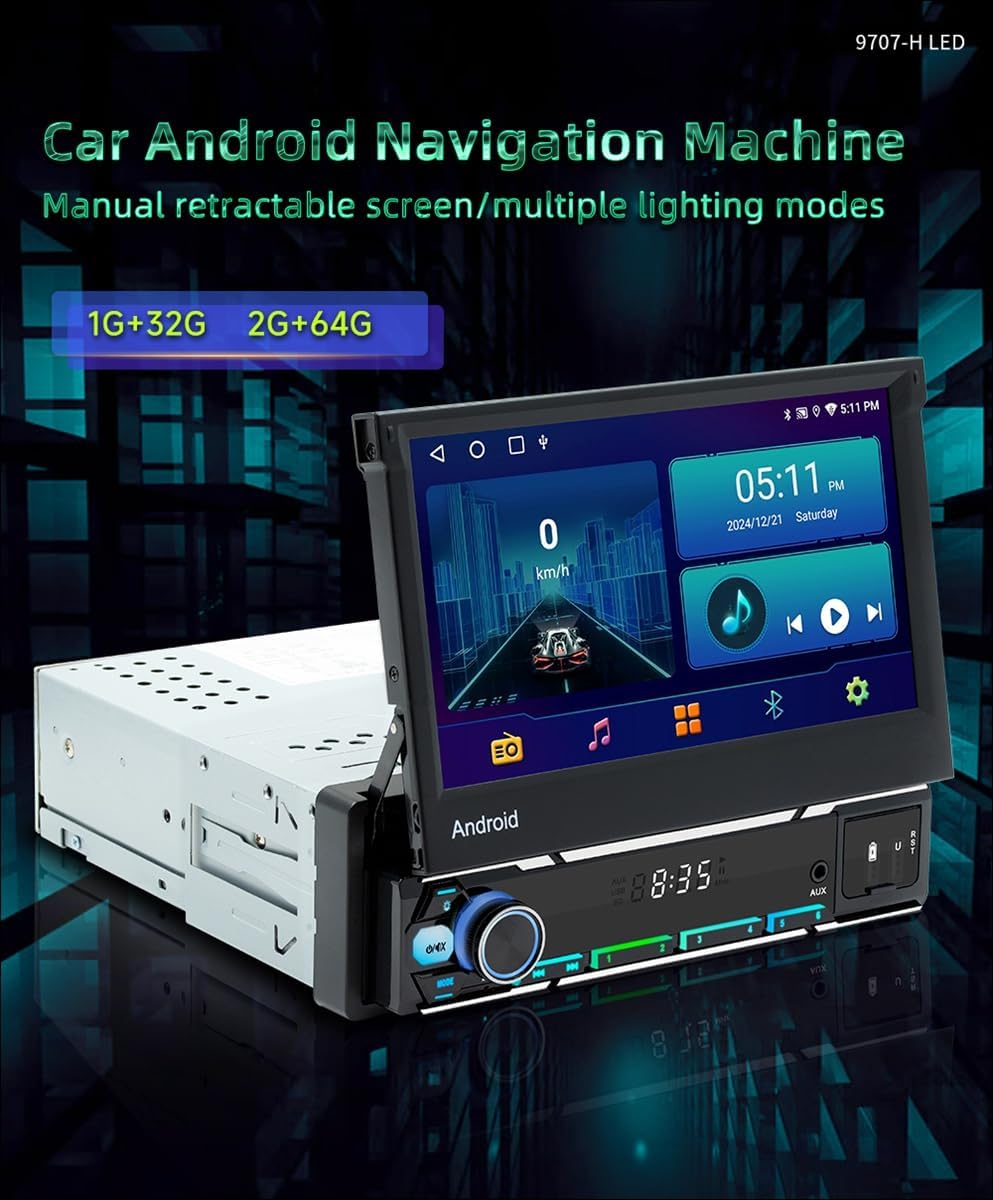
Image: The Vorally Android 13 Car Player with its 7-inch retractable screen extended, displaying the Android interface. The unit is a single DIN size with physical buttons and a USB port on the front panel.
2. Setup and Installation
Professional installation is highly recommended for this car player to ensure correct wiring and avoid damage to your vehicle or the unit.
2.1. Package Contents
Verify that all components are present before beginning installation:
- Vorally Android 13 Car Player Head Unit
- Power Harness
- GPS Antenna
- USB Cables
- User Manual (this document)
- Mounting Brackets and Screws
2.2. Installation Steps
- Disconnect Battery: Before starting, disconnect the negative terminal of your vehicle's battery to prevent electrical shorts.
- Remove Old Head Unit: Carefully remove your existing car stereo.
- Connect Wiring Harness: Connect the provided power harness to the car player and your vehicle's wiring. Ensure all connections are secure and match the vehicle's wiring diagram.
- Connect Antennas: Connect the GPS antenna and any other relevant antennas (e.g., radio antenna). Position the GPS antenna in a location with a clear view of the sky.
- Mount the Unit: Slide the car player into the dashboard opening and secure it using the provided mounting brackets and screws.
- Reconnect Battery: Reconnect the negative terminal of your vehicle's battery.
- Initial Power On: Turn on your vehicle's ignition and power on the car player to test functionality.
2.3. Wiring Protection
The unit is designed with wiring protection features. Ensure all wires are properly insulated and routed to prevent pinching or short-circuiting during installation.

Image: A diagram illustrating key features of the car player, including the Android system, GPS navigation, WiFi internet, CarPlay & Android Auto, Mirrorlink, and a symbol for wiring protection (a lightning bolt within a shield).
3. Operating Instructions
3.1. Basic Operation
- Power On/Off: Press and hold the power button on the front panel.
- Volume Control: Use the rotary knob or on-screen controls.
- Screen Retraction: The 7-inch screen is manually retractable. Gently push or pull the screen to adjust its position.
- Navigation: The Android 13 interface is touch-sensitive. Swipe, tap, and pinch to navigate menus and applications.
3.2. Android 13 System
The unit runs on Android 13 with a Cortex-A7 quad-core processor and 2GB RAM + 64GB ROM. This allows for smooth operation of various applications.
3.3. CarPlay & Android Auto
The unit supports both wired and wireless CarPlay and Android Auto for seamless smartphone integration.
- Wired Connection: Connect your smartphone to the unit via a USB cable.
- Wireless Connection: Ensure Bluetooth and Wi-Fi are enabled on your phone and the head unit. Follow the on-screen prompts to pair and connect.
3.4. Bluetooth 5.1
Connect your mobile phone via Bluetooth for hands-free calling and audio streaming.
- Go to the Bluetooth settings on the car player.
- Enable Bluetooth on your mobile phone and search for available devices.
- Select the car player (e.g., "Vorally Car Player") from the list on your phone and pair.
- Confirm the pairing code if prompted.
3.5. Wi-Fi Connectivity
Connect to mobile hotspots or other Wi-Fi networks to access online features, download apps, and stream content.
- Go to the Wi-Fi settings on the car player.
- Turn on Wi-Fi and select your desired network.
- Enter the password if required and connect.

Image: A visual representation of the car player's screen displaying various online applications like YouTube and a web browser, demonstrating its Wi-Fi internet capabilities. A Wi-Fi signal icon is visible on the right.
3.6. GPS Navigation
The unit supports Beidou, GPS, and GLONASS for accurate navigation. Pre-installed maps or online navigation apps can be used.
3.7. RDS Radio
Tune into FM/AM radio stations with RDS (Radio Data System) support for displaying station information.
3.8. Steering Wheel Control
The unit supports steering wheel control learning. Access the settings menu to program your vehicle's steering wheel buttons to control the car player's functions.
3.9. Mirrorlink
Mirrorlink allows you to display your Android or Apple smartphone screen on the car player, supporting both wired and wireless connections.
3.10. External Devices
- Driving Recorder: Connect a compatible USB driving recorder (optional).
- DAB: Connect an external USB interface DAB box for digital audio broadcasting (optional).
- Reversing Camera: Supports reversing camera input (camera optional).
4. Maintenance
4.1. Screen Cleaning
Use a soft, lint-free cloth to gently wipe the screen. For stubborn smudges, slightly dampen the cloth with water or a screen-cleaning solution. Avoid harsh chemicals or abrasive materials.
4.2. General Care
- Keep the unit free from dust and debris.
- Avoid exposing the unit to extreme temperatures or direct sunlight for prolonged periods.
- Ensure proper ventilation around the unit.
5. Troubleshooting
| Problem | Possible Cause | Solution |
|---|---|---|
| No Power | Incorrect wiring; Blown fuse; Vehicle battery issue. | Check power connections and fuses. Ensure vehicle battery is charged. Consult a professional if necessary. |
| No Sound | Speaker wires disconnected; Volume too low; Mute function active. | Check speaker connections. Increase volume. Disable mute. |
| Bluetooth Connection Issues | Bluetooth not enabled; Device not discoverable; Interference. | Ensure Bluetooth is on for both devices. Make device discoverable. Try pairing again. |
| GPS Not Working | GPS antenna not connected or poorly positioned; Software issue. | Check GPS antenna connection and ensure it has a clear view of the sky. Restart the unit. |
| Touch Screen Unresponsive | Temporary software glitch; Screen calibration needed. | Restart the unit. If issue persists, check for a reset button or consult support. |
6. Specifications
| Feature | Specification |
|---|---|
| Product Name | Car Android Player |
| Screen Size | 7-inch retractable capacitive screen |
| Resolution | 1024 x 600 |
| Operating System | Android 13 |
| Processor | Cortex-A7 quad-core |
| Memory (RAM) | 2GB |
| Storage (ROM) | 64GB |
| Bluetooth Version | Bluetooth 5.1 |
| Wi-Fi | 2.4GHZ/5GHZ dual-band |
| Power Output | 60W x 4 |
| Voltage | 12-14.4V (8-16.5V wide voltage range) |
| Operating Temperature | -10℃ to 60℃ (-30℃ to 75℃ operating range) |
| Panel Lighting | Colorful lights (Red backlighting) |
| Installation Size | 178mm x 53mm |
| Case Size | 188mm x 58mm |
| Host Depth | 160mm |
| Special Features | GPS Navigation, Voice Assistant, Bluetooth, WiFi, CarPlay & Android Auto, RDS Radio, Steering Wheel Control, Driving Recorder Support, DAB Support, Mirrorlink |
| Model Number | VIKA-CHANZH-809A |
| ASIN | B0FWXSV6NM |
7. Warranty and Support
7.1. Warranty Information
- 30 Days: Exchange or Return policy.
- 365 Days: Product Warranty.

Image: A graphic detailing the warranty and service terms: 30 days for exchange or return, 365 days for warranty, and 24/7 customer support. An email address for customer support is also provided.
7.2. Customer Support
For any questions, technical assistance, or warranty claims, please contact Vorally customer support:
- Email: yutaidaloralus@outlook.com
When contacting support, please provide your product model number (VIKA-CHANZH-809A) and a detailed description of the issue.

Image: A graphic illustrating steps to access 24-hour customer support, highlighting how to find the seller ('Sold by Vorally') and an 'Ask a question' button, typically found on online retail platforms.
Ask a question about this manual
Ask about setup, troubleshooting, compatibility, parts, safety, or missing instructions. Manuals+ will review the question and use this page’s manual context to help answer it.