
1. Product Overview
The Samsung Galaxy Tab A11 (SM-T290) is an 8.7-inch WiFi tablet designed for everyday use. It features a streamlined silhouette and clean finish, available in a grey color. The device is equipped with a TFT LCD display, offering a bright and clear viewing experience. It includes 4GB of RAM and 64GB of internal storage, expandable via microSD card. For audio, it features dual Dolby speakers and a 3.5mm audio jack.
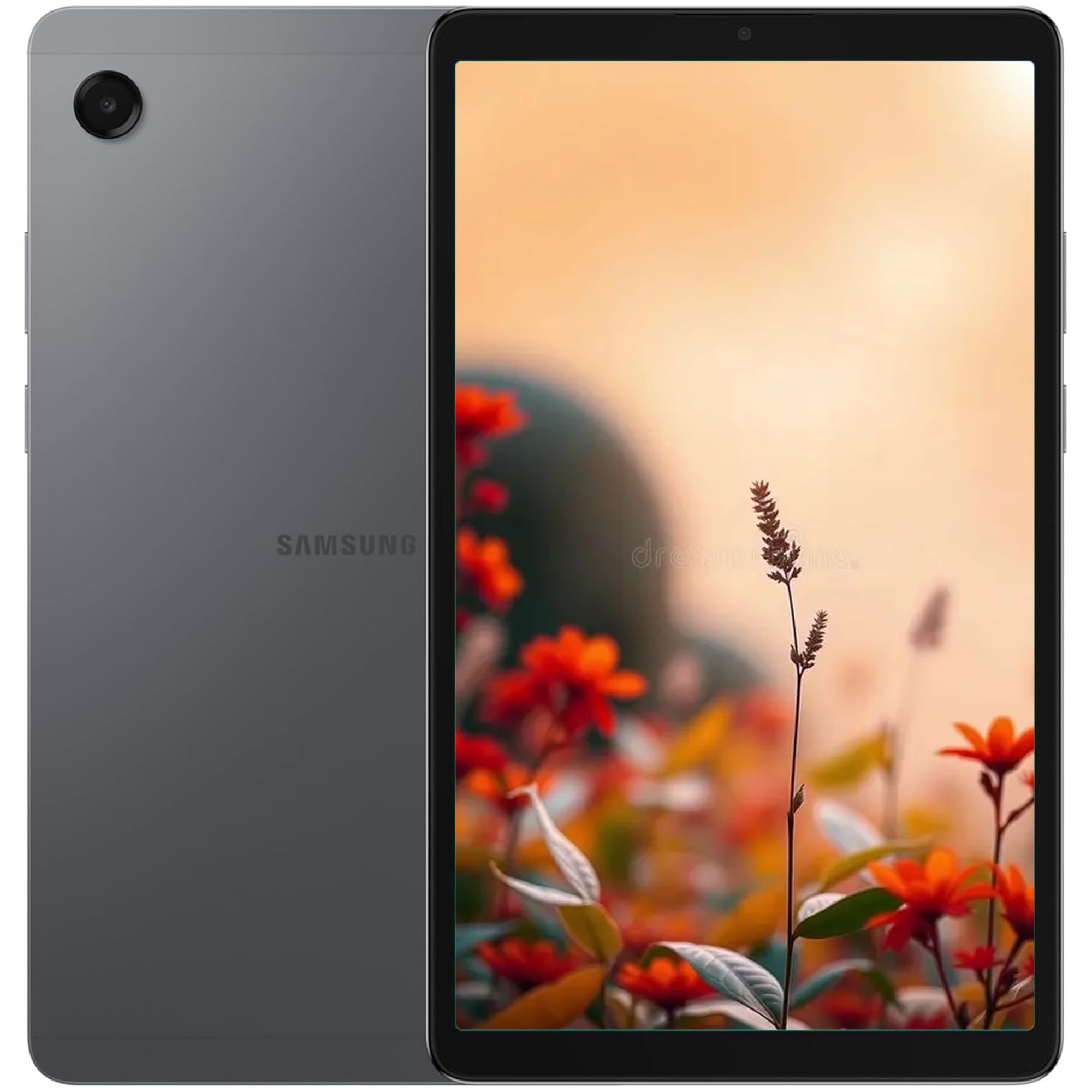
Image: Front view of the Samsung Galaxy Tab A11 in grey, showcasing its 8.7-inch display.
2. Setup
2.1 Initial Power On
To power on your Samsung Galaxy Tab A11, press and hold the Power button located on the side of the device until the Samsung logo appears on the screen. Follow the on-screen prompts to complete the initial setup, including language selection, Wi-Fi connection, and Google account setup.
2.2 Charging the Device
Connect the USB-C charging cable to the tablet's USB-C port and the other end to a compatible power adapter. The tablet supports 15W fast charging. A charging indicator will appear on the screen. Ensure the device is charged before first use for optimal performance.
2.3 MicroSD Card Installation
The tablet supports storage expansion up to 2TB using a microSD card. Locate the SIM/microSD card tray on the side of the device. Use the provided ejection tool to open the tray. Carefully place the microSD card into the designated slot and reinsert the tray into the tablet.
3. Operating the Device
3.1 Display and Navigation
The Galaxy Tab A11 features an 8.7-inch TFT LCD display with a resolution of 1340x800 pixels. It supports a 90Hz refresh rate for smoother scrolling and visual experience. Navigate the device using touch gestures: swipe to move between screens, tap to select items, and pinch to zoom.
3.2 Software and User Interface
The tablet runs on the Android operating system with Samsung's One UI. This interface provides a user-friendly experience with customizable widgets, themes, and settings. Access apps from the home screen or by swiping up to open the app drawer. The device is designed to receive up to 7 years of software updates.
3.3 Multitasking Features
Utilize split-screen mode to run two applications simultaneously. Access the Edge Panel for quick access to frequently used apps and tools. The Taskbar at the bottom of the screen also provides convenient navigation and app switching.
4. Camera Features
The Samsung Galaxy Tab A11 is equipped with an 8MP rear camera and a 5MP front camera. Both cameras support video recording up to 1080p resolution at 30 frames per second. The front-facing camera is positioned on the long edge, ideal for video calls in landscape orientation.
4.1 Camera Modes
Standard camera modes include Photo, Video, and Portrait. Additional modes such as Pro, Night, Food, Panorama, and Hyperlapse are available under the "More" option in the camera application.
5. Audio and Speakers
The tablet features dual speakers with Dolby Atmos support, providing an immersive audio experience for media consumption. A 3.5mm audio jack is included for connecting wired headphones or external speakers.
6. Storage and Memory
The Galaxy Tab A11 comes with 4GB of RAM for smooth multitasking and 64GB of internal storage for apps and files. Storage can be expanded significantly using a microSD card, supporting up to 2TB.
7. Battery Life
The device is powered by a 5100 mAh battery. It supports 15W fast charging. Actual battery life may vary based on usage patterns and settings.
8. Specifications
| Feature | Specification |
|---|---|
| Brand | Samsung |
| Model Name | Galaxy Tab A11 |
| Item Model Number | SM-T290 |
| Operating System | Android |
| Screen Size | 8.7 Inches |
| Screen Resolution | 1340x800 |
| Max Screen Resolution | 1920x1200 |
| Memory Storage Capacity | 64 GB |
| RAM | 4GB (Base Model) |
| Processor Brand | Samsung |
| Wireless Type | 802.11a/b/g/n |
| Color | Grey |
| Item Weight | 11.8 ounces |
| Product Dimensions | 0.31 x 4.91 x 8.31 inches |
| Batteries | 1 Nonstandard Battery (included) |
9. Troubleshooting
If you encounter any issues with your Galaxy Tab A11, try the following general troubleshooting steps:
- Restart the device: A simple restart can often resolve minor software glitches.
- Check for software updates: Ensure your device is running the latest software version by navigating to Settings > Software update.
- Clear app cache: If a specific app is causing issues, try clearing its cache in Settings > Apps > [App Name] > Storage > Clear cache.
- Factory reset: As a last resort, you can perform a factory reset (Settings > General management > Reset > Factory data reset). Warning: This will erase all data on your device. Back up important data before proceeding.
10. Warranty and Support
The Samsung Galaxy Tab A11 comes with a standard manufacturer's warranty. For detailed warranty information, please refer to the documentation included in your product packaging or visit the official Samsung support website. For technical assistance, product registration, or service requests, please contact Samsung customer support.
You can also find additional support and FAQs on the Samsung Store on Amazon.