
Introduction
This manual provides detailed instructions for setting up, operating, and maintaining your Dopesplay 16" 120Hz Portable Gaming Monitor. Designed for versatility and high performance, this monitor offers a 16-inch 1200P FHD IPS display with 100% sRGB color gamut and a 120Hz refresh rate, making it suitable for gaming, professional work, and entertainment on the go. Please read this manual thoroughly to ensure optimal use and longevity of your device.
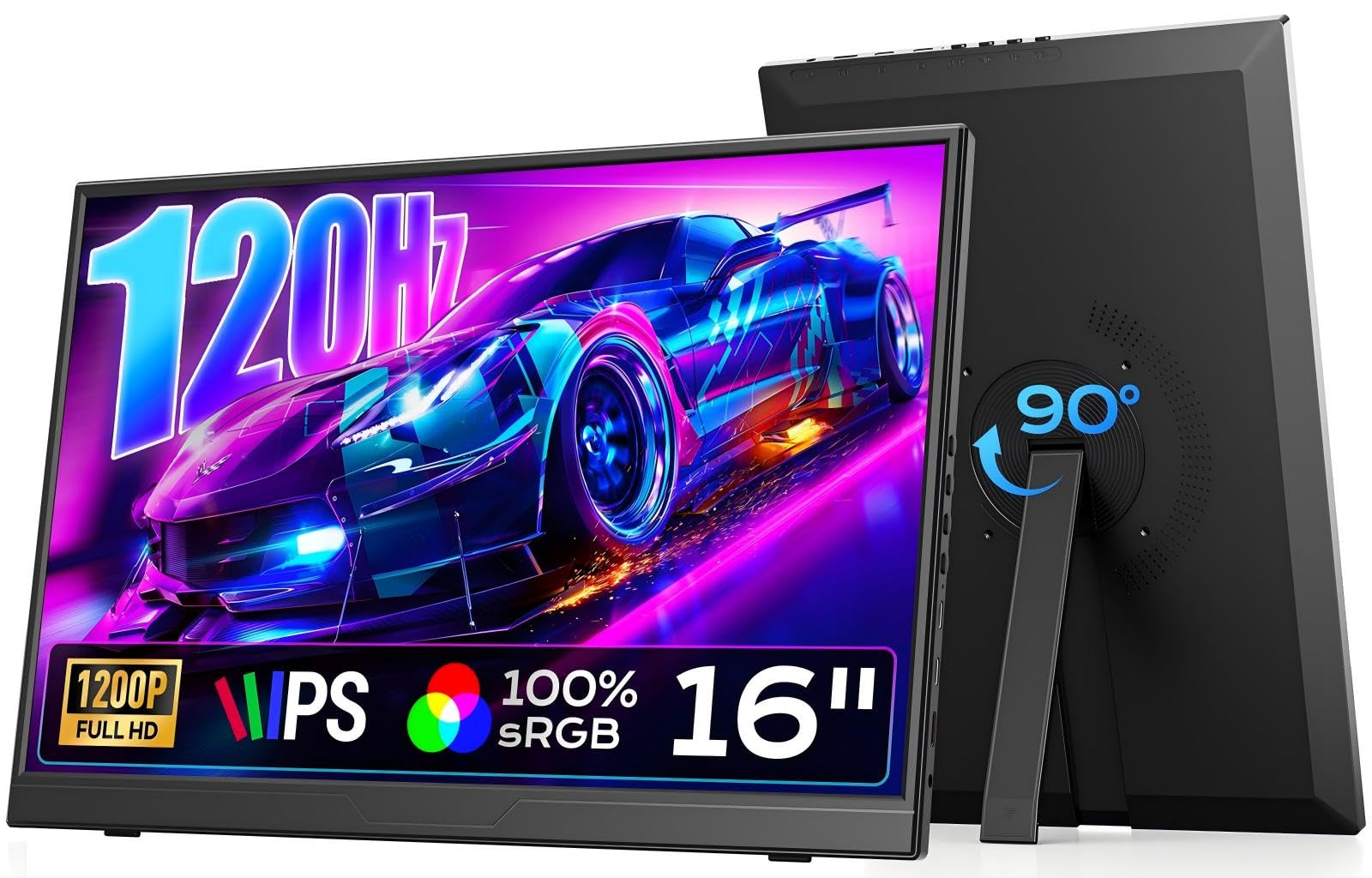
Image: The Dopesplay 16-inch 120Hz Portable Gaming Monitor, showcasing its sleek design and vibrant display.
Package Contents
Verify that all items listed below are included in your package:
- 1 x Dopesplay 16" Portable Monitor
- 1 x USB-C to USB-C Cable (Full-Featured)
- 1 x HDMI to Mini HDMI Cable
- 1 x USB-A to USB-C Cable
- 1 x Charging Adapter
- 1 x User Manual

Image: Contents of the Dopesplay portable monitor package, showing the monitor, various cables, a charging adapter, and the user manual.
Setup
Follow these steps to set up your Dopesplay portable monitor:
1. Physical Setup
- Positioning the Monitor: Unfold the built-in rotatable stand to position the monitor on a stable surface. The stand supports both landscape and portrait orientations.
- Connecting to Power:
- If your device (laptop/phone) has a full-function USB-C port, a single USB-C to USB-C cable can provide both power and video signal.
- If your device's USB-C port is not full-function, or if you are using the Mini HDMI port, connect the included USB-A to USB-C cable to the monitor for power, and plug the USB-A end into the charging adapter or a powered USB-A port on your device.
- Always ensure the monitor receives adequate power for stable operation.

Image: A Dopesplay portable monitor connected to a laptop via a single USB-C cable, demonstrating a streamlined connection for both power and display.

Image: A Dopesplay portable monitor connected to a laptop using an HDMI cable for video and a USB-A to USB-C cable for power, illustrating dual cable connection.
2. Connecting to Devices
- USB-C Connection (Full-Featured):
Connect one end of the full-featured USB-C to USB-C cable to your device's USB-C port and the other end to one of the monitor's USB-C ports. This single cable can transmit video, audio, and power (if your device supports power delivery).
Compatible with: Laptops, Mini PCs, Pads, iPhones (with appropriate adapters), and other devices with full-function USB-C ports.
- HDMI Connection:
Connect one end of the HDMI to Mini HDMI cable to your device's HDMI port and the Mini HDMI end to the monitor's Mini HDMI port. You will also need to connect the USB-A to USB-C cable for power.
Compatible with: PS4/5, Xbox, Gaming Consoles, PCs, and other devices with HDMI output.

Image: An illustration of the Dopesplay portable monitor's various ports (USB-C, Mini HDMI, 3.5mm Audio) and a list of compatible devices including laptops, gaming consoles, and smartphones.
Operating Instructions
Monitor Controls
The monitor features several buttons on its side for easy control:
- Power / Return Button: Press and hold to power the monitor on/off. Short press to return in OSD menu.
- Brightness Adjustment: Adjust the screen brightness.
- Volume Adjustment: Control the audio output volume.
- OSD Menu: Access the On-Screen Display menu for advanced settings.

Image: A detailed view of the monitor's control buttons and ports, including Power/Return, Brightness, Volume, OSD Menu, USB-C, Mini HDMI, and 3.5mm Audio.
Display Modes
The Dopesplay portable monitor supports various display modes to enhance your productivity and entertainment:
- Mirror Mode: Duplicates your primary screen's content.
- Extended Mode: Extends your desktop, providing additional screen space for multitasking.
- Portrait Mode: Allows you to rotate the display vertically for tasks like coding, document reading, or social media browsing. Note: Auto-rotation is not supported. Manually adjust "Display Orientation" in your device's settings.
- Second Screen Only: Displays content only on the portable monitor.

Image: A Dopesplay portable monitor displaying different modes: Mirror, Extended, Portrait, and Second Screen, illustrating its versatility for various uses like gaming and productivity.
Adjusting Display Settings (OSD Menu)
Use the OSD Menu button to navigate and adjust settings such as:
- Brightness and Contrast
- Color Temperature and Gamut
- Input Source Selection
- Aspect Ratio
- HDR Settings
- Audio Settings
Maintenance
To ensure the longevity and optimal performance of your Dopesplay portable monitor, follow these maintenance guidelines:
- Cleaning the Screen: Use a soft, lint-free cloth slightly dampened with water or a non-abrasive screen cleaner. Avoid harsh chemicals, alcohol, or ammonia-based cleaners, as they can damage the screen surface.
- Cleaning the Casing: Wipe the monitor's casing with a soft, dry cloth.
- Storage: When not in use, store the monitor in a cool, dry place, away from direct sunlight and extreme temperatures. Use the included protective sleeve or a similar soft cover to prevent scratches.
- Handling: Always handle the monitor by its edges. Avoid applying pressure to the screen.
- Ventilation: Ensure the monitor's ventilation openings are not blocked to prevent overheating.
Troubleshooting
If you encounter issues with your Dopesplay portable monitor, refer to the following common problems and solutions:
- No Signal / Black Screen:
- Ensure all cables (USB-C, HDMI, power) are securely connected.
- Verify that your device's output port is functioning correctly.
- Check if the monitor is receiving sufficient power. If using HDMI, ensure the USB-C power cable is also connected.
- Try a different cable or port on your device.
- In your device's display settings, ensure the external monitor is detected and enabled.
- Flickering Screen:
- Ensure the power supply is stable and sufficient.
- Check for loose cable connections.
- Reduce the refresh rate in your device's display settings if the issue persists.
- No Audio:
- Check the monitor's volume settings using the control buttons.
- Ensure your device's audio output is directed to the portable monitor.
- If using external speakers or headphones, ensure they are properly connected to the monitor's 3.5mm audio jack.
- Incorrect Display Orientation (Portrait Mode):
- The monitor does not support auto-rotation. Manually adjust "Display Orientation" in your laptop's or device's display settings.
Specifications
| Feature | Detail |
|---|---|
| Brand | Dopesplay |
| Model Number | DR1607 |
| Screen Size | 16 Inches |
| Resolution | FHD 1200p (1920 x 1200 Pixels) |
| Aspect Ratio | 16:10 |
| Refresh Rate | 120 Hz |
| Response Time | 3 Milliseconds |
| Display Type | LCD (IPS Panel) |
| Screen Surface Description | Matte |
| Viewing Angle | 178 Degrees |
| Color Gamut | 100% sRGB |
| Picture Quality Enhancement | IPS, HDR |
| Connectivity Technology | USB-C (Full-Featured), Mini HDMI |
| Total USB-C Ports | 2 (Thunderbolt Ports) |
| Total HDMI Ports | 1 (Mini HDMI) |
| Audio Output | 3.5mm Audio Jack |
| Adaptive Sync | FreeSync |
| Item Dimensions (D x W x H) | 14.09"D x 9.6"W x 0.43"H |
| Item Weight | 1.5 Kilograms (approx. 3.3 lbs) |
| Color | Black |
| Additional Features | Portable, Built-in Rotatable Stand |
Warranty and Support
Dopesplay provides the following warranty and support for your monitor:
- Warranty: 12-month manufacturer warranty.
- Technical Support: Lifetime technical support is available.
- Contact: If you receive a damaged or missing item, or require technical assistance, please contact Dopesplay customer support. Refer to the contact information provided in your product packaging or on the official Dopesplay website.