1. Introduction
The NIVIAN WiFi Home Alarm System provides comprehensive security for your home or office. This wireless system is designed for easy installation and offers intelligent control via a smartphone application and voice assistants. It includes essential components for immediate protection against intrusion and tampering.
Key features include:
- Wireless installation with 433MHz sensor communication up to 100 meters outdoors.
- App control via TUYA (iOS & Android) for remote arming, disarming, notifications, and real-time monitoring.
- Compatibility with Alexa and Google Assistant for voice control.
- Multiple access methods: integrated keypad, key fob, remote control, and RFID cards.
- Expandable system supporting up to 52 sensors and 6 remote controls.
- Integrated siren, anti-sabotage function, and internal backup battery for continuous protection.
2. Package Contents
Verify that all items listed below are included in your package:
- Alarm Panel with integrated WiFi module and keypad
- PIR Motion Sensor
- Door/Window Sensor
- Remote Control
- RFID Cards (2 units)
- Power Adapter for Alarm Panel
- User Manual (this document)

Figure 2.1: Overview of the NIVIAN WiFi Home Alarm System components.
3. Setup
3.1 Initial Power-Up
- Connect the alarm panel to a power outlet using the provided power adapter.
- Ensure the panel powers on and the indicator lights activate.
3.2 App Download and Account Creation
- Download the "TUYA Smart" app from the App Store (iOS) or Google Play Store (Android).
- Register for a new account or log in if you already have one.

Figure 3.1: TUYA Smart app interface for managing the alarm system.
3.3 Connecting the Alarm Panel to WiFi
- Follow the in-app instructions to add a new device. Select "Security & Video Surveillance" then "Alarm (Wi-Fi)".
- Put the alarm panel into pairing mode (refer to the panel's specific instructions for this, usually by pressing a button combination).
- Enter your WiFi network credentials in the app to connect the panel.
3.4 Pairing Sensors and Accessories
The sensors (motion sensor, door/window sensor) and accessories (remote control, RFID cards) communicate wirelessly with the alarm panel.
- In the TUYA app, navigate to the alarm system settings and select "Add Accessory" or "Add Sensor".
- Activate each sensor or accessory according to its individual instructions (e.g., press a button on the sensor, swipe an RFID card near the panel).
- Confirm successful pairing in the app.

Figure 3.2: Example placement of the alarm keypad and motion sensor.
4. Operating Instructions
4.1 Arming and Disarming the System
The alarm system can be armed or disarmed using several methods:
- Via TUYA App: Open the app and select the desired arming mode (e.g., Home Arm, Away Arm, Disarm).
- Via Keypad: Enter your user code on the alarm panel keypad and press the arm/disarm button.
- Via Remote Control: Press the corresponding arm or disarm button on the remote control.
- Via RFID Card: Swipe an authorized RFID card over the designated area on the alarm panel.

Figure 4.1: Various methods for controlling the alarm system.
4.2 User Management and Permissions
The TUYA app allows you to manage multiple users and assign different access rights, suitable for family members, employees, or guests.
- In the app, navigate to "Family Management" or "User Settings".
- Add new users and define their permissions (e.g., full control, arm/disarm only).
- Assign specific RFID cards or remote controls to individual users if desired.

Figure 4.2: Sharing permissions with family and guests via the app.
4.3 SOS Feature
The remote control includes an SOS button for emergency situations. Pressing this button will trigger an immediate alarm and send notifications to pre-configured emergency contacts.

Figure 4.3: The SOS feature on the remote control for emergency alerts.
5. Maintenance
5.1 Battery Management
The alarm panel features an internal 1500 mAh backup battery, ensuring continued operation during power outages. Sensors are typically battery-powered and will indicate low battery status through the app or on the sensor itself. Replace sensor batteries promptly when indicated.
5.2 System Checks
Regularly check the status of all sensors and the alarm panel via the TUYA app to ensure they are online and functioning correctly. Test the alarm system periodically by triggering a sensor in armed mode to confirm siren activation and notification delivery.
5.3 Anti-Sabotage Function
The system is equipped with an anti-sabotage function that detects and reports attempts to tamper with the alarm panel or sensors. Ensure all components are securely mounted to prevent false alarms or system compromise.
6. Troubleshooting
| Problem | Possible Cause | Solution |
|---|---|---|
| Alarm panel not connecting to WiFi | Incorrect WiFi password; panel too far from router; 5GHz network selected. | Verify WiFi password. Move panel closer to router. Ensure you are connecting to a 2.4GHz WiFi network. Restart router and panel. |
| Sensor not pairing | Sensor battery low; sensor out of range; not in pairing mode. | Replace sensor battery. Move sensor closer to the alarm panel. Ensure both panel and sensor are in pairing mode as per instructions. |
| No notifications received | App notifications disabled; phone not connected to internet; app not running in background. | Check app notification settings on your phone. Ensure your phone has an active internet connection. Allow the TUYA app to run in the background. |
| False alarms | Improper sensor placement; pets triggering motion sensor; loose sensor. | Review sensor placement guidelines. Adjust motion sensor sensitivity or placement to avoid pet detection. Securely mount all sensors. |
| Remote control or RFID card not working | Not paired; battery low (remote control). | Ensure the accessory is correctly paired with the alarm panel. Replace the battery in the remote control if applicable. |
7. Specifications
| Feature | Detail |
|---|---|
| Model Number | NVS-KEYPADALARM-W |
| Brand | NIVIAN |
| Connectivity Technology | Wireless (WiFi, 433MHz RF) |
| Power Source | Battery Powered (internal backup battery), AC Adapter |
| Internal Battery Capacity | 1500 mAh (for alarm panel) |
| Wireless Range (Sensors) | Up to 100 meters (outdoors) |
| Compatible Devices | Alexa, Google Assistant |
| Control Methods | App, Remote, Voice, Keypad, RFID |
| Alert Type | Audio (siren) & Motion (notifications) |
| Product Dimensions (L x W x H) | 12 x 7 x 5 cm |
| Item Weight | 0.65 Kilograms |
8. Warranty and Support
NIVIAN products come with a manufacturer's warranty. Please refer to your purchase documentation or the official NIVIAN website for specific warranty terms and conditions.
Technical Support
For technical assistance, troubleshooting, or further information, please visit the NIVIANHOME WEB portal or contact NIVIAN customer support.
- Official Website: www.nivianhome.com
- Instagram: @nivianhome_es
- YouTube: NIVIAN Official Channel
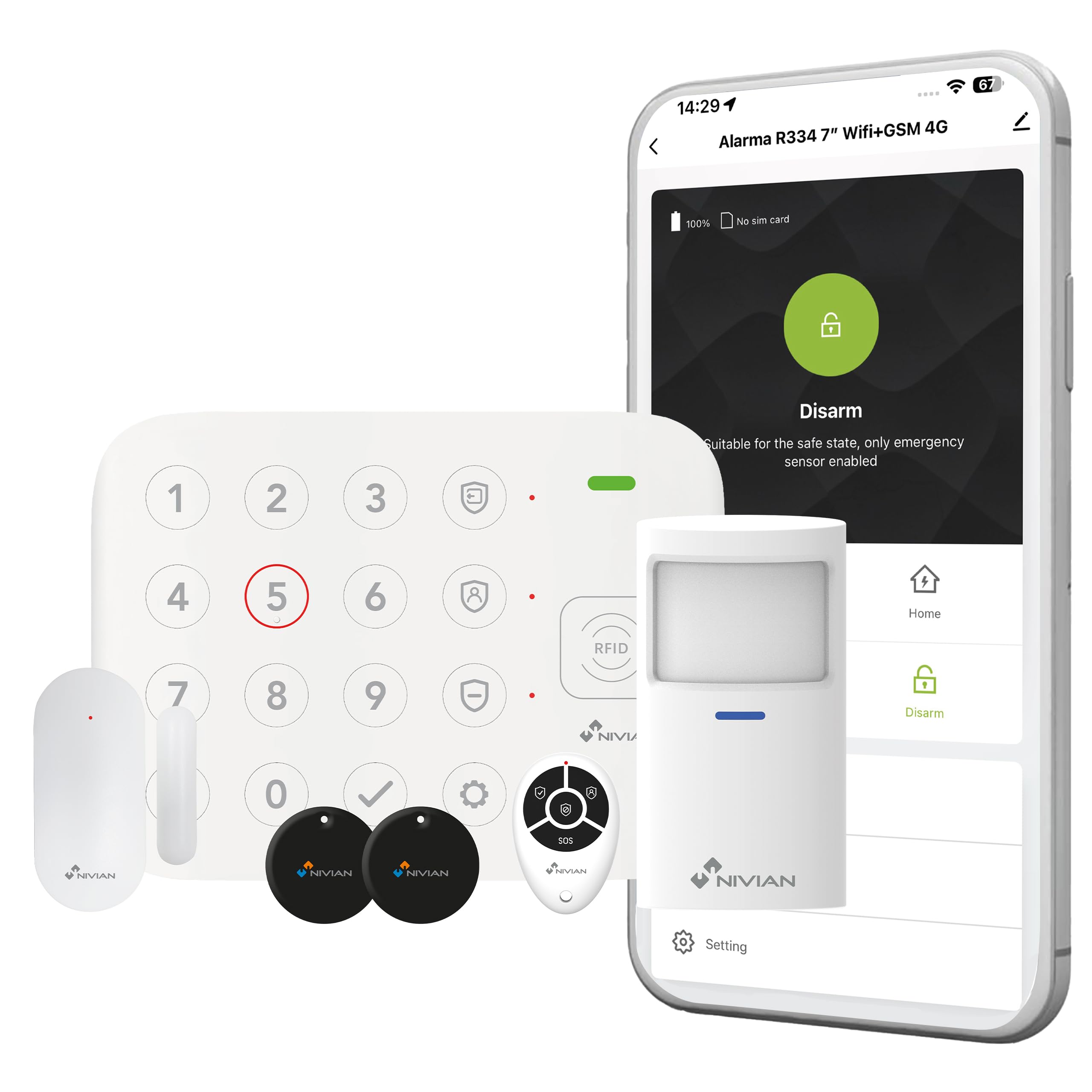
Figure 8.1: NIVIAN support and social media information.


