
Introduction
The Enhanlife Wireless CarPlay Adapter transforms your vehicle's existing wired CarPlay system into a wireless experience. This adapter provides seamless access to navigation, music, and Siri without the need for physical cable connections, enhancing convenience and maintaining a tidy car interior.
Key Features:
- Wireless CarPlay Conversion: Converts factory wired CarPlay to wireless.
- Fast Auto-Connection: Connects to your iPhone within 5 seconds of engine start.
- Stable Connectivity: Utilizes Bluetooth 5.3 and 5GHz Wi-Fi for reliable performance and minimal audio lag.
- Broad Compatibility: Compatible with over 98% of vehicles featuring factory wired CarPlay (2016-2026) and iPhone 6 or later (iOS 10+).
- Compact Design: Small form factor with included USB-A and USB-C cables for versatile installation.
Setup Instructions
Follow these steps to set up your Enhanlife Wireless CarPlay Adapter:
- Plug In the Adapter: Insert the Wireless CarPlay Adapter into your car's USB port that supports wired CarPlay. Use the appropriate USB-A or USB-C cable provided. The adapter will power on, indicated by an LED light.
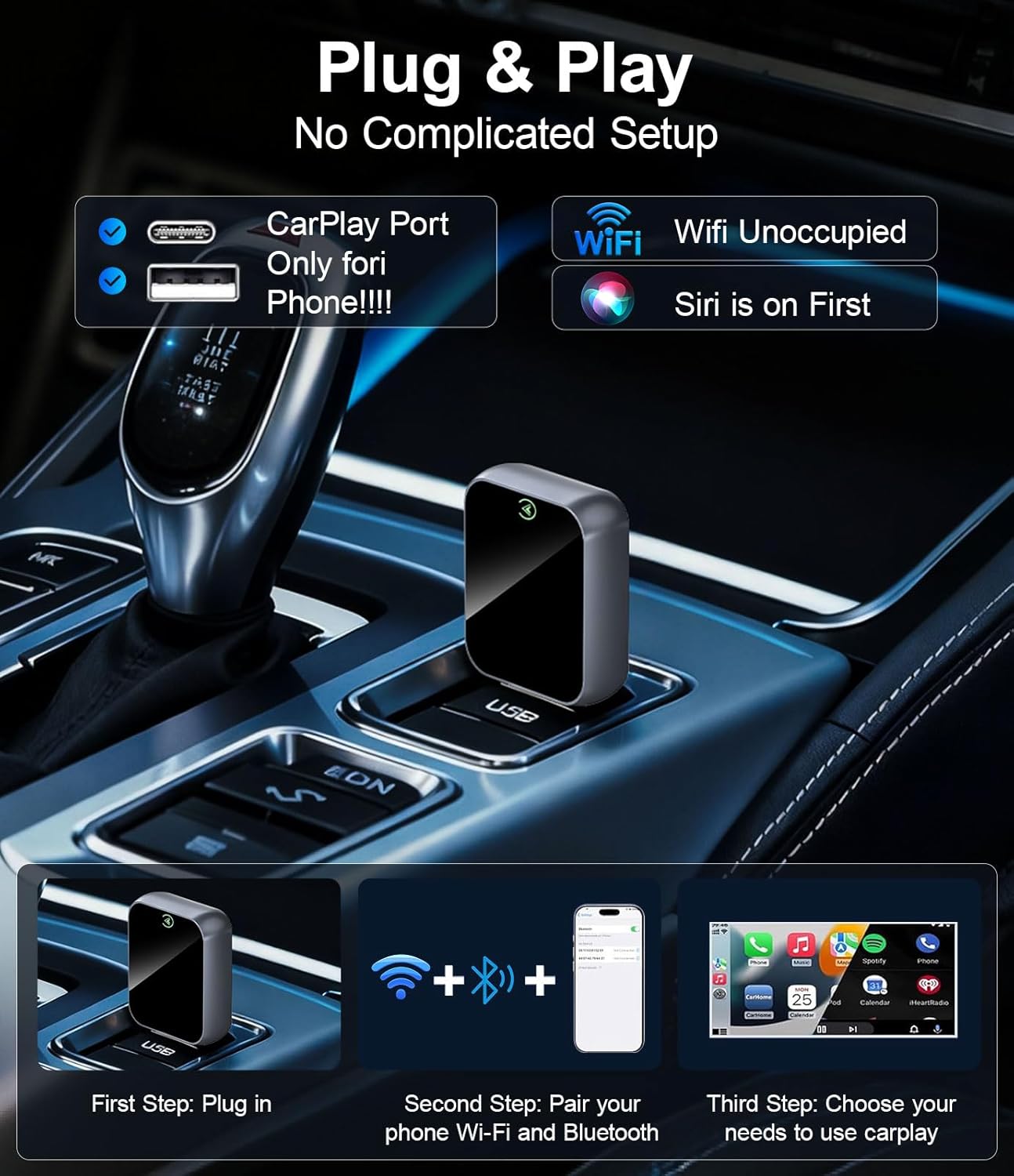
Image: The Enhanlife Wireless CarPlay Adapter plugged into a car's USB port, illustrating the first step of installation.
- Pair with Your iPhone:
- On your iPhone, go to Settings > Bluetooth and connect to the Bluetooth device named "smartBox-XXXX" (where XXXX is a unique identifier).
- Once connected via Bluetooth, your iPhone will prompt you to enable Wi-Fi for CarPlay. Confirm this connection.

Image: A visual guide demonstrating the three setup steps: plugging in the adapter, pairing your phone via Wi-Fi and Bluetooth, and selecting CarPlay on your car's display.
- Access CarPlay: On your car's infotainment screen, select the CarPlay option. Your iPhone should now be wirelessly connected, and the CarPlay interface will appear.
Operating Instructions
Once connected, the Enhanlife Wireless CarPlay Adapter allows you to use CarPlay functions seamlessly.
Automatic Connection
After the initial pairing, the adapter will automatically connect to your iPhone within approximately 5 seconds each time you start your vehicle, provided your iPhone's Bluetooth and Wi-Fi are enabled.
Using Car Controls
The adapter supports your car's original control methods for CarPlay interaction, including:
- Touch Control: Interact directly with the car's touchscreen display.
- Wheel Control: Use steering wheel buttons for audio, calls, and navigation.
- OEM Knob: Utilize the car's factory control knob for menu navigation.
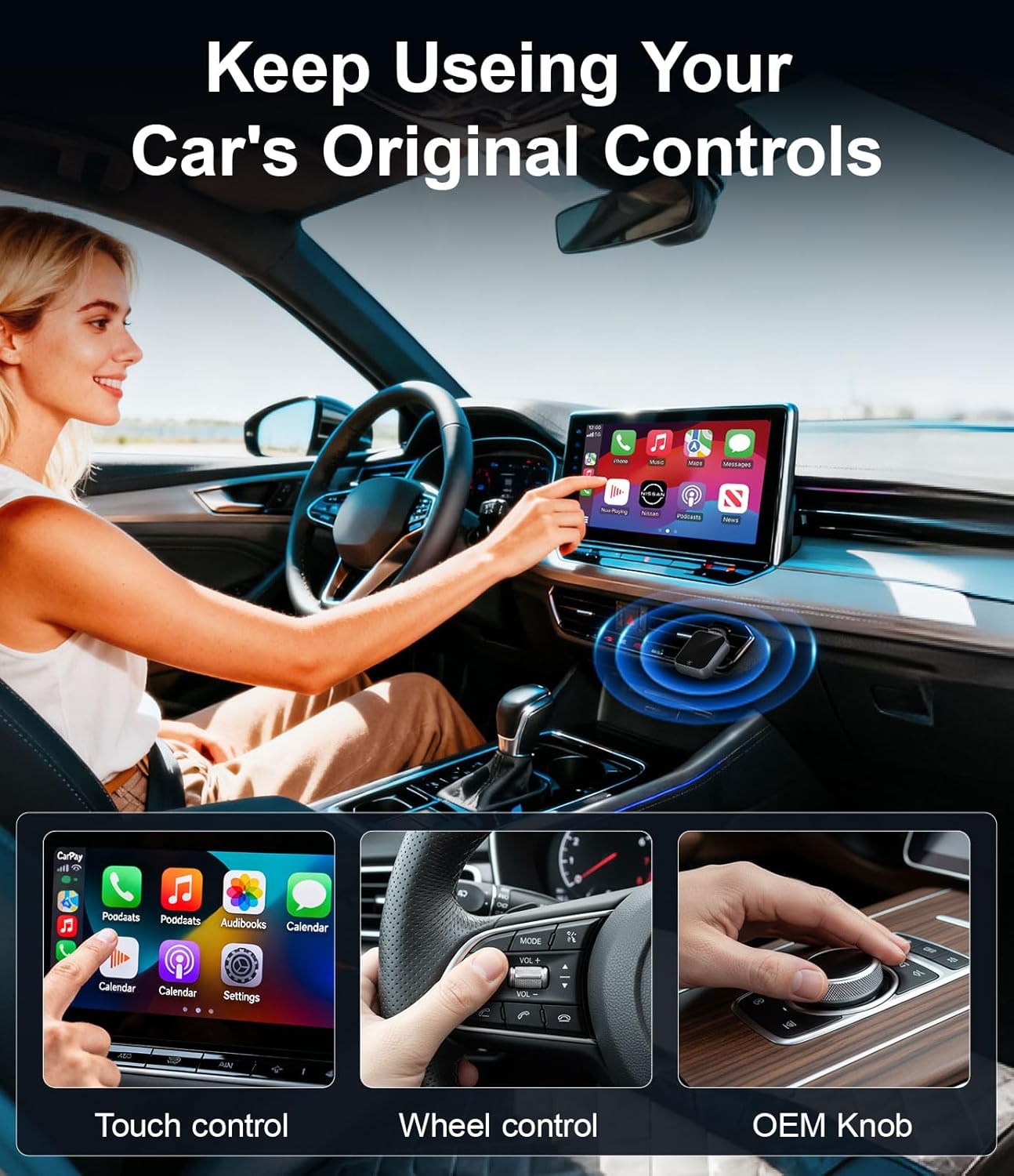
Image: Illustration of how the wireless CarPlay adapter integrates with a car's existing controls, including touch screen, steering wheel buttons, and the OEM control knob.
Voice Control with Siri
Activate Siri for hands-free operation. You can use voice commands for navigation, making calls, sending messages, and playing music, allowing you to stay focused on the road.

Image: A driver interacting with CarPlay using voice commands via Siri, demonstrating hands-free functionality for navigation, music, and calls.
Compatibility
The Enhanlife Wireless CarPlay Adapter is designed for broad compatibility:
- Vehicle Compatibility: Works with over 98% of vehicles manufactured between 2016 and 2026 that come equipped with factory-installed wired CarPlay.
- iPhone Compatibility: Supports iPhone 6 and later models running iOS 10 or newer.
Important Note:
This adapter requires your vehicle to have a built-in wired CarPlay system to function. It is not compatible with vehicles that do not have wired CarPlay from the factory. It is also not compatible with Tesla or BMW vehicles, and does not support Android Auto.
To verify if your vehicle model is compatible, please refer to Apple's official CarPlay compatibility list: Apple CarPlay Available Models.

Image: A graphic illustrating the compatibility requirements, showing support for iPhone 6 and above (iOS 10+) and cars with wired CarPlay, along with a QR code for checking vehicle compatibility.
Specifications
| Feature | Detail |
|---|---|
| Brand | Enhanlife |
| Model Number | D-01 |
| Compatible Devices | iPhone |
| Specific Uses For Product | Car Audio & Video |
| Connector Type | USB A & Type C |
| Color | Black |
| Item Dimensions (L x W x H) | 1.97 x 0.95 x 0.5 inches |
| Number of Ports | 2 |
| Nominal Power | 5 watts |
| Item Weight | 1.8 ounces |
| Built-In Media | Wireless CarPlay Adapter, USB-C Adapter, User Manual |

Image: Detailed view of the adapter's internal components and technical specifications, highlighting its automotive-grade quality.

Image: The compact design of the adapter, with dimensions provided, demonstrating its small size for discreet placement.
Troubleshooting
If you encounter issues with your Enhanlife Wireless CarPlay Adapter, please refer to the following common solutions:
- Adapter Not Connecting:
- Ensure your car's wired CarPlay system is active and functioning correctly with a wired connection first.
- Verify that the adapter is securely plugged into the correct USB port in your vehicle.
- On your iPhone, confirm that Bluetooth and Wi-Fi are enabled.
- Go to iPhone Settings > General > CarPlay and ensure your car is listed and enabled.
- Try restarting your iPhone and your car's infotainment system.
- Unplug the adapter, wait 10 seconds, and plug it back in.
- Intermittent Disconnections or Lag:
- Ensure there are no other devices interfering with Bluetooth or Wi-Fi signals in the car.
- Check for any available firmware updates for the adapter (refer to manufacturer's website if applicable).
- If the adapter feels excessively hot, ensure it has adequate ventilation and is not covered. Prolonged overheating can affect performance.
- Try connecting the adapter to a different USB port in your car, if available.
- Audio Issues (Lag, Distortion):
- Ensure your iPhone's volume is appropriately set.
- Check the car's audio settings.
- Restart the connection process (unplug adapter, restart iPhone, reconnect).
- CarPlay Interface Not Appearing:
- After connecting, ensure you select the CarPlay option on your car's infotainment screen.
- Some car systems may require you to confirm a prompt to enable CarPlay.
If problems persist, contact Enhanlife customer support for further assistance.
Maintenance
To ensure the longevity and optimal performance of your Enhanlife Wireless CarPlay Adapter, follow these simple maintenance guidelines:
- Keep Dry: Avoid exposing the adapter to moisture or liquids.
- Clean Gently: Use a soft, dry cloth to clean the adapter. Do not use harsh chemicals or abrasive materials.
- Temperature: Store and operate the adapter within normal automotive temperature ranges. Avoid extreme heat or cold.
- Handle with Care: Do not drop or subject the adapter to strong impacts.
- Firmware Updates: Periodically check the manufacturer's website for any available firmware updates, which can improve performance and compatibility.
Warranty & Support
The Enhanlife Wireless CarPlay Adapter comes with a 1-year limited warranty. This warranty covers manufacturing defects and ensures the product functions as intended under normal use.
For warranty claims, technical support, or any questions regarding your adapter, please contact Enhanlife customer service through their official channels or the retailer where the product was purchased.
Please retain your proof of purchase for warranty validation.
