
Introduction
This manual provides essential instructions for the setup, operation, maintenance, and troubleshooting of your Gawfolk 34 Inch Ultrawide Monitor (Model: GF340B). Please read this manual thoroughly before using the monitor to ensure proper functionality and to prevent damage.
Safety Information
- Always disconnect the power cord from the electrical outlet before cleaning the monitor.
- Do not expose the monitor to rain or moisture to avoid fire or shock hazards.
- Do not open the monitor casing. There are no user-serviceable parts inside. Refer all servicing to qualified service personnel.
- Place the monitor on a stable, flat surface to prevent it from falling.
- Ensure proper ventilation around the monitor. Do not block ventilation openings.
- Use only the power adapter and cables supplied with the monitor.
Package Contents
Verify that all items are present in your package:
- Gawfolk 34 Inch Ultrawide Monitor
- Monitor Stand (Base and Neck)
- Power Adapter and Power Cord
- HDMI Cable
- DisplayPort (DP) Cable
- User Manual (this document)
Setup Instructions
1. Assembling the Stand
- Carefully remove the monitor from its packaging, keeping it protected on a soft surface.
- Attach the stand neck to the monitor's rear panel. Ensure it clicks securely into place or is fastened with screws if provided.
- Attach the stand base to the stand neck, securing it with the thumb screw or screws provided.
- Place the assembled monitor on a stable, flat desk.
Note: The monitor supports VESA wall mounting (75x75mm) if you prefer to use a compatible wall mount (sold separately).

Image: Rear view of the Gawfolk Ultrawide Monitor showing port locations, dimensions, and VESA mount points. The image indicates compatibility with 75x75mm VESA mounts and a tilt angle range of -5° to 20°.
2. Connecting Cables
- Power Connection: Connect the power adapter to the DC input port on the monitor, then plug the power cord into a wall outlet.
- Video Connection:
- For optimal performance (165Hz refresh rate), connect the DisplayPort (DP) cable from your computer's graphics card to one of the DP 1.4 ports on the monitor.
- Alternatively, connect an HDMI cable from your computer to one of the HDMI 2.0 ports on the monitor. Note that HDMI supports up to 100Hz refresh rate on this monitor.
- Audio Output: If desired, connect external speakers or headphones to the audio output jack on the monitor.
3. Powering On
- Press the power button on the monitor (usually located on the bottom right or rear).
- Turn on your computer. The monitor should automatically detect the input signal.
Operating Instructions
1. On-Screen Display (OSD) Menu
The OSD menu allows you to adjust various monitor settings. Use the control buttons (usually joysticks or individual buttons) on the monitor to navigate and select options.
- Brightness/Contrast: Adjust the overall luminance and contrast of the display.
- Color Settings: Modify color temperature, gamma, and individual RGB levels. The monitor features an IPS panel with 8-bit color depth, supporting 1.07 billion colors and 128% sRGB for accurate color reproduction.
- Picture Modes: Select from preset modes optimized for different content (e.g., Standard, Game, Movie, Text).
- Input Select: Manually switch between DisplayPort and HDMI inputs.
- Audio: Adjust volume for integrated speakers or connected audio devices. The monitor includes integrated speakers.
- System Settings: Access language, OSD timeout, and other general settings.

Image: A visual representation of the monitor's IPS panel capabilities, highlighting 8-bit color depth, 1.07 billion colors, and 128% sRGB color gamut for enhanced visual experience.

Image: The Gawfolk Ultrawide Monitor on a desk, with visual cues indicating the presence and function of integrated speakers.
2. Refresh Rate and Response Time
The Gawfolk GF340B monitor supports a 165 Hz refresh rate and a 1ms GTG (Gray-to-Gray) response time, providing smooth visuals, especially for fast-paced content. To achieve 165 Hz, ensure you are using a DisplayPort connection and that your computer's graphics settings are configured to output at 165 Hz.

Image: A side-by-side comparison demonstrating the visual difference between a 165Hz refresh rate with 1ms GTG response time and a 75Hz refresh rate, illustrating the enhanced fluidity of motion at higher refresh rates.
3. Ultrawide Features: PIP and PBP
This ultrawide monitor enhances productivity with Picture-in-Picture (PIP) and Picture-by-Picture (PBP) modes, allowing you to view multiple sources simultaneously.
- Picture-in-Picture (PIP): Displays a smaller window from a second input source over the main display.
- Picture-by-Picture (PBP): Divides the screen into multiple sections, each displaying a different input source side-by-side.
These modes can be configured via the OSD menu.

Image: The Gawfolk Ultrawide Monitor demonstrating its Picture-in-Picture (PIP) and Picture-by-Picture (PBP) functionalities, showing how multiple video inputs can be displayed simultaneously on the screen.
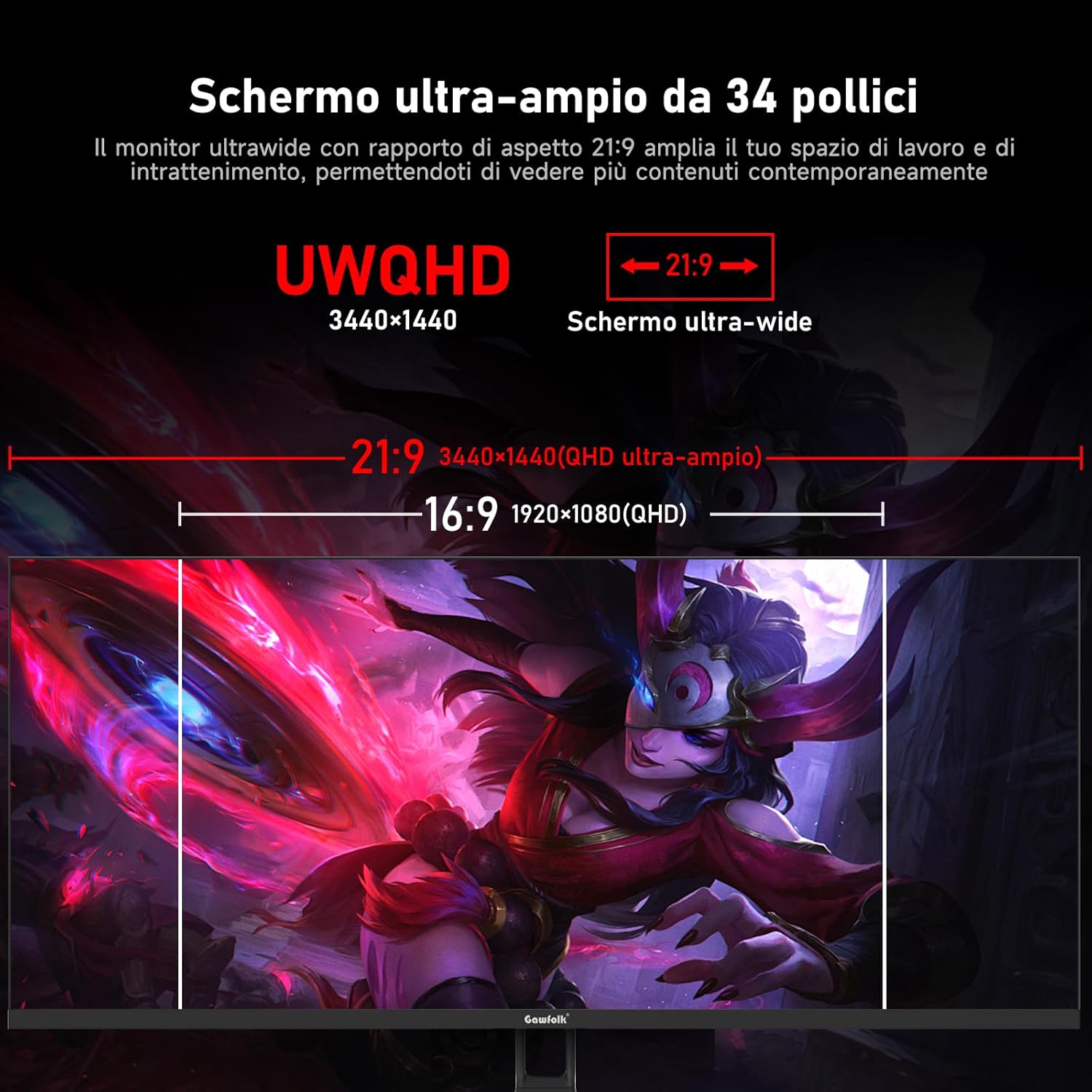
Image: A general view of the Gawfolk 34 Inch Ultrawide Monitor, showcasing its expansive 21:9 aspect ratio and UWQHD (3440x1440) resolution, ideal for multitasking and immersive viewing.
Maintenance
Cleaning the Monitor
- Screen: Gently wipe the screen with a soft, lint-free cloth. For stubborn marks, lightly dampen the cloth with water or a non-ammonia, non-alcohol based screen cleaner. Do not spray cleaner directly onto the screen.
- Casing: Use a soft, dry cloth to wipe the monitor casing. Avoid abrasive cleaners or solvents.
- Always ensure the monitor is powered off and unplugged before cleaning.
Storage
If storing the monitor for an extended period, power it off, unplug all cables, and store it in a cool, dry place, preferably in its original packaging to protect it from dust and physical damage.
Troubleshooting
No Power
- Ensure the power cord is securely connected to the monitor and the electrical outlet.
- Verify the power outlet is functioning by plugging in another device.
- Check if the power adapter is correctly connected to the monitor's DC input.
No Signal / Blank Screen
- Confirm that the video cable (DisplayPort or HDMI) is securely connected to both the monitor and your computer.
- Ensure your computer is powered on and not in sleep mode.
- Use the OSD menu to manually select the correct input source (DP or HDMI).
- Try a different video cable or port if available.
Image Issues (Flickering, Distorted Colors)
- Check the video cable for damage or loose connections.
- Adjust the monitor's resolution and refresh rate settings in your computer's display settings. Ensure the refresh rate is compatible with the connection type (up to 165Hz for DP, up to 100Hz for HDMI).
- Reset the monitor to factory default settings via the OSD menu.
- Update your graphics card drivers.
No Sound from Integrated Speakers
- Check the volume settings in the monitor's OSD menu and on your computer.
- Ensure the monitor is selected as the default audio output device in your computer's sound settings.
- If using HDMI, ensure the HDMI cable supports audio transmission.
Specifications
| Brand | Gawfolk |
| Model Number | GF340B |
| Screen Size | 34 Inches |
| Panel Type | IPS |
| Resolution | 3440 x 1440 (UWQHD) |
| Aspect Ratio | 21:9 |
| Refresh Rate | 165 Hz (via DisplayPort), 100 Hz (via HDMI) |
| Response Time | 1 Millisecond (GTG) |
| Color Depth | 8-bit, 1.07 Billion Colors |
| sRGB Coverage | 128% |
| Connectivity | 2x DisplayPort 1.4, 2x HDMI 2.0, Audio Out, DC Power In |
| VESA Mount | 75 x 75 mm |
| Tilt Angle | -5° to 20° |
| Integrated Speakers | Yes |
| Product Dimensions (with stand) | 81.62 x 23.38 x 44.83 cm (W x D x H) |
| Item Weight (with stand) | 6.5 kg |
| Manufacturer | Shenzhen Qinghong Zhuoyue Technology |
Warranty and Support
For warranty information and technical support, please refer to the documentation included with your purchase or contact Gawfolk customer service. Keep your proof of purchase for warranty claims.


