1. Introduction
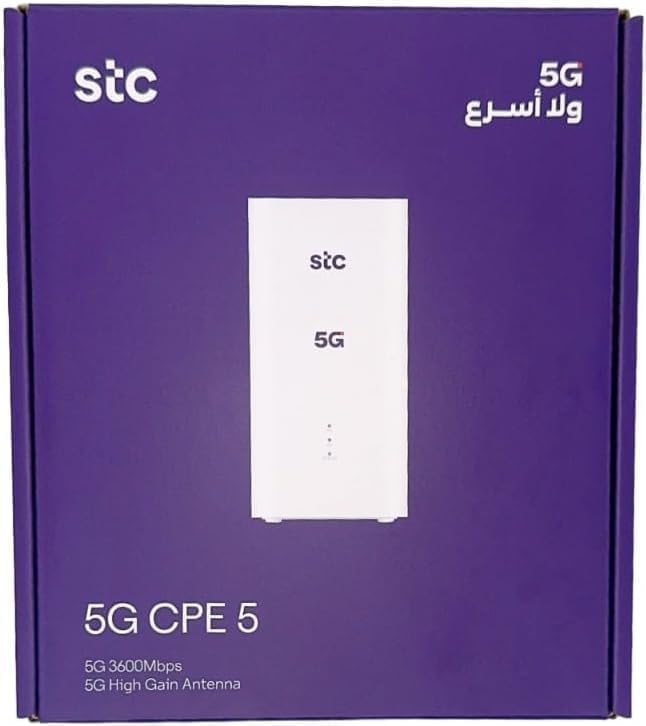
This manual provides comprehensive instructions for the setup, operation, and maintenance of your Generic H155-383 5G CPE Router. This device is designed to deliver high-speed internet connectivity using 5G technology and Wi-Fi 6, ensuring a seamless online experience for various activities such as gaming, streaming, and remote work.
The H155-383 router supports download speeds up to 3600 Mbps and upload speeds up to 500 Mbps. It is compatible with all SIM cards and features dual-band Wi-Fi for enhanced coverage and stable connections, even with multiple devices connected simultaneously.
2. Package Contents
Please verify that all items listed below are included in your product package:
- 1 x Generic H155-383 5G CPE Router
- 1 x Power Adapter
- 1 x Ethernet Cable
- 1 x User Manual (English and Arabic)
3. Setup Instructions
- Insert SIM Card: Locate the SIM card slot on the router. Ensure your SIM card is active and correctly inserted. The device supports all SIM cards.
- Power On: Connect the power adapter to the router and plug it into a power outlet. The router will begin to power on.
- Initial Boot-up: Allow 3 to 5 minutes for the router to fully boot up and establish a network connection. The indicator lights on the device will show its status.
- Connect Devices:
- Wireless Connection: Find the Wi-Fi network name (SSID) and password on the label at the bottom of the router. Connect your devices (smartphones, tablets, PCs) to this Wi-Fi network.
- Wired Connection: Use the provided Ethernet cable to connect your computer or other network devices to one of the LAN ports on the router.
- Access Router Settings: Open a web browser on a connected device and enter the router's IP address (e.g., 192.168.8.1) found on the bottom label. Log in using the default username and password (also on the label) to configure advanced settings.


4. Operating Instructions
Once the router is set up and connected, it will automatically provide internet access to your connected devices. Here are some general operating guidelines:
- Indicator Lights: Observe the LED indicators on the front of the router to monitor its status (power, network connection, Wi-Fi activity, signal strength). Refer to the full user manual for detailed explanations of each indicator.
- Wi-Fi Management: You can change the Wi-Fi network name (SSID) and password through the router's web interface or a dedicated application (if available).
- External Antennas: The router supports external antenna ports for improved signal reception, especially in areas with weak 5G coverage. Connect compatible external antennas to these ports if needed.
- Ethernet Ports: Use the Ethernet ports for stable, high-speed wired connections to devices like desktop computers, smart TVs, or gaming consoles.
5. Maintenance
To ensure optimal performance and longevity of your H155-383 router, follow these maintenance tips:
- Placement: Place the router in an open area, away from obstructions, large metal objects, and other electronic devices that may cause interference.
- Cleaning: Keep the router clean and free from dust. Use a soft, dry cloth to wipe the exterior. Do not use liquid cleaners.
- Firmware Updates: Periodically check for firmware updates through the router's web interface. Keeping the firmware updated ensures the best performance, security, and compatibility.
- Restarting: If you experience network issues, try restarting the router by unplugging it from the power source for 10-15 seconds and then plugging it back in.
6. Troubleshooting
If you encounter issues with your router, refer to the following common solutions:
6.1. SIM Card Related Issues
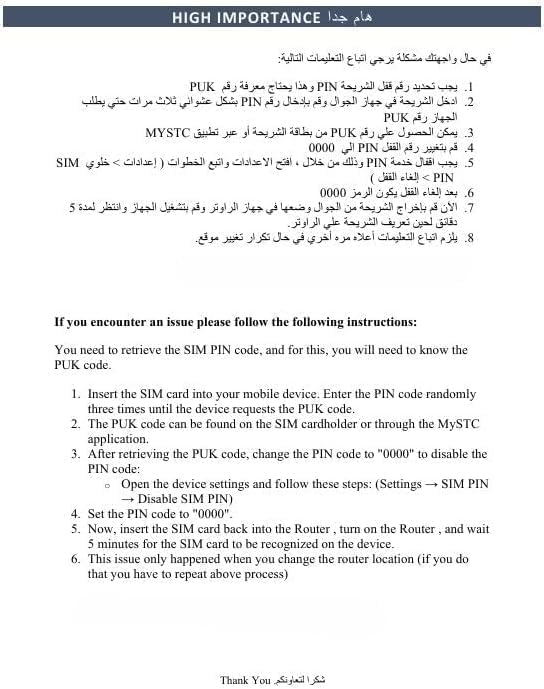
- PIN/PUK Code: If the device requests a PIN or PUK code, you will need to retrieve it from your mobile service provider or the SIM card holder. Insert the SIM card into your mobile device and enter the PIN code randomly three times until the device requests the PUK code. The PUK code can be found on the SIM cardholder or through the MYSTC application.
- Changing PIN: After retrieving the PUK code, change the PIN code to "0000" to disable the PIN code. This can usually be done via the router's settings (Settings → SIM PIN → Disable SIM PIN).
- SIM Card Not Recognized: If the SIM card is not recognized after insertion, ensure it is active and correctly inserted. Reinsert the SIM card into the router, turn on the router, and wait 5 minutes for the SIM card to be recognized. This issue typically occurs only when changing the router location.
6.2. General Connectivity Issues
- No Internet Access:
- Check if the SIM card is active and has data allowance.
- Verify that the router's indicator lights show a stable 5G connection.
- Restart the router and your connected devices.
- Slow Speeds:
- Ensure the router is placed in an optimal location for 5G signal reception.
- Reduce the number of connected devices or bandwidth-intensive activities.
- Consider connecting external antennas if signal strength is low.
- Wi-Fi Disconnections:
- Check for interference from other electronic devices.
- Ensure your devices are within the router's Wi-Fi range.
- Update the router's firmware.
7. Specifications
| Feature | Detail |
|---|---|
| Brand | Generic |
| Model Name | H155-383 |
| Special Features | Internet Security, Remote Access, Quality of Service (QoS), Access Point Mode |
| Frequency Band Class | Dual-Band |
| Wireless Communication Standard | 802.11ax (Wi-Fi 6) |
| Compatible Devices | Smart TV, Tablet, Personal Computer, Smartphone, Gaming Console |
| Recommended Uses | Gaming, Business, Home |
| Connectivity Technology | 5G, Ethernet, Wi-Fi |
| Color | White |
| Operating System | RouterOS |
| Security Protocol | WPS2 |
| Number of Ethernet LAN Ports | 3 |
| Data Transfer Rate (Download) | Up to 3600 Mbps |
| Data Transfer Rate (Upload) | Up to 500 Mbps |
| Wi-Fi Generation | Wi-Fi 6 |
| Modem Compatibility | No (Integrated 5G modem) |
| Coverage | Wide Network Coverage |
| Manufacturer | China |
8. Warranty Information
This product comes with a 2-year warranty from the date of purchase. Please retain your proof of purchase for any warranty claims. The warranty covers manufacturing defects and malfunctions under normal use conditions. It does not cover damage caused by misuse, accidents, unauthorized modifications, or natural disasters.
For detailed warranty terms and conditions, please refer to the warranty card included in your package or contact customer support.
9. Support
For further assistance or if you have questions not covered in this manual, please refer to the following resources:
- Online Resources: Detailed setup instructions and additional troubleshooting tips may be available on the product's official support page or the retailer's website.
- Customer Service: Contact your retailer or the product manufacturer's customer service for technical support.


