
1. Product Overview
The SY-T4 Wireless Over-Ear Headphones offer a high-quality audio experience with advanced features. These headphones are designed for comfort and versatility, suitable for various activities including gaming, office work, sports, and studying.
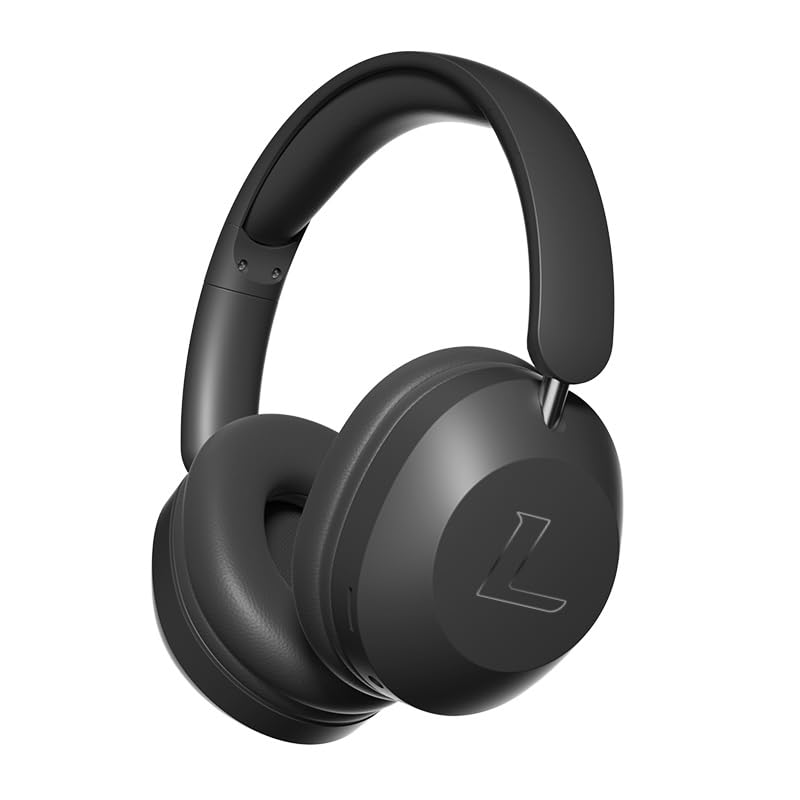
Image: Front view of the SY-T4 Wireless Over-Ear Headphones.
- Bluetooth 5.3: Ensures stable and efficient wireless connectivity.
- Active Noise Cancellation (ANC): Reduces ambient noise for immersive listening.
- IPX5 Water Resistance: Protects against splashes and light rain.
- Memory Foam Ear Pads: Provides comfort for extended wear.
- Touch Controls: Intuitive control over music and calls.
2. Setup
2.1 What's in the Box
Carefully unpack your SY-T4 headphones and ensure all components are present.
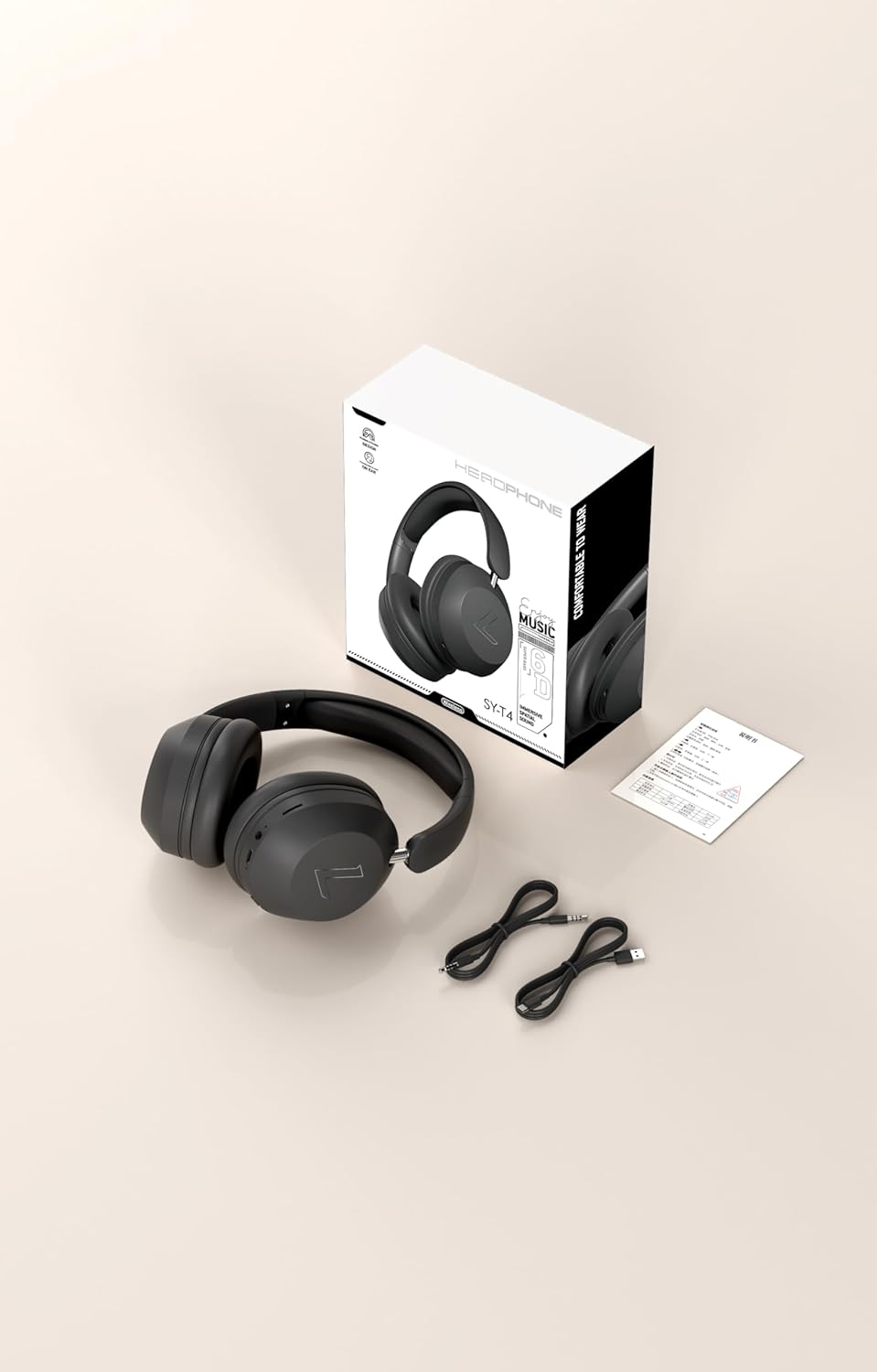
Image: SY-T4 Headphones and included accessories.
- SY-T4 Wireless Over-Ear Headphones
- Type-C Charging Cable
- User Manual (this document)
2.2 Charging the Headphones
Before first use, fully charge the headphones. A 9V battery is included and pre-installed.
- Locate the Type-C charging port on the headphones.
- Connect the provided Type-C charging cable to the headphones.
- Connect the other end of the charging cable to a compatible USB power source (e.g., wall adapter, computer USB port).
- The LED indicator will show the charging status. Refer to the LED indicator section for details.
- Once fully charged, disconnect the charging cable.
2.3 Powering On/Off
- To Power On: Press and hold the Power button for approximately 3 seconds until the LED indicator lights up.
- To Power Off: Press and hold the Power button for approximately 5 seconds until the LED indicator turns off.
2.4 Bluetooth Pairing
Pair your SY-T4 headphones with your device (smartphone, tablet, computer) to enable wireless audio.
- Ensure the headphones are powered off.
- Press and hold the Power button for about 5-7 seconds until the LED indicator flashes rapidly (usually blue and red), indicating pairing mode.
- On your device, go to Bluetooth settings and turn Bluetooth on.
- Search for available devices. Select "SY-T4" from the list.
- Once connected, the LED indicator on the headphones will typically show a solid blue light or flash slowly.
- If prompted for a password, enter "0000".
3. Operating Instructions
3.1 Controls Overview
The SY-T4 headphones feature intuitive touch controls on the earcups for easy management of audio and calls.
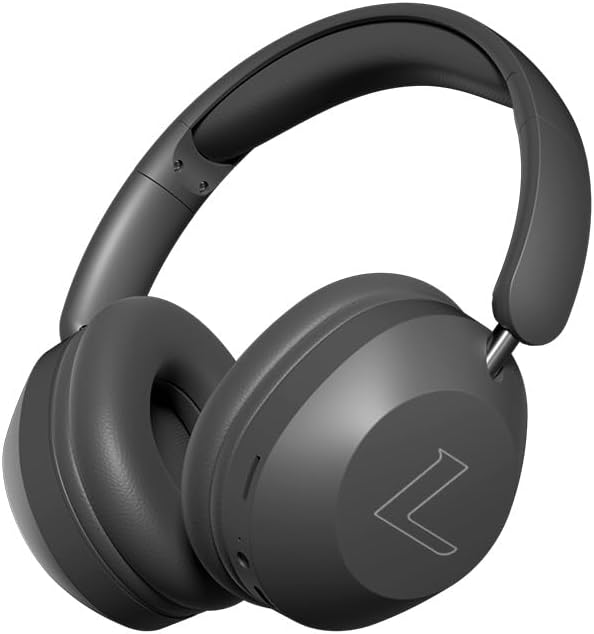
Image: Side view of SY-T4 headphones highlighting control areas.
- Power Button: Power on/off, pairing mode.
- Volume Up/Next Track: Tap for volume up, press and hold for next track.
- Volume Down/Previous Track: Tap for volume down, press and hold for previous track.
- Multi-function Touch Area: Play/Pause, Answer/End Call, Activate Voice Assistant.
- ANC Button: Toggle Active Noise Cancellation.
3.2 Music Playback
- Play/Pause: Tap the Multi-function Touch Area once.
- Next Track: Press and hold the Volume Up button.
- Previous Track: Press and hold the Volume Down button.
- Volume Up: Tap the Volume Up button.
- Volume Down: Tap the Volume Down button.
3.3 Call Management
- Answer/End Call: Tap the Multi-function Touch Area once during an incoming call or during an active call.
- Reject Call: Press and hold the Multi-function Touch Area for 2 seconds during an incoming call.
3.4 Active Noise Cancellation (ANC)
The SY-T4 headphones feature Active Noise Cancellation to minimize ambient sounds.
- Activate/Deactivate ANC: Press the dedicated ANC button. An audible prompt or LED indicator will confirm the status.
4. Maintenance
4.1 Cleaning
To maintain the condition of your headphones:
- Wipe the earcups and headband with a soft, dry, lint-free cloth.
- Do not use abrasive cleaners, solvents, or strong chemicals.
- Avoid getting moisture into any openings.
4.2 Storage
When not in use, store the headphones in a cool, dry place, away from direct sunlight and extreme temperatures. The foldable design enhances portability and storage.
4.3 Water Resistance
The SY-T4 headphones are IPX5 water-resistant, meaning they are protected against low-pressure water jets from any direction. This protects against splashes and light rain. Do not submerge the headphones in water or expose them to heavy rain or strong water streams.
5. Troubleshooting
If you encounter issues with your SY-T4 headphones, refer to the following common solutions:
- No Power: Ensure the headphones are fully charged. Connect them to a power source using the Type-C cable.
- Cannot Pair:
- Ensure the headphones are in pairing mode (LED flashing rapidly).
- Turn off and on your device's Bluetooth.
- Move the headphones closer to your device.
- Clear previous Bluetooth connections on your device.
- No Sound:
- Check the volume level on both the headphones and your connected device.
- Ensure the headphones are properly paired and connected.
- Try playing audio from a different application or device.
- ANC Not Working: Ensure the ANC feature is activated using the dedicated button.
6. Specifications
| Feature | Detail |
|---|---|
| Model Name | SY-T4 |
| Connectivity Technology | Bluetooth 5.3 |
| Bluetooth Range | 32.8 Feet (10 meters) |
| Audio Latency | 16 Milliseconds |
| Noise Control | Active Noise Cancellation |
| Water Resistance Level | IPX5 (Water Repellent) |
| Ear Placement | Over Ear |
| Form Factor | Over Ear |
| Earpiece Shape | Oval |
| Control Method | Touch, Button Control |
| Audio Driver Type | Dynamic Driver |
| Impedance | 32 Ohms |
| Sensitivity | 32 dB |
| Headphones Jack | Type-C (for charging) |
| Compatible Devices | Smartphone |
| Material | Plastic |
| Batteries | 1 x 9V battery (included) |
7. Warranty Information
The SY-T4 Wireless Over-Ear Headphones are backed by a one-year warranty from the date of purchase. This warranty covers manufacturing defects under normal use. It does not cover damage caused by misuse, accidents, unauthorized modifications, or normal wear and tear.
Please retain your proof of purchase for warranty claims.
8. Customer Support
If you have any questions, require assistance, or experience issues not covered in this manual, please contact the seller or manufacturer for support.
For the latest information and support resources, please refer to the product's official support channels or the retailer's website where the product was purchased.


