
1. Introduction
The PINHUI H1 is a versatile Android-based MP3/MP4 player designed for both audio and video entertainment. It features a 4.5-inch HD touchscreen, Bluetooth, and Wi-Fi connectivity, allowing access to streaming services and local media. This device supports a wide range of audio and video formats and offers expandable storage for extensive media libraries.
This manual provides detailed instructions for setting up, operating, and maintaining your PINHUI H1 player to ensure optimal performance and user experience.
2. What's in the Box
Upon unpacking your PINHUI H1 player, please verify that all the following items are included:
- Android Wi-Fi MP3 Player (1 unit)
- 128GB Micro SD Card (1 unit)
- User Manual (1 unit)
- USB Type-C Data Cable (1 unit)
- Pair of Earphones (1 unit)
- Silicone Protective Case (1 unit)
- Screen Protector (1 unit)

Image 2.1: Contents of the PINHUI H1 package.
3. Product Overview
The PINHUI H1 features a compact design with a 4.5-inch touchscreen. Familiarize yourself with the device's physical components:
- Power Button: Located on the side, used to turn the device on/off or put it to sleep.
- Volume Buttons: Located on the side, for adjusting audio output.
- USB Type-C Port: Located at the bottom, for charging and data transfer.
- 3.5mm Headphone Jack: Located at the bottom, for wired audio output.
- Micro SD Card Slot: Located on the side, for memory expansion up to 1TB.
- Built-in Speaker: Located at the bottom for direct audio playback.
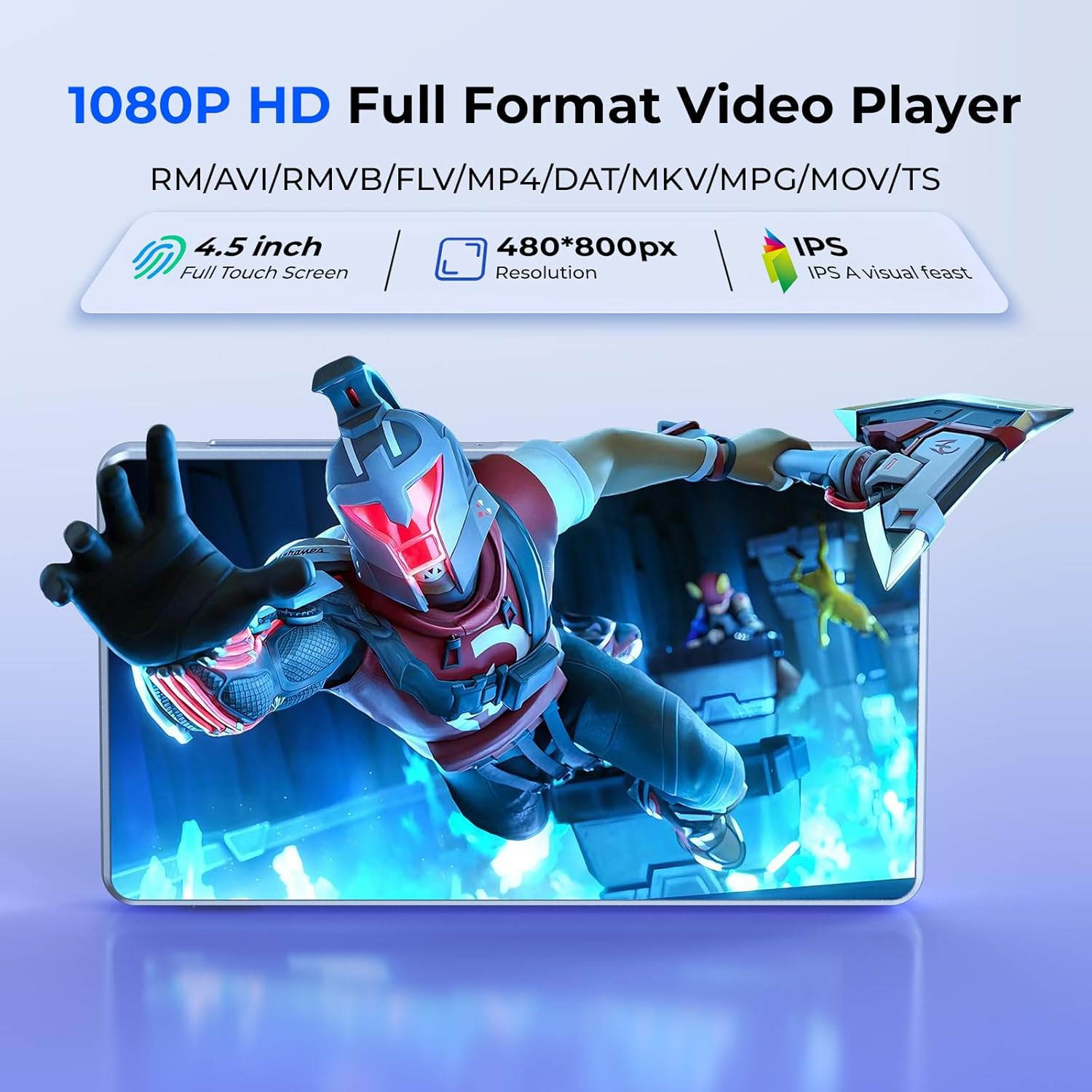
Image 3.1: Bottom view of the PINHUI H1 player, highlighting ports.

Image 3.2: Front and back view of the PINHUI H1 player.
4. Setup
4.1 Initial Power On
- Press and hold the Power Button on the side of the device until the screen illuminates.
- Follow the on-screen prompts to select your language and region.
4.2 Connecting to Wi-Fi
To access streaming services and the Google Play Store, connect your device to a Wi-Fi network:
- From the home screen, navigate to Settings.
- Select Network & internet, then tap Wi-Fi.
- Toggle Wi-Fi On. The device will scan for available networks.
- Select your desired Wi-Fi network from the list.
- Enter the network password if prompted, then tap Connect.
4.3 Google Account Setup
A Google account is required to download apps from the Google Play Store:
- Open the Google Play Store app from the home screen.
- Follow the on-screen instructions to sign in with an existing Google account or create a new one.
4.4 Inserting the Micro SD Card
The device comes with a 128GB Micro SD card pre-installed. If you need to replace or insert a new card:
- Locate the Micro SD card slot on the side of the device.
- Gently insert the Micro SD card into the slot until it clicks into place. Ensure the card is oriented correctly.
- The device will recognize the new storage. You may be prompted to format the card for optimal use with the player.
5. Operating Instructions
5.1 Music Playback
The PINHUI H1 supports various audio formats including MP3, FLAC, APE, WAV, OGG, AAC, and WMA. You can play music from local storage or streaming applications.
5.1.1 Local Music Playback
- Transfer music files to the device's internal storage or the Micro SD card via USB connection to a computer.
- Open the pre-installed music player application.
- Browse your library by artist, album, song, or folder and select a track to play.
5.1.2 Streaming Music
The device comes with popular streaming apps like Spotify, Pandora, Amazon Music, and Deezer. Ensure you are connected to Wi-Fi.
- Open your preferred streaming application.
- Log in with your account credentials.
- Browse and play music as you would on any Android device.
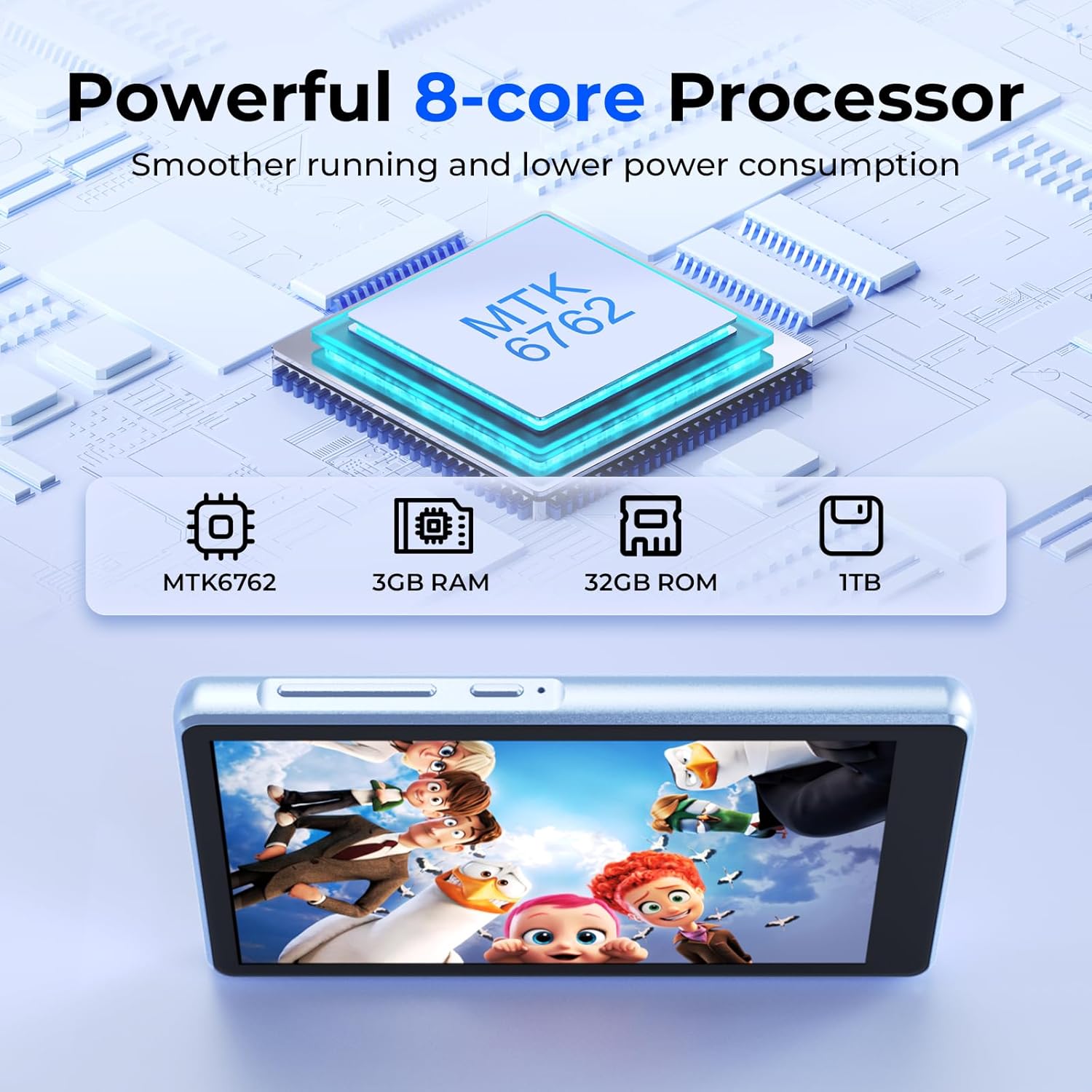
Image 5.1: Music playback interface on the PINHUI H1.

Image 5.2: Music player interface with equalizer and playlist options.
5.2 Video Playback
The player supports 720p and 1080p HD video playback and is compatible with RM, RMVB, FLV, MP4, DAT, MKV, MPG, MOV, TS, and other video formats.
- Transfer video files to the device's storage.
- Open the video player application or a streaming video app like YouTube.
- Select a video to begin playback.

Image 5.3: Video playback on the PINHUI H1's 4.5-inch screen.
5.3 App Management
Utilize the Google Play Store to install, update, or uninstall applications:
- Open the Google Play Store app.
- Search for desired applications.
- Tap Install to download and install new apps.
- To manage installed apps, go to Settings > Apps.
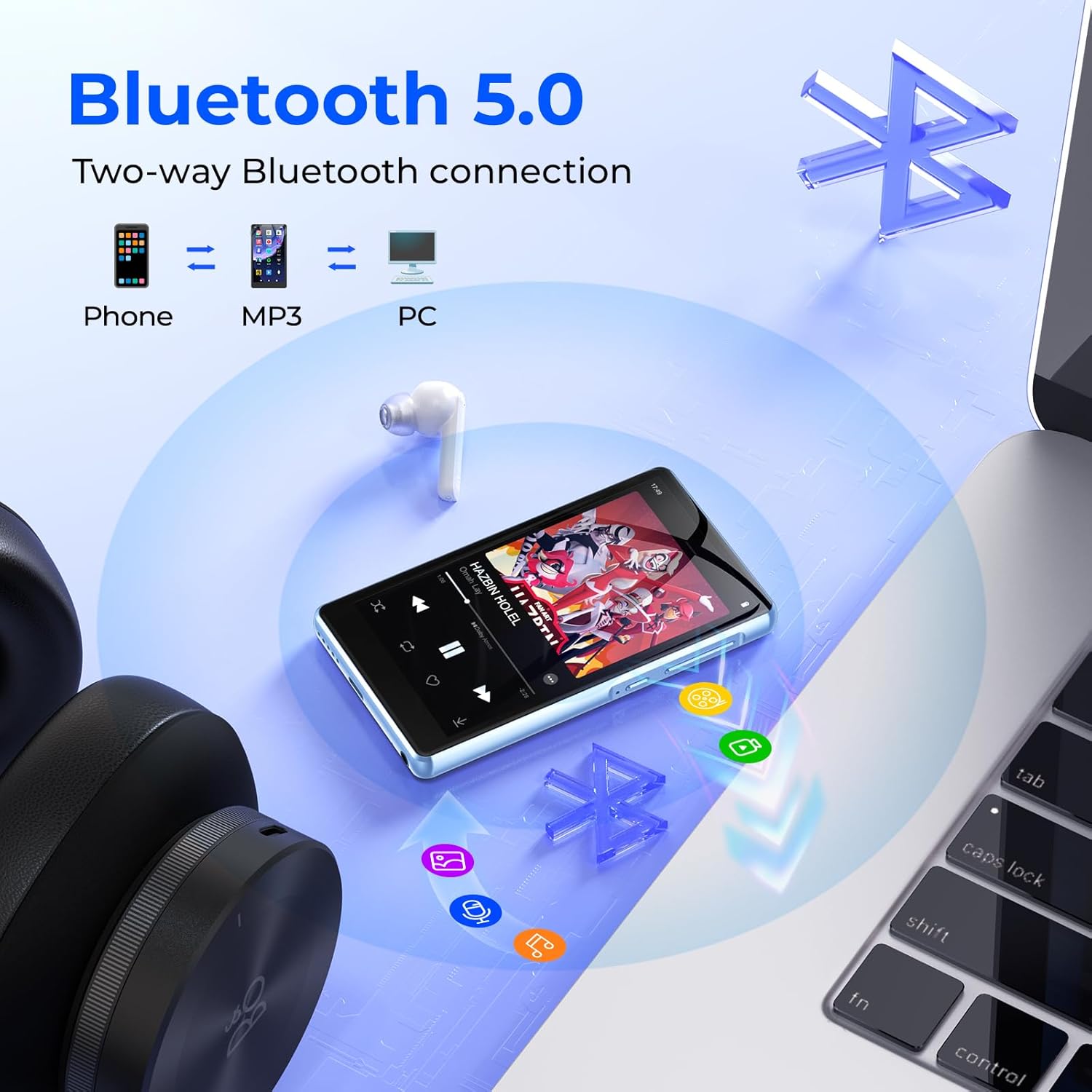
Image 5.4: Home screen showing various pre-installed and downloadable applications.
5.4 Bluetooth Connectivity
The device supports two-way Bluetooth transmission and reception for connecting to headphones, speakers, or transferring files to other devices.
- Go to Settings > Connected devices > Bluetooth.
- Toggle Bluetooth On.
- Put your Bluetooth accessory into pairing mode.
- Select the accessory from the list of available devices on your PINHUI H1 to pair.

Image 5.5: Bluetooth and Wi-Fi connectivity features.
5.5 Parental Control
To manage usage for children, parental controls can be configured:
- Navigate to Settings > Google > All Services > Parental Controls.
- Follow the on-screen instructions to set up and customize parental control features.
6. Maintenance
6.1 Charging the Device
The PINHUI H1 is equipped with a 2,000 mAh battery. Use the provided USB Type-C cable to charge the device.
- Connect the USB Type-C cable to the device's charging port.
- Connect the other end of the cable to a compatible USB power adapter or a computer's USB port.
- A full charge typically takes approximately 3 hours.
- The device offers up to 20 hours of audio playback or 5 hours of video playback on a full charge.
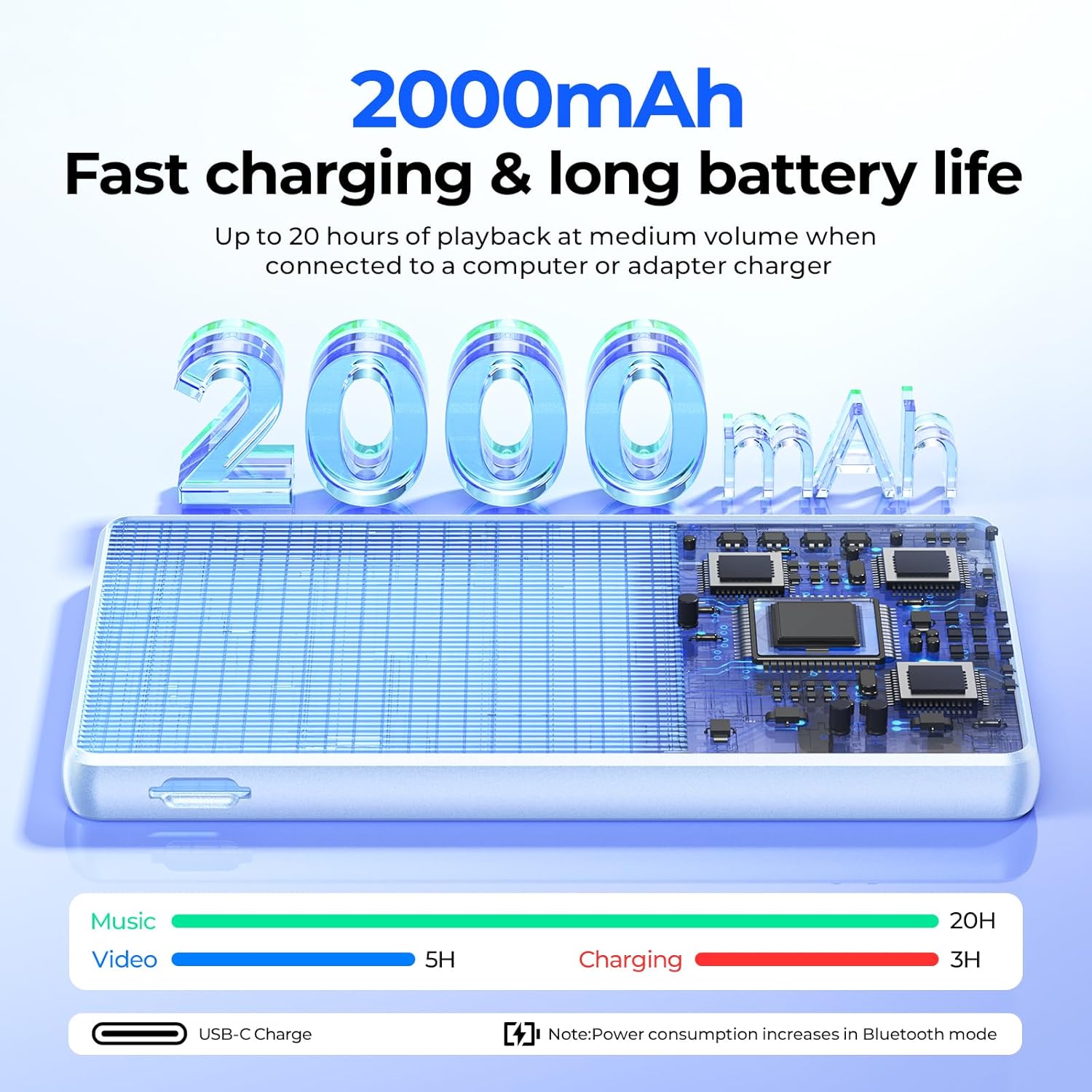
Image 6.1: Battery life and charging information.
6.2 Cleaning and Care
- Use a soft, dry cloth to clean the device's screen and body.
- Avoid using abrasive cleaners or solvents.
- Keep the device away from extreme temperatures, direct sunlight, and moisture.
- Use the provided silicone protective case and screen protector to prevent scratches and minor damage.
7. Troubleshooting
If you encounter issues with your PINHUI H1 player, try the following basic troubleshooting steps:
- Device not turning on: Ensure the battery is charged. Connect the device to a power source and try again.
- Screen unresponsive: Restart the device by holding the power button. If unresponsive, use the reset pinhole (if available, refer to product overview for location).
- Cannot connect to Wi-Fi/Bluetooth: Ensure Wi-Fi/Bluetooth is enabled in settings. Check if other devices can connect to the network/accessory. Restart the player and the network router/Bluetooth accessory.
- Apps not downloading/updating: Check your Wi-Fi connection. Ensure you are signed into your Google account. Clear the cache of the Google Play Store app (Settings > Apps > Google Play Store > Storage > Clear cache).
- Poor audio quality: Ensure headphones are properly connected. Test with different headphones or speakers. Check volume settings on the device and connected accessories.
8. Specifications
| Feature | Specification |
|---|---|
| Brand | PINHUI |
| Model Number | H1 |
| Memory Storage Capacity | 160 GB (32GB ROM + 128GB SD card) |
| External Storage Expansion | Up to 1 TB (Micro SD) |
| Screen Size | 4.5 Inches |
| Display Technology | LCD |
| Screen Resolution | 480 x 800 pixels |
| Connectivity Technology | Aux, Bluetooth, USB, Wi-Fi (2.4GHz/5GHz) |
| Supported Audio Formats | MP3, FLAC, APE, WAV, OGG, AAC, WMA |
| Supported Video Formats | RM, RMVB, FLV, MP4, DAT, MKV, MPG, MOV, TS |
| Battery Capacity | 2,000 mAh |
| Audio Playback Time | Up to 20 hours |
| Video Playback Time | Up to 5 hours |
| Processor | Octa-core (MTK6762) |
| RAM | 3 GB |
| Special Features | Built-In Speaker, Equalizer, FM Radio, Touch Screen, Voice Recorder, Google Play Store access, Parental Control |
9. Official Product Video
Video 9.1: An overview of the PINHUI H1 MP3 Player, showcasing its features and design.
10. Warranty and Support
PINHUI is committed to providing quality products and customer satisfaction. If you encounter any issues during the use of your PINHUI H1 player, please contact our customer support team.
- Our support team aims to resolve inquiries within 24 hours.
- Please refer to your purchase documentation for specific warranty terms and contact information.