
XP-Pen ACK09
XP-PEN ACK09 Folio Keyboard User Manual
For XPPen Magic Note Pad
1. Introduction
This manual provides instructions for the setup, operation, and maintenance of your XP-PEN ACK09 Folio Keyboard. This accessory is designed to enhance the functionality and protection of your XPPen Magic Note Pad, offering a keyboard, protective case, and dual-angle stand in one integrated unit.
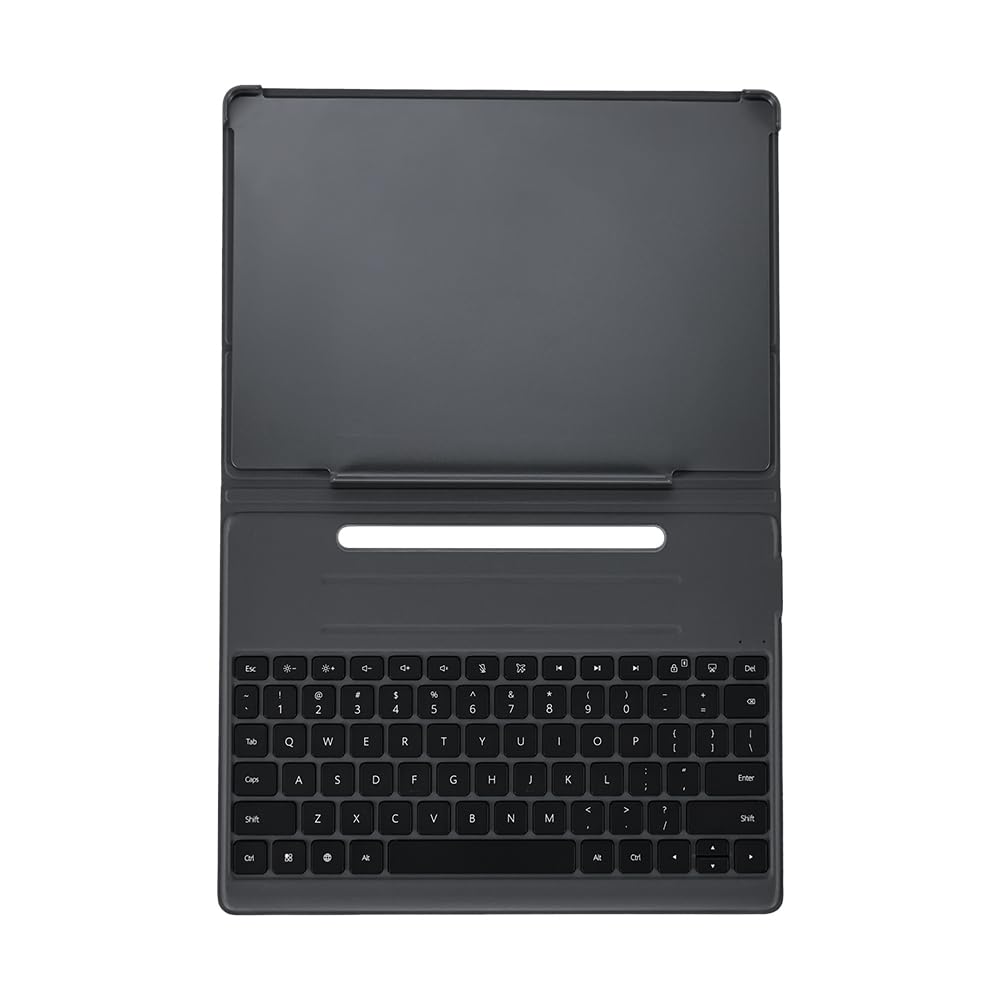
Image: The XP-PEN ACK09 Folio Keyboard with an XPPen Magic Note Pad inserted, shown in a typing configuration. The keyboard is black, and the tablet is silver with a dark screen displaying a clock.
2. What's in the Box
Please check the package contents upon unboxing:
- XP-PEN ACK09 Folio Keyboard
- User Manual (this document)
3. Setup Instructions
3.1 Attaching the Magic Note Pad
Gently align your XPPen Magic Note Pad with the designated slot within the folio case. Ensure the tablet is securely seated to provide full protection and proper alignment for the keyboard connection. The case is designed for a snug fit.
3.2 Bluetooth Pairing
The ACK09 Folio Keyboard connects to your XPPen Magic Note Pad via Bluetooth 5.4. Follow these steps to pair your devices:
- Ensure your Magic Note Pad's Bluetooth is enabled.
- Turn on the Folio Keyboard.
- Press and hold the Bluetooth pairing button on the keyboard for approximately 5 seconds until the indicator light flashes, signifying it is in pairing mode.
- On your Magic Note Pad, search for available Bluetooth devices and select "XP-PEN ACK09 Keyboard" (or similar) from the list.
- Confirm the pairing on your Magic Note Pad if prompted.

Image: An XPPen Magic Note Pad attached to the ACK09 Folio Keyboard, illustrating the Bluetooth pairing process. A finger is shown pressing the Bluetooth button on the keyboard, with text indicating to "Long Press for 5 Seconds".
4. Operating Instructions
4.1 Using the Integrated Stand
The folio keyboard features a flexible stand that allows for two stable viewing angles: 58° and 66°. To adjust the angle, simply fold the cover differently until the desired angle is achieved. This provides ergonomic comfort for both typing and drawing/writing tasks.

Image: A side view of the XPPen Magic Note Pad in the ACK09 Folio Keyboard case, demonstrating the two available tilt angles of 58 degrees and 66 degrees for comfortable viewing.
4.2 Typing with the Keyboard
The ACK09 keyboard features 78 low-profile keys with a 1.2mm key travel, designed for comfortable and precise typing. It offers a full-sized keyboard experience for efficient document creation and note-taking.
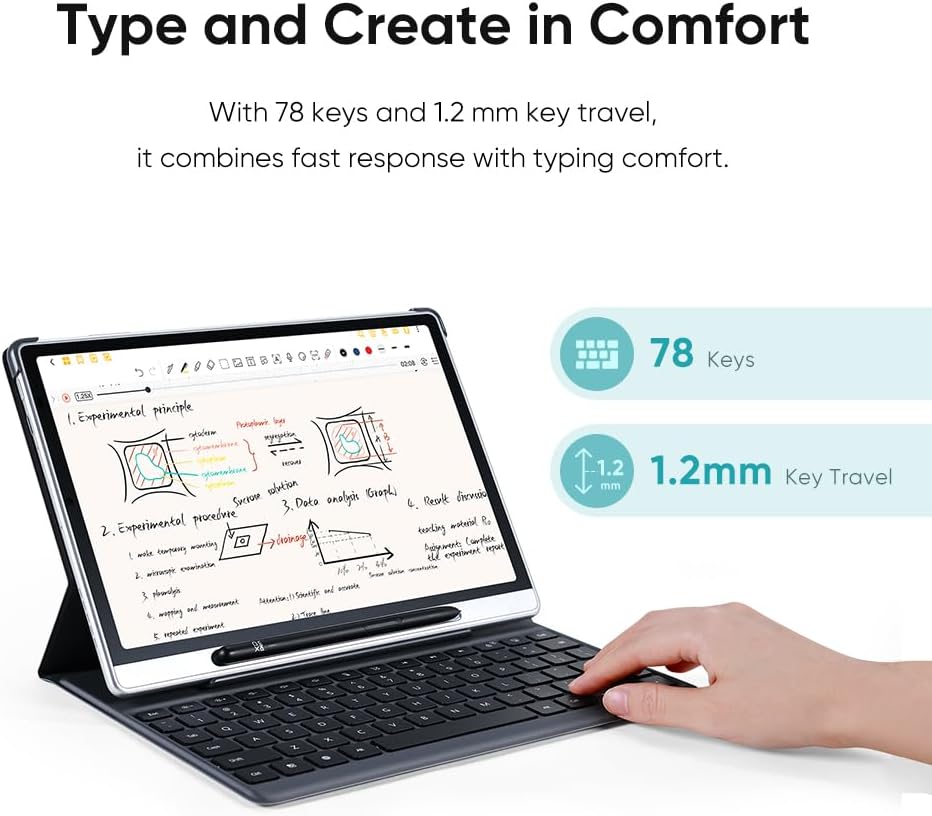
Image: A user's hand typing on the ACK09 Folio Keyboard, with an XPPen Magic Note Pad displaying notes. Graphics highlight "78 Keys" and "1.2mm Key Travel".
4.3 Battery Life and Charging
The keyboard is equipped with a battery that provides up to 60 hours of use on a single charge. When the battery is low, connect the keyboard to a power source using a compatible USB-C cable (not included) to recharge. The charging indicator light will show the charging status.
5. Maintenance and Care
To ensure the longevity and optimal performance of your ACK09 Folio Keyboard, follow these maintenance guidelines:
- Cleaning: The keyboard has an IP54 dust and water resistance rating, offering protection against splashes and dust. For cleaning, gently wipe the surface with a soft, damp cloth. Avoid using harsh chemicals or abrasive materials.
- Storage: When not in use, store the keyboard in a cool, dry place away from direct sunlight and extreme temperatures.
- Handling: Avoid dropping the device or subjecting it to strong impacts.

Image: A person using the ACK09 Folio Keyboard with an XPPen Magic Note Pad in a home office setting. Graphics highlight "60 Hours Battery Life" and "IP54 Dust and Water Resistance".
6. Troubleshooting
| Problem | Possible Solution |
|---|---|
| Keyboard does not connect via Bluetooth. |
|
| Keys are unresponsive. |
|
| Stand does not hold position. |
|
7. Specifications
| Feature | Detail |
|---|---|
| Model Name | ACK09 |
| Compatible Devices | XPPen Magic Note Pad |
| Connectivity Technology | Bluetooth 5.4 |
| Number of Keys | 78 |
| Key Travel | 1.2mm |
| Battery Life | Up to 60 hours |
| Water Resistance Level | IP54 (Dust and Water Resistant) |
| Material | Leather |
| Weight | 370 grams (approx.) |
| Viewing Angles | 58°, 66° |
8. Warranty Information
The XP-PEN ACK09 Folio Keyboard comes with a 1 Year Warranty from the date of purchase. This warranty covers manufacturing defects under normal use. Please retain your proof of purchase for warranty claims. For detailed terms and conditions, please refer to the official XP-Pen website or contact customer support.
9. Customer Support
If you encounter any issues not covered in this manual or require further assistance, please visit the official XP-Pen support website or contact their customer service team.
Official Website: www.xp-pen.com
Ask a question about this manual
Ask about setup, troubleshooting, compatibility, parts, safety, or missing instructions. Manuals+ will review the question and use this page’s manual context to help answer it.