
Introduction
Thank you for choosing the COO Keyboard Case for iPad 11th/10th Gen and Stylus Pen. This manual provides detailed instructions for setting up, operating, and maintaining your new accessories. Please read this guide carefully to ensure optimal performance and longevity of your product.
Compatibility
This keyboard case is specifically designed for the following iPad models:
- iPad 10th Generation 10.9-inch (2022): Models A2696, A2757, A2777
- iPad 11th Generation (2025): Models A3354, A3355, A3356
Important: Due to specific magnet arrangements, this keyboard case is not compatible with other iPad models. Please verify the "A" code on the back of your iPad before use. iPad and Apple Pencil are not included.
The included stylus pen is compatible with iPad models from 2018 and later versions, including:
- iPad 10th/9th/8th/7th/6th Generation
- iPad Air 3rd/4th/5th Gen
- iPad mini 5th/6th Gen
- iPad Pro 2018-2022 (12.9-inch/11-inch)
Note: The stylus is not compatible with iPad Pro 12.9-inch (1st/2nd Gen), iPad Pro 9.7-inch/10.5-inch, or iPhone devices. Ensure your iPad operating system is iOS 12.2 or above for stylus functionality.

Figure 1: Keyboard Case Compatibility Chart. This image illustrates the specific iPad models compatible with the keyboard case, highlighting the 10th and 11th generation iPads and listing their corresponding model numbers. It also clearly indicates models that are not compatible.

Figure 2: Stylus Pen Compatibility Chart. This image displays the stylus pen and a detailed chart outlining its compatibility with various iPad, iPad mini, iPad Air, and iPad Pro models released between 2018 and 2023, along with important notes regarding non-compatibility and iOS version requirements.
Package Contents
Please check the package for the following items:
- 1 x Keyboard Case for iPad 11th/10th Gen
- 1 x Stylus Pen
- 1 x USB-C Charging Cable (for keyboard)
- 1 x User Manual (this document)
Setup Instructions
1. Keyboard Case Setup
- Attaching Your iPad:
Open the keyboard case. The iPad attaches magnetically to the back panel of the case. Align your iPad with the magnetic surface until it securely snaps into place. The floating cantilever design allows for easy adjustment of viewing angles.

Figure 3: Keyboard Case Features. This image highlights various features of the keyboard case, including its magnetic attachment, floating cantilever design, smart power saving, camera protection, scissor key design, aluminum alloy hinge, multi-touch trackpad, Type-C charging port, and adjustable 7-color backlight with 3 brightness levels.
- Charging the Keyboard:
Before first use, fully charge the keyboard. Connect the provided USB-C charging cable to the Type-C port on the keyboard and to a USB power adapter (not included). The charging indicator light will show the charging status.
- Pairing the Keyboard via Bluetooth:
- Ensure the keyboard is charged and powered on.
- On your iPad, go to Settings > Bluetooth.
- Turn on Bluetooth.
- The iPad will search for available devices. Select the keyboard (e.g., "COO Keyboard") from the list.
- Follow any on-screen prompts to complete the pairing process. Once paired, the keyboard will automatically connect to your iPad when both are on and within range.
- Adjusting Backlight:
The keyboard features 7-color backlighting with 3 adjustable brightness levels. Use the dedicated backlight keys (often a sun icon or Fn + light icon) to cycle through colors and adjust brightness.

Figure 4: Keyboard Backlight Features. This image demonstrates the premium backlit keyboard, highlighting its 7-color options and 3-level brightness adjustments. It shows how the backlighting enhances the visual and work experience, with controls for changing colors and brightness.
2. Stylus Pen Setup
- Charging the Stylus Pen:
The stylus pen typically charges via a USB-C port (often located at the end of the pen). Connect it to a USB power source using a compatible cable. A full charge usually takes a short period, indicated by an LED light.
- Activating the Stylus Pen:
Most stylus pens activate by simply tapping the top or pressing a button. No Bluetooth pairing is usually required for basic functionality like writing and drawing, thanks to universal compatibility with supported iPad models.
- Replacing Nibs:
The stylus pen comes with replaceable nibs. To replace, gently pull out the old nib and push in a new one until it is secure.

Figure 5: Stylus Pen Tilt Sensitivity and Nibs. This image illustrates the stylus pen's tilt sensitivity feature, showing how different angles of tilt result in varying line thicknesses. It also displays the five included replaceable nibs for extended use.
Operating Instructions
1. Using the Keyboard Case
- Floating Cantilever Stand:
The magnetic design allows you to adjust your iPad to various viewing angles. Simply tilt the iPad screen to your preferred position for typing, viewing, or browsing.
- Multi-Touch Trackpad:
The integrated trackpad supports multi-touch gestures for precise navigation. Ensure your iPad's operating system is iOS 15.0 or above for full trackpad functionality. Common gestures include:
- Tap: Single tap to click.
- Two-finger scroll: Swipe up or down with two fingers to scroll.
- Pinch to zoom: Pinch in or out with two fingers.
- Swipe between apps: Swipe left or right with three fingers.
- Go to Home Screen: Swipe up with three fingers.

Figure 6: Multi-Touch Trackpad Gestures. This image details the responsive multi-touch trackpad and provides visual examples of various gestures such as tapping, scrolling with two fingers, pinching to zoom, and swiping for app navigation, emphasizing the need for iOS 15.0 or above.
- iPadOS Shortcuts:
The keyboard includes dedicated iPadOS shortcut keys for quick access to functions like Home, Search, Brightness, Volume, and Media Controls.
- Smart Power Saving:
The case features an auto sleep/wake function. Closing the case puts your iPad to sleep, and opening it wakes it up, conserving battery life.
2. Using the Stylus Pen
- Writing and Drawing:
Use the stylus pen for precise writing, drawing, and navigation on your iPad. Its fine tip allows for detailed work.
- Palm Rejection:
The stylus features palm rejection technology, allowing you to rest your hand comfortably on the iPad screen while writing or drawing without interfering with the input.
- Tilt Sensitivity:
The stylus supports tilt sensitivity, meaning you can create lines of varying thickness by tilting the pen, similar to a traditional pencil.
- Versatile Use:
Ideal for note-taking, sketching, drafting, and even playing games that benefit from precise input.
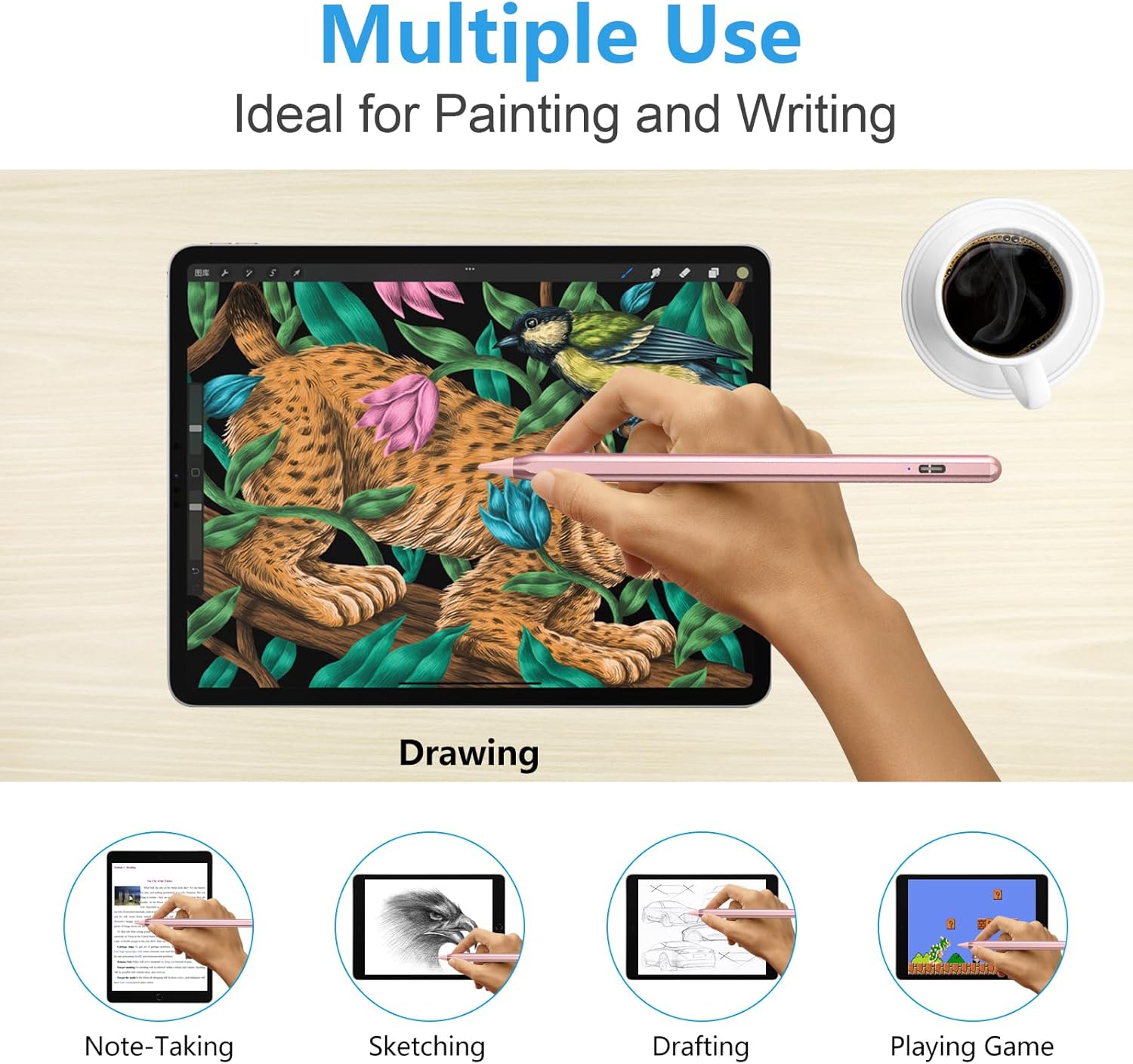
Figure 7: Stylus Pen Multiple Uses. This image demonstrates the versatility of the stylus pen, showing it being used for drawing a complex illustration. Additional smaller images highlight its application in note-taking, sketching, drafting, and gaming.

Figure 8: Product Versatility. This image illustrates the powerful versatility of the keyboard case, showcasing its use for typing, viewing, and browsing in various scenarios, demonstrating its adaptability for work, entertainment, and educational purposes.
Maintenance
- Cleaning the Keyboard Case:
Wipe the exterior of the keyboard case with a soft, damp, lint-free cloth. Avoid using harsh chemicals or abrasive cleaners. For the keyboard keys, use a soft brush or compressed air to remove dust and debris.
- Cleaning the Stylus Pen:
Wipe the stylus pen with a soft, dry cloth. Do not immerse it in water or use liquid cleaners.
- Storage:
When not in use for extended periods, store the keyboard case and stylus pen in a cool, dry place. Ensure the keyboard is turned off to conserve battery.
Troubleshooting
Keyboard Case
- Keyboard not connecting to iPad:
- Ensure the keyboard is charged and powered on.
- Check if Bluetooth is enabled on your iPad.
- Forget the device in iPad's Bluetooth settings and try pairing again.
- Restart both your iPad and the keyboard.
- Trackpad not responding:
- Ensure your iPad's operating system is iOS 15.0 or above.
- Check Bluetooth connection.
- Restart your iPad.
- Keys not responding:
- Ensure the keyboard is charged.
- Check Bluetooth connection.
- Clean under the keys if debris is suspected.
Stylus Pen
- Stylus not working:
- Ensure the stylus is charged.
- Check if your iPad model is compatible (refer to Compatibility section).
- Ensure your iPad's iOS version is 12.2 or above.
- Try restarting your iPad.
- If using with an Apple Pencil, ensure the Apple Pencil is disconnected from Bluetooth.
- Inaccurate input:
- Check if the nib is securely attached or needs replacement.
- Ensure the iPad screen is clean.
Specifications
| Feature | Detail |
|---|---|
| Product Name | COO Keyboard Case for iPad 11th/10th Gen & Stylus Pen |
| Model | Keyboard Case for iPad 11/10.9" Bundle with Stylus Pen |
| Brand | COO |
| Keyboard Connectivity | Bluetooth |
| Keyboard Backlight | 7 Colors, 3 Brightness Levels |
| Trackpad | Multi-Touch, requires iOS 15.0+ |
| Keyboard Charging Port | USB-C |
| Stylus Features | Palm Rejection, Tilt Sensitivity, Replaceable Nibs |
| Stylus Charging Port | USB-C (typical) |
| Case Design | Floating Cantilever, Strong Magnetic Attraction |
| Auto Sleep/Wake | Yes |
Warranty and Support
This product comes with a standard manufacturer's warranty. For specific warranty details, please refer to the product packaging or contact your retailer.
If you encounter any issues or have questions regarding your COO Keyboard Case or Stylus Pen, please contact our customer support team. You can typically find contact information on the product packaging or the retailer's website.
Please have your product model and purchase date ready when contacting support.