1. Introduction
This manual provides detailed instructions for the setup, operation, maintenance, and troubleshooting of your umoven Wallet for Men with AirTag compatibility. Please read this manual thoroughly before using your new wallet to ensure optimal performance and longevity.
2. Product Overview
The umoven Wallet is a minimalist wallet designed for convenience and security. It features multiple card slots, a money clip, an ID window, and a dedicated holder for an AirTag (iOS Only) to help you track your wallet.

Image: Detailed view of the umoven wallet highlighting its features such as the side button for card ejection, front card slots, AirTag holder, money clip, and ID clear window.
Key Features:
- AirTag Holder: Integrated holder for an MFi-certified AirTag (iOS Only) for tracking.
- Pop-Up Card Access: Side button for quick and easy access to cards.
- Ample Storage: Holds up to 12 cards (6 in aluminum slot, 3-4 in cover, 1-2 in AirTag slot) and cash.
- RFID Blocking: Protects credit cards, debit cards, and driver's license information from unauthorized scanning.
- Transparent ID Window: For convenient display of identification.
- Money Clip: Securely holds cash (recommended for up to 5 bills for best magnetic effect).
3. AirTag Setup (iOS Only)
To utilize the tracking features, you must pair your AirTag (not included) with your Apple device using the Find My app.
Video: This video demonstrates the process of setting up and connecting the AirTag to your iPhone's Find My app, including how to activate the AirTag and name it.
Pairing Instructions:
- Ensure your AirTag is powered on. For new AirTags, pull the battery tab. For existing ones, ensure the battery is functional.
- Open the Find My app on your iOS device.
- Tap on the Items tab.
- Tap Add Item, then select Other Supported Item.
- Your device will search for nearby AirTags. Select the detected AirTag (e.g., "Loshall Tag") and tap Connect.
- Follow the on-screen prompts to name your AirTag and assign an emoji, then tap Continue.
- Confirm the connection. Your AirTag is now paired and ready for tracking.

Image: Visual guide illustrating the steps to connect the AirTag to your iPhone's Find My application, from opening the app to naming the item.
4. Wallet Operation
4.1 Card Access
The wallet features a convenient pop-up mechanism for accessing your cards. Simply press the side button, and your cards stored in the aluminum slot will fan out in a stepped pattern, allowing you to easily select the desired card.

Image: Demonstrates the one-touch pop-up feature for easy card access from the aluminum card slot.
4.2 Card and Cash Capacity
- The aluminum card slot holds up to 6 cards.
- The leather cover provides 3-4 additional card slots, including one transparent ID window.
- An external AirTag slot can hold 1-2 cards.
- The internal money clip is designed to hold cash. For optimal magnetic effect, do not store more than 5 bills.
4.3 ID Window
The transparent ID window allows for quick presentation of your identification without needing to remove it from the wallet. Simply flip open the cover to display your ID card or driver's license.
4.4 RFID Blocking
The wallet incorporates advanced RFID blocking technology to protect your credit cards, debit cards, and driver's license from unauthorized electronic scanning, safeguarding your personal data.
5. Tracking Features (with AirTag)
Once your AirTag is paired, you can use the Apple Find My app to locate your wallet.
5.1 Locating Nearby
If your wallet is within Bluetooth range, you can use the Find My app to play a sound on the AirTag, helping you quickly locate it by ear.
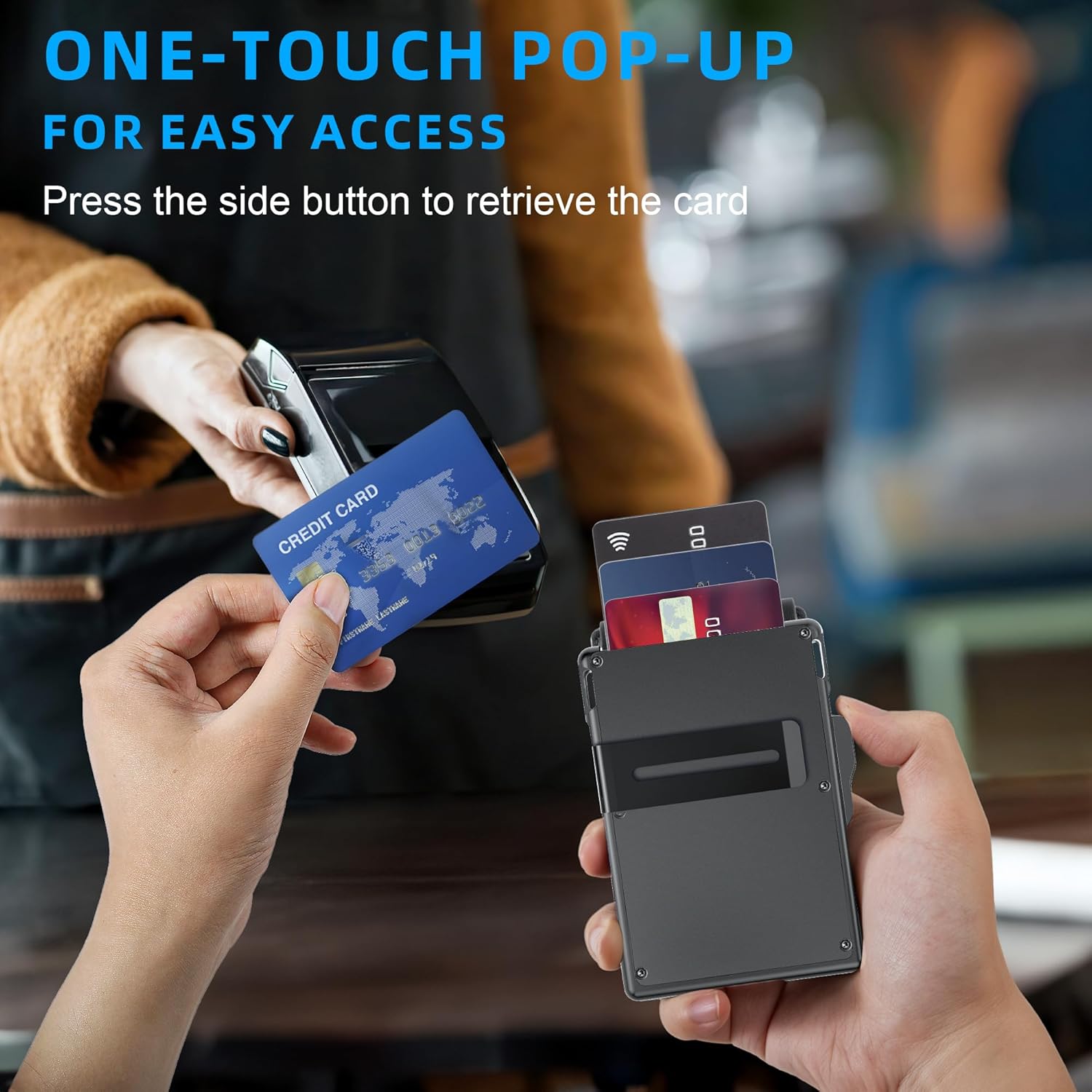
Image: Illustrates the 'Left-Behind Remind' feature and the ability to play a sound from your iPhone to locate the wallet when it's nearby.
5.2 Locating Far Away
If your wallet is outside Bluetooth range, the Find My network can help you locate it. The app will display its last known location on a map and provide directions to that location.

Image: Shows how the Find My app can locate your wallet even when it's far away, displaying its position on a map and suggesting various environments where it might be.
5.3 Left-Behind Reminders
The Find My app can notify you if you leave your wallet behind, providing peace of mind and preventing loss.
6. Maintenance
6.1 General Care
- To clean the wallet, wipe it with a soft, damp cloth. Avoid harsh chemicals or abrasive materials.
- Keep the wallet away from extreme heat or direct sunlight to prevent material damage.
- Avoid overfilling the card slots or money clip, as this can strain the materials and mechanisms.
6.2 AirTag Battery Replacement
The AirTag uses a replaceable CR2032 coin cell battery, which typically lasts up to one year. When the battery is low, your iOS device will notify you. To replace the battery:
- Gently remove the AirTag from its holder in the wallet.
- Twist the back cover of the AirTag counter-clockwise to open it.
- Remove the old CR2032 battery.
- Insert a new CR2032 battery with the positive (+) side facing up.
- Replace the back cover and twist clockwise to secure it.
- Reinsert the AirTag into its holder in the wallet.

Image: Illustrates the AirTag's features, including its replaceable CR2032 battery with a 1-year life, up to 200ft/60m Bluetooth range, loud sound capability, and IP67 waterproof rating.
7. Troubleshooting
7.1 AirTag Connection Issues
If you encounter difficulties pairing your AirTag with the Find My app:
- Ensure your AirTag has a fresh battery.
- Make sure Bluetooth is enabled on your iOS device.
- Try physically resetting the AirTag: Quickly press the power button 4 times, then hold it down until you hear beeps on the 5th press. After a successful reset, attempt to connect again.
- Ensure your iOS device is running the latest software version.
8. Specifications
| Feature | Detail |
|---|---|
| Product Dimensions | 4.25 x 3.1 x 0.55 inches |
| Item Weight | 4.4 ounces (4.37 Ounces) |
| Material | Aluminum |
| Model Number | kb015 |
| AirTag Battery | 1 CR2032 battery required (replaceable) |
| Color | airtags black |
| Style | Minimalist |
9. Warranty & Support
Your umoven wallet comes with a warranty. To activate your warranty and for detailed terms, please visit the official umoven website at www.umoven.vip.
For any product inquiries, technical support, or warranty claims, please contact umoven customer service through the contact information provided on the website.