
1. Introduction
Thank you for choosing the COMEXION G10 Bluetooth Headset V5.3. This manual provides detailed instructions on how to set up, operate, and maintain your new headset. Please read this manual carefully before use to ensure optimal performance and longevity of your device.
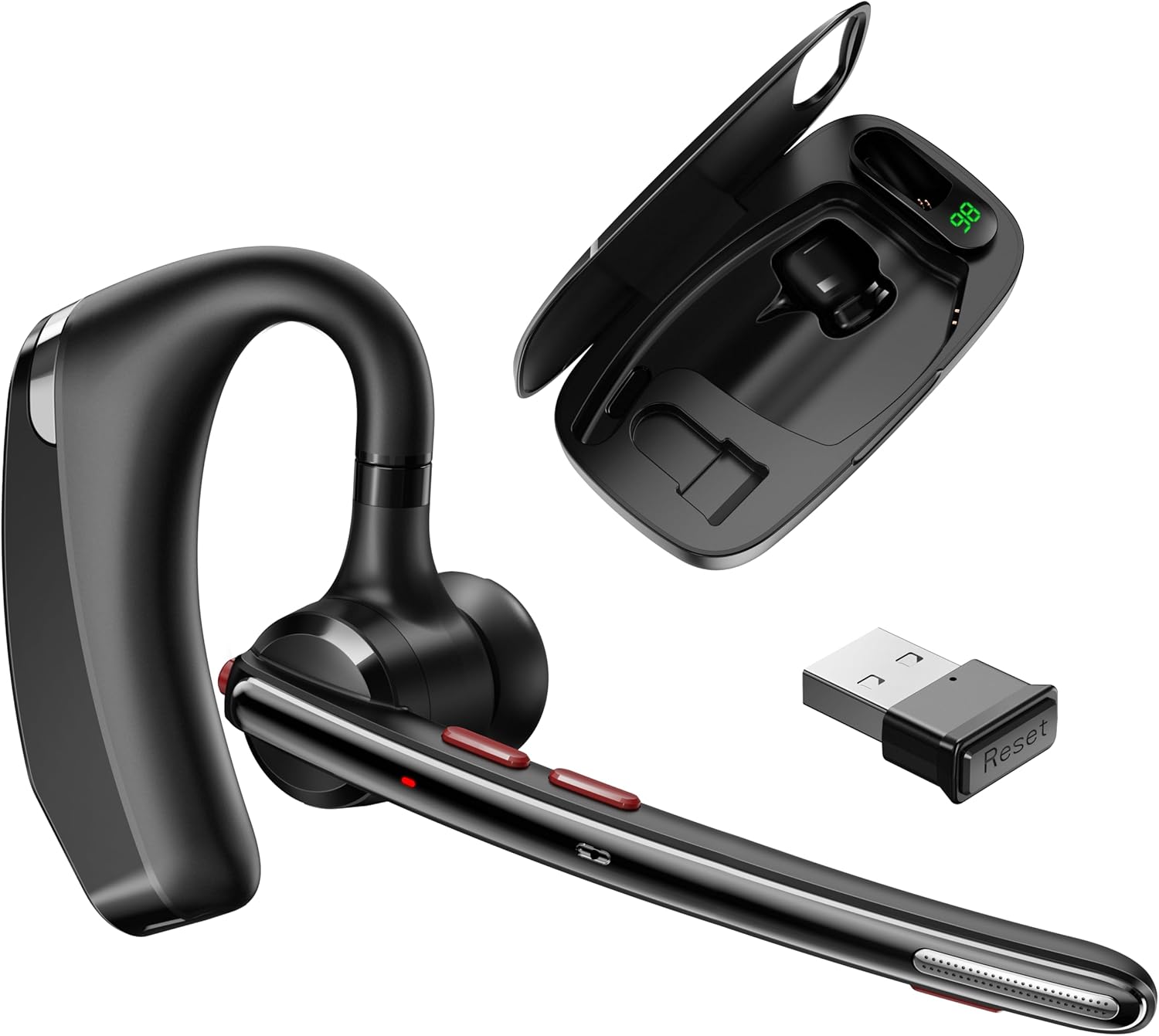
Image: The COMEXION G10 Bluetooth Headset, its portable charging case, and the USB dongle.
2. Package Contents
Please check the package for the following items:
- COMEXION G10 Bluetooth Headset
- Portable Charging Case
- USB Dongle
- USB-C Charging Cable (not explicitly listed but implied for charging)
- Eartips (various sizes)
- User Manual (this document)
3. Product Overview
Familiarize yourself with the components and controls of your COMEXION G10 headset and charging case.

Image: Detailed diagram illustrating the various parts and buttons of the headset and charging case.
- Multifunction Button (MFB): Power on/off, play/pause, answer/end calls.
- V+/Previous Track: Volume up, previous track.
- V-/Next Track: Volume down, next track.
- Charging Interface: For direct headset charging.
- Second Microphone: Part of the dual noise-canceling system.
- LED Light: Indicates status (pairing, charging, connected).
- Main Microphone: Primary voice input.
- Mute Button: Mute/unmute microphone during calls.
- Charging Port: For direct headset charging.
- Dongle Storage: Compartment for the USB dongle within the charging case.
- Charging Interface-1: Charging contact for the headset in the case.
- USB-C Charging Port: For charging the portable charging case.
- Digital Power Display: Shows battery percentage of the charging case.
- Charging Interface-2: Charging contact for the headset in the case.
4. Charging the Headset and Case
Ensure your headset and charging case are fully charged before first use.

Image: Illustration of three different charging methods for the headset and its case.
4.1 Charging the Headset
- Method 1 (Via Charging Case): Place the headset into the portable charging case. Close the lid. The headset will begin charging automatically. The digital display on the case will show its battery level.
- Method 2 (Directly): Connect a USB-C charging cable to the headset's charging port (4 or 9) and a power source. The LED light on the headset will indicate charging status.
4.2 Charging the Portable Charging Case
- Connect a USB-C charging cable to the USB-C Charging Port (12) on the charging case and a power source. The digital power display (13) will show the current battery percentage during charging.
5. Connecting to Devices
5.1 Bluetooth Pairing (for Phones, Tablets, etc.)
- Ensure the headset is charged and powered off.
- Press and hold the Multifunction Button (MFB) until the LED light flashes red and blue alternately, indicating pairing mode.
- On your device (e.g., smartphone), go to Bluetooth settings and turn Bluetooth on.
- Search for available devices and select "G10" from the list.
- Once connected, the LED light on the headset will flash blue slowly, and you will hear a voice prompt "connected".

Image: Visual guide for connecting the G10 headset via Bluetooth to a mobile phone.
5.2 USB Dongle Connection (for Computers)
- Retrieve the USB dongle from its storage compartment (10) in the charging case.
- Plug the USB dongle into an available USB port on your computer. The dongle will automatically turn on.
- Power on your G10 headset. It will automatically attempt to connect to the dongle.
- Once connected, the LED on the headset will flash blue slowly. Your computer should recognize the headset as an audio device.

Image: The USB dongle being plugged into a laptop, illustrating its automatic activation and storage in the charging case.
5.3 Connecting to Multiple Devices
The G10 headset supports connecting to two devices simultaneously.
- Connect the headset to the first device (e.g., computer via dongle or phone via Bluetooth).
- To connect to a second device, long press the Mute button (8) for 5 seconds to enter pairing mode again.
- On the second device, search for "G10" in Bluetooth settings and connect.
- The headset will now be connected to both devices, allowing for seamless switching between audio sources.

Image: The G10 headset positioned between a laptop and a smartphone, demonstrating its ability to connect to both devices.
6. Operating the Headset
6.1 Basic Controls
| Button | Function |
|---|---|
| Multifunction Button (MFB) |
|
| V+ Button |
|
| V- Button |
|
| Mute Button |
|
6.2 Wearing the Headset
The G10 headset is designed for comfort and can be worn on either the left or right ear. Adjust the ear hook and select the appropriate eartip size (found at the bottom of the box compartment) to ensure a secure and comfortable fit for extended use.
6.3 Dual MIC Intelligent Noise Reduction Technology
The headset features dual microphones and an upgraded noise-canceling chip to intelligently identify and eliminate environmental noise. This ensures clear communication by reducing background sounds such as wind, keyboard typing, or general ambient noise during calls.

Image: A visual representation of the headset's dual microphone intelligent noise reduction technology, highlighting its effectiveness.
6.4 Usage Scenarios
The COMEXION G10 headset is suitable for various environments, including:
- Office work and remote meetings
- Driving
- Biking
- Business travel

Image: Four panels showing individuals using the G10 headset while working, driving, biking, and during a business interaction.
7. Maintenance
To ensure the longevity and optimal performance of your headset, follow these maintenance guidelines:
- Cleaning: Use a soft, dry cloth to clean the headset and charging case. Avoid using harsh chemicals or abrasive materials.
- Storage: When not in use, store the headset in its charging case to protect it from dust and damage. Keep it in a cool, dry place away from extreme temperatures.
- Avoid Water: The headset is not waterproof. Avoid exposure to water or excessive moisture.
- Battery Care: For optimal battery life, avoid fully discharging the battery frequently. Charge it regularly.
8. Troubleshooting
If you encounter any issues with your COMEXION G10 headset, please refer to the following common problems and solutions:
| Problem | Solution |
|---|---|
| Headset does not power on. | Ensure the headset is fully charged. Press and hold the MFB for a few seconds to power on. |
| Cannot pair with device. |
|
| No sound or poor audio quality. |
|
| Microphone not working. |
|
| Charging case not charging. | Ensure the USB-C cable is securely connected to both the case and the power source. Try a different cable or power adapter. |
9. Specifications
| Feature | Detail |
|---|---|
| Model Name | G10 |
| Connectivity Technology | Wireless |
| Wireless Communication Technology | Bluetooth V5.3 |
| Included Components | Headset, Charging Case, USB Dongle, Eartips |
| Item Weight | 4.2 ounces |
| Battery | 1 9V battery (included) |
| Standby Time | Up to 300 hours (with charging case) |
| Ear Placement | In Ear |
| Form Factor | In Ear |
| Impedance | 32 Ohms |
10. Warranty and Support
For warranty information and customer support, please refer to the documentation included with your product or contact COMEXION customer service through the official channels. Keep your purchase receipt as proof of purchase for warranty claims.