
1. Introduction
This manual provides comprehensive instructions for the safe and efficient use of your JOOPSHEE SD Card Reader USB C, Model 3399. Please read this manual thoroughly before operating the device to ensure proper functionality and to prevent damage. Keep this manual for future reference.
2. Product Overview
The JOOPSHEE SD Card Reader is a versatile device designed for high-speed data transfer between various memory cards and your computer or mobile devices. It features dual slots for SD and MicroSD cards and offers both USB 3.0 Type-A and USB 3.0 Type-C connectivity.
2.1 Key Features
- Dual Card Slots: Supports standard SD cards (SD, SDHC, SDXC) and MicroSD cards (MicroSD, MicroSDHC, MicroSDXC).
- High-Speed Data Transfer: Utilizes USB 3.0 technology for transfer speeds up to 5Gbps.
- Dual Connectivity: Equipped with both USB 3.0 Type-A and USB 3.0 Type-C connectors for broad compatibility.
- Plug and Play: No drivers required for most operating systems.
- Compact Design: Portable and lightweight for easy transport.
2.2 Product Components
The card reader includes the following main components:
- USB 3.0 Type-A Connector
- USB 3.0 Type-C Connector
- SD Card Slot
- MicroSD (TF) Card Slot
- Protective Caps for connectors

Image 2.2.1: Overview of the JOOPSHEE SD Card Reader, highlighting its USB 3.0 Type-A and Type-C connectors, and the TF/SD card slots. The image indicates 5Gbps high-speed read/write support.

Image 2.2.2: The JOOPSHEE SD Card Reader shown with multiple SD and TF cards, demonstrating its ability to read both card types simultaneously and its support for 5Gbps high-speed data transmission.
3. Setup
The JOOPSHEE SD Card Reader is designed for simple plug-and-play operation. No special drivers are typically required for most compatible operating systems.
3.1 Connecting to Your Device
- Identify the appropriate port on your computer, laptop, tablet, or smartphone: either a standard USB 3.0 Type-A port or a USB 3.0 Type-C port.
- Remove the protective cap from the corresponding connector on the card reader.
- Insert the card reader firmly into the chosen port. The device should be recognized automatically by your operating system.
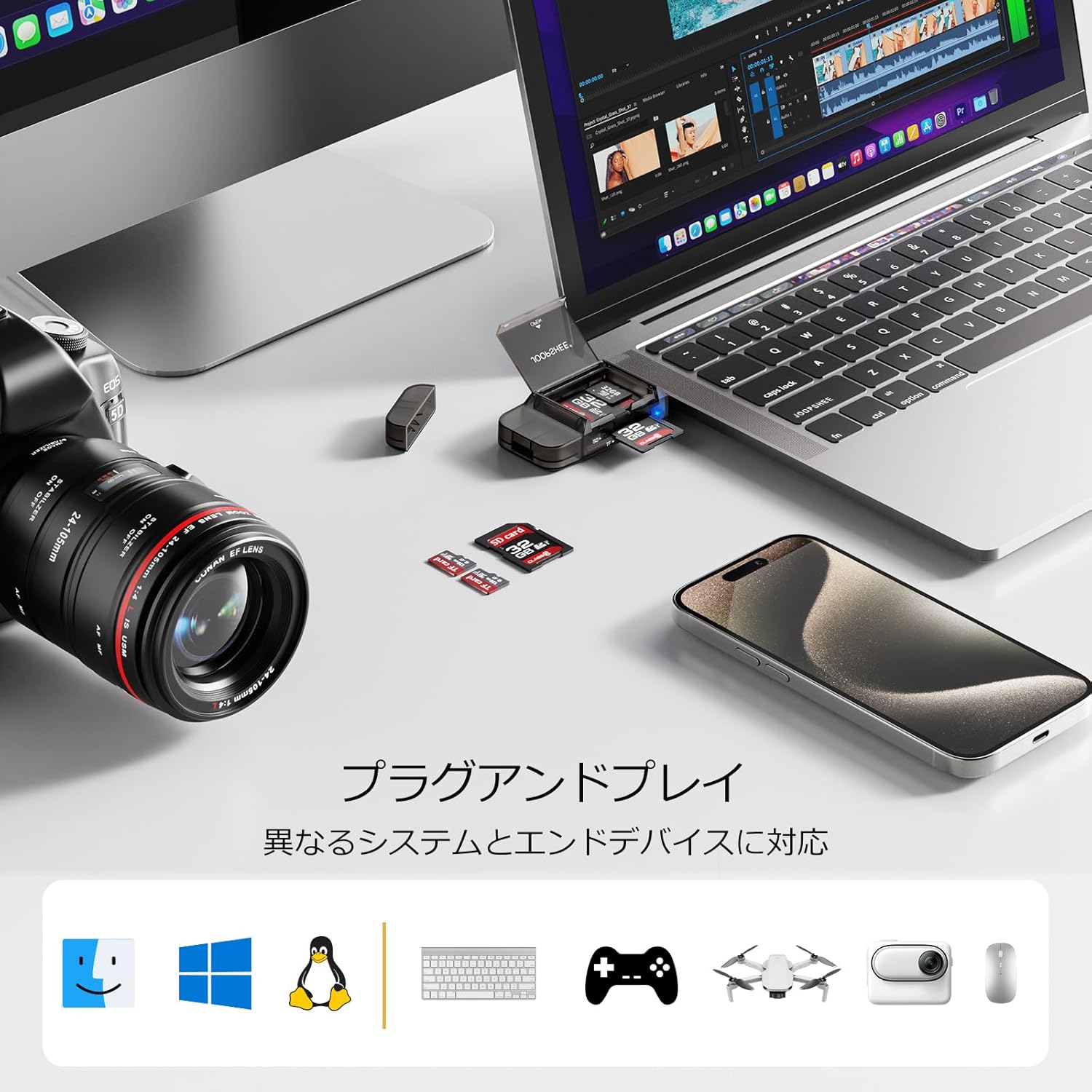
Image 3.1.1: The card reader connected to a MacBook, demonstrating its plug-and-play functionality and broad compatibility with different systems and end devices.
4. Operating Instructions
4.1 Inserting Memory Cards
- Ensure the card reader is connected to your device.
- For SD cards: Gently slide the SD card into the SD card slot until it clicks into place. Ensure the card is oriented correctly.
- For MicroSD (TF) cards: Gently slide the MicroSD card into the MicroSD (TF) card slot until it clicks into place. Ensure the card is oriented correctly.
- Your operating system should detect the inserted card(s) and display them as removable storage devices.
4.2 Transferring Files
- Once the memory card is recognized, open your file explorer (Windows) or Finder (macOS).
- Locate the drive letter or name assigned to your memory card.
- You can now drag and drop files to and from the memory card, or copy and paste them as you would with any other storage device.
- For optimal performance, ensure your host device supports USB 3.0.

Image 4.2.1: The card reader in use, connected to a tablet and a laptop, illustrating its application in various computing environments for data access and transfer.
4.3 Ejecting Memory Cards
Always safely eject memory cards before physically removing them to prevent data corruption.
- Windows: Right-click on the drive representing your memory card in File Explorer and select 'Eject'.
- macOS: Drag the memory card icon from your desktop to the Trash, or click the Eject icon next to the drive in Finder.
- Once prompted that it is safe to remove, gently pull the memory card out of its slot.
5. Compatibility
The JOOPSHEE SD Card Reader is designed for broad compatibility with various devices and operating systems.
5.1 Supported Operating Systems
- Windows (XP/Vista/7/8/10/11 and newer)
- macOS (10.x and newer)
- iOS (for compatible devices with USB-C ports)
- Linux
- Android (for compatible devices with USB-C ports and OTG support)
5.2 Supported Memory Card Types
- SD Card
- SDHC Card
- SDXC Card
- MicroSD Card
- MicroSDHC Card
- MicroSDXC Card
6. Maintenance
Proper care and maintenance will extend the lifespan of your card reader.
- Cleaning: Use a soft, dry cloth to clean the exterior of the card reader. Avoid using liquid cleaners or solvents.
- Storage: When not in use, keep the protective caps on the connectors to prevent dust and debris from entering. Store the device in a cool, dry place.
- Handling: Avoid dropping the device or subjecting it to strong impacts. Do not force memory cards into the slots.

Image 6.1.1: The card reader designed with integrated memory card storage, emphasizing its features for protecting cards from damage, dirt, and loss during transport.

Image 6.1.2: The compact dimensions of the card reader (72mm/2.83inch length, 33mm/1.3inch width) and its 180-degree rotating cap, which minimizes damage when opening.
7. Troubleshooting
If you encounter issues with your JOOPSHEE SD Card Reader, refer to the following common solutions:
| Problem | Possible Cause | Solution |
|---|---|---|
| Card reader not recognized by device. | Loose connection, incompatible port, or driver issue. | Ensure the card reader is fully inserted. Try a different USB port or a different device. Restart your computer. Check device manager for driver issues (though usually not required). |
| Memory card not detected. | Card not fully inserted, card corrupted, or incompatible card type. | Re-insert the memory card, ensuring it clicks into place. Try a different memory card. Check if the card is damaged or corrupted. Ensure the card type is supported. |
| Slow data transfer speeds. | Connected to a USB 2.0 port, or card speed limitation. | Ensure the card reader is connected to a USB 3.0 port on your device. Verify the speed class of your memory card. |
| Error message during file transfer. | Memory card full, corrupted, or safely ejecting issue. | Check available space on the memory card. Try formatting the card (this will erase all data). Always safely eject the card before removal. |
8. Specifications
Technical specifications for the JOOPSHEE SD Card Reader USB C (Model 3399):
| Feature | Detail |
|---|---|
| Brand | JOOPSHEE |
| Model Number | 3399 |
| Color | Black |
| Material | ABS |
| Connectivity Technology | USB-C, USB 3.0 Type-A |
| Data Transfer Speed | Up to 5Gbps (SuperSpeed USB 3.0) |
| Supported Media Types | SD, SDHC, SDXC, MicroSD, MicroSDHC, MicroSDXC |
| Compatible OS | Windows, macOS, iOS, Linux, Android |
| Dimensions (Packaged) | 9.2 x 6.6 x 1.9 cm |
| Weight (Packaged) | 40 g |
| Batteries Required | No |
9. Warranty and Support
For warranty information and customer support, please refer to the product packaging or contact the manufacturer directly. Keep your purchase receipt as proof of purchase.