
1. Introduction
Thank you for choosing the Hivento Mechanical Keyboard. This keyboard is designed to provide a versatile and immersive experience for work, study, and gaming. It features triple-mode connectivity, customizable RGB backlighting, hot-swappable switches, durable PBT keycaps, and a long-lasting 4000mAh battery. This manual provides detailed instructions on how to set up, operate, and maintain your keyboard.
2. Package Contents
Please check the package contents to ensure all items are present:
- Hivento Mechanical Keyboard
- USB-C Cable
- Keycap Puller
- 2.4GHz USB Dongle
- User Manual
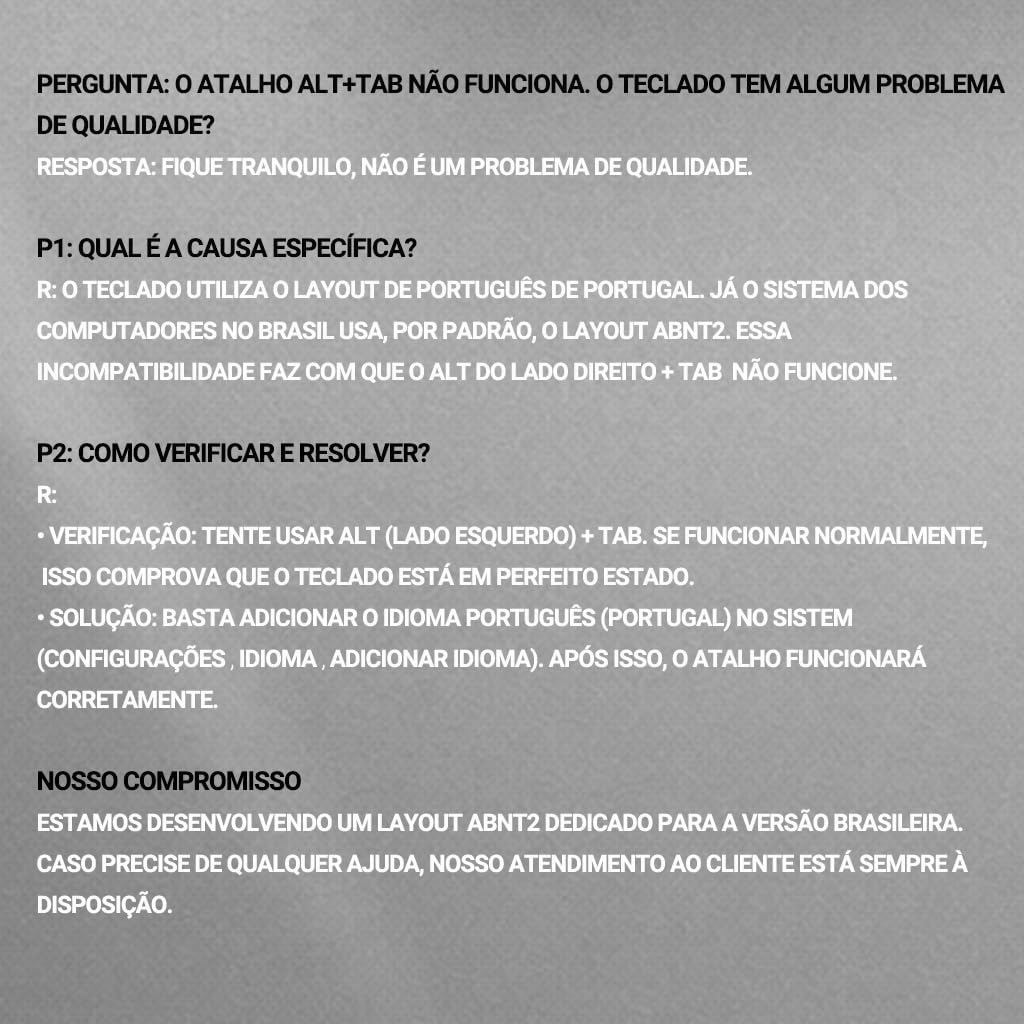
Figure 2.1: Hivento Mechanical Keyboard and included accessories.
3. Product Overview
The Hivento Mechanical Keyboard offers advanced features for enhanced user experience. Familiarize yourself with its key components and capabilities.
3.1 Triple-Mode Connectivity
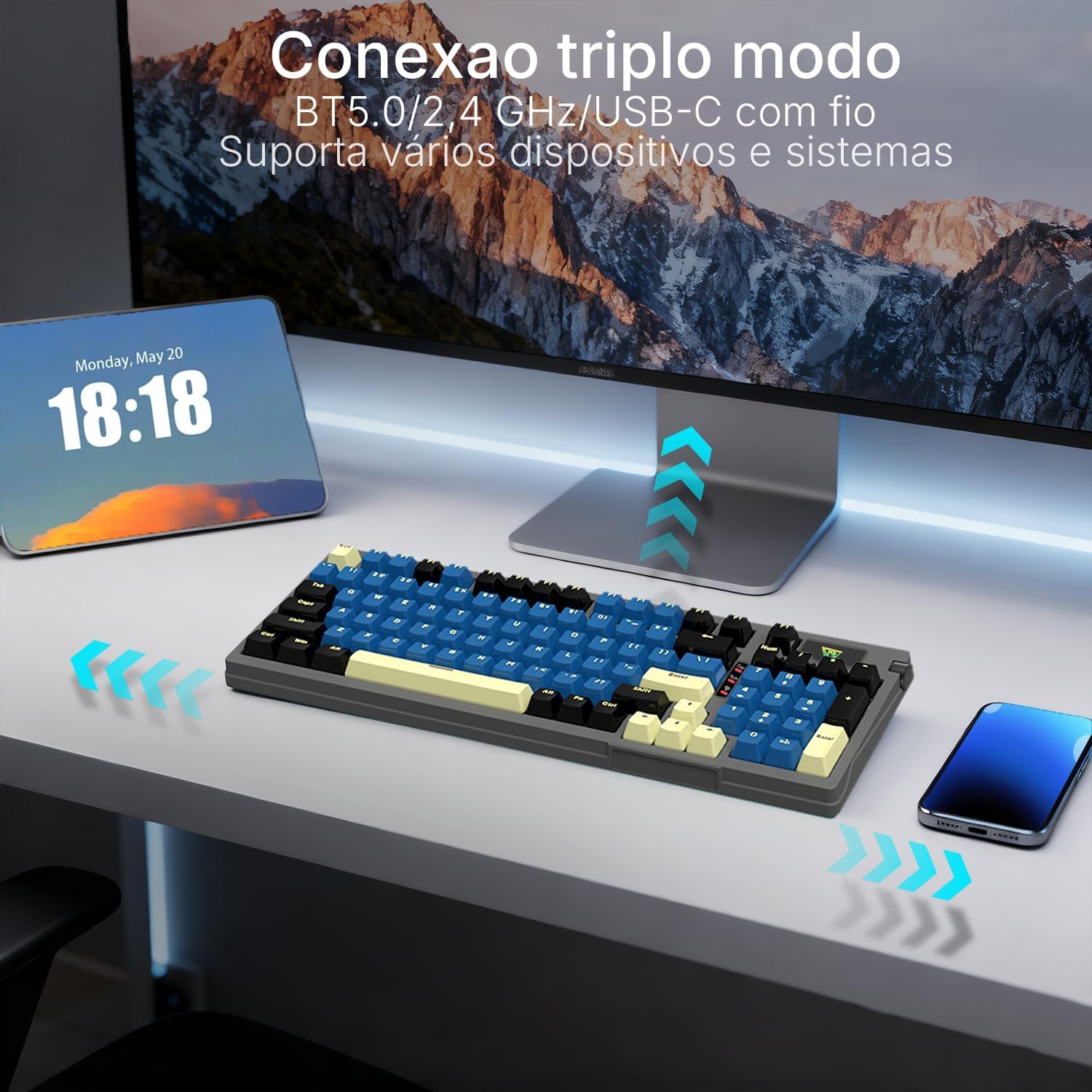
Figure 3.1: Triple-mode connectivity supporting multiple devices and systems.
The keyboard supports three connection modes: Bluetooth 5.0, 2.4GHz wireless, and USB-C wired. These modes can be easily switched using FN key combinations, providing flexibility for various environments and devices.
3.2 Customizable RGB Backlighting

Figure 3.2: Customizable RGB backlighting with dynamic effects.
Experience a variety of RGB lighting effects, customizable macros, and dynamic lighting that can synchronize with music rhythms, enhancing your gaming and work setup.
3.3 Hot-Swappable Switches
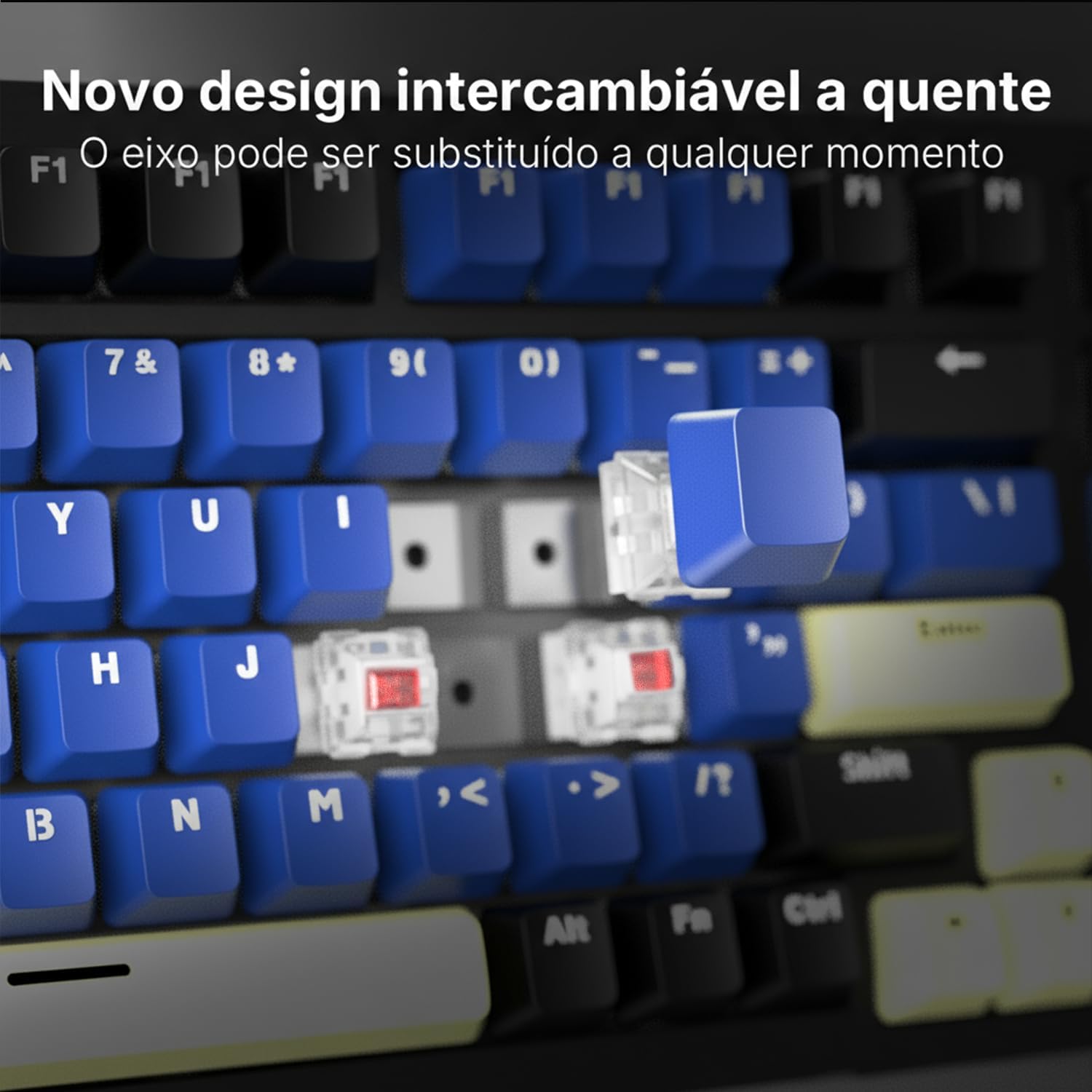
Figure 3.3: Hot-swappable switch design for easy customization.
The keyboard features a hot-swappable design, allowing you to easily change switches and keycaps without soldering. It comes equipped with titanium red switches for a smooth typing experience and quick response.

Figure 3.4: Red switch specifications.
Red Switch Specifications:
Actuation Force: 40 ± 3 gf
Actuation Travel: 1.5 ± 0.3 mm
Bottom-out Force: 50 ± 3 gf
Total Travel: 3.6 ± 0.3 mm
3.4 Multifunctional Knob and Ergonomic Design

Figure 3.5: Ergonomic features and multifunctional knob.
The keyboard features a practical multifunctional knob for easy control of backlight brightness, volume, and media functions. Its ergonomic design includes dual-stage feet with anti-slip rubber for comfortable use.
3.5 Internal Structure

Figure 3.6: Exploded view of the keyboard components.
The keyboard is constructed with multiple layers of sound-absorbing pads to reduce cavity noise, resulting in clearer key clicks and an enhanced quiet experience. Key components include PBT double-shot keycaps, a rotary knob, mechanical switches, stabilizers, a PC positioning plate, an IKPE switch dampening ring, a PCB, a silicone bottom pad, and a 4000mAh battery.
4. Setup
4.1 Charging the Keyboard
Before first use, fully charge the keyboard using the provided USB-C cable. Connect the USB-C end to the keyboard and the USB-A end to a power source (e.g., computer USB port, USB wall adapter). The keyboard has a built-in 4000mAh battery for extended use.
4.2 Connecting the Keyboard
The Hivento Mechanical Keyboard supports three connection modes:
- USB-C Wired Mode: Connect the keyboard directly to your device using the USB-C cable. The keyboard will be recognized automatically.
- 2.4GHz Wireless Mode: Insert the 2.4GHz USB dongle into an available USB port on your device. Switch the keyboard to 2.4GHz mode (refer to the FN key combinations in the Operating Instructions section). The keyboard should connect automatically.
- Bluetooth 5.0 Mode:
- Switch the keyboard to Bluetooth mode (refer to the FN key combinations in the Operating Instructions section).
- On your device, go to Bluetooth settings and search for new devices.
- Select "Hivento Keyboard" (or similar name) from the list of available devices to pair.
5. Operating Instructions
5.1 Switching Connection Modes
Use the following FN key combinations to switch between connection modes:
- FN + [Key] for Bluetooth Mode (e.g., FN + 1, FN + 2, FN + 3 for different Bluetooth profiles)
- FN + [Key] for 2.4GHz Wireless Mode
- FN + [Key] for USB-C Wired Mode
(Specific key combinations for mode switching are typically found on the keyboard itself or in a quick start guide. Please refer to any included quick reference card for exact key mappings.)
5.2 Multifunctional Knob Control
The rotary knob provides quick access to several functions:
- Rotate Up: Increase Volume / Cycle through lighting modes
- Rotate Down: Decrease Volume / Cycle through lighting modes
- Press and Hold (3 seconds): Fix current lighting mode
- Single Press: Play/Pause media
5.3 RGB Lighting Customization
The keyboard offers various RGB lighting effects. Use the multifunctional knob or specific FN key combinations to adjust brightness, change patterns, and customize colors. Advanced customization, including macros and dynamic lighting effects that sync with music, can be configured via the dedicated driver software (if available, check the manufacturer's website for downloads).
5.4 N-Key Rollover
The N-key rollover feature ensures that every key press is registered accurately, even when multiple keys are pressed simultaneously. This is particularly beneficial for fast-paced gaming and typing.
6. Maintenance
6.1 Cleaning the Keyboard
To clean your keyboard, disconnect it from all power sources. Use a soft, dry cloth to wipe the surface. For deeper cleaning, you can use the provided keycap puller to remove keycaps and clean underneath with compressed air or a small brush. Avoid using harsh chemicals or abrasive materials.
6.2 Replacing Switches and Keycaps
Thanks to the hot-swappable design, you can easily replace switches and keycaps. Use the provided keycap puller to remove keycaps. For switches, use a switch puller (not included unless specified) to gently remove the switch. Align the new switch's pins with the sockets and press firmly until it clicks into place. Ensure the pins are not bent before insertion.
7. Troubleshooting
7.1 Alt+Tab Shortcut Not Functioning (Brazilian Systems)

Figure 7.1: Troubleshooting for Alt+Tab functionality.
If the Alt+Tab shortcut does not function correctly on Brazilian systems, this is typically due to a keyboard layout incompatibility, not a product defect. The keyboard uses the Portuguese (Portugal) layout, while Brazilian systems often default to ABNT2.
- Verification: Try using the left Alt key + Tab. If this works, it confirms the keyboard is functioning correctly.
- Solution: Add the Portuguese (Portugal) language layout to your operating system. Go to your system's Settings > Language > Add a language, and select Portuguese (Portugal). After this change, the Alt+Tab shortcut should function normally.
Users with specific shortcut requirements are advised to verify and confirm this configuration before purchase to ensure the best user experience.
7.2 General Troubleshooting Tips
- Connectivity Issues: Ensure the keyboard is fully charged. Re-pair Bluetooth devices or re-insert the 2.4GHz dongle. Try connecting via USB-C cable to rule out wireless issues.
- Keys Not Responding: Check if the keyboard is in the correct operating mode. If a specific key is not working, try replacing its switch (if you have spare switches).
- Backlight Issues: Adjust brightness using the multifunctional knob. Ensure the keyboard is not in a low-power mode.
8. Specifications
| Feature | Specification |
|---|---|
| Brand | Hivento |
| Model Number | AT-1147 |
| Keyboard Type | Mechanical |
| Color | Blue (variant) |
| Connectivity | Bluetooth 5.0, 2.4GHz Wireless, USB-C Wired |
| Switches | Hot-swappable Red Switches |
| Keycaps | PBT Double-shot |
| Battery Capacity | 4000mAh |
| Power Source | Battery Powered |
| Product Dimensions (L x W x H) | 39 cm x 14 cm x 4.2 cm |
| Included Components | USB Cable, User Manual, Keycap Puller |
| Country of Origin | China |
9. Warranty and Support
9.1 Product Warranty
This Hivento Mechanical Keyboard comes with a one-year warranty from the date of purchase. This warranty covers manufacturing defects and malfunctions under normal use. Please retain your proof of purchase for warranty claims.
9.2 Customer Support
For any questions, technical assistance, or warranty claims, please contact the seller, Masterize Store. Only products purchased from Masterize Store are guaranteed to be original and come with warranty and after-sales support.
Please refer to your purchase platform or documentation for specific contact details for Masterize Store.