
1. Product Overview
The Hodozzy 9-inch Android Car Radio is a sophisticated in-car entertainment and navigation system designed specifically for Volvo XC60 models from 2008 to 2013. This unit features an InCell touchscreen display, 4GB RAM, and 64GB ROM, providing a fast and fluid user experience. It integrates essential functions such as wireless CarPlay, Android Auto, GPS navigation, Bluetooth connectivity, FM/RDS radio, and supports a rear view camera. The system is engineered to enhance your driving experience with modern technology and seamless smartphone integration.
2. Vehicle Compatibility
This Hodozzy car radio is compatible with Volvo XC60 models manufactured between 2008 and 2013. It is crucial to verify your vehicle's central control panel matches the compatible configuration (Option A) shown below before installation.

This image illustrates the two types of central control panels for the Volvo XC60. The Hodozzy car radio is compatible only with Option A, which features a specific dashboard layout. Please verify your vehicle's dashboard matches Option A before installation.
3. Package Contents
Please check the package carefully to ensure all items are present:
- Hodozzy Car Radio Unit (Main Player)
- Radio Housing / Dash Kit
- Power Cable
- RCA Cables (x2)
- 3.5mm Audio Cable
- CAN Bus Decoder
- Installation Tool
- GPS Antenna
- Rear View Camera Cable
- USB Cables (x2)
- Mounting Brackets (x2)
- Screws (x4)
- User Manual
- Rear View Camera
- Microphone

This image provides a visual representation of the Hodozzy car radio's dimensions and a comprehensive list of all components included in the package. It shows the main unit, various cables (power, audio, RCA, USB), the GPS antenna, rear camera, microphone, CAN bus, installation tool, and the user manual.
4. Setup and Installation
Installation of a car radio can be complex. It is recommended to have this unit installed by a qualified professional to ensure proper functionality and to avoid damage to your vehicle or the product. Always disconnect the vehicle's battery before beginning any electrical work.
General Installation Steps:
- Prepare the Dashboard: Carefully remove the original car radio and dashboard trim. Refer to your vehicle's service manual for specific instructions.
- Connect Wiring Harness: Connect the provided power cable and CAN bus decoder to the car radio and your vehicle's wiring harness. Ensure all connections are secure.
- Install GPS Antenna: Mount the GPS antenna in a location with a clear view of the sky, typically on the dashboard or under the windshield, ensuring it does not obstruct your view.
- Connect Rear View Camera: Route the rear view camera cable from the back of the vehicle to the car radio. Connect the camera to its designated input.
- Connect USB and RCA Cables: Connect the USB cables for external devices and any additional RCA cables for audio/video output or input as needed.
- Mount the Unit: Secure the car radio unit into the dashboard using the provided brackets and screws.
- Test Functionality: Before fully reassembling the dashboard, reconnect the vehicle's battery and test all functions of the car radio, including power, audio, touchscreen, GPS, Bluetooth, and camera.
- Reassemble Dashboard: Once all functions are verified, carefully reassemble the dashboard trim.
5. Operating Instructions
This section provides guidance on using the various features of your Hodozzy car radio.
5.1. Basic Operation
To power on the unit, start your vehicle. The 9-inch InCell touchscreen display is your primary interface. Tap icons to open applications, swipe to navigate menus, and use pinch-to-zoom gestures where applicable.
5.2. Wireless CarPlay & Android Auto / Mirror Link
The unit supports both wireless and wired CarPlay and Android Auto via Zlink. It also features Mirror Link for iOS (wireless) and Android (wireless or USB cable).
- For CarPlay/Android Auto: Connect your smartphone via Bluetooth for wireless connection or a USB cable for wired connection. Follow the on-screen prompts to enable the feature.
- For Mirror Link: Enable screen mirroring on your smartphone and connect via Wi-Fi or USB.
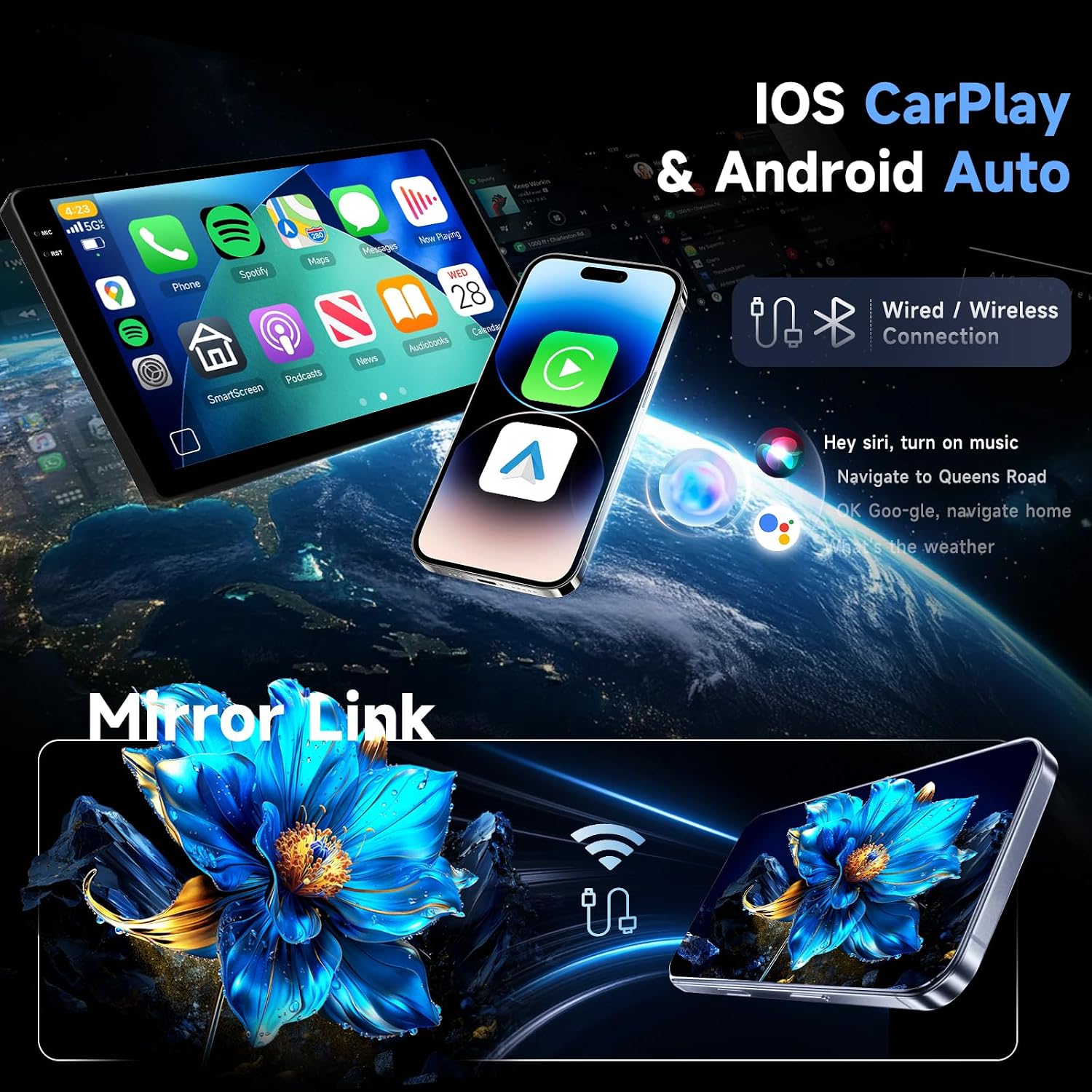
This image illustrates the seamless integration of Wireless CarPlay and Android Auto, as well as Mirror Link for both iOS and Android devices. Users can access smartphone features like navigation, calls, messages, and music directly on the car radio's 9-inch display via wired or wireless connections.
5.3. GPS Navigation
The car radio comes with pre-installed offline maps. For online navigation and map updates, connect the unit to a Wi-Fi network or use your smartphone's hotspot. You can download additional map data as needed.

This graphic highlights the integrated WiFi and GPS navigation capabilities. It shows how the system supports online and offline maps, allowing for precise navigation. The image also indicates the Android system with 4GB RAM and 64GB ROM, enabling various applications.
5.4. Bluetooth Functions
Pair your smartphone via Bluetooth for hands-free calling and audio streaming (A2DP). Access your phonebook and call history directly from the car radio display.
5.5. Radio (FM/RDS)
Tune into your favorite FM radio stations. The RDS (Radio Data System) feature displays station information, song titles, and other relevant data where available.
5.6. Digital Sound Processor (DSP)
Utilize the integrated DSP with a 36-band equalizer to customize your audio experience. Choose from various preset sound styles (Rock, Pop, Jazz, Classical) or create your own custom settings.
5.7. Steering Wheel Control (SWC)
The unit supports your vehicle's original steering wheel controls, allowing you to manage volume, tracks, and calls without taking your hands off the wheel. Configuration may be required in the system settings.
5.8. Rear View Camera
When the vehicle is shifted into reverse, the display will automatically switch to the rear view camera feed, providing a clear view of the area behind your car for safer parking and maneuvering.

This image showcases several key operational features: Bluetooth for hands-free calling and music streaming, a clear display for the rear view camera, the FM/RDS radio interface, the Digital Sound Processor (DSP) for audio customization, and compatibility with Steering Wheel Controls (SWC) for convenient operation.
5.9. Display Features (In-Cell, Split Screen, Multiple UI)
The In-Cell touchscreen offers enhanced clarity and responsiveness. The system supports a split-screen function, allowing you to run two applications simultaneously (e.g., navigation and music). You can also choose from multiple user interface designs to personalize your home screen.
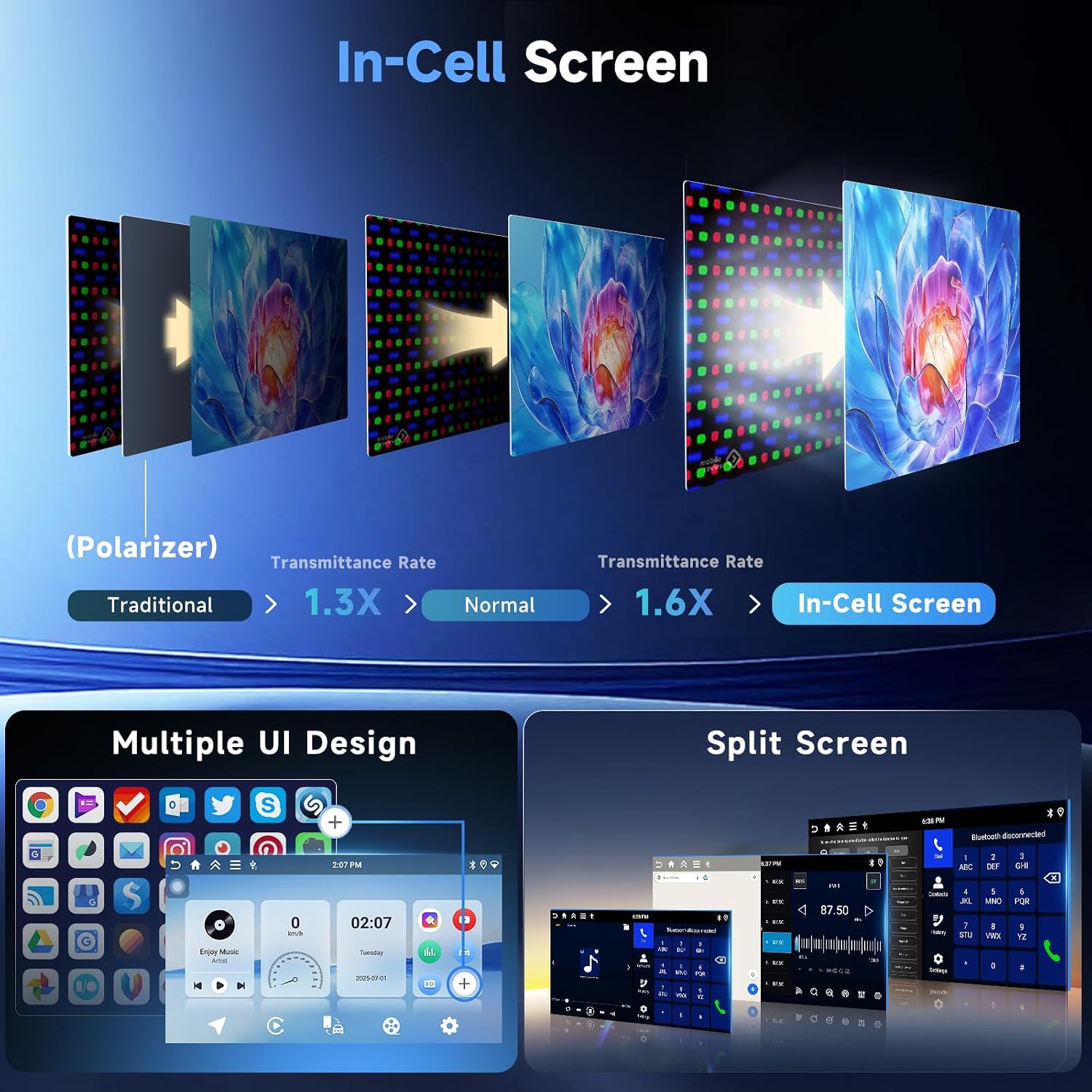
This graphic explains the benefits of the In-Cell screen technology, highlighting its superior transmittance rate for a clearer and brighter display. It also demonstrates the flexibility of the system with multiple user interface designs and the convenient split-screen function, allowing two applications to run simultaneously.
6. Care and Maintenance
- Cleaning: Use a soft, dry cloth to clean the screen and unit. For stubborn smudges, lightly dampen the cloth with water or a screen-safe cleaner. Avoid harsh chemicals or abrasive materials.
- Software Updates: Periodically check for software updates through the system settings or the manufacturer's website to ensure optimal performance and access to new features.
- Temperature: Avoid exposing the unit to extreme temperatures for extended periods.
- Power: Ensure the vehicle's electrical system is stable. Avoid frequent power fluctuations.
7. Troubleshooting
If you encounter issues with your car radio, refer to the following common problems and solutions:
| Problem | Possible Cause | Solution |
|---|---|---|
| Unit does not power on | Loose power connection, blown fuse, vehicle battery issue | Check power cables and connections. Inspect vehicle fuses. Ensure vehicle battery is charged. |
| No sound | Volume too low, incorrect audio source, loose speaker wires | Increase volume. Select correct audio source. Check speaker wire connections. |
| GPS signal lost or inaccurate | GPS antenna obstructed, antenna faulty, outdated maps | Ensure GPS antenna has a clear view of the sky. Check antenna connection. Update map data. |
| Bluetooth connection issues | Device not paired, Bluetooth off, interference | Ensure Bluetooth is enabled on both devices. Re-pair the device. Move closer to the unit. |
| Touchscreen unresponsive | System freeze, software glitch | Restart the unit (turn vehicle off and on). If issue persists, perform a factory reset (Factory Password: 1234). |
| Rear view camera not displaying | Loose camera connection, camera faulty, incorrect settings | Check camera cable connections. Verify camera settings in the unit. |
If these solutions do not resolve the issue, please contact Hodozzy customer support for further assistance.
8. Technical Specifications
| Feature | Specification |
|---|---|
| Brand | Hodozzy |
| Model | A7542 |
| Screen Size | 9 Inches |
| Screen Type | InCell Touchscreen |
| Display Resolution | 1280 x 720 |
| Operating System | Android OS |
| RAM | 4 GB |
| ROM (Internal Storage) | 64 GB |
| Connectivity Technology | Bluetooth, USB, WiFi |
| Special Features | Wireless CarPlay, Android Auto, GPS Navigation, DSP, FM/RDS Radio, Split Screen, Steering Wheel Control, Rear View Camera Support |
| Output Power | 4 x 45 W |
| Working Voltage | 9V-16V |
| Operating Temperature | -20°C to 70°C |
| Supported Audio Formats | APE/FLAC/WAV/MP3/WMA, etc. |
| Supported Video Formats | MKV/RMVB/AVI/MP4/MDV, etc. |
| Supported Image Formats | PNG/JPEG/JPG/GIF/WBMP/BNP, etc. |
| Control Method | Touch |
| Item Weight | 450 Grams |
9. Warranty Information and Customer Support
For warranty details and specific terms, please refer to the warranty card included with your product or contact Hodozzy customer support directly. If you have any questions, require technical assistance, or need to report an issue, please reach out to Hodozzy customer service through the contact information provided on their official website or your purchase platform.


