
1. Introduction
Thank you for choosing the Xzeal XZ-420 Type-C Gamepad. This manual provides detailed instructions for setting up, operating, and maintaining your new gamepad. Please read this manual thoroughly before use to ensure proper functionality and to maximize your gaming experience.
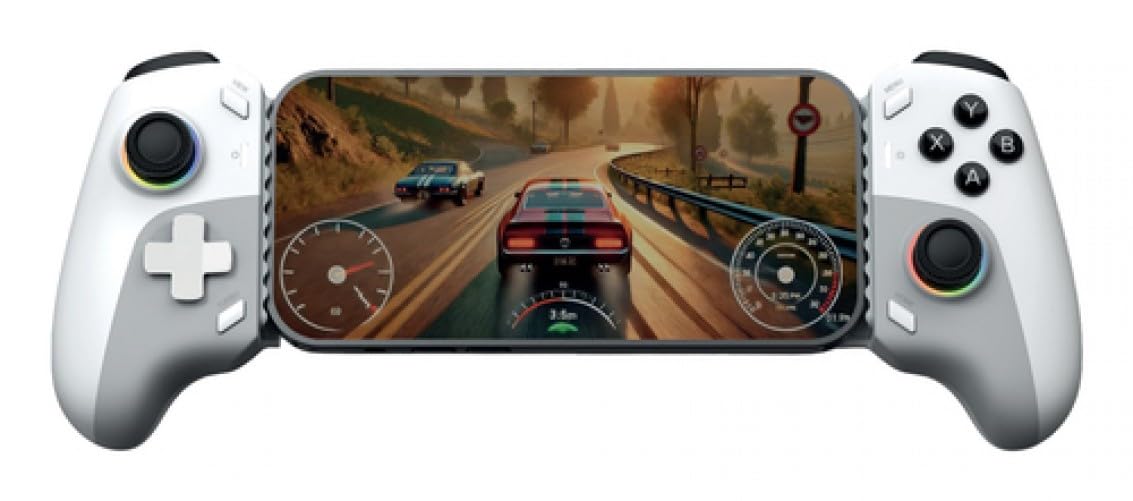
Image 1.1: Front view of the Xzeal XZ-420 Type-C Gamepad. The gamepad features a white and gray color scheme with standard button layout, including dual analog sticks, a D-pad, action buttons, and shoulder triggers.
2. Important Safety Information
- Do not expose the gamepad to extreme temperatures, humidity, or direct sunlight.
- Avoid dropping or subjecting the gamepad to strong impacts.
- Do not attempt to disassemble or modify the gamepad. This will void the warranty.
- Keep the gamepad away from water and other liquids.
- Use only the provided or recommended Type-C cable for connection.
- If the gamepad malfunctions, discontinue use and contact customer support.
3. Package Contents
Please check the package contents to ensure all items are present:
- Xzeal XZ-420 Type-C Gamepad
- USB Type-C Cable
- User Manual (this document)
4. Product Overview
Familiarize yourself with the buttons and features of your Xzeal XZ-420 Gamepad.
Image 4.1: Diagram of the Xzeal XZ-420 Gamepad with key components labeled. (Note: Actual image would show labels for D-pad, Left/Right Analog Sticks, Action Buttons (A, B, X, Y), Start/Select buttons, Home button, L1/R1, L2/R2 triggers, and Type-C port.)
- Left Analog Stick: For directional control.
- D-Pad: Directional Pad for precise input.
- Home Button: Returns to system menu or main screen.
- Select/Back Button: Secondary function button.
- Start/Menu Button: Primary function button.
- Right Analog Stick: For camera control or secondary directional input.
- Action Buttons (A, B, X, Y): Primary interaction buttons.
- L1/R1 (Shoulder Buttons): Top shoulder buttons.
- L2/R2 (Trigger Buttons): Analog trigger buttons.
- Type-C Port: For connecting the gamepad to your device.
5. Setup
5.1 Connecting to Your Device
The Xzeal XZ-420 Gamepad connects via a USB Type-C cable. It is designed for plug-and-play compatibility with most supported platforms.
- Locate the USB Type-C port on your Xzeal XZ-420 Gamepad.
- Connect one end of the provided USB Type-C cable to the gamepad.
- Connect the other end of the USB Type-C cable to an available USB port on your gaming console or computer.
- The gamepad should be automatically recognized by your system. If prompted, allow the system to install any necessary drivers.
5.2 Driver Installation (If Required)
For most modern operating systems and consoles, the XZ-420 is plug-and-play. However, if your system does not automatically recognize the gamepad:
- For PC: Check your operating system's device manager to see if the gamepad is listed. If there's an issue, visit the official Xzeal support website for potential driver downloads or troubleshooting guides.
- For Consoles: Ensure your console's firmware is up to date. Refer to your console's manual for updating instructions.
6. Operating the Gamepad
6.1 Basic Controls
Once connected, the gamepad functions as a standard input device for compatible games and applications. The button layout is intuitive and follows common industry standards.
- Analog Sticks: Use for movement, camera control, or aiming, depending on the game.
- D-Pad: Ideal for menu navigation or precise 2D movement.
- Action Buttons (A, B, X, Y): Perform in-game actions such as jumping, attacking, interacting, or confirming selections.
- Shoulder Buttons (L1, R1): Often used for quick actions, weapon switching, or secondary attacks.
- Trigger Buttons (L2, R2): Typically used for aiming, firing, accelerating, or braking, offering analog input for varying pressure.
- Start/Select Buttons: Access in-game menus, pause the game, or perform specific functions as defined by the game.
- Home Button: Returns to the system dashboard or main menu of your console/PC.
6.2 Compatibility
The Xzeal XZ-420 Gamepad is designed for use with various gaming platforms, including video consoles and personal computers. Compatibility may vary depending on the specific game or operating system. For optimal performance, ensure your games and system software are up to date.
7. Maintenance
7.1 Cleaning
To keep your gamepad in optimal condition:
- Wipe the surface of the gamepad with a soft, dry cloth.
- For stubborn dirt, slightly dampen the cloth with water or a mild, non-abrasive cleaner. Do not spray cleaner directly onto the gamepad.
- Avoid using harsh chemicals, solvents, or abrasive materials, as these can damage the finish.
- Ensure the gamepad is completely dry before reconnecting it to a device.
7.2 Storage
When not in use, store the gamepad in a cool, dry place, away from direct sunlight and extreme temperatures. Avoid placing heavy objects on top of the gamepad.
8. Troubleshooting
If you encounter issues with your Xzeal XZ-420 Gamepad, please refer to the following common solutions:
| Problem | Possible Solution |
|---|---|
| Gamepad not recognized by device. |
|
| Buttons or analog sticks are unresponsive. |
|
| Gamepad disconnects intermittently. |
|
9. Specifications
| Feature | Detail |
|---|---|
| Model Number | XZGP01WG |
| Brand | XZEAL |
| Color | White - Gray |
| Connectivity | Wired (USB Type-C) |
| Platform Compatibility | Videoconsola (Gaming Console), PC |
| Dimensions (L x W x H) | 26 x 7 x 15 cm (approximately) |
| Weight | 3 Kilograms |
| Power Source | Cable electrical (Powered via USB Type-C) |
10. Warranty and Support
The Xzeal XZ-420 Gamepad comes with a standard manufacturer's warranty. For detailed warranty terms and conditions, please refer to the warranty card included in your product packaging or visit the official Xzeal website. For technical support, troubleshooting assistance, or service inquiries, please contact Xzeal customer support through their official channels.
Online Support: Visit the XZEAL Store on Amazon
