
1. Introduction
This manual provides essential instructions for the setup, operation, and maintenance of your SHELIKI D60S Robot Vacuum and Mop Combo. Please read this manual thoroughly before using the product to ensure safe and efficient operation. Keep this manual for future reference.
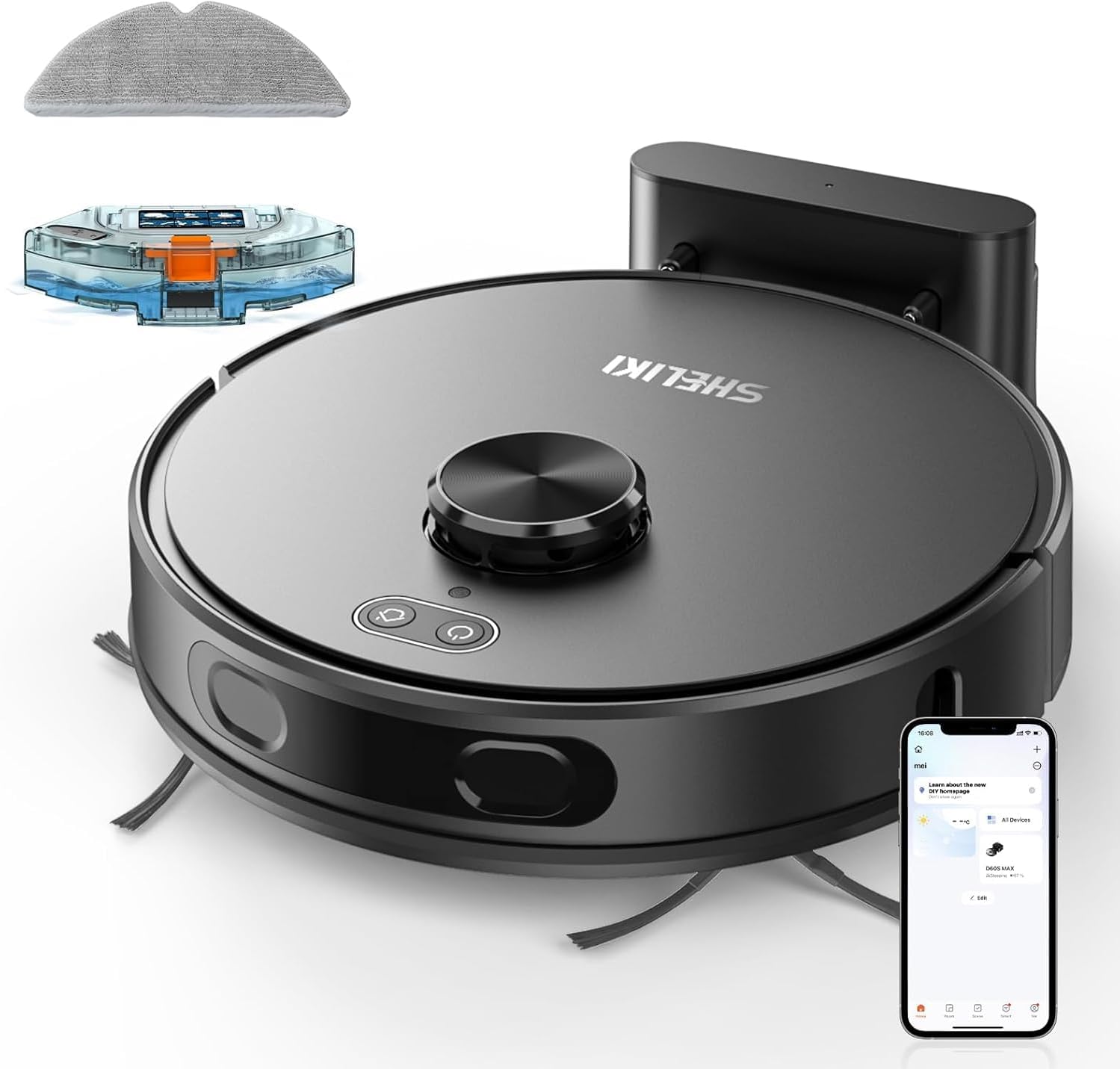
Figure 1: SHELIKI D60S Robot Vacuum and Mop Combo. This image displays the main unit, its charging dock, a detachable water tank, a mop pad, and a smartphone screen illustrating the control app.
2. Safety Instructions
To reduce the risk of injury or damage, read and follow all safety precautions. This device is for indoor use only. Do not use in wet environments or outdoors. Keep hair, loose clothing, fingers, and all body parts away from openings and moving parts. Do not operate the robot in areas with open flames or explosive materials. Ensure the charging dock is placed against a wall on a level surface, away from water sources. Supervise children and pets when the robot is operating.
3. What's in the Box
- D60S Robot Vacuum (1)
- Charging Dock & 2-in-1 Dust Box (1)
- 2-in-1 Dust & Water Bin (1)
- Side Brush (4)
- HEPA Filter (2)
- Dust Bag (5)
- User Manual (1)
- Cleaning Brush (1)

Figure 2: All components included with the SHELIKI D60S Robot Vacuum. This image shows the robot, charging station, 2-in-1 dust and water bin, user manual, mop board and cloth, side brushes, HEPA filters, and a cleaning brush.
4. Product Overview
The SHELIKI D60S is a versatile robot vacuum and mop combo designed for efficient home cleaning. It features advanced LiDAR navigation for precise mapping and intelligent obstacle avoidance.
Key Features:
- 360° LiDAR Navigation: Creates accurate maps of your home for systematic cleaning.
- 4000Pa Strong Suction: Effectively picks up debris and pet hair from various floor types.
- 3-in-1 Cleaning: Sweeps, vacuums, and mops simultaneously with adjustable intensity.
- Smart App & Voice Control: Manage cleaning schedules and settings via the Tuya Smart App, Alexa, or Google Assistant.
- Multiple Cleaning Modes: Offers Zigzag, Auto, Edge, Spot, Scheduled, and Manual modes.
- No-Go Zones: Define restricted areas to prevent the robot from entering.
- Recharge & Resume: Automatically returns to the charging dock when battery is low and resumes cleaning from where it left off.

Figure 3: The D60S utilizing 360° LiDAR navigation technology for accurate scanning and mapping of its environment.

Figure 4: Illustration of the D60S's 4000Pa powerful suction, showing debris being pulled into the vacuum. The image also indicates different power levels: Quiet, Standard, and Powerful.

Figure 5: The D60S demonstrating its 3-in-1 functionality: sweeping, vacuuming, and mopping. It highlights a 350ml water tank, 250ml dust bin, and 99% effective cleaning.
5. Setup
5.1 Charging Dock Placement
Place the charging dock against a wall on a hard, level surface. Ensure there is at least 0.5 meters (1.6 feet) of clear space on both sides and 1.5 meters (4.9 feet) in front of the dock for optimal navigation. Connect the power adapter to the charging dock and plug it into a wall outlet.
5.2 Initial Charging
Place the robot onto the charging dock. The indicator lights on the robot will illuminate to show it is charging. Fully charge the robot before its first use, which may take several hours.
5.3 App Connection (Tuya Smart App)
- Download the Tuya Smart App from your smartphone's app store.
- Register or log in to your account.
- Ensure your home Wi-Fi network is 2.4GHz. The robot does not support 5GHz Wi-Fi.
- Follow the in-app instructions to add your D60S robot vacuum. This typically involves putting the robot into pairing mode and connecting it to your Wi-Fi network.
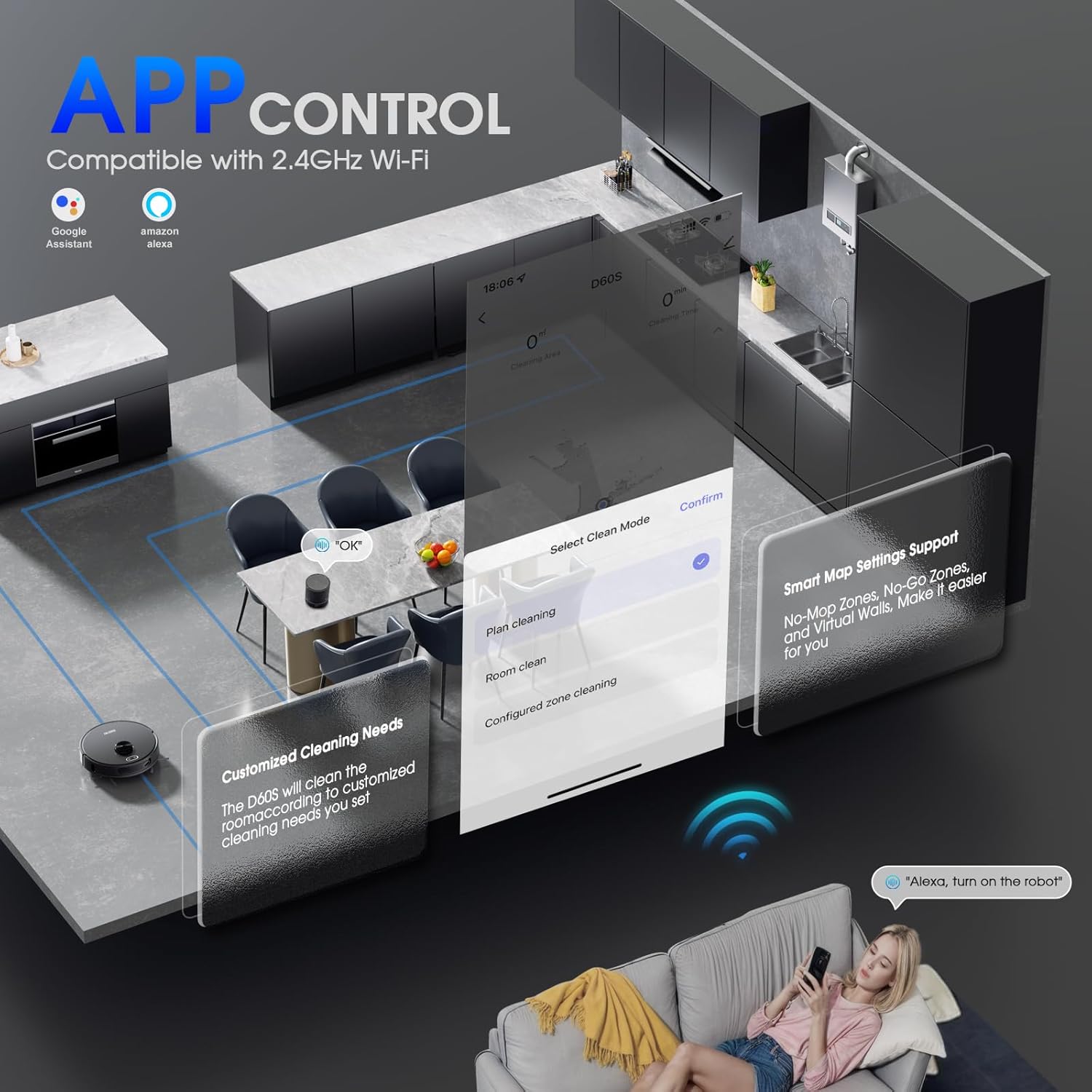
Figure 6: The D60S robot vacuum being controlled through its compatible smartphone application, demonstrating customized cleaning needs and smart map settings.
5.4 Voice Assistant Integration
The D60S is compatible with Amazon Alexa and Google Assistant. Once connected to the Tuya Smart App, follow the app's instructions to link your robot to your preferred voice assistant for hands-free control.
6. Operating Instructions
6.1 Starting a Cleaning Cycle
Press the power button on the robot or use the Tuya Smart App to start a cleaning cycle. The robot will begin cleaning in Auto mode by default.
6.2 Cleaning Modes
Select from the following cleaning modes via the Tuya Smart App:
- Auto Mode: The robot intelligently navigates and cleans your entire home.
- Zigzag Mode: Cleans in a systematic back-and-forth pattern.
- Edge Mode: Cleans along the perimeter of walls and furniture.
- Spot Mode: Focuses on a specific area for intensive cleaning.
- Scheduled Mode: Set specific times for the robot to clean automatically.
- Manual Mode: Control the robot's movement manually using the app.
6.3 Smart Mapping and No-Go Zones
The D60S uses LiDAR navigation to create and save up to 5 maps of your home. Through the app, you can:
- Define No-Go Zones or virtual walls to restrict access to certain areas (e.g., pet areas, carpets during mopping).
- Set up Zone Cleaning for specific rooms or areas.
- Utilize Multi-Floor Mapping for homes with multiple levels.

Figure 7: Visual representation of the D60S's advanced mapping features, including multi-floor mapping, setting no-go zones, configured zone cleaning, and scheduled cleanup, all managed via the smartphone app.
6.4 Adjustable Suction and Mopping Intensity
Adjust the suction power (Quiet, Standard, Powerful) and water flow volume for mopping through the Tuya Smart App to suit different floor types and cleaning needs.
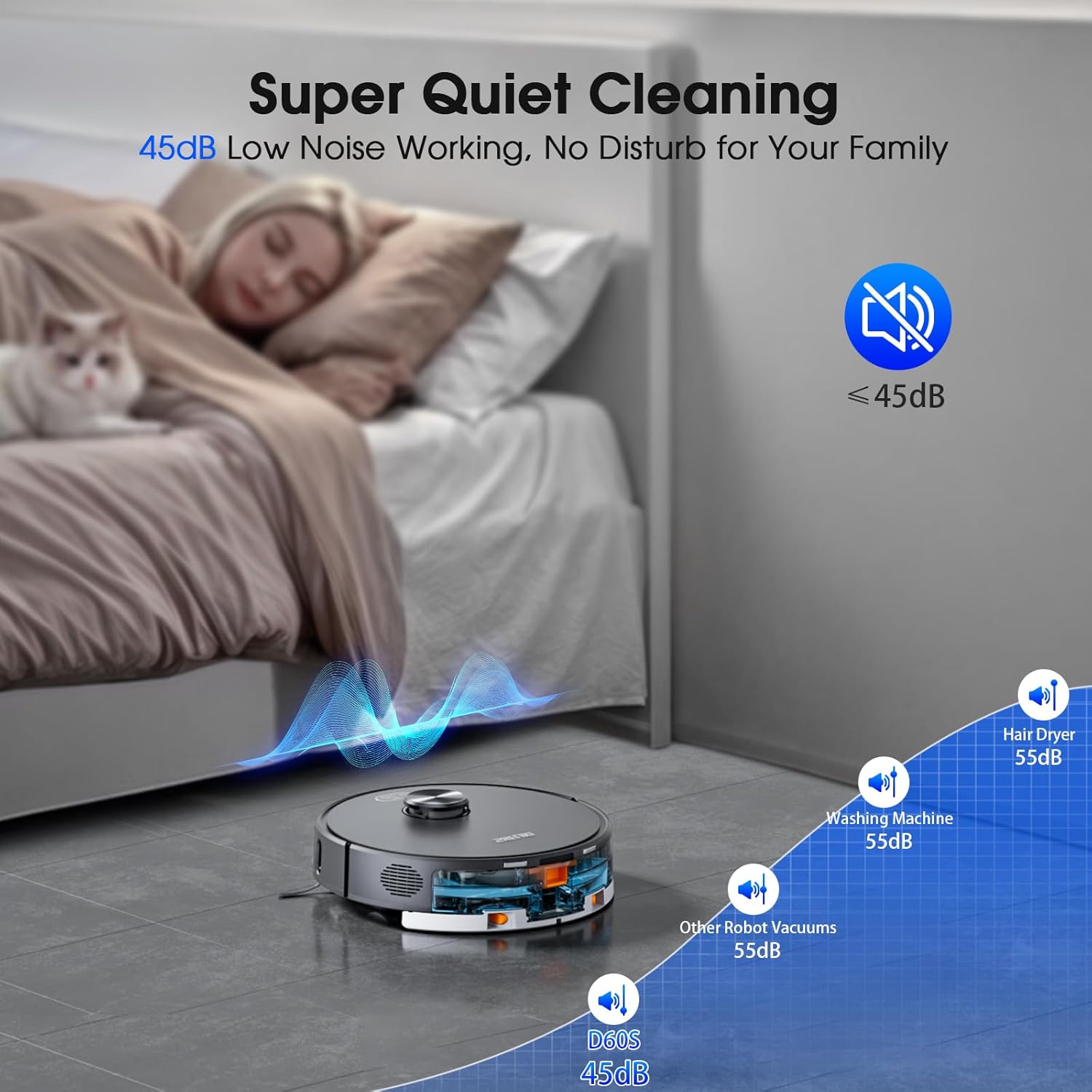
Figure 8: The D60S robot vacuum operating at a low noise level of 45dB, ensuring minimal disturbance during cleaning.

Figure 9: The D60S robot vacuum with its water tank, illustrating 3-level fast mopping capability and water flow control for customizable cleaning.
6.5 Recharge and Resume
When the battery level drops below 15% or a cleaning cycle is complete, the robot will automatically return to its charging dock. After recharging to 80%, it will resume cleaning from where it stopped, if the task was incomplete.
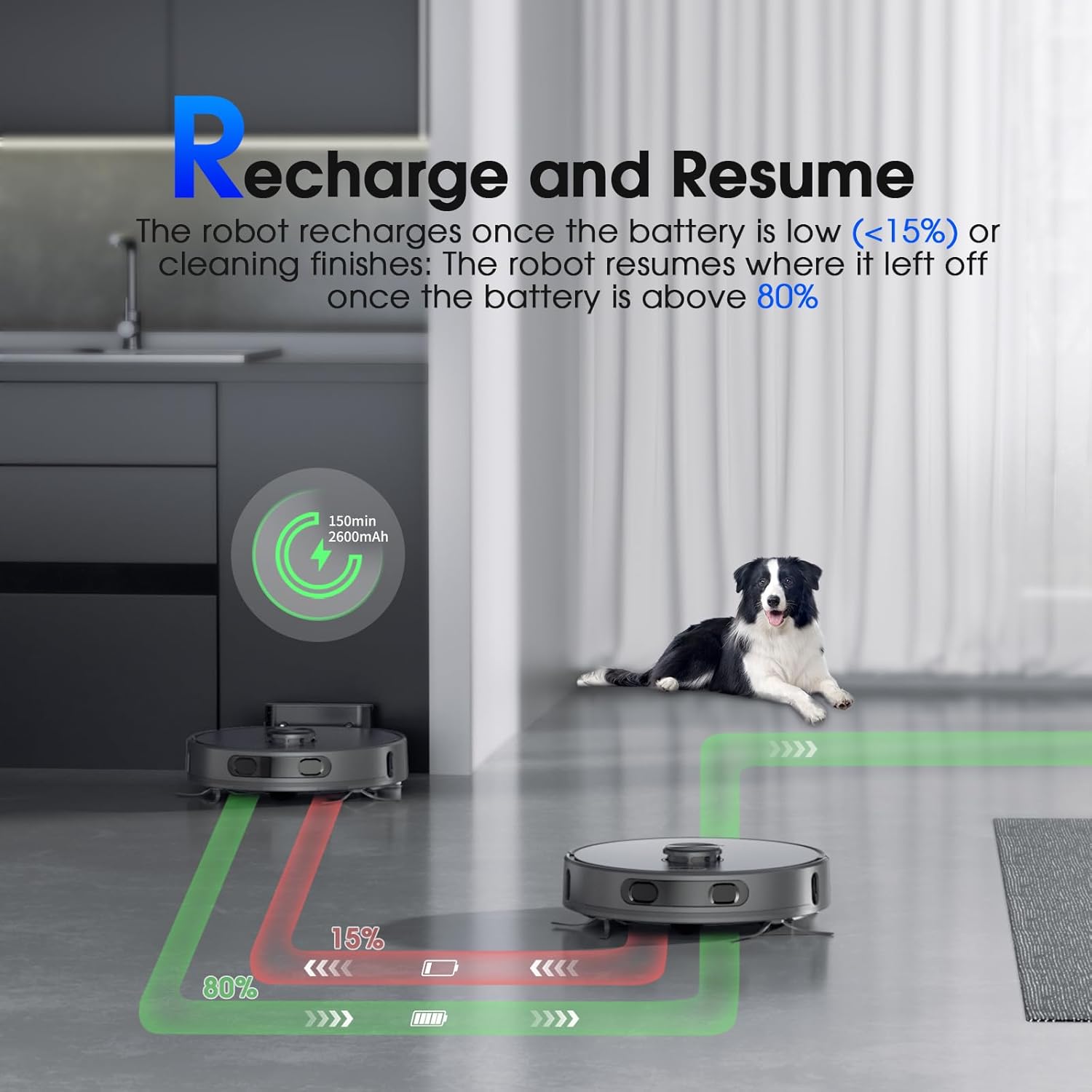
Figure 10: The D60S robot vacuum demonstrating its recharge and resume function, showing the path to the charging station when battery is low (below 15%) and resuming cleaning once charged (above 80%).
7. Maintenance
Regular maintenance ensures optimal performance of your D60S robot vacuum.
7.1 Emptying the Dustbin
Empty the dustbin after each cleaning cycle. Open the robot's top cover, remove the 2-in-1 dust & water bin, and dispose of collected debris.
7.2 Cleaning the Water Tank and Mop Pad
After mopping, empty any remaining water from the tank and clean the mop pad. Replace the mop pad regularly for best results.
7.3 Cleaning Brushes and Filters
Regularly inspect and clean the main brush and side brushes for tangled hair or debris. Clean the HEPA filter using the provided cleaning brush. Replace filters and brushes as recommended in the app or when visibly worn.
8. Troubleshooting
If you encounter issues with your D60S, refer to the following common problems and solutions:
- Robot not charging: Ensure the charging dock is powered on and the robot is correctly aligned with the charging contacts.
- Robot stuck or lost: Clear obstacles from the robot's path. If the robot is lost, manually place it back on the charging dock or restart a cleaning cycle from the app.
- Poor cleaning performance: Empty the dustbin, clean brushes and filters, and ensure the water tank is filled for mopping.
- App connectivity issues: Verify your Wi-Fi network is 2.4GHz and stable. Restart the robot and your router, then attempt to reconnect via the app.
For more detailed troubleshooting, consult the Tuya Smart App's help section or contact SHELIKI customer support.
9. Specifications
| Brand | SHELIKI |
| Model Name | D60S -Laser Style |
| Special Feature | 360-Degree Swivel, LiDAR Navigation, Multi-Floor Mapping, Pet Hair Pick Up, Smart Mapping |
| Color | Gray |
| Product Dimensions | 3.93"L x 12.99"W x 12.99"H |
| Filter Type | Cartridge |
| Battery Life | 140 minutes |
| Power Source | Battery Powered |
| Are Batteries Included | Yes |
| Control Method | App, Voice |
| Compatible Devices | Amazon Echo, Google Home, Smartphones |
| Form Factor | Robotic |
| Item Weight | 10.34 pounds |
| Manufacturer | SHELIKI |
| Item model number | D60S |
| Batteries | 1 C batteries required. (included) |
| Date First Available | October 7, 2025 |
10. Warranty and Support
The SHELIKI D60S Robot Vacuum and Mop Combo comes with a 2-year warranty, as indicated in product information. For warranty claims, technical support, or any inquiries not covered in this manual, please contact SHELIKI customer service through their official website or the contact information provided with your purchase.


