
1. Introduction
This manual provides essential information for the safe and effective use of your COZYINN Folding Treadmill. Please read all instructions carefully before assembly, operation, or maintenance. Retain this manual for future reference.
The COZYINN Folding Treadmill is designed for both walking and light running, offering a versatile exercise solution for home and office environments. It features a powerful motor, adjustable incline, and a compact, foldable design for easy storage.
2. Safety Information
WARNING: To reduce the risk of serious injury, read all important precautions and instructions in this manual before using the treadmill.
- Always place the treadmill on a level surface with at least 2 feet of clear space on each side and 6 feet behind it.
- Keep children and pets away from the treadmill during operation.
- Consult a physician before beginning any exercise program. Stop immediately if you feel faint, dizzy, or experience pain.
- Wear appropriate athletic footwear and clothing. Do not operate the treadmill barefoot.
- The safety key must be attached to your clothing during operation. If you fall or move too far back on the treadmill, the safety key will detach, stopping the machine.
- Do not use the treadmill if it is damaged or malfunctioning.
- Ensure the power cord is not pinched or damaged. Do not use extension cords.
- Maximum user weight capacity: 320 lbs.
3. Package Contents
Verify that all components are present and undamaged upon unpacking. The COZYINN Folding Treadmill arrives fully assembled, requiring minimal setup.
- COZYINN Folding Treadmill Unit
- Power Cord
- Remote Control
- Safety Key
- Tablet/Phone Holder
- Tool Pack (for minor adjustments)
- User Manual (this document)

Figure 3.1: Included Components
Description: This image displays the COZYINN Folding Treadmill alongside its standard accessories, including the power cord, remote control, safety key, tablet/phone holder, tool pack, and the user manual. This visual guide helps confirm that all parts are present.
4. Setup Instructions
4.1 Unfolding the Treadmill
- Place the treadmill on a flat, stable surface.
- Carefully lift the handlebar until it locks into its upright position.
- Ensure all locking mechanisms are securely engaged before use.
4.2 Adjusting Manual Incline
The treadmill features a 10% manual incline. To adjust the incline:
- Power off and unplug the treadmill.
- Locate the incline adjustment feet at the rear of the treadmill.
- Manually adjust the feet to the desired incline level. Ensure both sides are adjusted equally for stability.
- Confirm the treadmill is stable before resuming use.

Figure 4.1: Manual Incline Adjustment
Description: This image illustrates the COZYINN Folding Treadmill with a visual cue highlighting the manual incline adjustment mechanism located at the back of the unit. It shows how the treadmill can be set to a 10% incline.
4.3 Initial Lubrication
Although the treadmill comes pre-lubricated, it is recommended to check and apply additional lubricant under the running belt before first use, and periodically thereafter, as per maintenance guidelines.
5. Operating Instructions
5.1 Powering On/Off
- Plug the power cord into a grounded electrical outlet.
- Flip the main power switch, usually located near the power cord inlet, to the 'ON' position.
- The LED display will illuminate.
- To power off, flip the main power switch to 'OFF' and unplug the unit.
5.2 Using the Safety Key
The safety key is a critical safety feature. Attach the clip of the safety key to your clothing before starting the treadmill. If the safety key is removed during operation, the treadmill will immediately stop.
5.3 Control Methods
The COZYINN Folding Treadmill offers multiple control options:
- Remote Control: Use the included remote to start/stop the treadmill and adjust speed.
- Console Control: Buttons on the treadmill's console allow for direct speed adjustments and start/stop functions.
- APP Control: Download the dedicated fitness application (e.g., Wellfit app) to your smartphone or tablet for advanced control, tracking, and program selection.
- Voice Control: Certain functions may be controlled via voice commands through the connected app.

Figure 5.1: Treadmill Control Options
Description: This image illustrates the multiple ways to control the COZYINN Folding Treadmill, including the remote control, the console buttons on the handlebar, smartphone app control, and voice control features. The clear LED display is also visible, showing workout metrics.

Figure 5.2: Handlebar with Integrated Buttons
Description: This image highlights the COZYINN Folding Treadmill's handlebar, which features integrated buttons for easy speed adjustment and control during a workout. It contrasts this with a generic treadmill that lacks such convenient handlebar controls.
5.4 Speed Modes
The treadmill supports two primary modes:
- Walking Mode: Speeds up to 3.8 MPH, ideal for under-desk use or casual walking.
- Running Mode: Speeds up to 6.2 MPH, suitable for more intense cardio workouts.
Adjust speed gradually using the remote, console, or app controls.

Figure 5.3: Walking and Running Modes
Description: This image demonstrates the COZYINN Folding Treadmill being used in an office setting, with a person walking on it while working at a standing desk. It visually represents the treadmill's capability for both walking (0.6-3.8 MPH) and running (up to 6.2 MPH) modes.
5.5 Folding for Storage
To fold the treadmill for compact storage:
- Ensure the treadmill is powered off and unplugged.
- Carefully lower the handlebar until it rests flat against the deck. The one-touch folding design simplifies this process.
- Utilize the integrated transport wheels to move the folded treadmill to its storage location.

Figure 5.4: Folded Dimensions and Transport
Description: This image displays the COZYINN Folding Treadmill in two states: fully unfolded and vertically folded. It highlights the compact dimensions when folded (50.59"L x 23.03"W x 4.45"H) and points out the transport wheels for easy movement and storage.
6. Maintenance
6.1 Lubrication of the Running Belt
Regular lubrication of the running belt is crucial for optimal performance and longevity. Use only silicone-based treadmill lubricant.
- Power off and unplug the treadmill.
- Loosen the rear roller bolts slightly to lift the belt.
- Apply a thin line of lubricant evenly under the center of the running belt.
- Tighten the rear roller bolts.
- Run the treadmill at a low speed (e.g., 1 MPH) for 5 minutes to distribute the lubricant.
Frequency: Lubricate every 3 months or after 50 hours of use, whichever comes first.
6.2 Running Belt Alignment
The COZYINN treadmill features a self-correcting belt alignment system to prevent drift. However, if the belt appears to be off-center:
- Power off and unplug the treadmill.
- Identify if the belt is drifting to the left or right.
- Using the included tool, turn the adjustment bolt on the side towards which the belt is drifting a quarter turn clockwise.
- Plug in and run the treadmill at 2-3 MPH for 2 minutes.
- Repeat adjustments as necessary until the belt is centered.
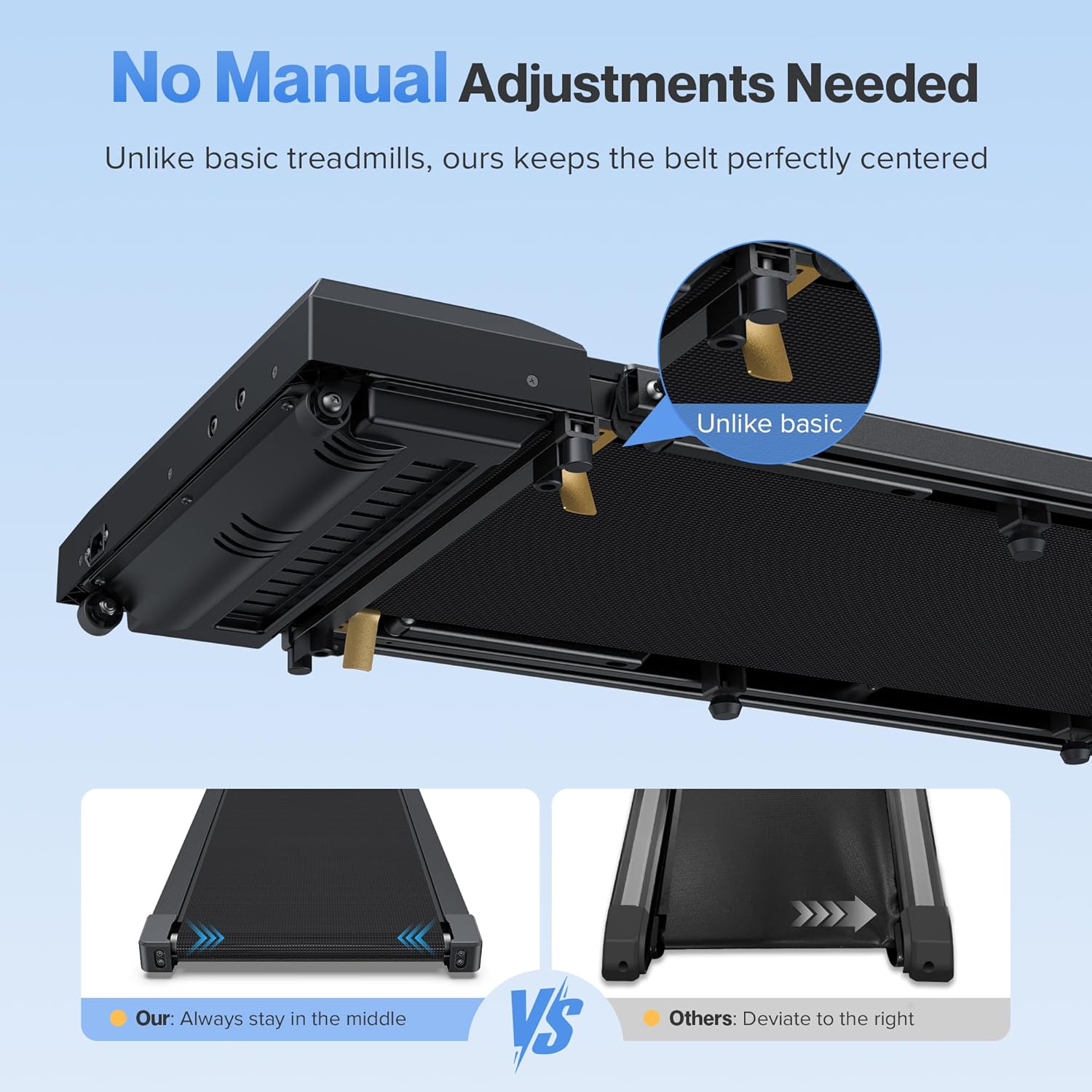
Figure 6.1: Running Belt Alignment System
Description: This image visually explains the COZYINN treadmill's self-correcting belt alignment feature, which ensures the running belt remains centered during use. It contrasts this with a typical treadmill where the belt might drift to one side, requiring manual adjustment.
6.3 Cleaning
Wipe down the treadmill surfaces with a damp cloth after each use. Do not use abrasive cleaners or solvents. Keep the area around the treadmill clean and free of dust and debris.
7. Troubleshooting
| Problem | Possible Cause | Solution |
|---|---|---|
| Treadmill does not power on. | Power cord not plugged in; main switch off; circuit breaker tripped. | Ensure power cord is securely plugged in. Turn main power switch ON. Check household circuit breaker. |
| Running belt stops or slips. | Safety key removed; belt requires lubrication; belt tension too loose. | Ensure safety key is in place. Lubricate the running belt (see Section 6.1). Adjust belt tension (refer to manufacturer support if unsure). |
| Remote control not working. | Batteries dead; remote not paired. | Replace remote control batteries. Refer to the app or manufacturer support for pairing instructions if needed. |
| Unusual noise during operation. | Loose components; belt misalignment; motor issue. | Check for and tighten any loose bolts. Adjust belt alignment (see Section 6.2). If noise persists, contact customer support. |
8. Specifications
| Feature | Specification |
|---|---|
| Brand | COZYINN |
| Model | B0FRFKRWF4 (Folding Treadmill) |
| Motor Horsepower | 3.0 HP |
| Maximum Speed | 6.2 Miles per Hour |
| Minimum Speed | 0.6 Miles per Hour |
| Maximum Incline | 10% (Manual) |
| Maximum Weight Recommendation | 320 Pounds |
| Running Surface (Deck Length x Width) | 36 Inches x 16 Inches |
| Unfolded Dimensions (L x W x H) | 46.06" x 23.03" x 40.35" |
| Folded Dimensions (L x W x H) | 50.59" x 23.03" x 4.45" |
| Item Weight | 39 Pounds |
| Material | Alloy Steel |
| Display Type | LED (Metrics: Calories Burned, Distance, Speed, Time) |
| Special Features | Compact Design, Foldable, Manual Incline, Wheeled, APP & Remote Control, Handle Bar |
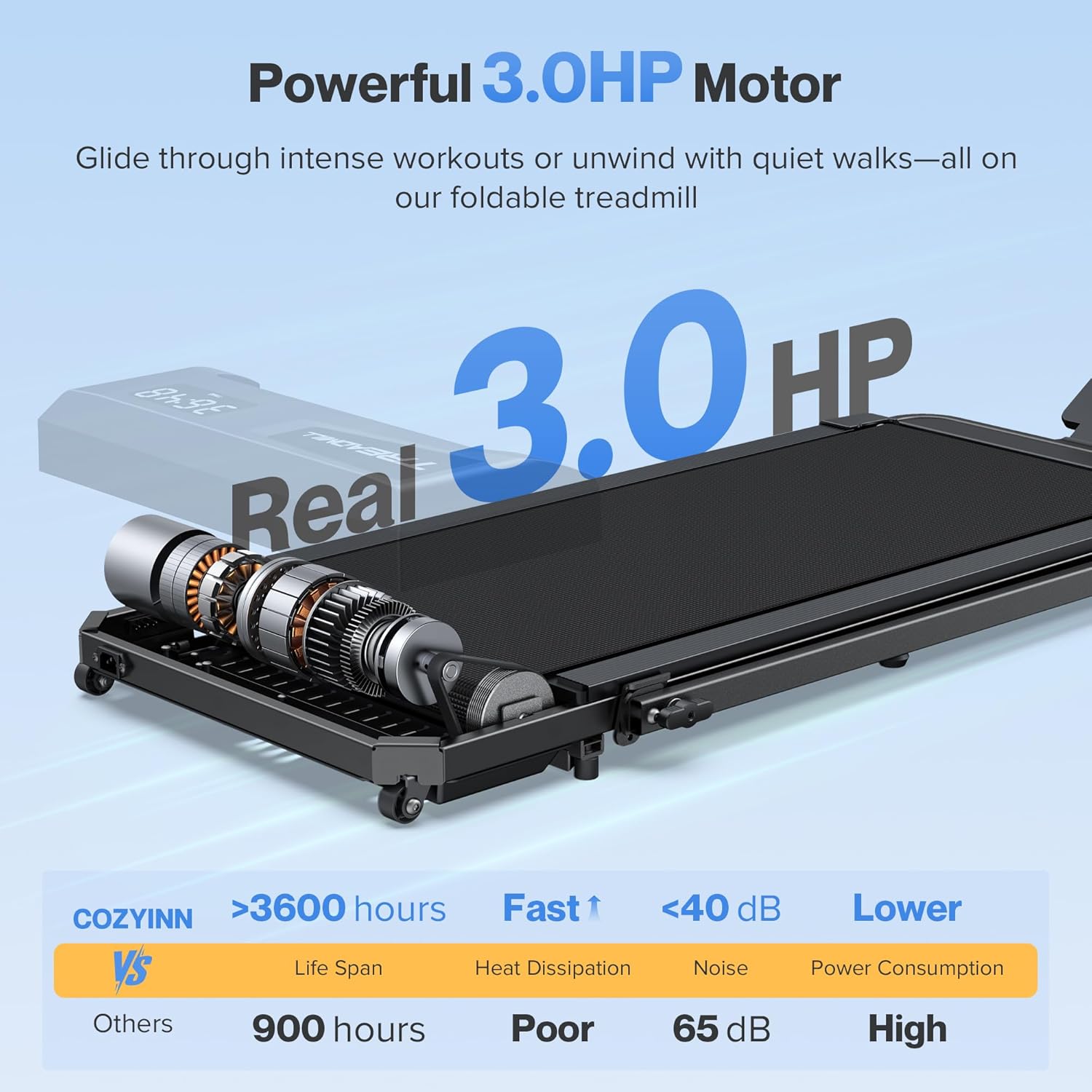
Figure 8.1: 3.0 HP Motor Details
Description: This image provides a detailed view of the COZYINN treadmill's 3.0 HP motor, emphasizing its robust design. A comparison chart highlights the motor's superior lifespan (over 3600 hours), efficient heat dissipation, low noise level (under 40 dB), and reduced power consumption compared to other models.

Figure 8.2: Cushioning and Capacity
Description: This image illustrates the COZYINN treadmill's advanced 5-layer cushioning technology, designed to provide joint support and comfort during workouts. It also prominently displays the treadmill's maximum weight capacity of 320 lbs.
9. Warranty and Support
9.1 Warranty Information
The COZYINN Folding Treadmill comes with a 2-year warranty. This warranty covers manufacturing defects and issues arising from normal use. Please retain your proof of purchase for warranty claims.
For specific warranty terms and conditions, refer to the documentation included with your product or contact COZYINN customer support.
9.2 Customer Support
If you encounter any issues not covered in the troubleshooting section, require assistance with setup, or have questions regarding your warranty, please contact COZYINN customer support. Contact information can typically be found on the product packaging, the COZYINN official website, or through your retailer.