Introduction
This manual provides essential information for setting up, operating, maintaining, and troubleshooting your Lenovo Legion Pro 5i Gen 10 Gaming Laptop. Please read this manual thoroughly to ensure optimal performance and longevity of your device.
Setup
1. Unboxing and Initial Power On
Carefully remove the laptop and its accessories from the packaging. Connect the provided 245W Slim Tip (3-pin) power adapter to the laptop's power connector and a power outlet. Open the laptop lid and press the power button to turn on the device.

Image: Front view of the Lenovo Legion Pro 5i Gen 10 Gaming Laptop, showcasing the RGB backlit keyboard and the display.
2. Connecting Peripherals
Connect external devices such as a mouse, keyboard, or external display to the available ports. Refer to the 'Ports & Slots' section for a detailed list of available connections.

Image: Left side view of the laptop, showing various ports including USB-A and USB-C.
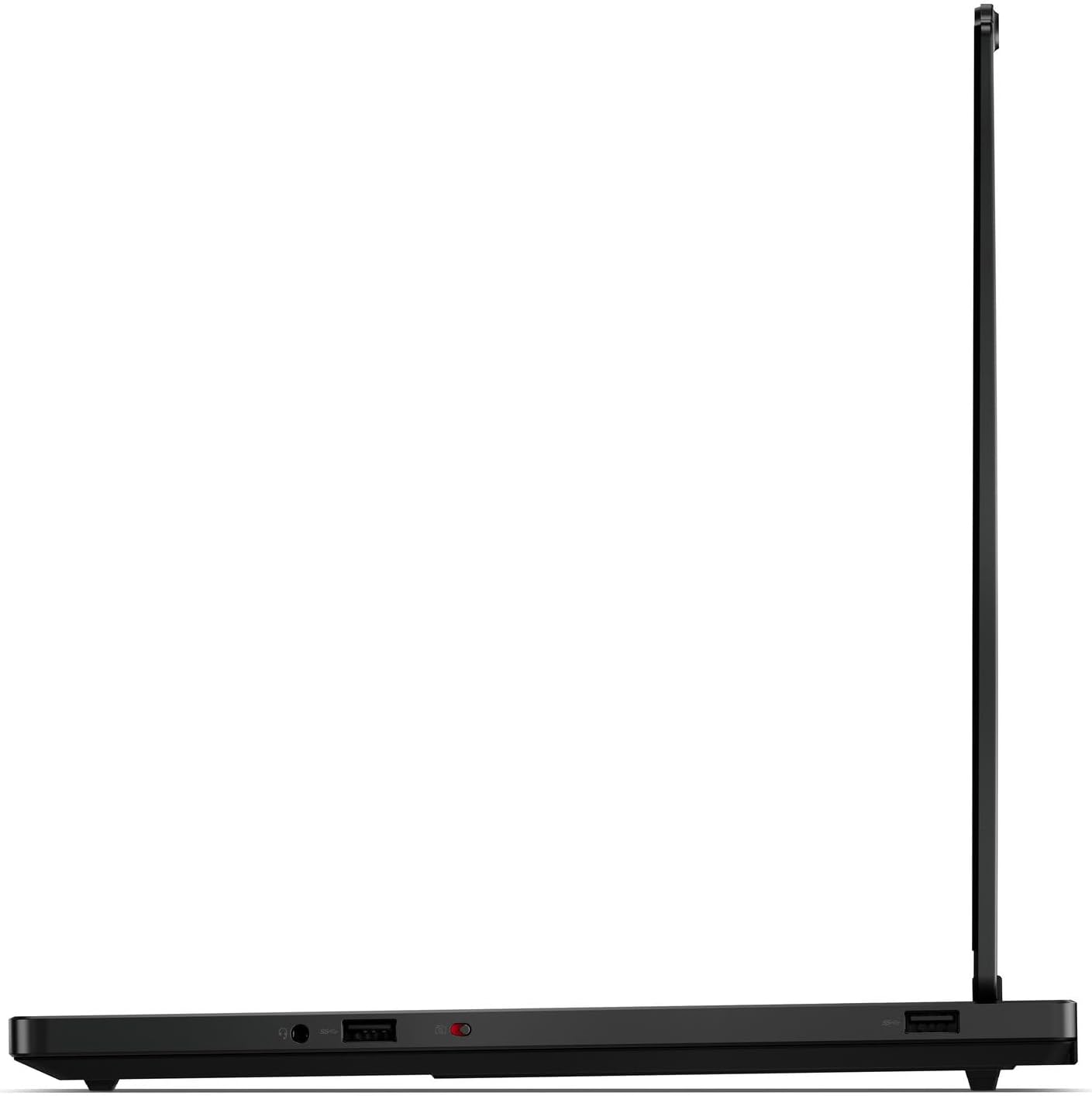
Image: Right side view of the laptop, highlighting additional ports.
3. Network Connection
Your laptop supports Wi-Fi 7 (802.11be 2x2) and Ethernet (RJ-45). To connect to Wi-Fi, click the network icon in the system tray, select your desired network, and enter the password. For a wired connection, plug an Ethernet cable into the RJ-45 port.
Operating Your Laptop
1. Keyboard and Touchpad
The laptop features a 24-Zone RGB Backlit keyboard with a Numpad for enhanced typing and gaming. The buttonless Mylar surface multi-touch touchpad supports Precision TouchPad (PTP) gestures for intuitive navigation.
2. Display
Experience vibrant visuals on the 16-inch WQXGA (2560x1600) OLED display, offering 500 nits brightness, 100% DCI-P3 color gamut, and a 165Hz refresh rate. It supports Dolby Vision and DisplayHDR True Black 1000 for superior contrast and color accuracy.
3. Audio and Camera
The integrated stereo speakers (2W x2) are optimized with Nahimic Audio for immersive sound. The 5.0MP camera includes an E-shutter for privacy.
4. Ports & Slots Overview
Your laptop is equipped with a variety of ports for connectivity:
- 2x USB-A (USB 5Gbps / USB 3.2 Gen 1)
- 1x USB-A (USB 5Gbps / USB 3.2 Gen 1), Always On
- 1x USB-C (USB 10Gbps / USB 3.2 Gen 2), with USB PD 65-100W and DisplayPort 2.1
- 1x USB-C (USB 10Gbps / USB 3.2 Gen 2), with DisplayPort 1.4
- 1x HDMI 2.1, up to 8K/60Hz
- 1x Headphone / microphone combo jack (3.5mm)
- 1x Ethernet (RJ-45)
- 1x Power connector

Image: Rear view of the laptop, showing the HDMI port, Ethernet port, and power connector.
Maintenance
1. Battery Care
To maximize battery life, avoid fully discharging the battery frequently. Store the laptop in a cool, dry place. For long-term storage, charge the battery to approximately 50-60% and power off the device.
2. Cleaning
Use a soft, lint-free cloth slightly dampened with water or a screen cleaner to clean the display. For the keyboard and chassis, use a soft cloth. Avoid harsh chemicals or abrasive materials. Regularly clean the vents to ensure proper airflow and prevent overheating.

Image: Bottom view of the laptop, illustrating the ventilation grilles for cooling.
3. Software Updates
Regularly update your operating system (Windows 11) and drivers to ensure optimal performance, security, and compatibility. Lenovo Vantage software can assist with driver updates.
Troubleshooting
1. Power Issues
- Laptop does not turn on: Ensure the power adapter is securely connected to both the laptop and a working power outlet. Check the power indicator light.
- Battery not charging: Verify the power adapter is functioning correctly. Try a different outlet.
2. Display Issues
- No image on screen: Connect an external monitor to check if the issue is with the laptop's display. Ensure the display brightness is not set to minimum.
- Flickering screen: Update graphics drivers. Check display cable connections if using an external monitor.
3. Network Connectivity Problems
- Cannot connect to Wi-Fi: Ensure Wi-Fi is enabled. Restart your router and modem. Check network settings in Windows.
- Slow internet speed: Check other devices on the network. Update network drivers.
Specifications
| Feature | Detail |
|---|---|
| Model | Lenovo Legion Pro 5i Gen 10 (83DF00AQUS) |
| Processor | Intel Core Ultra 7 255HX (E-cores up to 4.50 GHz, P-cores up to 5.20 GHz) |
| Operating System | Windows 11 Home 64 |
| Display | 16" WQXGA (2560x1600) OLED, 500nits, 100% DCI-P3, 165Hz, Dolby Vision, DisplayHDR True Black 1000 |
| Graphics | NVIDIA GeForce RTX 5060 8GB GDDR7, Boost Clock 2497MHz, TGP 115W |
| Memory | 32GB SO-DIMM DDR5-5600 (Dual-channel capable, up to 32GB) |
| Storage | 2x 1TB SSD M.2 2280 PCIe 4.0x4 NVMe (Up to two drives) |
| Keyboard | 24-Zone RGB Backlit, English |
| Touchpad | Buttonless Mylar surface multi-touch, Precision TouchPad (PTP) |
| Communications | Wi-Fi 7 (802.11be 2x2) + BT5.4, Ethernet (RJ-45) |
| Camera | 5.0MP with E-shutter |
| Audio | Stereo speakers, 2W x2, optimized with Nahimic Audio |
| Battery | 4 Cell 80Wh (Up to 8 hours average usage) |
| Power Adapter | 245W Slim Tip (3-pin) |
| Dimensions (WxDxH) | 344.9 x 255.35 x 19.95-21.54 mm (13.58 x 10.05 x 0.79-0.85 inches) |
| Weight | 1.9 kg (4.19 lbs) |
| Color | Eclipse Black |
Warranty and Support
This product comes with a one-year Premium Warranty from the manufacturer on remaining components. Additionally, a one-year warranty from Black Tech LLC is provided on upgraded SSD components. For technical assistance, driver downloads, or further support, please visit the official Lenovo support website:


