
Fire-Boltt Fire-Lens Dune
Fire-Boltt Fire-Lens Dune Smart Glasses User Manual
Model: Fire-Lens Dune
1. Introduction
Welcome to the Fire-Boltt Fire-Lens Dune Smart Glasses. These smart glasses combine stylish eyewear with advanced audio technology, allowing for hands-free calls, music streaming, and voice assistant access. This manual provides essential information for setting up, operating, and maintaining your new smart glasses.
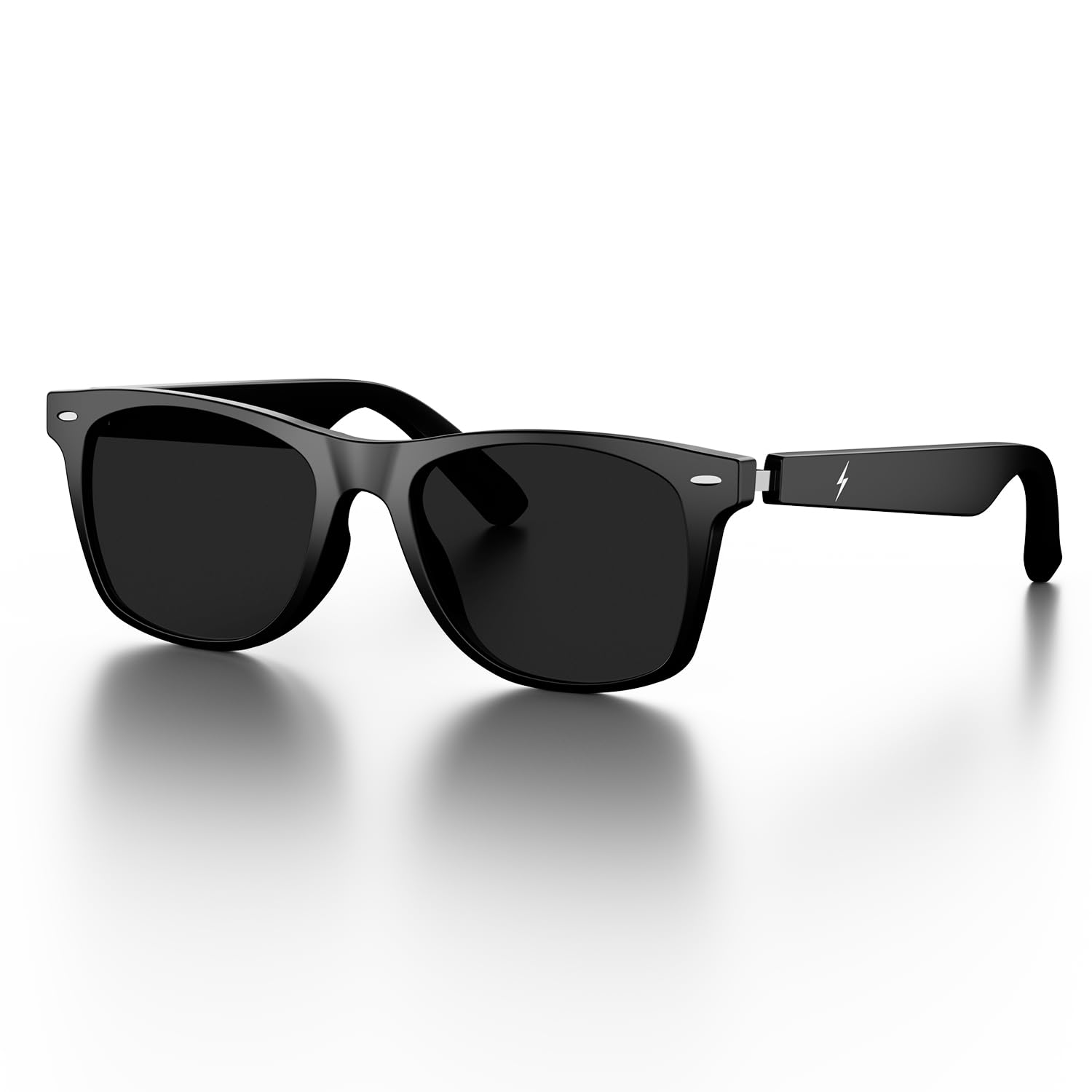
Image: Front view of the Fire-Boltt Fire-Lens Dune Smart Glasses.
2. Product Features
The Fire-Lens Dune Smart Glasses offer a range of features designed for convenience and enhanced audio experience:
- Bluetooth Calling: Integrated microphone and speakers for hands-free communication.
- Open-Ear Audio: Enjoy audio while remaining aware of your surroundings.
- HD Voice Clarity & Noise Reduction: Crystal-clear sound for calls and music.
- Smart Touch Controls: Intuitive tap gestures for music and call management.
- Voice Assistant Compatibility: Access Siri, Alexa, or Google Assistant with a tap.
- Fast Charging & Long Battery Life: Quick recharge for extended use.
- Lightweight & Stylish Design: Comfortable for all-day wear.
- Optical Lens Support: Compatible with prescription lenses.
- IP64 Water & Dust Resistant: Provides protection against splashes and dust.
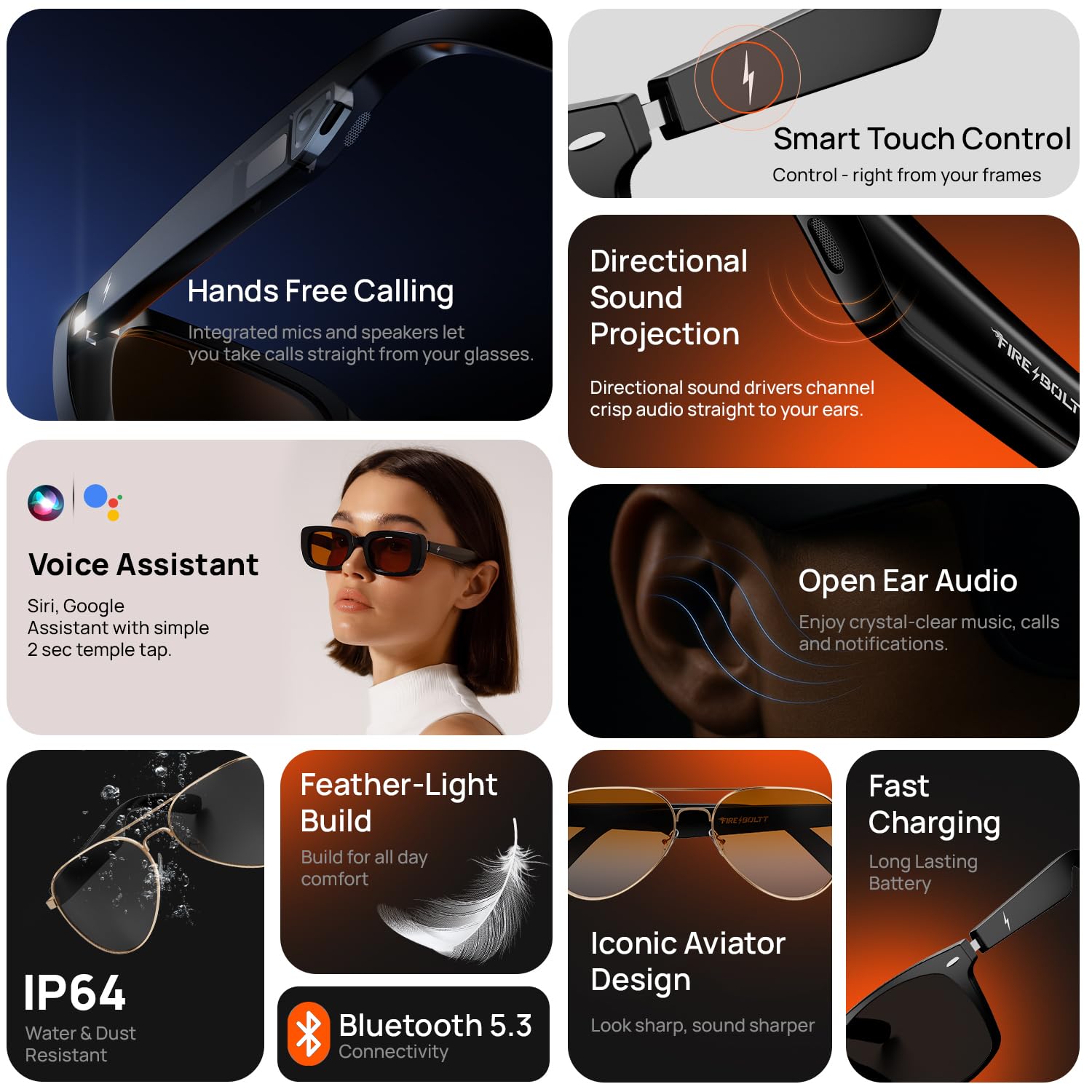
Image: Overview of key features of the Fire-Lens Dune Smart Glasses.
3. Setup Guide
3.1. Charging the Smart Glasses
Before first use, fully charge your Fire-Lens Dune Smart Glasses. Use the provided charging cable.
- Connect the magnetic charging cable to the charging interface on the glasses.
- Connect the other end of the cable to a USB power source.
- A full charge provides up to 6 hours of playtime. A 15-minute charge can provide approximately 4 hours of use.
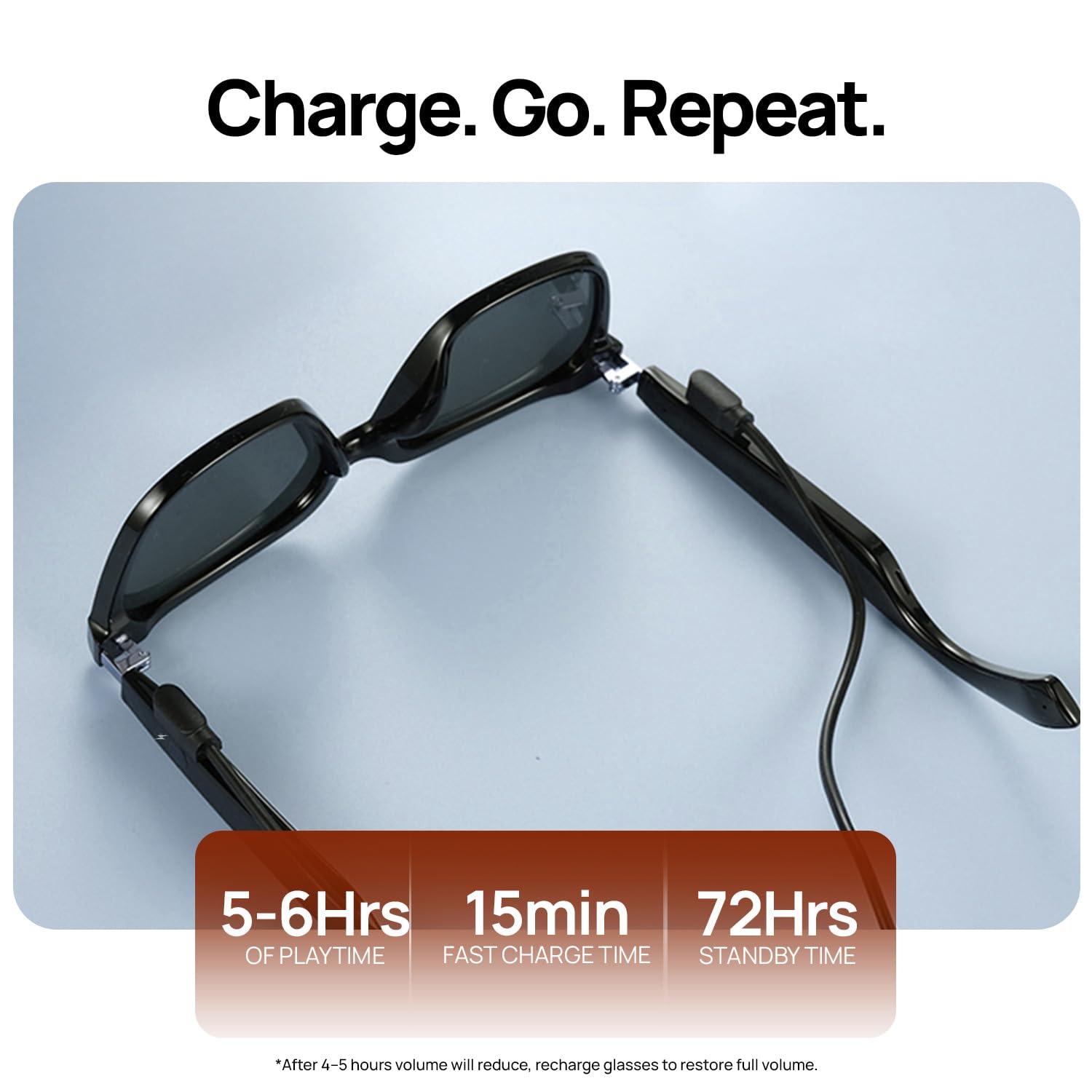
Image: Battery life and charging details for the smart glasses.
3.2. Powering On and Bluetooth Pairing
Follow these steps to power on your smart glasses and connect them to your device:
- Power On: Touch and hold BOTH ARMS of the glasses for 5 seconds.
- Enable Bluetooth: On your smartphone or other device, enable Bluetooth.
- Connect: Search for "Firelenses" in the list of available Bluetooth devices and select it to connect.
- Confirmation: Upon successful pairing, you will hear a voice prompt: "Connection Succeeded". If the connection is lost, the voice prompt will be "Connection Disconnected".
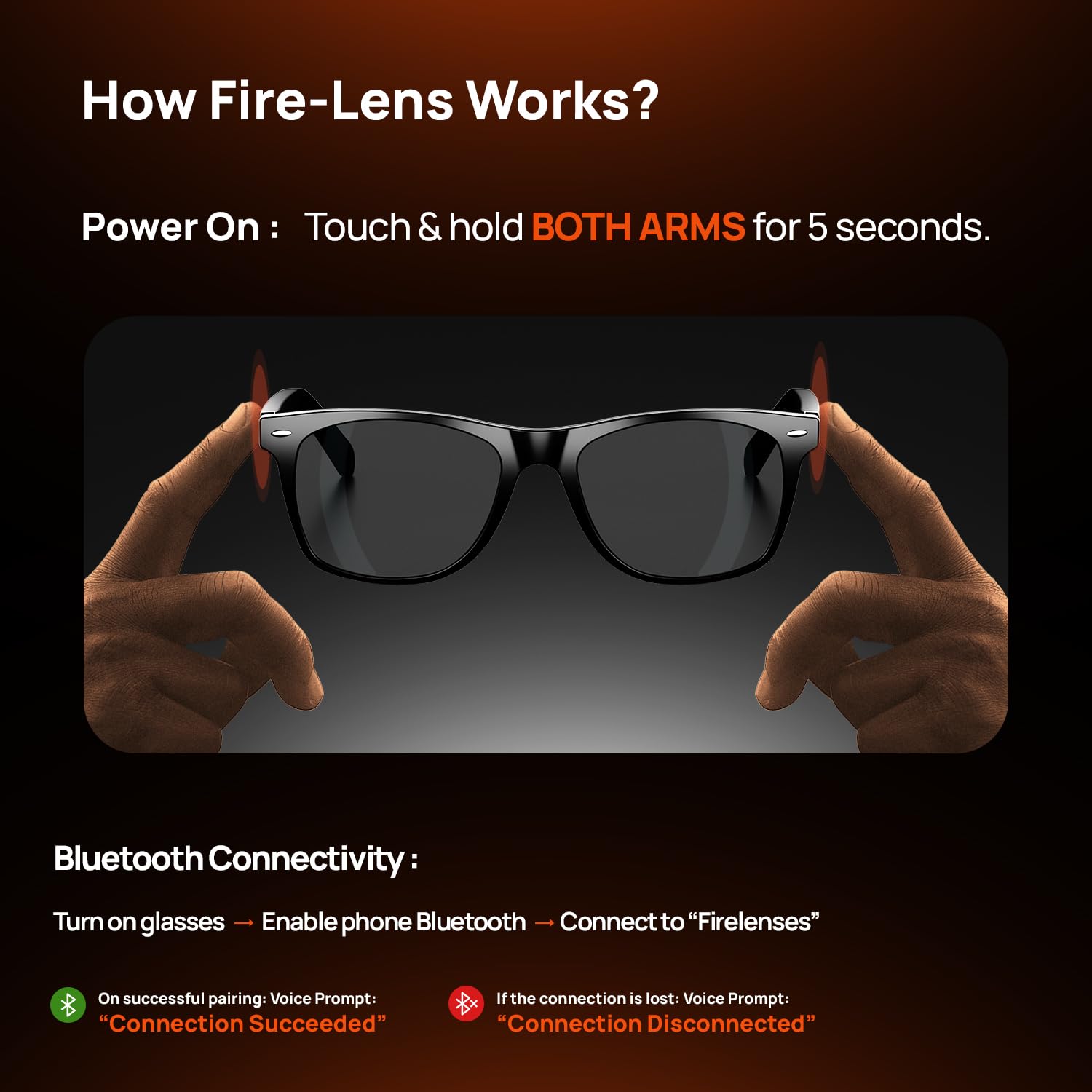
Image: Instructions for powering on and connecting the smart glasses via Bluetooth.
4. Operating Instructions
4.1. Smart Touch Controls
The Fire-Lens Dune Smart Glasses feature intuitive touch controls on the temple arms:
- Play/Pause Music: Double-tap on either arm.
- Next Song: Triple-tap on the right arm.
- Previous Song: Triple-tap on the left arm.
- Receive Call: Double-tap on either arm.
- Answer/Hang Up Call: Double-tap either arm.
- Reject Call: Press and hold either arm for 3 seconds.
- Wake Up Voice Assistant: Long press either arm for 2 seconds.
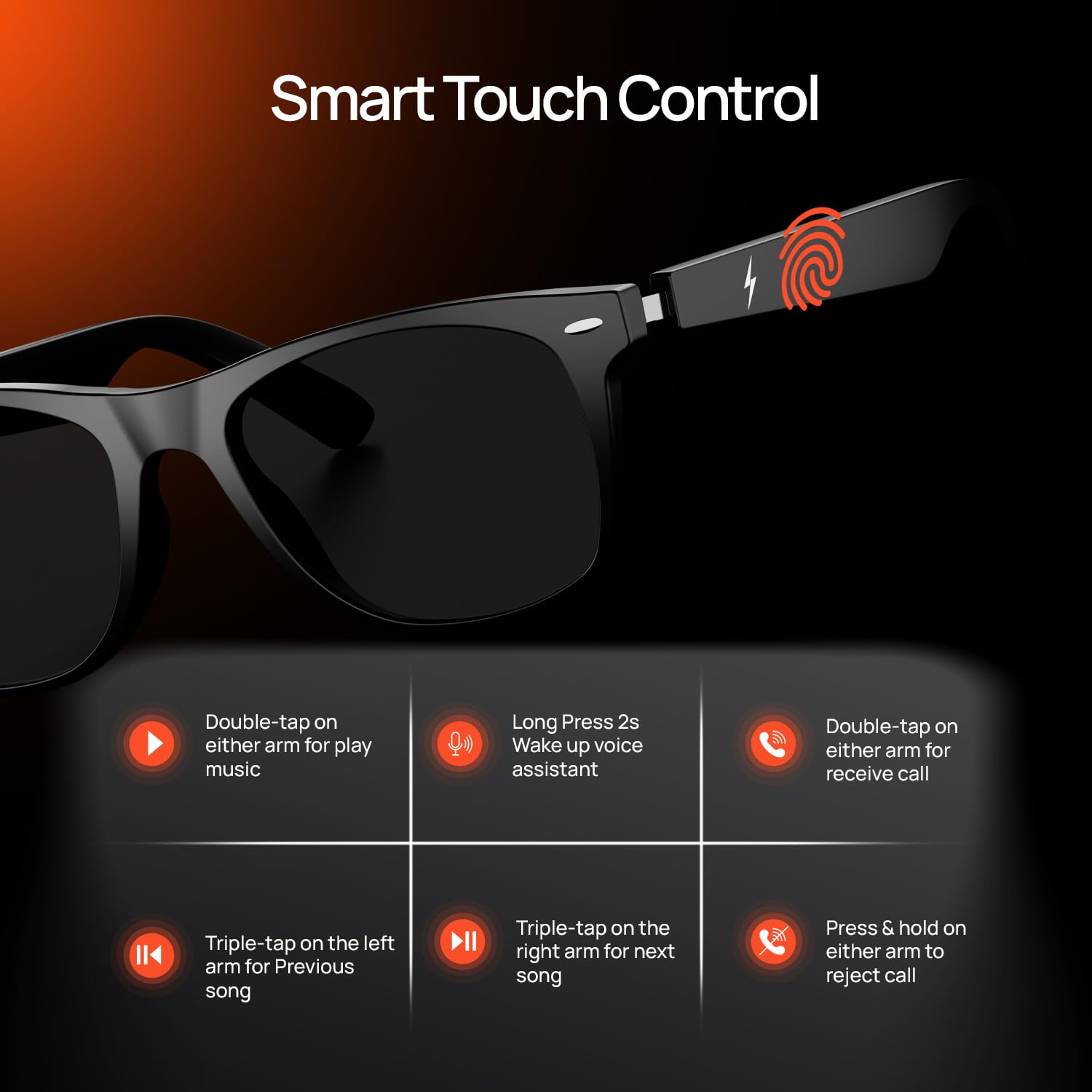
Image: Detailed guide to smart touch controls for music and calls.
4.2. Voice Assistant
Activate your preferred voice assistant (Siri, Alexa, Google Assistant) for hands-free control:
- Activation: Long press either arm for 2 seconds.
- Once activated, you can issue commands such as making calls, sending messages, checking emails, setting reminders, getting directions, or playing music.
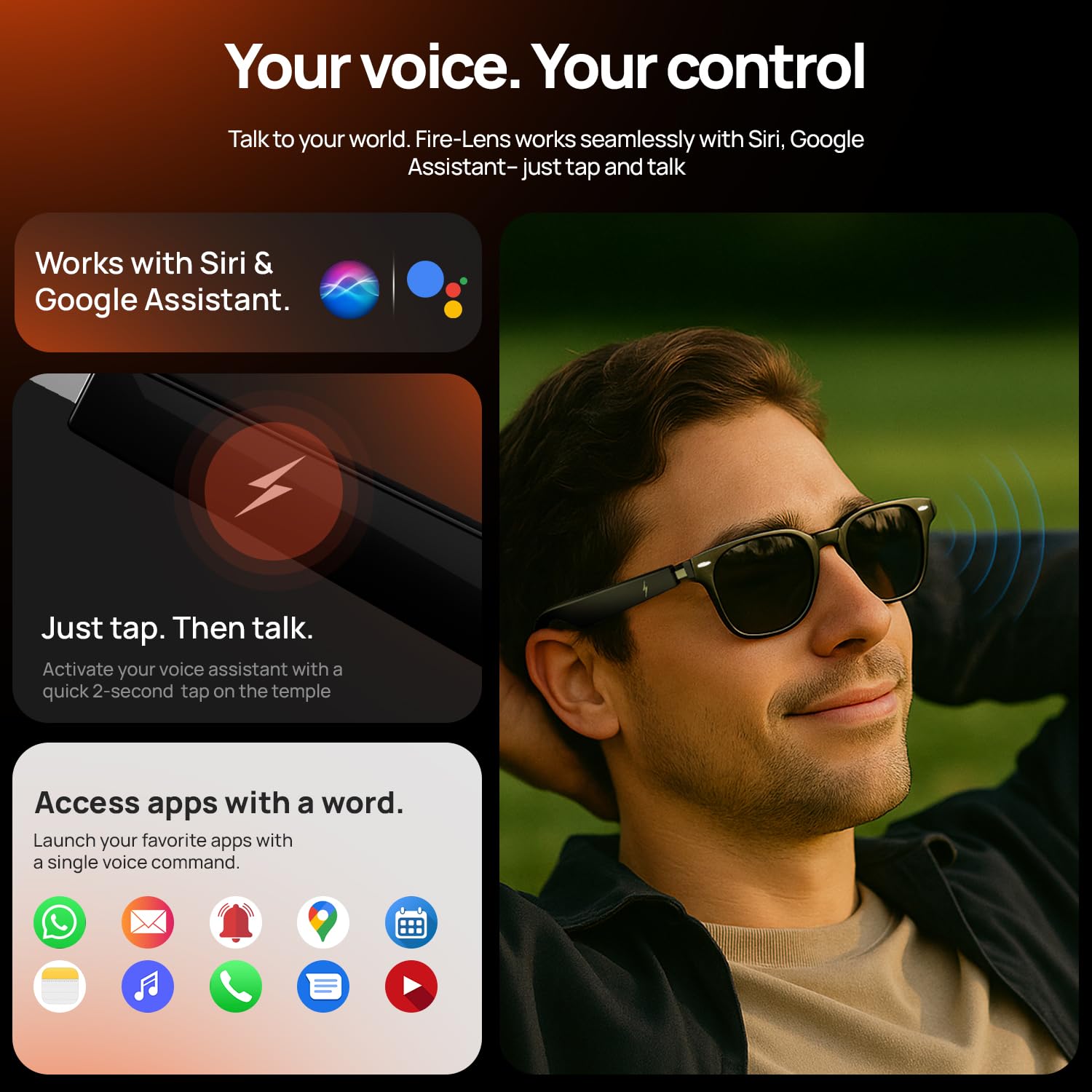
Image: Voice assistant integration and activation.
4.3. Open-Ear Audio and Call Quality
The smart glasses feature directional speakers and dual microphones for an optimal audio experience:
- Directional Sound: Audio is projected directly to your ears, providing immersive sound while allowing you to hear your surroundings.
- Dual Microphones: Equipped with noise-reduction technology for clear conversations, even in noisy environments.

Image: Explanation of high-fidelity sound and dual microphone system.
5. Maintenance and Care
To ensure the longevity and optimal performance of your Fire-Lens Dune Smart Glasses, follow these care guidelines:
- Cleaning: Use a soft, clean cloth to wipe the lenses and frame. Avoid abrasive materials or harsh chemicals.
- Water Resistance: The glasses are IP64 rated, meaning they are resistant to dust and splashes of water. Do not submerge them in water or expose them to heavy rain.
- Storage: Store the glasses in their protective case when not in use to prevent scratches and damage.
- Temperature: Avoid exposing the glasses to extreme temperatures, both hot and cold, as this can affect battery life and electronic components.
- Charging: Always use the provided charging cable. Do not attempt to force the charging cable if it does not connect easily.
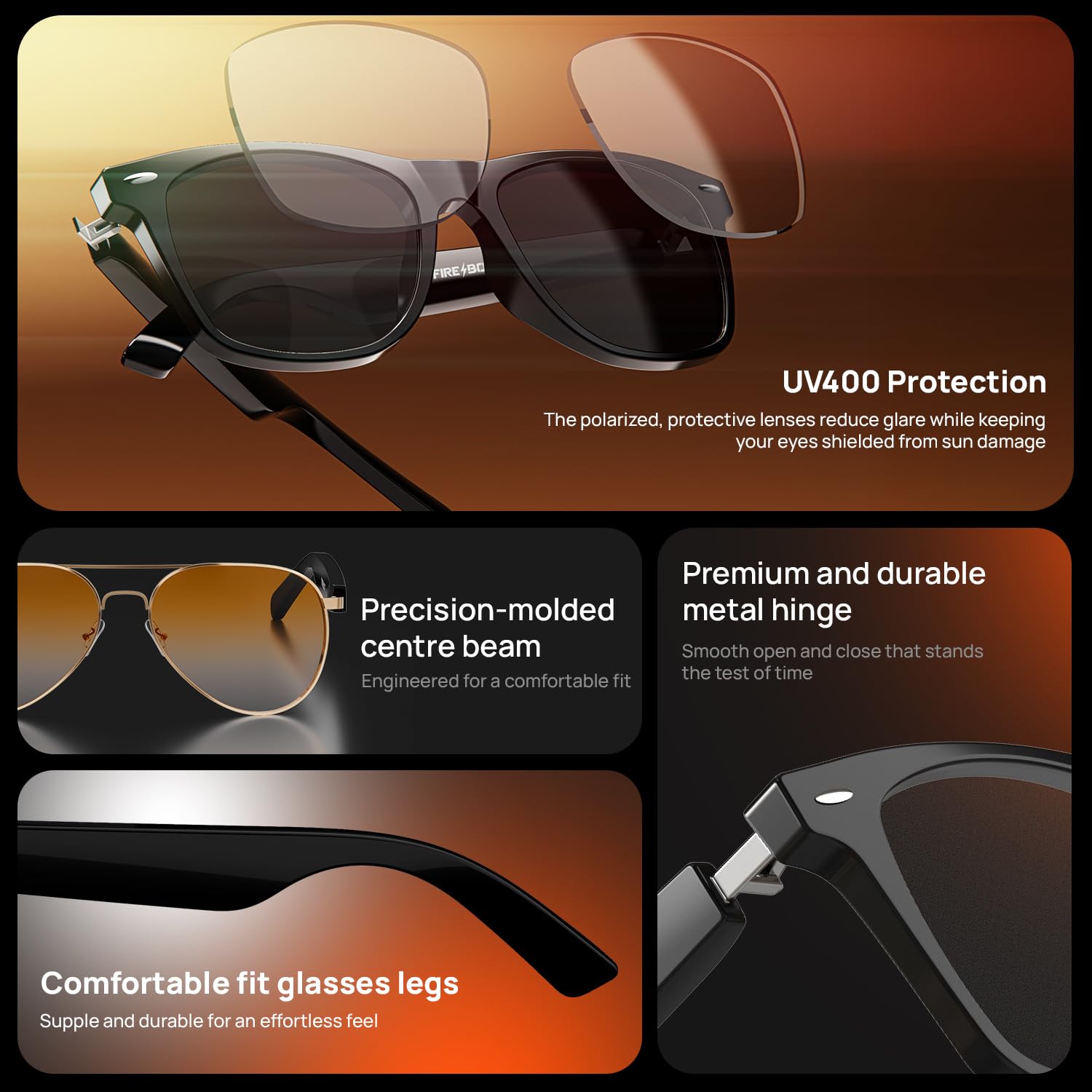
Image: Features contributing to the durability and protection of the smart glasses.
6. Troubleshooting
If you encounter issues with your Fire-Lens Dune Smart Glasses, refer to the following common solutions:
- No Power: Ensure the glasses are fully charged. Connect them to the charger and wait for a few minutes before attempting to power on again.
- Cannot Pair Bluetooth:
- Make sure Bluetooth is enabled on your device.
- Ensure the glasses are in pairing mode (power on, and if not connected, they should automatically enter pairing mode).
- Move the glasses closer to your device.
- Forget "Firelenses" from your device's Bluetooth settings and try pairing again.
- Restart both the glasses and your device.
- No Sound/Low Volume:
- Check the volume level on both the glasses and your connected device.
- Ensure the glasses are properly connected via Bluetooth.
- Confirm that the audio is being routed to the smart glasses in your device's audio settings.
- Touch Controls Unresponsive:
- Ensure your fingers are clean and dry.
- Try restarting the glasses.
- Voice Assistant Not Responding:
- Ensure the glasses are connected to your smartphone.
- Verify that your smartphone's voice assistant is active and configured.
- Check for any app permissions required by the voice assistant on your phone.
If these steps do not resolve the issue, please contact Fire-Boltt customer support for further assistance.
7. Specifications
| Brand | Fire-Boltt |
| Model | Fire-Lens Dune |
| Manufacturer | Boltt Games Pvt Ltd |
| Item Weight | 46 g |
| Package Dimensions | 17.4 x 8.1 x 7.4 cm |
| Compatible Devices | Smartphone |
| Battery Capacity | 120 Milliamp Hours (Dual 60mAh batteries) |
| Battery Cell Composition | Lithium Ion |
| Battery Average Life | 6 Hours |
| Wireless Type | Bluetooth |
| Connectivity Technology | Bluetooth |
| Device Interface - Primary | Microphone, Touch Pad |
| Water Resistance Rating | IP64 |
| Country of Origin | China |
| ASIN | B0FT86SBYS |
8. Warranty and Support
For warranty information and customer support, please refer to the documentation included with your product or visit the official Fire-Boltt website. You can also contact their customer service for assistance with any product-related queries or issues.
For more information about Fire-Boltt products, visit the Fire-Boltt Store on Amazon.