
1. Introduction
This manual provides comprehensive instructions for the QISHENKOLA Z1 Max Android TV Box. It covers setup, operation, and maintenance to ensure optimal performance and user experience. The Z1 Max is designed to deliver a high-quality streaming experience with its Android Q (10.0) operating system, 4K HDR support, dual-band Wi-Fi, and smart voice remote.
What's in the Box
- 1 x Z1 Max Smart TV Box
- 1 x Power Adapter
- 1 x User Manual (this document)
- 1 x HD Cable (HDMI)
- 1 x BT Voice Remote Control Unit (RCU)

Image: The Z1 Max Android TV Box, its power adapter, HDMI cable, and voice remote control.
2. Product Overview
The QISHENKOLA Z1 Max Android TV Box is a compact streaming device designed to transform your television into a smart entertainment hub. It features a high-performance processor, advanced connectivity options, and an intuitive Android interface.
Key Features
- Processor: Allwinner H313/618 Quad-core ARM Cortex-A53 with Mali-G31 GPU.
- Operating System: Android Q (10.0).
- Memory & Storage: 2GB DDR3 RAM and 8/16GB EMMC high-speed flash storage.
- Display Output: Supports 4K Ultra HD with HDR.
- Network: Dual-band 2.4GHz + 5GHz Wi-Fi and 10M/100M adaptive RJ45 Ethernet port.
- Connectivity: Dual USB 2.0 ports.
- Control: Smart Voice Remote Control.
- Interaction: Multi-screen interaction capabilities.

Image: The Z1 Max Android TV Box, its remote, and visual indicators for 4K HD, 2.4GHz+5GHz WiFi, Allwinner H313/618 chip, Android Q (10.0), and Intelligent Voice.
3. Setup Guide
Follow these steps to set up your QISHENKOLA Z1 Max Android TV Box.
3.1 Connecting the Device
- Connect to TV: Use the provided HD cable (HDMI) to connect the Z1 Max TV Box to an HDMI input port on your television or projector.
- Connect Power: Plug the power adapter into the DC 5V port on the TV Box, then plug the adapter into a wall outlet.
- Network Connection (Optional):
- Wi-Fi: The device will prompt you to connect to Wi-Fi during initial setup. Select your network and enter the password.
- Ethernet: For a wired connection, connect an Ethernet cable from your router to the RJ45 port on the TV Box.
- Power On: The device should power on automatically. If not, press the power button on the remote control or the device itself.
3.2 Initial Setup Wizard
Upon first boot, the Android Q (10.0) interface will guide you through initial settings such as language selection, network configuration, and Google account login. Follow the on-screen prompts to complete the setup.
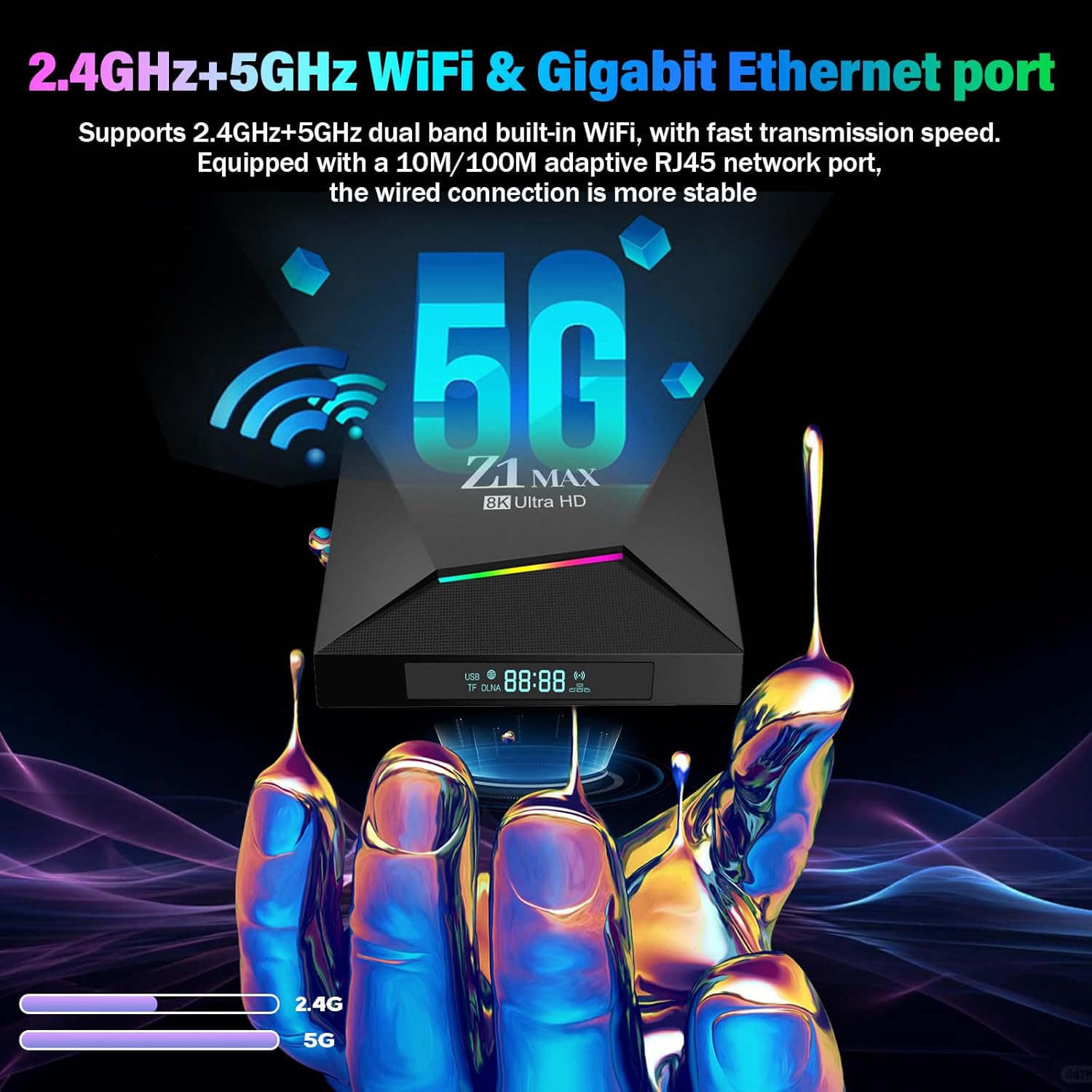
Image: The Z1 Max Android TV Box with visual representation of its dual-band Wi-Fi (2.4G and 5G) and adaptive RJ45 Ethernet port for stable network connectivity.
4. Operating Instructions
4.1 Navigating the Interface
Use the provided remote control to navigate the Android Q (10.0) interface. The directional pad allows movement, the 'OK' button confirms selections, and the 'Back' button returns to the previous screen. The 'Home' button typically returns to the main launcher screen.
4.2 Smart Voice Remote
The Z1 Max includes a smart voice remote control. To use voice commands:
- Press and hold the dedicated voice button on the remote.
- Speak your command clearly into the remote's microphone. For example, "Open YouTube," "Search for action movies," or "What's the weather?"
- Release the voice button. The device will process your request.
4.3 Multi-Screen Interaction
The multi-screen interaction feature allows you to cast content from your smartphone or tablet to your TV via the Z1 Max. This is ideal for sharing photos, videos, or presentations.
- Ensure your mobile device and the Z1 Max are connected to the same Wi-Fi network.
- On your mobile device, open the content you wish to cast (e.g., a photo gallery or video app).
- Look for the cast icon (often a rectangle with a Wi-Fi symbol) within the app.
- Select the Z1 Max from the list of available devices to begin casting.
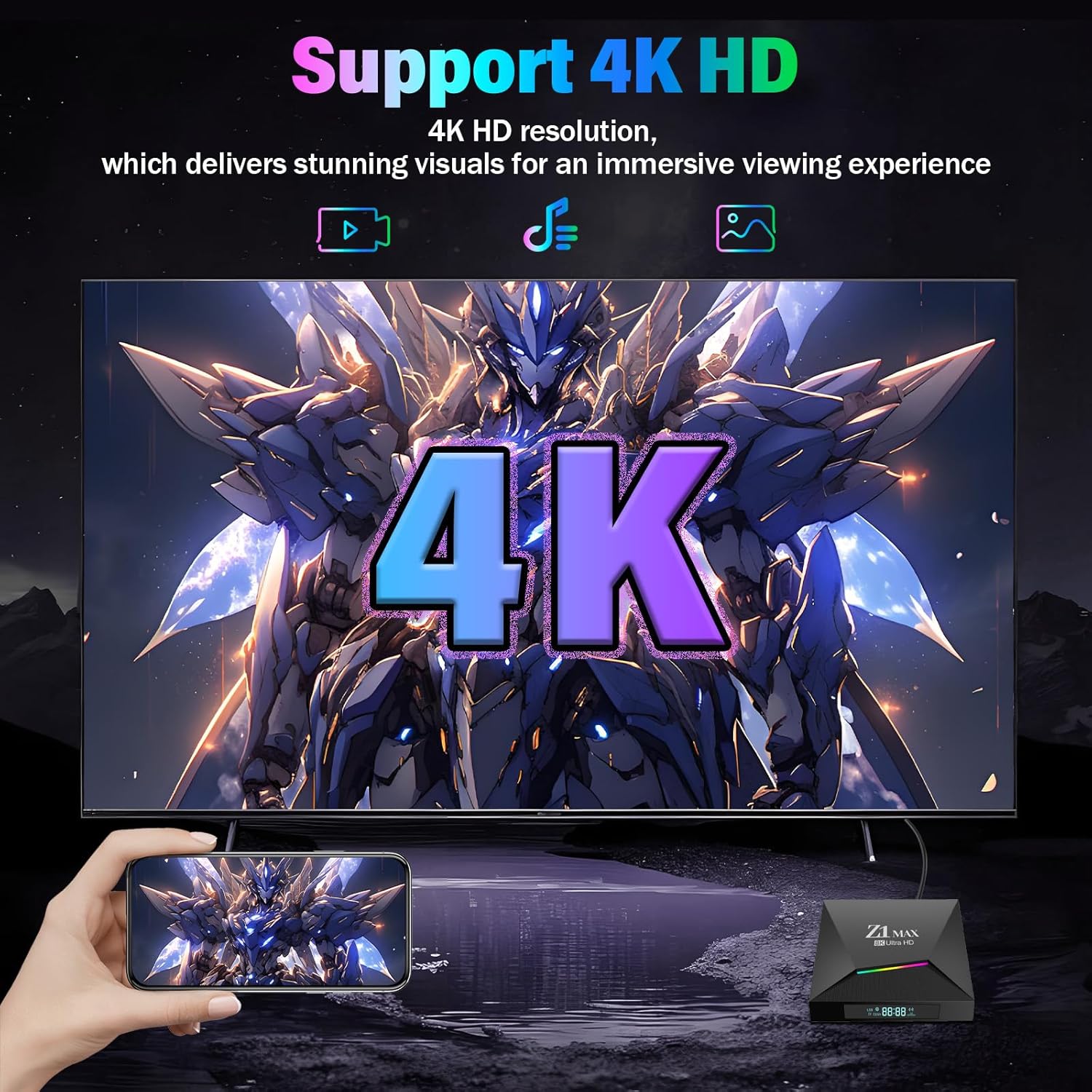
Image: Illustration of the multi-screen interaction feature, showing content being cast from various devices (laptop, tablet, smartphone) to a television via the Z1 Max TV Box.
4.4 4K Ultra HD Output
The Z1 Max supports 4K Ultra HD resolution and HDR (High Dynamic Range) for enhanced color saturation and detail. Ensure your television or projector is 4K and HDR compatible to fully utilize this feature. The device automatically adjusts output resolution based on your display's capabilities.

Image: A television displaying a vibrant 4K image, with the Z1 Max TV Box and a smartphone in the foreground, illustrating 4K HD support.
4.5 USB 2.0 Ports
The two USB 2.0 ports allow you to connect external storage devices such as USB drives or portable hard disks. You can access media files stored on these devices directly through the TV Box's file manager or compatible media player applications.
4.6 System Upgrades
The Z1 Max supports dual-mode system upgrades via USB or network. Regular updates ensure continuous feature optimization and smooth performance. Check for updates periodically through the device's settings menu.
5. Specifications
| Feature | Detail |
|---|---|
| SoC | Allwinner H313/618 |
| CPU | Quad-core ARM Cortex-A53 |
| GPU | Mali-G31 |
| RAM | 2GB DDR3 |
| Flash Storage | 8GB/16GB EMMC |
| Operating System | Android Q (10.0) |
| Wi-Fi | 2.4GHz + 5GHz Dual-band |
| Ethernet | 10M/100M Adaptive RJ45 |
| Video Output | 4K Ultra HD, HDR |
| USB Ports | 2 x USB 2.0 |
| Dimensions | 9.57 x 7.09 x 2.76 inches (Product) |
| Color | Black |

Image: A visual representation of the high-performance core, detailing the CPU (Quad-core ARM Cortex-A53), GPU (Mali-G31), OS (Android Q 10.0), Flash (EMMC 8/16GB), and DRAM (DDR3 2GB), centered around the Allwinner H313/618 chip.
6. Troubleshooting
If you encounter issues with your Z1 Max Android TV Box, refer to the following common problems and solutions.
6.1 No Power / Device Not Turning On
- Ensure the power adapter is securely connected to the TV Box and a working power outlet.
- Verify the power outlet is functional by plugging in another device.
- Try pressing the power button on the remote control or the device itself.
6.2 No Display on TV
- Check if the HDMI cable is securely connected to both the TV Box and the TV.
- Ensure your TV is set to the correct HDMI input source.
- Try using a different HDMI cable or a different HDMI port on your TV.
- Restart the TV Box and your television.
6.3 Wi-Fi Connection Issues
- Verify that your Wi-Fi router is powered on and functioning correctly.
- Ensure the TV Box is within range of your Wi-Fi router.
- Check if the Wi-Fi password entered is correct.
- Restart your Wi-Fi router and the TV Box.
- If using 5GHz Wi-Fi, ensure your router supports it and the TV Box is close enough for a strong signal.
6.4 Remote Control Not Responding
- Ensure the batteries in the remote control are correctly inserted and have sufficient charge. Replace batteries if necessary.
- Point the remote directly at the TV Box.
- If it's a Bluetooth remote, ensure it is paired correctly. Refer to the device settings for Bluetooth pairing options.
7. Maintenance
To ensure the longevity and optimal performance of your QISHENKOLA Z1 Max Android TV Box, follow these maintenance guidelines:
- Cleaning: Use a soft, dry cloth to clean the exterior of the device. Avoid using liquid cleaners or abrasive materials.
- Ventilation: Ensure the device is placed in a well-ventilated area to prevent overheating. Do not block any ventilation openings.
- Environment: Keep the device away from direct sunlight, heat sources, and excessive moisture.
- Power Off: If the device will not be used for an extended period, disconnect it from the power supply.
8. Compliance Disclaimer
This Android TV Box operates solely as a hardware platform. Users must comply with all applicable copyright laws when installing software or accessing content.