Introduction
The ARCCTV Y2U3 Indoor Security Camera is designed to enhance your home's security and monitoring capabilities. Featuring advanced Wi-Fi 6 and dual-band (5GHz/2.4GHz) connectivity, it ensures stable and fast streaming. This camera offers 2.5K Quad HD resolution for clear visuals, two-way audio for communication, and intelligent motion detection with tracking. It also includes true-color night vision, automatic patrol cruise, and compatibility with Amazon Alexa for voice control.
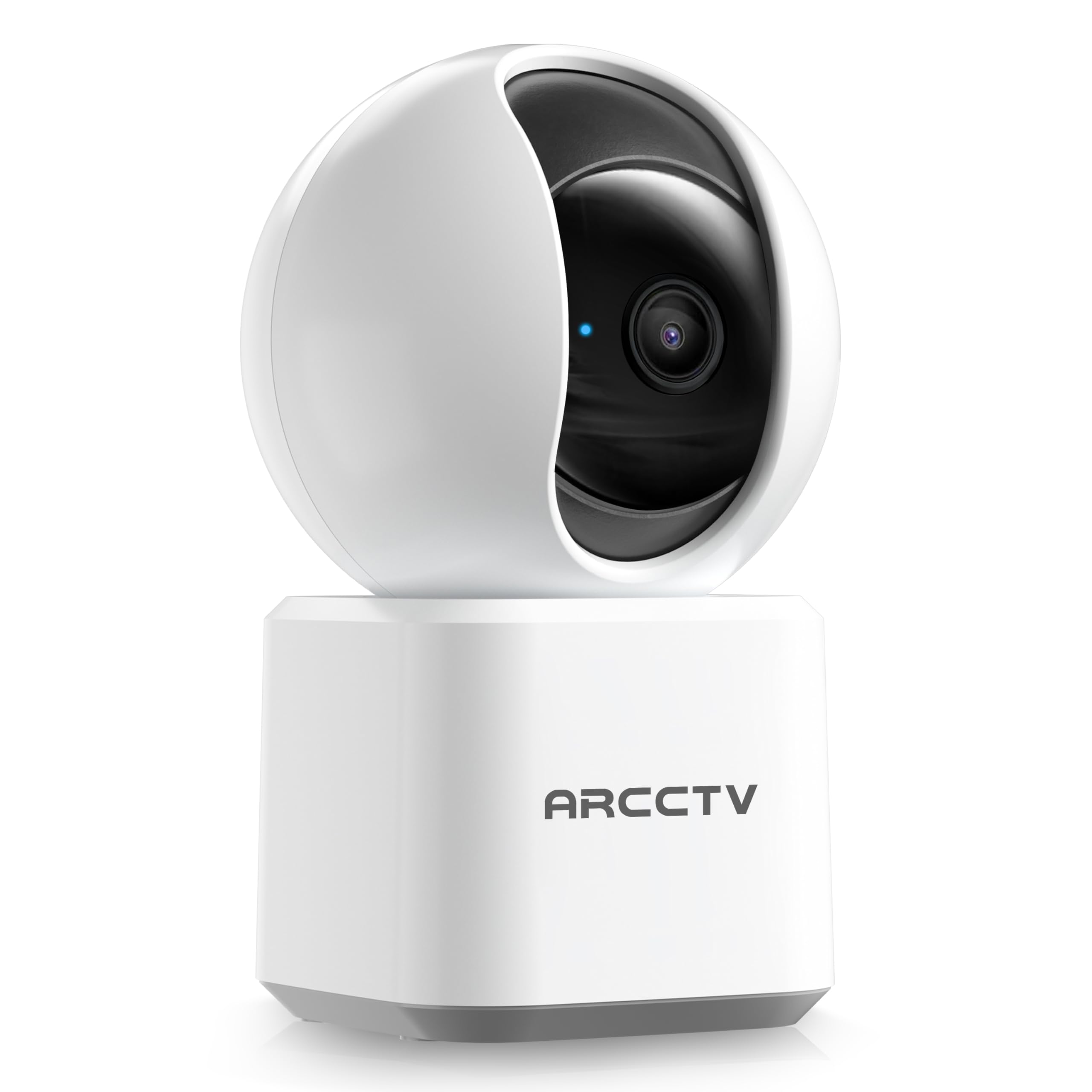
Image: The ARCCTV Y2U3 Indoor Security Camera.
What's in the Box
Upon unboxing your ARCCTV Y2U3 camera, you should find the following components:
- ARCCTV Y2U3 Indoor Security Camera Body
- USB Power Adapter (for your region)
- USB-C Power Cable
- Mounting Bracket
- Mounting Screws and Wall Anchors
- Quick Start Guide

Image: The ARCCTV Y2U3 camera and its included accessories laid out on a wooden surface.
Video: An unboxing video demonstrating the contents of the ARCCTV Y2U3 Indoor Security Camera package, including the camera, power adapter, USB-C cable, mounting bracket, screws, and quick start guide.
Setup
- Power On: Connect the USB-C cable to the camera's port (located at the back of the base) and the USB power adapter. Plug the adapter into a power outlet. The camera will initiate a self-test and a blue indicator light will appear.
- Download the App: Scan the QR code in the Quick Start Guide or search for the "ARCCTV Security" app on your smartphone's app store (available for Android and iOS).
- Account Registration: Open the app and register for a new account or log in if you already have one.
- Add Device: Follow the in-app instructions to add your new camera. This typically involves selecting "Add Device," choosing your camera model, and scanning a QR code displayed on your phone with the camera's lens.
- Wi-Fi Connection: Ensure your smartphone is connected to a 2.4GHz or 5GHz Wi-Fi network. The camera supports both bands. The app will guide you through connecting the camera to your home Wi-Fi.
- MicroSD Card Installation (Optional): If you plan to use local storage, gently rotate the camera lens upwards to reveal the microSD card slot. Insert a compatible microSD card (up to 256GB, not included) with the gold contacts facing down.
- Mounting (Optional): If mounting the camera, use the provided mounting bracket, screws, and wall anchors. Secure the bracket to your desired location (wall or ceiling), then attach the camera to the bracket. Ensure the camera is within range of a power outlet.
Video: A preview of the ARCCTV Y2U3 camera setup process, demonstrating the initial power-on, app connection, and basic functionality like pan/tilt control and live view.
Operating Instructions
Live View and Pan/Tilt Control
Access the live feed through the ARCCTV Security app. Use the on-screen controls to remotely pan (355° horizontal) and tilt (90° vertical) the camera lens, providing a 360° panoramic view of your space. This allows you to monitor every corner of the room.

Image: The camera's pan and tilt capabilities are illustrated, showing its wide coverage range.
Two-Way Audio
Utilize the built-in microphone and speaker for real-time two-way communication. Speak through the app to interact with family members, pets, or deter intruders. The audio quality is designed for clear conversations.

Image: A visual representation of the two-way communication feature, allowing interaction with individuals near the camera.
Motion Detection and Tracking
The camera features intelligent motion detection that sends instant notifications to your smartphone when activity is detected. With Smart Motion Tracking, the camera's lens automatically follows moving subjects, ensuring continuous monitoring of important events. You can customize monitoring zones to focus on specific areas.

Image: The camera's precision motion detection capability, distinguishing between human and pet movements.

Image: Smart motion tracking in action, where the camera automatically adjusts to follow moving subjects.
Night Vision
The camera is equipped with true-color night vision using an invisible light spectrum, allowing for clear monitoring in low-light conditions without disruptive red glows. The night vision range is up to 32 feet.

Image: A depiction of the camera's night vision capability, providing clear monochrome images in darkness.
Storage Options
The ARCCTV Y2U3 supports local storage via a microSD card (up to 256GB) for continuous recording. Additionally, encrypted cloud storage is available through a paid subscription, ensuring your data is secure even if the device is damaged.

Image: The camera highlighting its microSD card slot for local video storage.

Image: An illustration of encrypted cloud storage, emphasizing data security and accessibility.
Alexa Compatibility
Integrate your ARCCTV Y2U3 camera with Amazon Alexa for convenient voice control. Use simple voice commands like "Alexa, show me the nursery" to view the live feed on compatible Alexa-enabled devices.
Image: A user interacting with the camera via Alexa voice commands, viewing the feed on a tablet.
Maintenance
- Cleaning: Gently wipe the camera lens and body with a soft, dry cloth. Avoid using harsh chemicals or abrasive materials that could scratch the lens or surface.
- Firmware Updates: Regularly check the ARCCTV Security app for available firmware updates. Keeping your camera's firmware up-to-date ensures optimal performance, security, and access to new features.
- Power Cycle: If the camera experiences connectivity issues or unusual behavior, try power cycling it by unplugging it from the power source for 10 seconds and then plugging it back in.
- MicroSD Card Management: If using a microSD card, periodically review and back up important recordings. Format the card within the app as needed to maintain performance and free up space.
Troubleshooting
- Camera Offline:
- Check if the camera is powered on and the power adapter is securely connected.
- Verify your Wi-Fi network is active and the camera is within range of the router.
- Restart your Wi-Fi router and the camera.
- Ensure the camera is connected to a supported 2.4GHz or 5GHz Wi-Fi network.
- Poor Video Quality:
- Ensure the camera lens is clean and free from dust or smudges.
- Check your Wi-Fi signal strength in the app. A weak signal can affect video quality.
- Adjust the video resolution settings within the app to a lower quality if your network bandwidth is limited.
- Motion Detection Not Working:
- Verify that motion detection is enabled in the app settings.
- Adjust the motion detection sensitivity levels.
- Ensure there are no obstructions blocking the camera's view in the monitored zones.
- Two-Way Audio Issues:
- Check the microphone and speaker volume settings in the app.
- Ensure there is no physical obstruction covering the microphone or speaker on the camera.
- Minimize background noise for clearer communication.
- Resetting the Camera: If issues persist, locate the reset button (usually near the microSD card slot, accessible by rotating the lens upwards) and press and hold it for several seconds until you hear a prompt or see the indicator light change. This will restore factory settings, and you will need to set up the camera again.
Specifications
| Feature | Detail |
|---|---|
| Model Name | Y2U3 |
| Brand | ARCCTV |
| Connectivity Technology | Wireless (Wi-Fi) |
| Wireless Communication Technology | Bluetooth, Wi-Fi (Dual-Band: 2.4GHz, 5GHz) |
| Video Capture Resolution | 1440p (2.5K Quad HD) |
| Effective Still Resolution | 4 MP |
| Special Features | 2-Way Audio, PTZ Technology (Pan/Tilt/Zoom), Motion Tracking, Night Vision, Alexa Compatibility |
| Viewing Angle | 360 Degrees (Pan & Tilt) |
| Night Vision Range | 32 Feet |
| Power Source | Corded Electric (5 Volts) |
| Flash Memory Supported Size Maximum | 256 GB (MicroSD card) |
| Item Dimensions L x W x H | 10 x 1.98 x 2.7 inches |
| Item Weight | 12.6 ounces |
| Recommended Uses For Product | Indoor Security |
Warranty and Support
For warranty information, technical support, or further assistance with your ARCCTV Y2U3 Indoor Security Camera, please refer to the official ARCCTV website or contact their customer service directly. Details can typically be found in the Quick Start Guide or on the product packaging.
You can also visit the ARCCTV Store on Amazon for product updates and additional resources: ARCCTV Store


