
1. Introduction
This manual provides essential information for setting up, operating, and maintaining your Beelink Mini S12 N95 Mini PC. Please read it thoroughly before using the device to ensure optimal performance and safety.

Image: The Beelink Mini S12 N95 Mini PC, a compact and powerful desktop solution.
2. What's in the Box
Verify that all items are present in the package:
- 1 x Beelink Mini S12 N95 Mini PC
- 1 x HDMI Cables
- 1 x Power Adapter (US Standard)
- 1 x User Manual (this document)
- 1 x VESA Mount with Screws
3. Product Overview
The Beelink Mini S12 N95 is a compact desktop computer designed for office, home video, and general productivity tasks. It features an Intel Alder Lake-N95 processor, 16GB DDR4 RAM, and a 500GB M.2 SSD.
3.1 Key Features
- Processor: Intel Alder Lake-N95 (4 Cores, 4 Threads, up to 3.4GHz, 6MB Cache)
- Memory: 16GB DDR4 3200MHz SODIMM (single channel, expandable up to 16GB)
- Storage: 500GB M.2 2280 SSD (PCIe 3.0, expandable up to 2TB)
- Graphics: Intel UHD Graphics (16EUs, up to 1200MHz)
- Video Output: Dual HDMI 2.0 ports, supporting 4K@60Hz display
- Networking: 2.5G LAN, Wi-Fi 5 (802.11ac), Bluetooth 4.2
- Ports: 4x USB 3.2 Gen2 (10Gbps), 2x HDMI, 1x 2.5G LAN, 1x Earphone Jack, 1x DC Power Input, 1x CLR CMOS button
- Dimensions: Approximately 4.52 x 4.01 x 1.54 inches
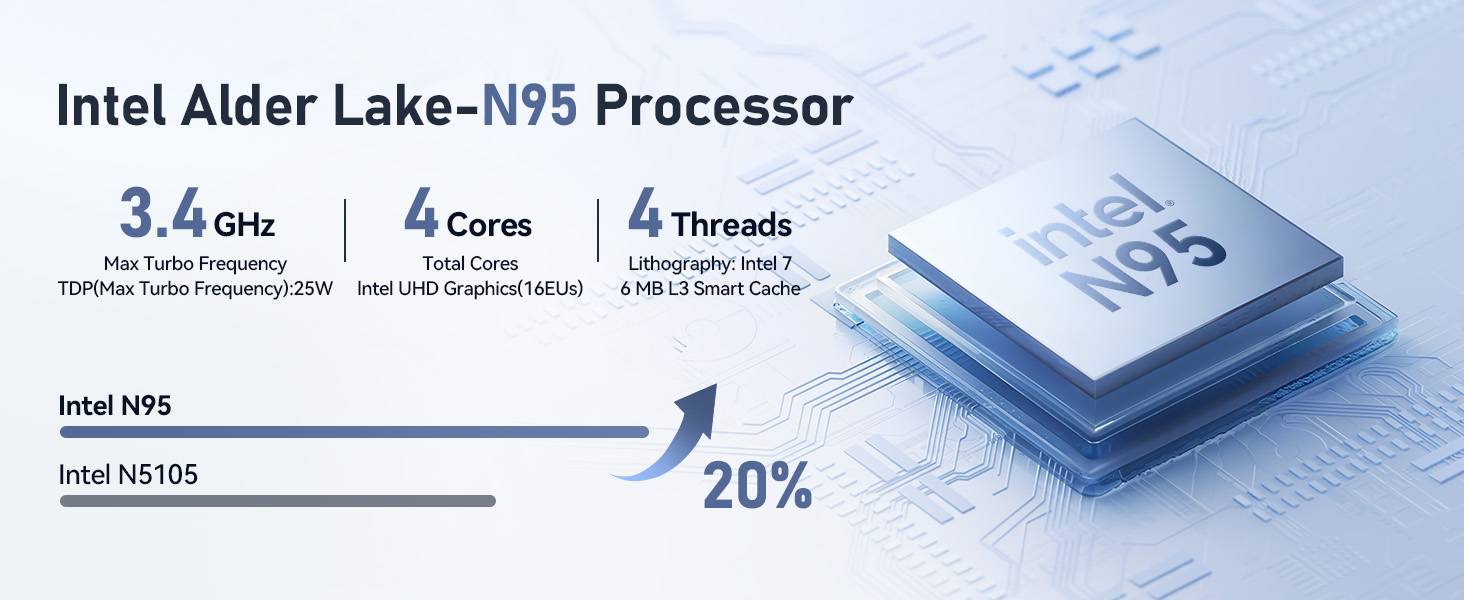
Image: Overview of the Intel Alder Lake-N95 processor specifications.

Image: High-speed 16GB DDR4 RAM and 500GB M.2 SSD for efficient performance.

Image: Front and rear view of the Mini PC showing various ports including USB 3.2, HDMI, and LAN.
4. Setup Guide
Follow these steps to set up your Beelink Mini S12 N95 Mini PC:
- Connect to Display: Use the provided HDMI cable to connect the Mini PC to your monitor or TV. The device supports dual 4K displays.
- Connect Peripherals: Connect your keyboard, mouse, and other USB devices to the available USB 3.2 ports.
- Network Connection: For a wired connection, connect an Ethernet cable to the 2.5G LAN port. For wireless, the device supports Wi-Fi 5.
- Power On: Connect the power adapter to the DC input port on the Mini PC, then plug it into a power outlet. Press the power button on the front of the device.
- Initial Boot: The system will boot up. Follow the on-screen instructions to complete the operating system setup (e.g., Windows 11).

Image: Illustrates connecting two monitors for a dual 4K display setup.
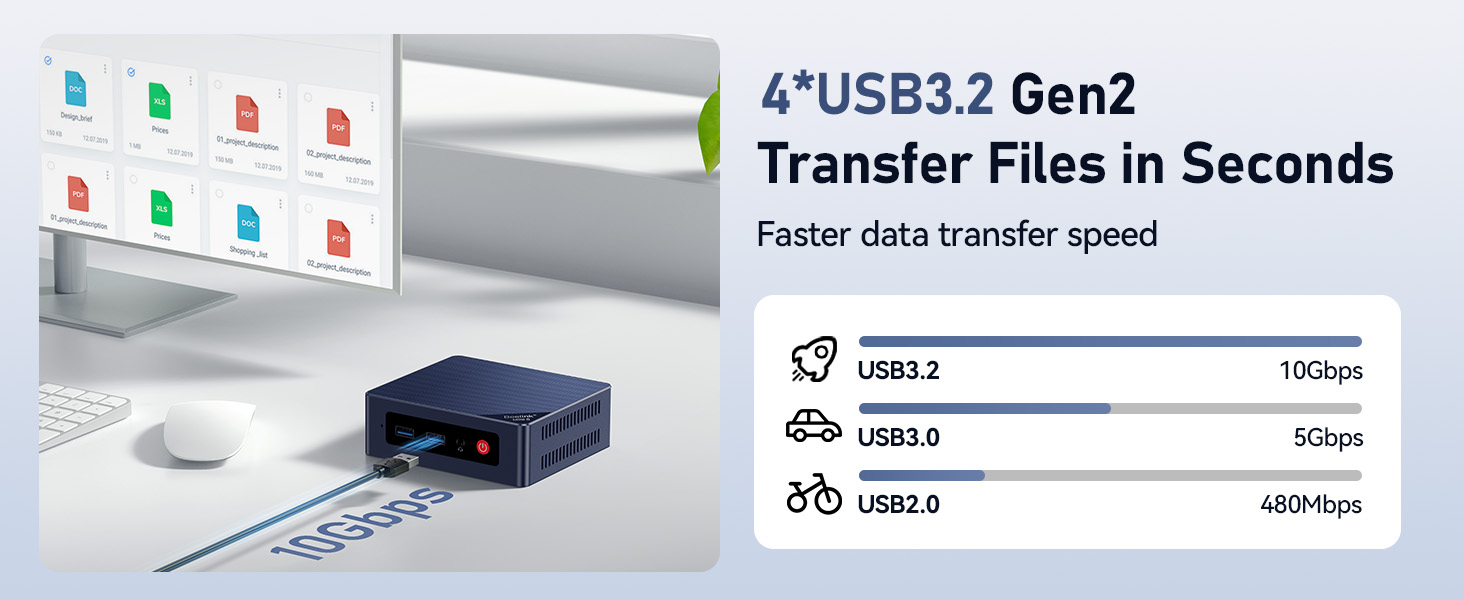
Image: Demonstrates the high-speed data transfer capabilities of the USB 3.2 Gen2 ports.
5. Operating Instructions
5.1 Power On/Off
- To Power On: Press the red power button on the front panel.
- To Shut Down: Use the operating system's shutdown function. Alternatively, press and hold the power button for 5 seconds to force a shutdown (not recommended for regular use).
5.2 Dual Display Setup
Connect two monitors to the HDMI ports. The operating system should automatically detect both displays. You can configure display settings (extend, duplicate, etc.) through your OS display settings.
5.3 Network Connectivity
- Wired LAN: Plug an Ethernet cable into the 2.5G LAN port for a high-speed wired connection.
- Wi-Fi: Access your operating system's network settings to connect to a Wi-Fi 5 (802.11ac) network.
- Bluetooth: Enable Bluetooth in your OS settings to pair with compatible devices like keyboards, mice, or speakers.

Image: Highlighting the 2.5G LAN port for fast wired network connections.
6. Maintenance
- Cleaning: Use a soft, dry cloth to clean the exterior of the Mini PC. Avoid liquid cleaners. Ensure ventilation holes are free from dust.
- Ventilation: Do not block the ventilation openings. Ensure adequate airflow around the device to prevent overheating. The internal cooling fan helps maintain optimal temperatures.
- Software Updates: Regularly update your operating system and drivers to ensure security and performance.
- Storage Expansion: The Mini PC supports a 2.5-inch SATA HDD/SSD for additional storage (up to 2TB). Refer to the detailed instructions for installation if you wish to expand storage.
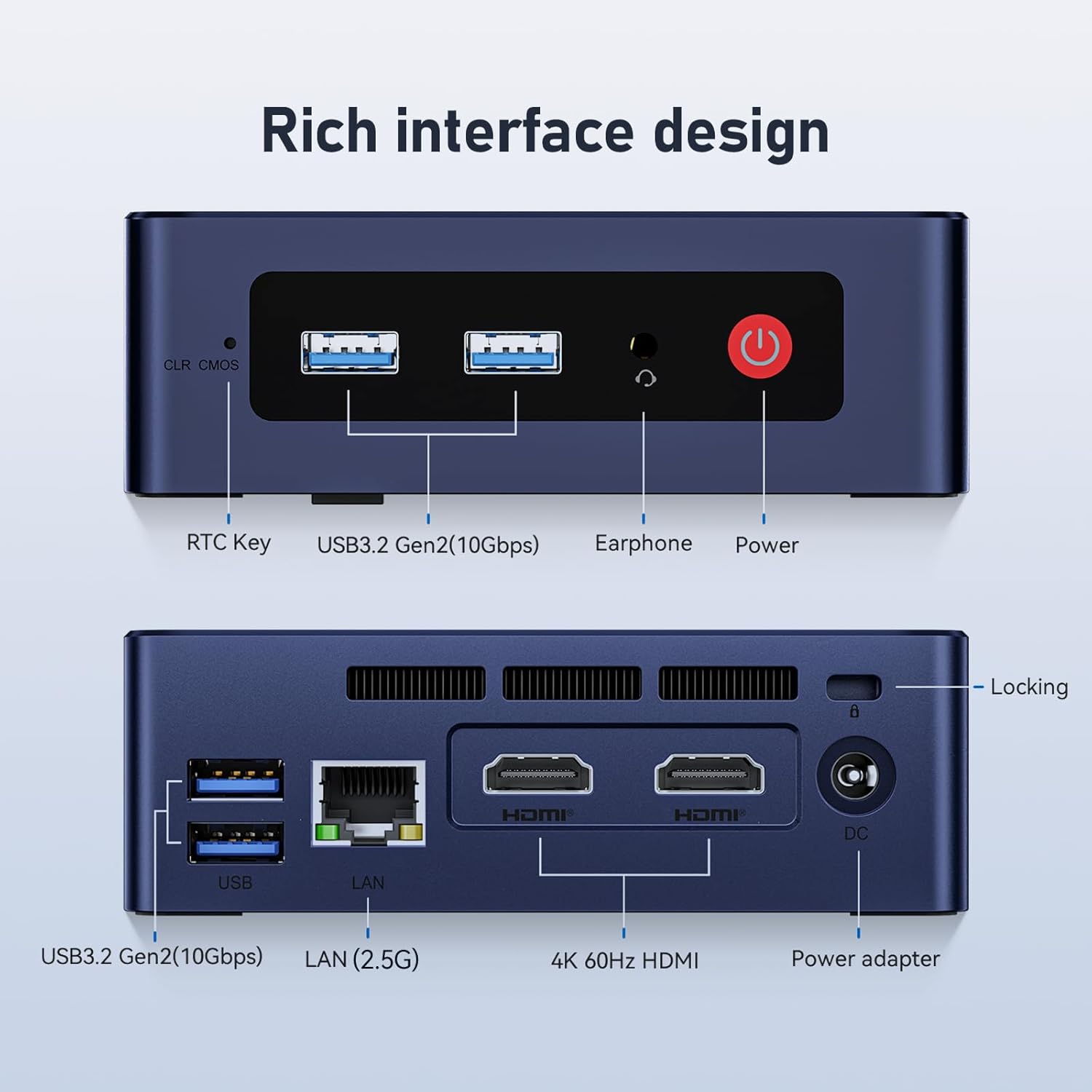
Image: Internal components showing the cooling fan and heat sink, crucial for maintaining CPU temperature.
7. Troubleshooting
| Problem | Possible Cause | Solution |
|---|---|---|
| No display on monitor | Loose HDMI cable, incorrect input source on monitor, power issue. | Check HDMI connections. Ensure monitor is on and set to correct input. Verify power adapter is connected. |
| No power | Power adapter not connected, faulty outlet. | Ensure power adapter is securely connected to both the PC and a working power outlet. |
| Wi-Fi/Bluetooth not working | Drivers not installed, disabled in OS, hardware issue. | Check device manager for driver status. Ensure Wi-Fi/Bluetooth is enabled in OS settings. Restart the PC. |
| System slow or freezing | Too many applications running, low storage, overheating. | Close unnecessary applications. Free up disk space. Ensure proper ventilation. Check for OS updates. |
If you encounter issues not listed here, please refer to the support section.
8. Specifications
| Feature | Detail |
|---|---|
| Brand | Beelink |
| Model Number | EQ |
| Processor | Intel Alder Lake-N95 (4 Cores, 4 Threads, up to 3.4 GHz) |
| Graphics | Intel UHD Graphics (Integrated) |
| RAM | 16GB DDR4 3200MHz SODIMM (1 slot, Max 16GB) |
| Storage | 500GB M.2 SSD (PCIe 3.0), expandable with 2.5-inch SATA HDD/SSD (up to 2TB) |
| Operating System | OS (as shipped, typically Windows 11) |
| Video Output | 2 x HDMI (4K@60Hz) |
| USB Ports | 4 x USB 3.2 Gen2 (10Gbps) |
| LAN | 1 x 2.5G Ethernet Port |
| Wireless Connectivity | Wi-Fi 5 (802.11ac), Bluetooth 4.2 |
| Audio | 1 x Earphone Jack |
| Power Input | DC 12V/3A (15W) |
| Dimensions | Approx. 4.52 x 4.01 x 1.54 inches (11.48 x 10.19 x 3.91 cm) |
| Weight | 0.7 Kilograms |
| Cooling Method | Fan |
| Security Features | Windows Defender, Windows Hello, Secure Boot |
9. Warranty & Support
Beelink provides comprehensive support for its products.
- Warranty: The product comes with a 12-month warranty.
- Technical Support: Lifetime technical support is available.
- Customer Service: For any product questions or support, please contact customer service. You can typically find contact information on the seller's page or through your purchase platform.

Image: General information about Beelink Mini PCs and support.
10. Video Guide
Watch the official product video for a visual guide on the Beelink S12 Mini PC features.
Video: Official overview of the Beelink S12 Mini PC, highlighting its Intel N95 processor, 16GB RAM, and 500GB storage.