
1. Introduction
This manual provides essential information for the installation, operation, and maintenance of your Haudio 7-inch 2-DIN Car Stereo. Please read this manual thoroughly before using the product to ensure proper function and safety. Keep this manual for future reference.
Safety Information
- Always ensure the vehicle is parked safely before operating the car stereo's advanced features.
- Do not attempt to install or repair the unit yourself if you are not qualified. Professional installation is recommended.
- Avoid exposing the unit to extreme temperatures, direct sunlight for prolonged periods, or excessive moisture.
- Use only specified power cables and accessories to prevent damage or fire.
2. Product Overview
Key Features
- Wireless CarPlay & Android Auto: Seamless smartphone integration for navigation, calls, and music streaming. Supports mirroring.
- 7-inch Touchscreen & 1080p Playback: Capacitive 600x1024 display with vibrant visuals. Supports 1080p video playback, split-screen, and Picture-in-Picture (PIP).
- 2GB RAM + 64GB Storage: Fast 4-core processor for smooth operation. Install various APK apps (e.g., Spotify, Waze) and save media with expandable storage.
- Enhanced Audio & Connectivity: ASP sound optimization for crisp audio, supports FLAC/APE lossless music. Features two USB ports, Bluetooth 4.1, Wi-Fi, and integrated GPS.
- Reliable Backup Camera Support: Includes a 720p AHD/140° security camera for clear rear vehicle visibility during reversing maneuvers.
Package Contents
The package includes the following items:
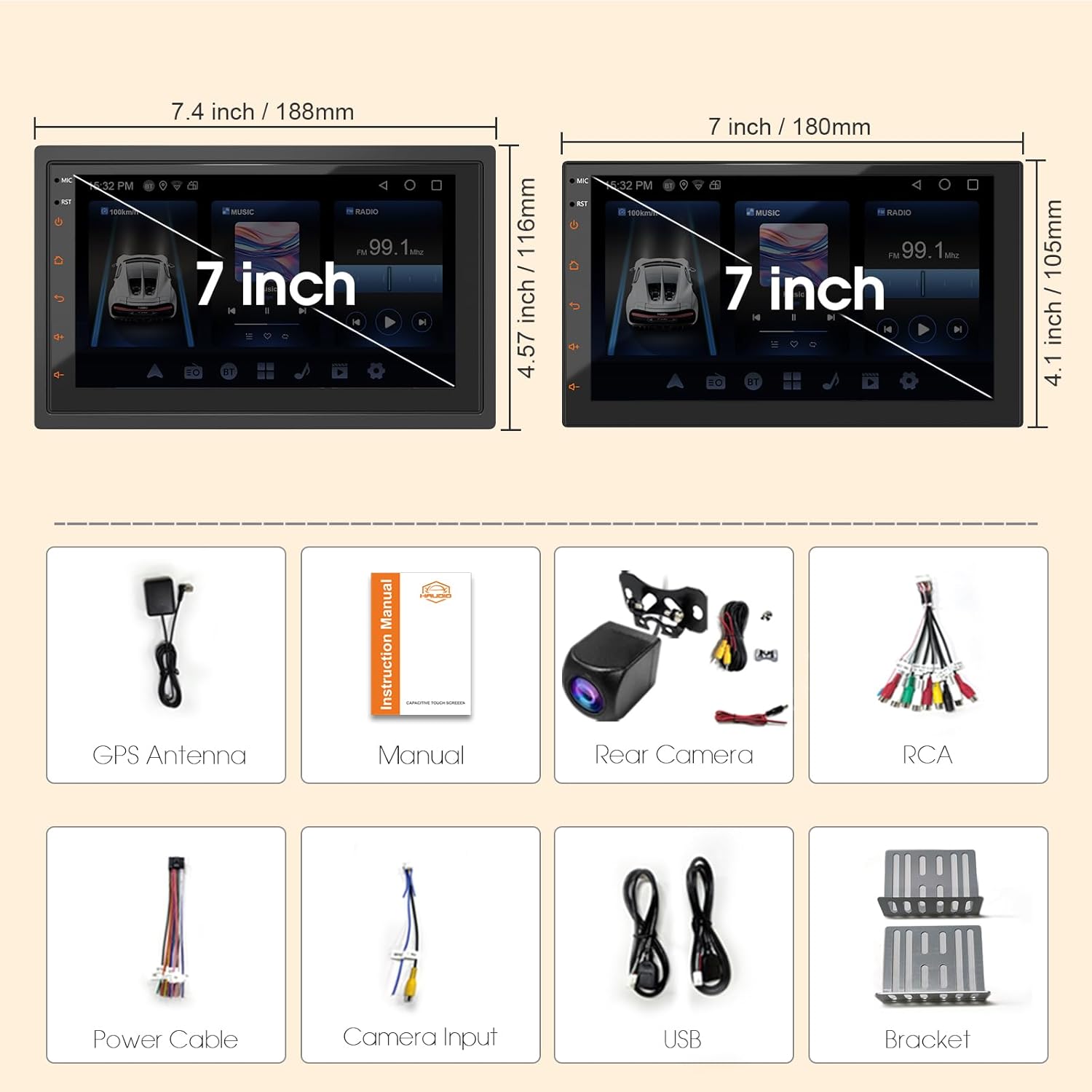
Image: Haudio 7-inch Car Stereo package contents. Includes the main unit, GPS antenna, instruction manual, rear camera, RCA input/output cables, power cables, camera input cable, two USB cables, and mounting brackets.
- Haudio 7-inch Car Stereo Unit
- GPS Antenna
- Instruction Manual
- Rear Camera (720p AHD/140°)
- RCA Input/Output Cables
- Power Cables (2 types)
- Camera Input Cable
- USB Cables (2 types)
- Mounting Brackets and Screws
Component Identification

Image: Front view of the Haudio 7-inch Car Stereo. The left side features physical buttons for MIC, RST (Reset), Power, Home, Back, Volume Up, and Volume Down. The main area is a large 7-inch touchscreen display.
Image: Rear view of the Haudio 7-inch Car Stereo. This shows the various input and output ports for power, speakers, RCA audio/video, USB, GPS antenna, and radio antenna.
3. Installation Guide
Proper installation is crucial for the optimal performance and safety of your car stereo. It is highly recommended to have the unit installed by a professional car audio technician.
Pre-Installation Checklist
- Verify that your vehicle's dashboard opening is compatible with a 2-DIN standard (approximately 180mm x 100mm).
- Ensure all necessary accessories, such as wiring harnesses and antenna adapters, are available for your specific car model.
- Disconnect the vehicle's battery before starting any electrical work.
Wiring Diagram
Refer to the detailed wiring diagram included in your physical instruction manual for specific connections. General connections include:
- Power: Connect the main power harness to the vehicle's power supply (constant 12V, accessory 12V, ground).
- Speakers: Connect speaker wires to the corresponding vehicle speaker outputs.
- GPS Antenna: Connect the GPS antenna and mount it in a location with a clear view of the sky.
- Rear Camera: Connect the rear camera cable to the dedicated input and the camera's power to the reverse light circuit.
- USB Ports: Connect the USB extension cables to the unit and route them to an accessible location.
- Radio Antenna: Connect the vehicle's radio antenna.
Mounting Instructions
- Carefully remove the existing car stereo or blank panel from your dashboard.
- Attach the provided mounting brackets to the sides of the Haudio unit using the supplied screws.
- Connect all necessary wiring harnesses to the rear of the unit.
- Slide the unit into the dashboard opening, securing it with the mounting brackets.
- Reassemble the dashboard trim panels.
- Reconnect the vehicle's battery.
4. Operating Instructions
Basic Operation
- Power On/Off: Press the power button on the left panel to turn the unit on or off.
- Touchscreen Navigation: Swipe left/right to navigate between home screens. Tap icons to open applications.
- Volume Control: Use the physical volume buttons on the left panel or the on-screen controls.
- Home/Back: Use the physical buttons or on-screen navigation icons to return to the home screen or go back.
Wireless CarPlay & Android Auto Setup
Connect your iPhone or Android phone wirelessly for an integrated driving experience.
- Ensure Bluetooth is enabled on your smartphone.
- On the car stereo, go to the 'Zlink' application.
- Search for and select your car stereo's Bluetooth name (e.g., "Haudio-bt") from your phone's Bluetooth settings.
- Confirm the pairing on both devices.
- Once connected, CarPlay or Android Auto will launch automatically.

Image: Apple CarPlay interface on the Haudio car stereo, displaying common applications like Music, Maps, and Phone.
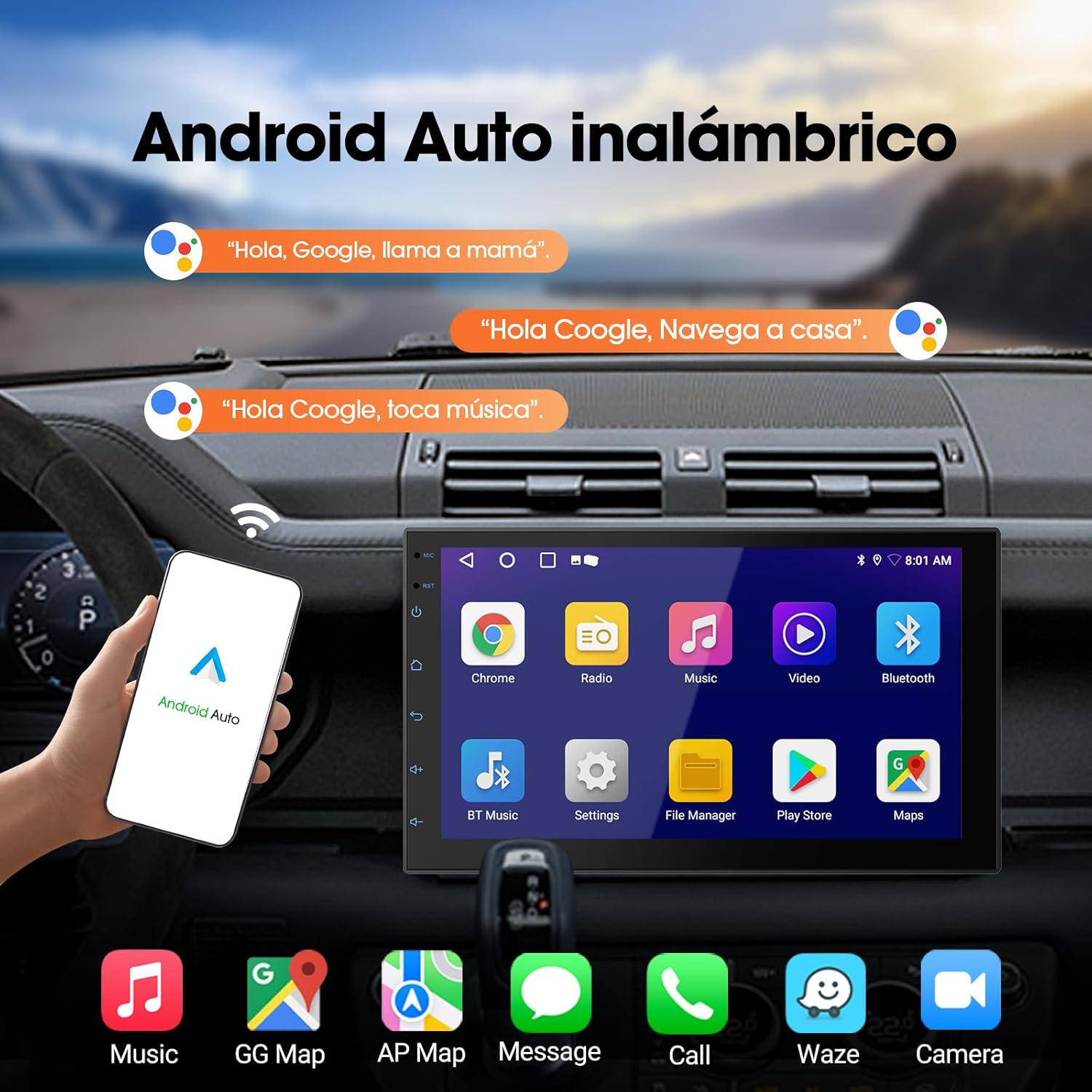
Image: Android Auto interface on the Haudio car stereo, displaying common applications like Google Maps, Music, and Phone.
Mirror Link Function
The Mirror Link function allows you to display your smartphone's screen directly on the car stereo.
- Connect your phone to the car stereo via USB cable or Wi-Fi.
- Open the 'Wired Mirroring' or 'Wireless Mirroring' application on the car stereo.
- Follow the on-screen prompts to establish the connection. For wireless mirroring, ensure both devices are connected to the same Wi-Fi network.

Image: Haudio car stereo demonstrating the Mirror Link function, showing a smartphone screen mirrored onto the larger display.
GPS Navigation
The unit features integrated GPS for navigation. You can use pre-installed map applications or download others from the Google Play Store.
- Ensure the GPS antenna is properly installed and has a clear signal.
- Open your preferred navigation app (e.g., Google Maps).
- Enter your destination and follow the voice-guided directions.
Bluetooth Connectivity
Connect your phone via Bluetooth for hands-free calling and audio streaming.
- Enable Bluetooth on your phone and the car stereo.
- Search for the car stereo's Bluetooth name in your phone's settings and pair.
- Once connected, you can make/receive calls and stream music through the car's speakers.

Image: Bluetooth functionality on the Haudio car stereo, showing music playback and hands-free calling features.
FM/AM Radio
Access local radio stations with the built-in FM/AM tuner.
- Open the 'Radio' application.
- Use the on-screen controls to scan for stations, manually tune, or select preset stations.
- The unit supports RDS (Radio Data System) for displaying station information where available.
Media Playback
Play audio and video files from various sources.
- USB: Connect a USB drive containing media files to one of the USB ports. Use the 'Music' or 'Video' app to browse and play files.
- Bluetooth Audio: Stream music from your paired smartphone.
- Internal Storage: Store music or video files directly on the unit's 64GB internal storage.
Voice Control
Utilize voice commands for hands-free operation through CarPlay or Android Auto.
- Activate Siri (for iPhone) or Google Assistant (for Android) through the respective CarPlay/Android Auto interface.
- Issue commands for navigation, making calls, sending messages, or playing music.
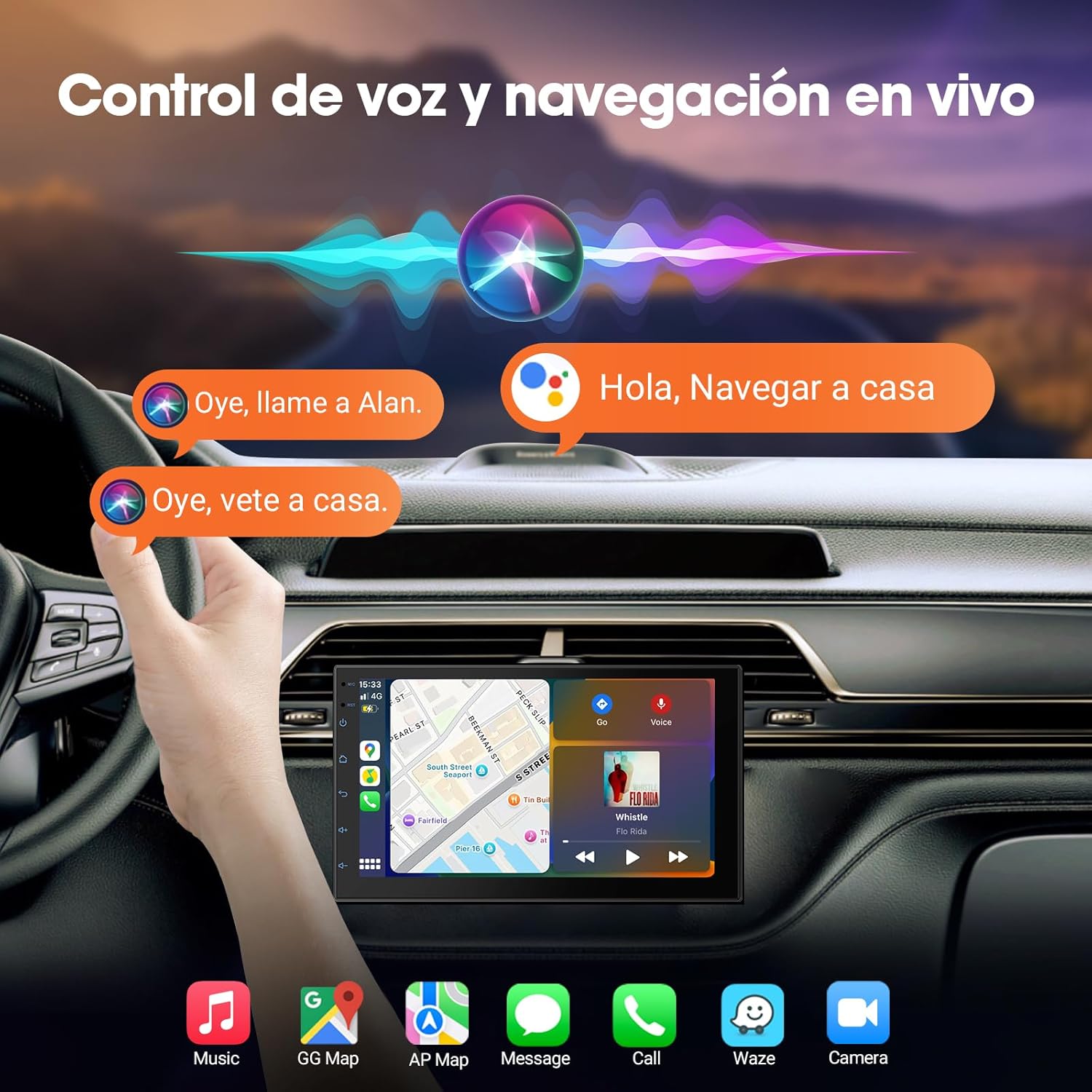
Image: Voice control and live navigation on the Haudio car stereo, illustrating interaction with virtual assistants.
Rearview Camera Operation
The included HD rearview camera provides a clear view behind your vehicle when reversing.
- When the vehicle is shifted into reverse gear, the car stereo display will automatically switch to the rearview camera feed.
- Dynamic parking guidelines may be displayed on the screen to assist with parking maneuvers.
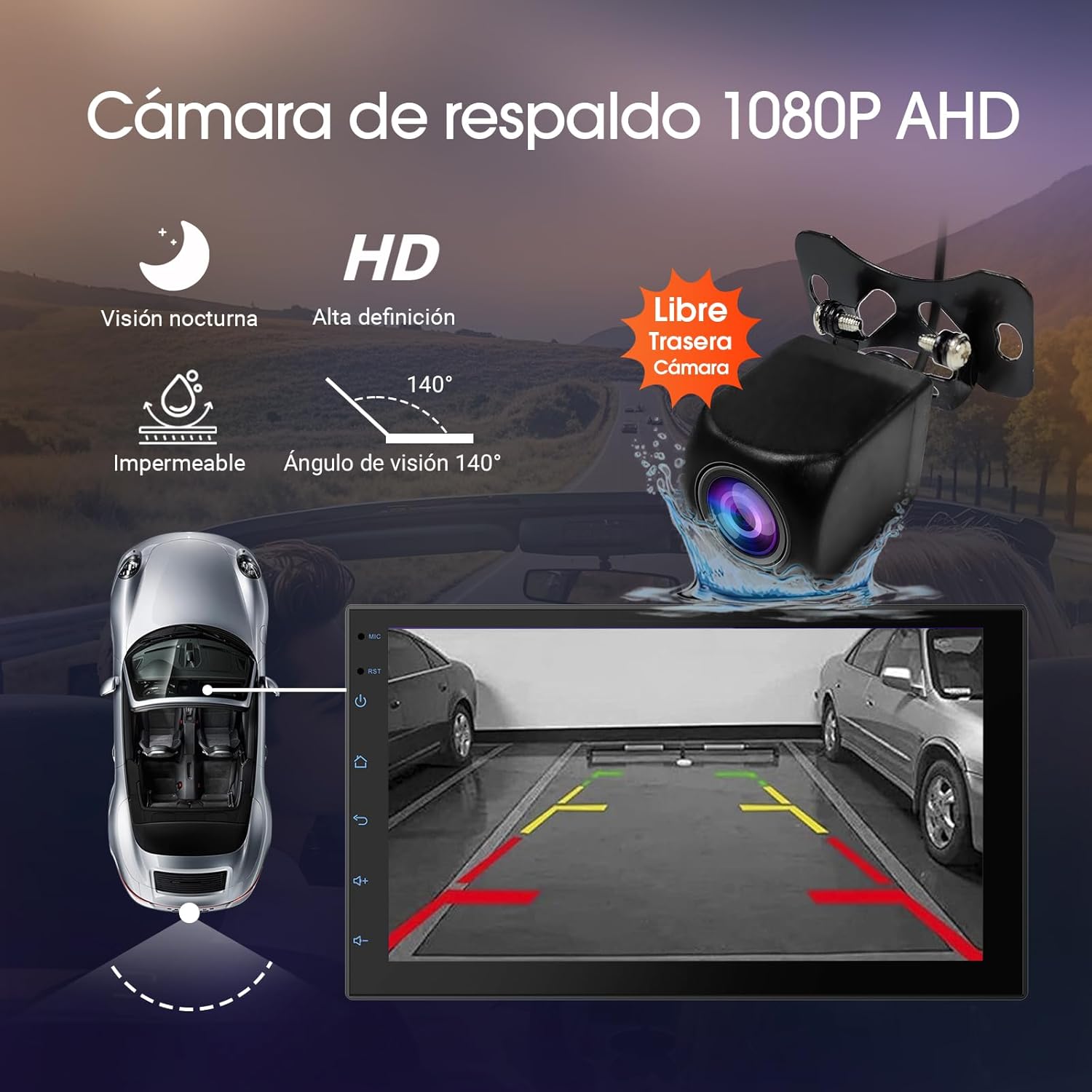
Image: HD backup camera view on the Haudio car stereo, showing a wide-angle perspective with parking assistance lines.
5. Settings and Customization
Audio Settings (DSP)
Access the Digital Sound Processor (DSP) to fine-tune your audio experience.
- Open the 'DSP' application from the main menu.
- Adjust equalizer settings, balance, fader, and subwoofer output to match your preferences.
Image: High-fidelity sound quality settings on the Haudio car stereo, indicating adjustable audio channels and DSP features.
Display Settings
- Adjust brightness, contrast, and color saturation.
- Change wallpaper or theme.
- Configure screen timeout settings.
System Settings
- Language: Select your preferred system language.
- Date & Time: Set the correct date and time.
- Network: Configure Wi-Fi and mobile hotspot settings.
- About Device: View system information, including Android version and storage details.
- Factory Reset: Use this option to restore the unit to its original factory settings (all user data will be erased).
6. Troubleshooting
If you encounter issues with your car stereo, refer to the following common problems and solutions:
- No Power: Check power connections and vehicle fuses. Ensure the ignition is on.
- No Sound: Verify speaker connections, volume level, and audio output settings (e.g., fader/balance).
- Bluetooth Connection Issues: Ensure Bluetooth is enabled on both devices. Try unpairing and re-pairing. Clear Bluetooth cache on your phone.
- CarPlay/Android Auto Not Connecting: Ensure your phone is compatible. Check USB cable connection (if wired) or Bluetooth/Wi-Fi connection (if wireless). Restart both devices.
- GPS Signal Lost: Ensure the GPS antenna is properly connected and has an unobstructed view of the sky.
- Touchscreen Unresponsive: Try restarting the unit. If the issue persists, perform a factory reset (note: this will erase all data).
- Rear Camera Not Displaying: Check camera power and video signal connections. Ensure the reverse gear signal wire is correctly connected.
For persistent issues, please contact customer support.
7. Specifications
| Feature | Specification |
|---|---|
| Brand | Haudio |
| Model | CPU1.5GHz (2+64G) |
| Screen Size | 7 Inches |
| Display Resolution | 600 x 1024 (Capacitive Touchscreen) |
| Processor | 4-core CPU1.5GHz |
| RAM | 2 GB |
| Internal Storage | 64 GB |
| Operating System | Android 13 (Customized) |
| Connectivity | Bluetooth 4.1, Wi-Fi, USB |
| Special Features | Wireless Apple CarPlay, Android Auto, Mirror Link, GPS, HD Rearview Camera Support, DSP |
| Audio Output Power | 4 x 45 Watts |
| Item Weight | 1.18 Kilograms |
| Product Dimensions | 21.6 x 14.7 x 14.3 cm |
8. Warranty and Support
Warranty Information
- 1-Year Warranty: The product is covered by a 1-year warranty from the date of purchase.
- 30-Day Returns & Exchanges: You may return or exchange the product within 30 days of purchase.
Customer Support
For any questions, technical assistance, or warranty claims, please contact Haudio customer support. We aim to provide a rapid response within 12 hours and offer lifetime after-sales consultation and technical support.
Please refer to your purchase documentation or the seller's contact information for specific support channels.


