
1. Product Overview
The iRobot Roomba 106 Robot Vacuum with AutoEmpty Dock is designed for automated dry floor cleaning. It features a 3-stage cleaning system, powerful suction, an edge-sweeping brush, and bristle brushes for various dirt types. The integrated ClearView LiDAR mapping system ensures precise navigation and obstacle avoidance. The AutoEmpty Dock automatically empties the robot's dustbin, storing up to 75 days of debris.

Image 1: The Roomba 106 robot vacuum, its AutoEmpty Dock, and a smartphone displaying the iRobot app interface.
2. Setup
2.1 Unpacking
- Carefully remove the robot vacuum, AutoEmpty Dock, and all accessories from the packaging.
- Remove all protective films, stickers, and packing materials from the robot and the dock.
- Place the AutoEmpty Dock against a wall in an open, uncluttered area with good Wi-Fi coverage. Ensure there is at least 1.5 feet (0.5 meters) of clear space on each side of the dock and 4 feet (1.2 meters) in front of it.
2.2 Charging the Robot
Place the Roomba robot onto the AutoEmpty Dock, ensuring the charging contacts on the robot align with those on the dock. The robot will emit a tone to confirm it is charging. Allow the robot to charge for at least 3 hours before its first use, or until the battery indicator light turns solid green.
2.3 Connecting to Wi-Fi and App
- Download the iRobot Home App from your device's app store.
- Open the app and follow the on-screen instructions to create an account or log in.
- Select 'Add a Robot' and choose your Roomba 106 model.
- Follow the app's prompts to connect your robot to your home Wi-Fi network. This will enable advanced features, scheduling, and remote control.
3. Operating Instructions
3.1 Starting a Clean
- Using the iRobot Home App: Open the app and tap the 'Clean' button.
- Using the Robot Buttons: Press the 'CLEAN' button on the robot's top panel.
- Using Voice Assistant: If connected to a compatible voice assistant (e.g., Amazon Echo, Google Home), use a voice command such as "Hey Google, tell Roomba to start cleaning."
3.2 Scheduling Cleans
To set up recurring cleaning schedules, use the iRobot Home App. Navigate to the 'Schedule' section and follow the instructions to set specific cleaning times and days for your robot.
3.3 Understanding Cleaning Modes
The Roomba 106 utilizes a 3-stage cleaning system. It automatically adjusts its cleaning method based on floor type and dirt level. The system includes an edge-sweeping brush for corners and walls, dual multi-surface rubber brushes to agitate and lift debris, and powerful suction to draw dirt into the dustbin.
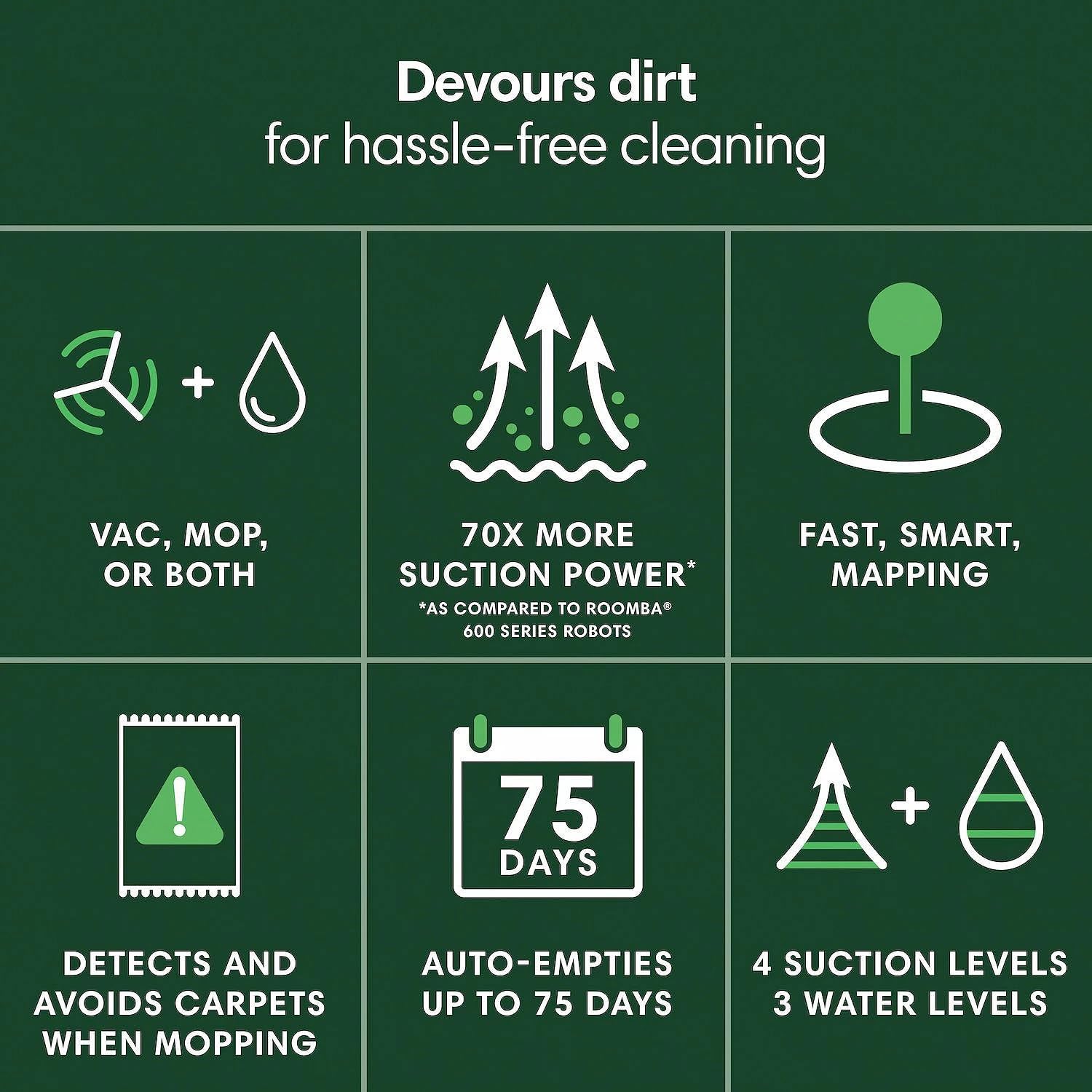
Image 2: An infographic highlighting key cleaning features of the Roomba 106, including its powerful suction and self-emptying capability.
4. Maintenance
Regular maintenance ensures optimal performance of your Roomba 106. Always turn off the robot and disconnect it from the dock before performing any maintenance.
4.1 Emptying the AutoEmpty Dock
The AutoEmpty Dock can hold up to 75 days of debris. When the bag is full, the iRobot Home App will notify you. To empty:
- Lift the lid of the AutoEmpty Dock.
- Carefully pull the full disposal bag upwards to remove it. The bag opening will seal automatically to prevent dust leakage.
- Discard the full bag and insert a new iRobot disposal bag into the dock.
- Close the dock lid securely.
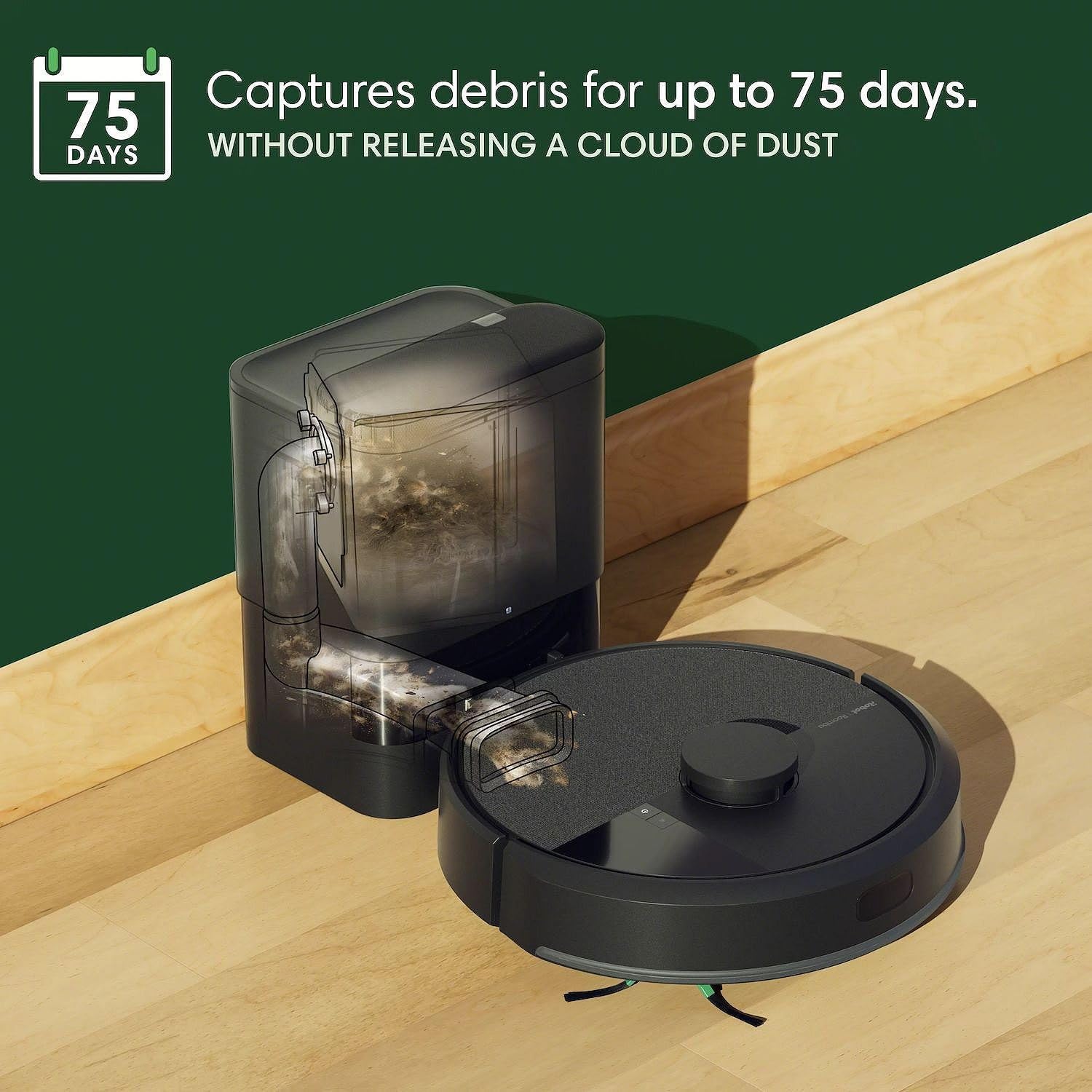
Image 3: The Roomba 106 robot vacuum next to its AutoEmpty Dock, illustrating the dock's ability to capture debris for an extended period without releasing dust.
4.2 Cleaning the Brushes
Periodically remove hair and debris from the robot's brushes:
- Multi-Surface Brushes: Open the brush frame by pressing the green tabs. Remove the brushes and use the included cleaning tool to remove hair and debris. Reinsert the brushes, ensuring they click into place.
- Edge-Sweeping Brush: Use a small screwdriver to remove the screw holding the edge-sweeping brush. Remove any tangled hair or debris and reattach the brush.
4.3 Cleaning the Filter
The filter should be cleaned weekly and replaced every 2-3 months, or as needed:
- Open the robot's dustbin lid.
- Remove the filter by grasping the yellow tab.
- Tap the filter against a trash can to dislodge debris. Do not wash the filter.
- Reinsert the clean filter or replace it with a new one.
4.4 Cleaning Sensors
Wipe the robot's sensors with a clean, dry cloth monthly:
- Cliff Sensors: Located on the underside of the robot.
- Charging Contact Pads: On the robot's underside and the dock.
- LiDAR Sensor: The raised circular component on top of the robot.
5. Troubleshooting
| Problem | Solution |
|---|---|
| Robot not charging | Ensure the charging contacts on both the robot and the dock are clean and free of debris. Verify the dock is plugged into a working power outlet. |
| Robot stuck or lost | Clear obstacles from the robot's path. If the robot is lost, manually place it back on the dock or initiate a new cleaning cycle from the app. Check for tangled brushes or wheels. |
| Poor cleaning performance | Clean the multi-surface brushes, edge-sweeping brush, and filter. Ensure the dustbin is not full. Check for any blockages in the suction path. |
| Robot not connecting to Wi-Fi | Ensure your Wi-Fi router is on and within range. Restart your router and the robot. Follow the app's troubleshooting steps for network connection. |
| AutoEmpty Dock not emptying | Check if the disposal bag in the dock is full and needs replacement. Ensure the dock lid is securely closed. Verify there are no obstructions in the dock's suction path. |
For more detailed troubleshooting, refer to the iRobot Home App or the official iRobot support website.
6. Specifications
- Model Name: Roomba 106
- Brand: iRobot
- Included Components: Roomba 106 Robot Vacuum, AutoEmpty Dock
- Power Source: Battery Powered
- Filter Type: Bag (for AutoEmpty Dock)
- Special Features: LiDAR Navigation, Edge Cleaning, Self-Emptying, Scheduling, Cordless
- Controller Type: App Control, Voice Control
- Compatible Devices: Smartphones, Amazon Echo, Google Home
- Form Factor: Round
- Item Weight: 6.2 Pounds (Robot only)
- Recommended Uses: Cleaning dry floors (carpet, hardwood, laminate, marble, tile, stone, rubber, wood)
7. Warranty Information
The iRobot Roomba 106 Robot Vacuum comes with a manufacturer's warranty that covers mechanical and electrical failures. This warranty includes 100% parts and labor with no hidden fees. For warranty claims, fast repairs, and replacements, easy online claims are available 24/7. Please retain your proof of purchase for warranty validation.
8. Customer Support
If you encounter any issues not covered in this manual or require further assistance, please visit the official iRobot support website or contact their customer service. You can find contact details and additional resources within the iRobot Home App or on the iRobot brand website.


