
1. Introduction
The DSRKE SD Card Reader is a versatile storage tool designed to simplify data transfer and enhance efficiency. It features a 2-in-1 design with both USB-A and USB-C ports, supporting high-speed transfers up to 5 Gbps. This reader is compatible with a wide range of memory cards including SD, SDXC, SDHC, Micro SD (TF), Micro SDXC, and Micro SDHC, and is also backward compatible with USB 2.0/1.1. Its plug-and-play functionality ensures ease of use across various operating systems and devices.
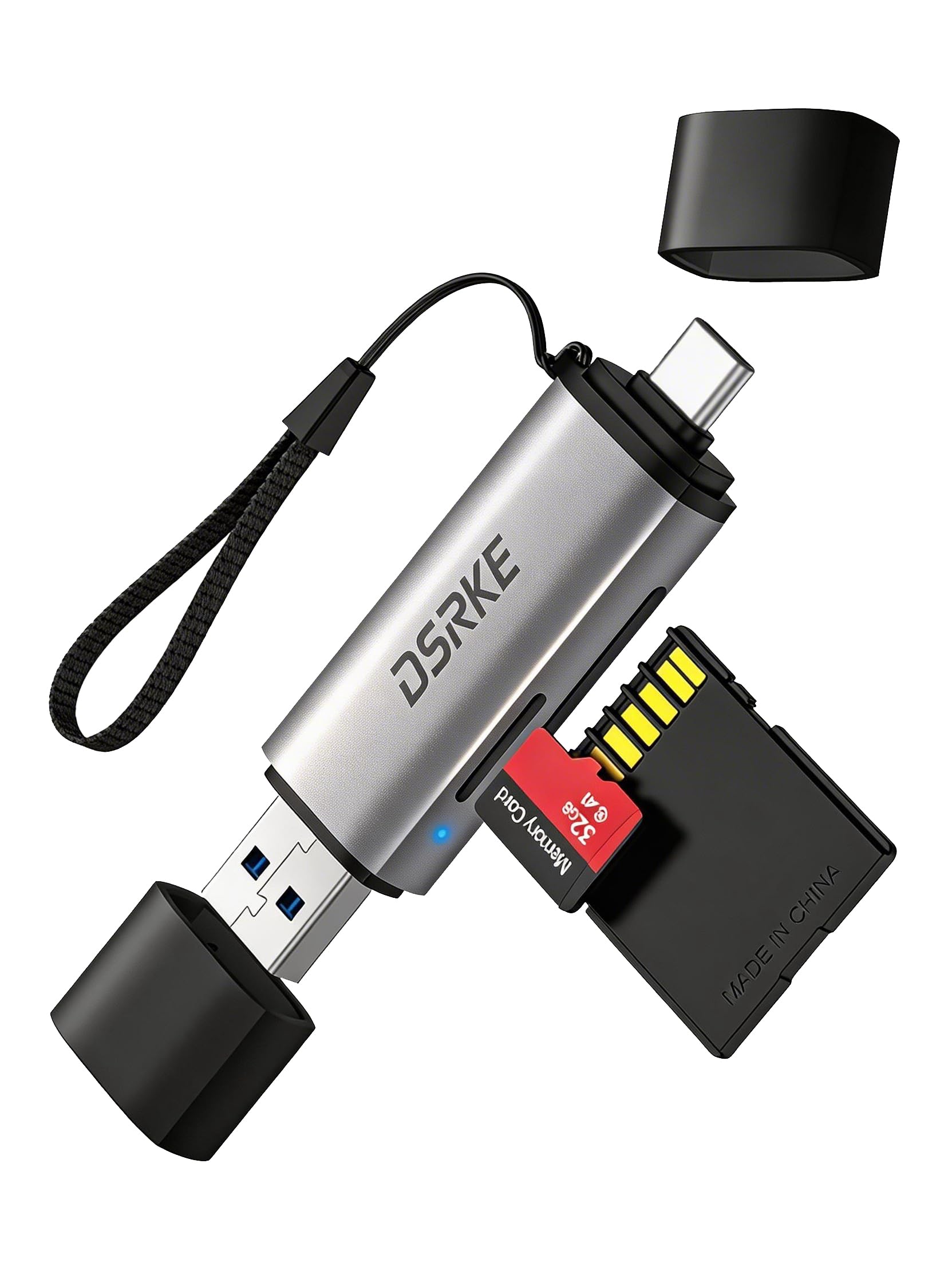
Image 1.1: The DSRKE SD Card Reader featuring both USB-A and USB-C connectors for broad compatibility.
2. Setup
The DSRKE SD Card Reader is designed for immediate use with no driver installation required. It is a plug-and-play device compatible with Windows 11/10/8/7/Vista and macOS 10.2 or higher.
2.1 Connecting the Card Reader
- Identify the correct port: Determine whether your device (computer, laptop, smartphone, tablet) has a USB-A or USB-C port.
- Insert the card reader: Plug the appropriate connector (USB-A or USB-C) of the DSRKE card reader into your device's port. The device will automatically recognize the card reader.

Image 2.1: The DSRKE card reader connected to a desktop computer, demonstrating its USB-A and USB-C dual port functionality.
2.2 Inserting Memory Cards
- The reader features two separate slots: one for standard SD cards and one for Micro SD (TF) cards.
- Gently insert your SD card into the designated SD slot until it clicks into place.
- Gently insert your Micro SD (TF) card into the designated Micro SD slot until it clicks into place.
- Ensure the card is inserted with the contacts facing down, matching the orientation shown on the reader.

Image 2.2: Illustration of inserting various types of SD and Micro SD cards into their respective slots on the DSRKE card reader.
3. Operating Instructions
The DSRKE SD Card Reader supports simultaneous reading and writing from both SD and Micro SD cards, enhancing productivity by eliminating the need for constant plugging and unplugging.
3.1 Data Transfer
- Accessing Files: Once connected and cards are inserted, your device's file explorer (e.g., File Explorer on Windows, Finder on macOS) will display the inserted memory cards as removable drives.
- Transferring Files: Drag and drop files between your device's storage and the memory cards, or between the two inserted memory cards directly. The reader supports data transfer speeds up to 5 Gbps.
- Simultaneous Operation: You can read from one card while writing to another, or transfer data between both cards concurrently.

Image 3.1: A laptop screen displaying progress bars for simultaneous file transfers from both SD and TF cards, highlighting the time-saving feature.
3.2 Direct Transfer from Cameras/GoPro
The DSRKE card reader facilitates direct transfer of media from cameras, GoPro devices, or surveillance cameras without requiring additional software or Wi-Fi connectivity.
- Remove the memory card from your camera or GoPro.
- Insert the card into the DSRKE reader.
- Connect the reader to your smartphone, tablet, or computer.
- Access and manage your photos and videos directly from your device's file manager.

Image 3.2: A smartphone connected to the DSRKE card reader, illustrating direct photo and video transfer from an SD card without needing a computer.
4. Maintenance
To ensure the longevity and optimal performance of your DSRKE SD Card Reader, follow these maintenance guidelines:
- Keep it Clean: The reader features an anti-dust design. However, regularly wipe the exterior with a soft, dry cloth to remove any dust or debris.
- Protect Ports: Avoid exposing the USB-A, USB-C, and card slots to excessive dust, dirt, or moisture. Integrated protections help prevent dust and scratches.
- Handle with Care: While compact and durable, avoid dropping the device or subjecting it to strong impacts.
- Proper Storage: When not in use, store the card reader in a clean, dry place. Its slim design allows it to fit easily into camera bags or backpacks.
5. Troubleshooting
If you encounter issues with your DSRKE SD Card Reader, refer to the following common troubleshooting steps:
- Reader Not Recognized:
- Ensure the card reader is fully inserted into the USB-A or USB-C port of your device.
- Try connecting the reader to a different USB port on your device.
- Test the reader on another computer or compatible device to rule out a device-specific issue.
- Restart your computer or device.
- Memory Card Not Detected:
- Ensure the memory card is correctly and fully inserted into its designated slot.
- Check if the memory card is damaged or corrupted by testing it in another compatible device.
- Verify that the memory card is not locked (some SD cards have a small lock switch on the side).
- Try a different memory card to see if the issue is with the card itself.
- Slow Data Transfer:
- Ensure you are using a USB 3.0 or USB-C port on your device for optimal speeds (up to 5 Gbps). Connecting to a USB 2.0 port will result in slower speeds.
- The speed of the memory card itself can affect transfer rates. Use high-speed cards (e.g., UHS-I compatible) for faster performance.
- Avoid running multiple data-intensive tasks simultaneously during transfer.
- Simultaneous Read/Write Issues:
- Ensure both cards are properly inserted and detected by your system.
- If one card is not responding, refer to "Memory Card Not Detected" steps above.
6. Specifications
| Feature | Detail |
|---|---|
| Brand | DSRKE |
| Model Number | D01G |
| Media Type Support | SD Card, MicroSD, RS-MMC, SDHC, SDXC |
| Connectivity Technology | USB Type A, USB Type C |
| Special Features | Anti-dust, Compact, Easy setup, Plug & Play |
| Color | Grey |
| Compatible Devices | Camera, Computer, Laptop, Smartphone, Tablet |
| Data Transfer Rate | Up to 5 Gigabits per second (USB 3.0/USB-C) |
| Hardware Interface | USB 3.0 Type A, USB 3.0 Type C |
| Number of Slots | 2 (1x SD, 1x Micro SD/TF) |
| Operating System Support | Windows 11/10/8/7/Vista, macOS 10.2+ |
| Product Dimensions (L x W x H) | 7.3 x 2 x 1 centimeters |
| Item Weight | 15 Grams |
| UPC | 752010929542 |

Image 6.1: The compact design of the DSRKE card reader, highlighting its USB 3.0, USB-C, and SD/TF compatibility, along with its dimensions.
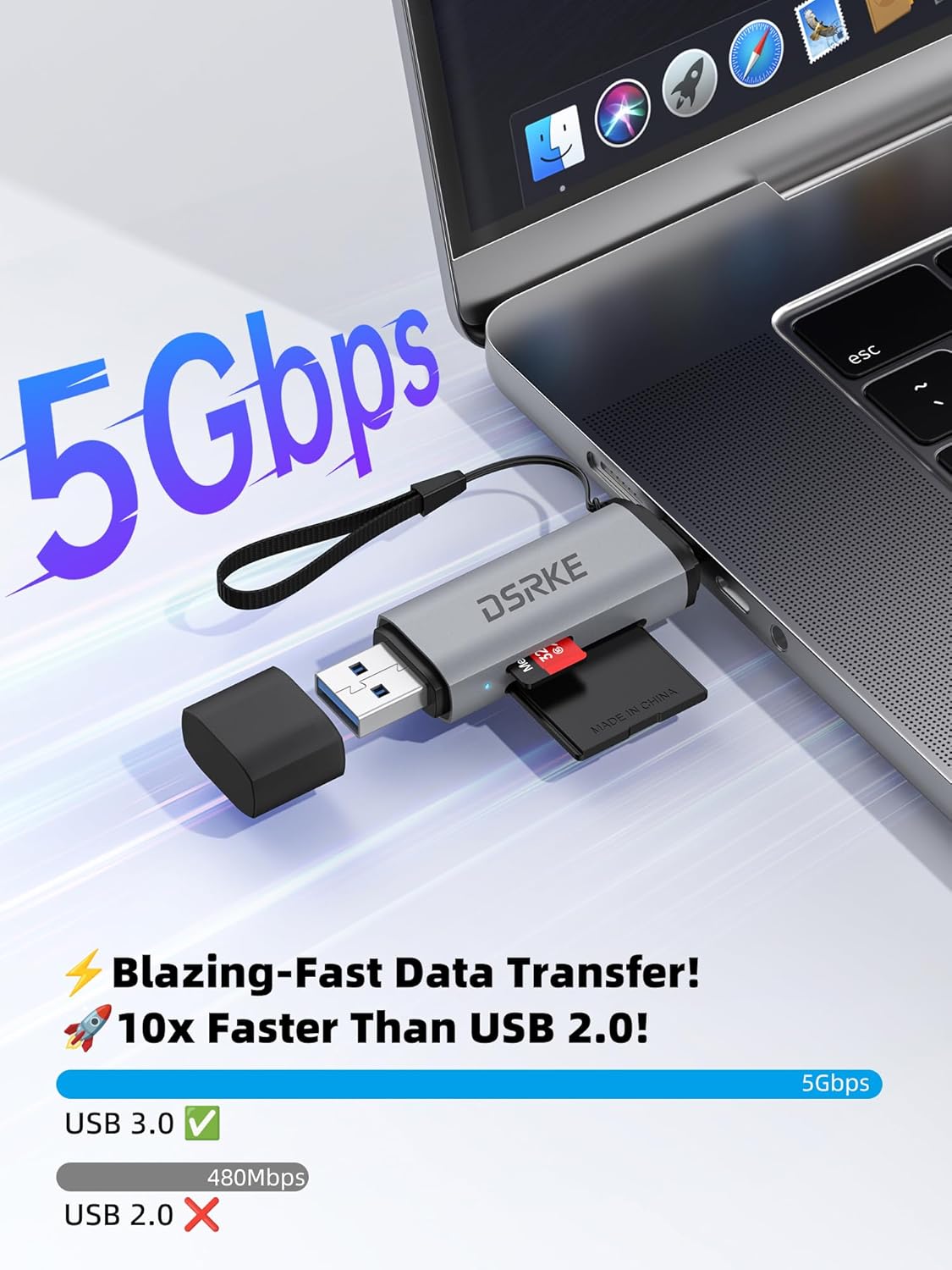
Image 6.2: A visual representation of the DSRKE card reader's 5 Gbps data transfer speed, emphasizing its performance advantage over USB 2.0.
7. Warranty and Support
Information regarding specific warranty terms and customer support channels for the DSRKE SD Card Reader (Model D01G) is not provided in the product details. For warranty claims, technical assistance, or further inquiries, please refer to the manufacturer's official website or contact the retailer from whom the product was purchased.
Always retain your proof of purchase for warranty purposes.