
1. Introduction
This manual provides detailed instructions for the setup, operation, maintenance, and troubleshooting of your Gawfolk 24.5 Inch 300Hz Gaming Monitor, Model GF245C. This monitor features a 24.5-inch FHD 1080p VA panel, a 300Hz refresh rate, 1ms response time, Adaptive Sync technology, 98% sRGB color gamut, and low blue light/flicker-free technology for an enhanced viewing experience.
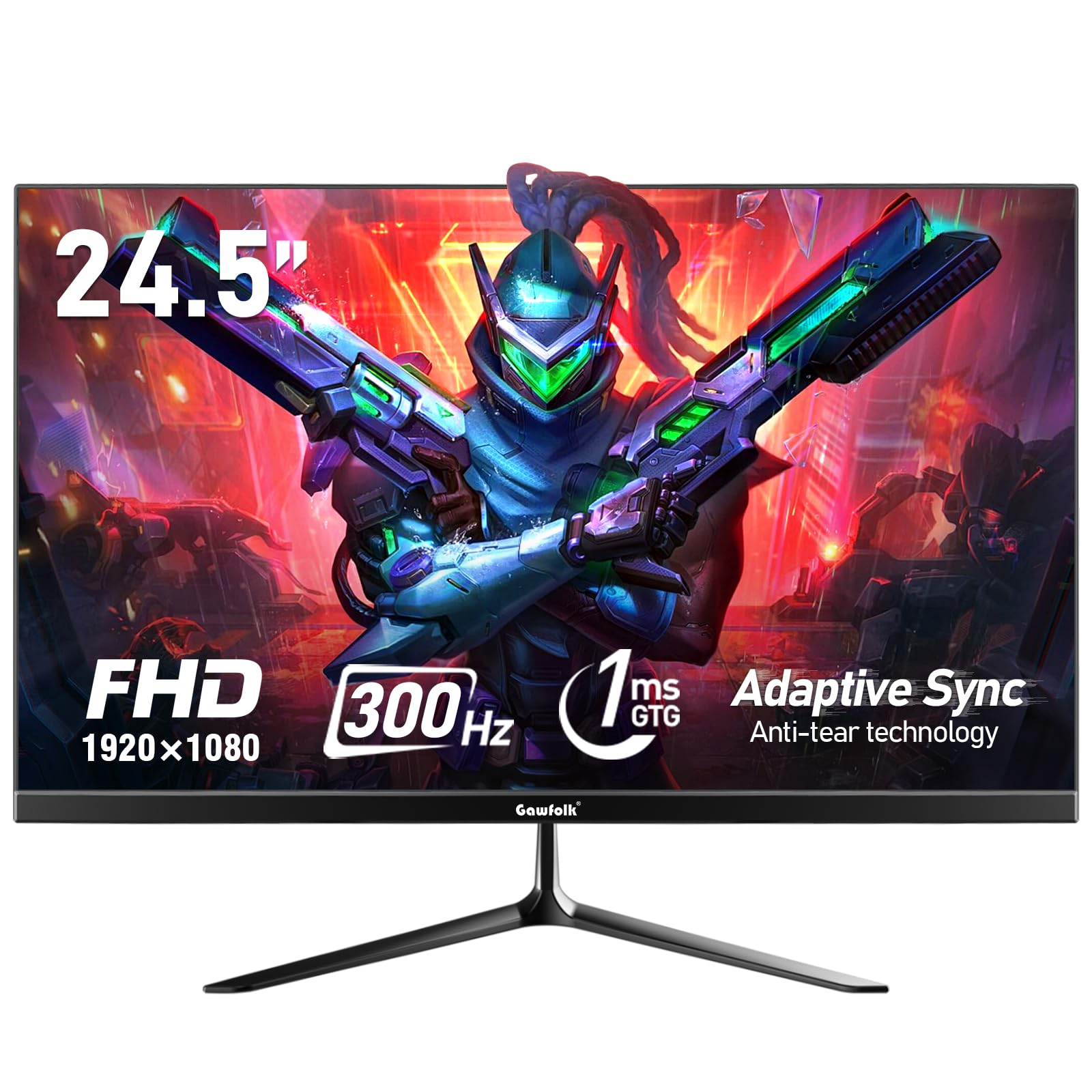
Figure 1: Front view of the Gawfolk 24.5 Inch 300Hz Gaming Monitor.
2. Setup Instructions
2.1 Package Contents
- Gawfolk 24.5 Inch Gaming Monitor
- Monitor Stand (Base and Neck)
- Power Adapter
- DisplayPort (DP) Cable
- User Manual
2.2 Assembling the Stand
- Carefully remove the monitor and stand components from the packaging.
- Attach the stand neck to the monitor panel using the provided screws.
- Attach the stand base to the stand neck, securing it with the designated screw.
- Place the assembled monitor on a stable, flat surface.
2.3 Connecting Cables
Ensure the monitor and your computer are powered off before making any connections.
- Power Connection: Connect the power adapter to the monitor's DC input port, then plug the adapter into a power outlet.
- Video Connection: Connect one end of the provided DisplayPort (DP) cable to the DP port on your computer's graphics card and the other end to the DP input on the monitor. Alternatively, use an HDMI cable to connect to an HDMI port.
- Audio Output: If desired, connect external speakers or headphones to the 3.5mm audio output port on the monitor.
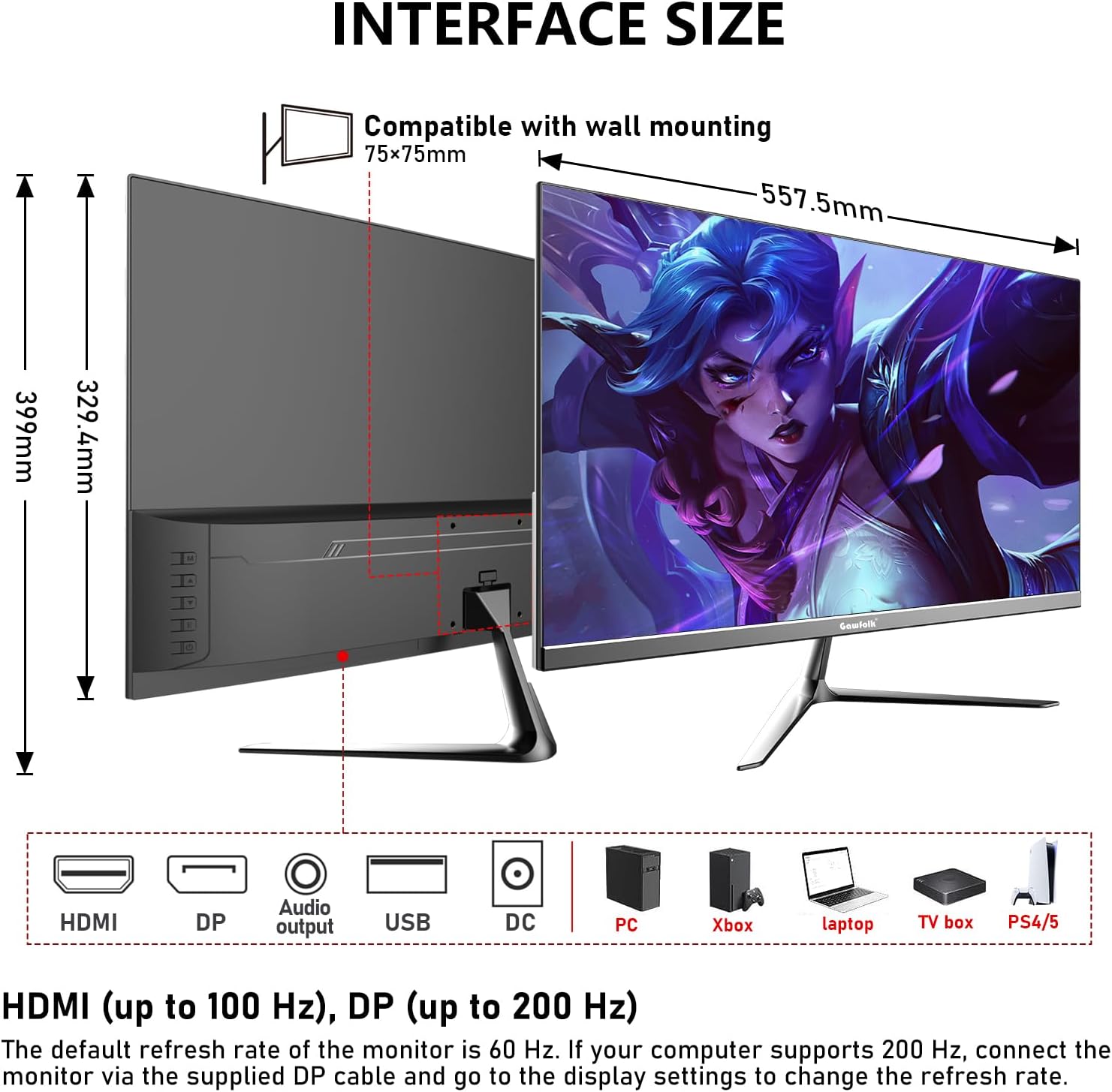
Figure 2: Monitor dimensions and port layout.
2.4 Wall Mounting (Optional)
The monitor supports VESA wall mounting with a 75x75mm pattern. A wall mounting bracket is not included and must be purchased separately. Follow the instructions provided with your VESA mount for proper installation.

Figure 3: Monitor compatible with 75x75mm VESA wall mounting.
3. Operating Instructions
3.1 Power On/Off
- To power on the monitor, press the power button located on the back or bottom of the monitor.
- To power off, press and hold the power button until the screen turns off.
3.2 OSD Menu Navigation
The On-Screen Display (OSD) menu allows you to adjust various monitor settings. Use the joystick or buttons (location may vary slightly) on the back or bottom of the monitor to navigate the menu.
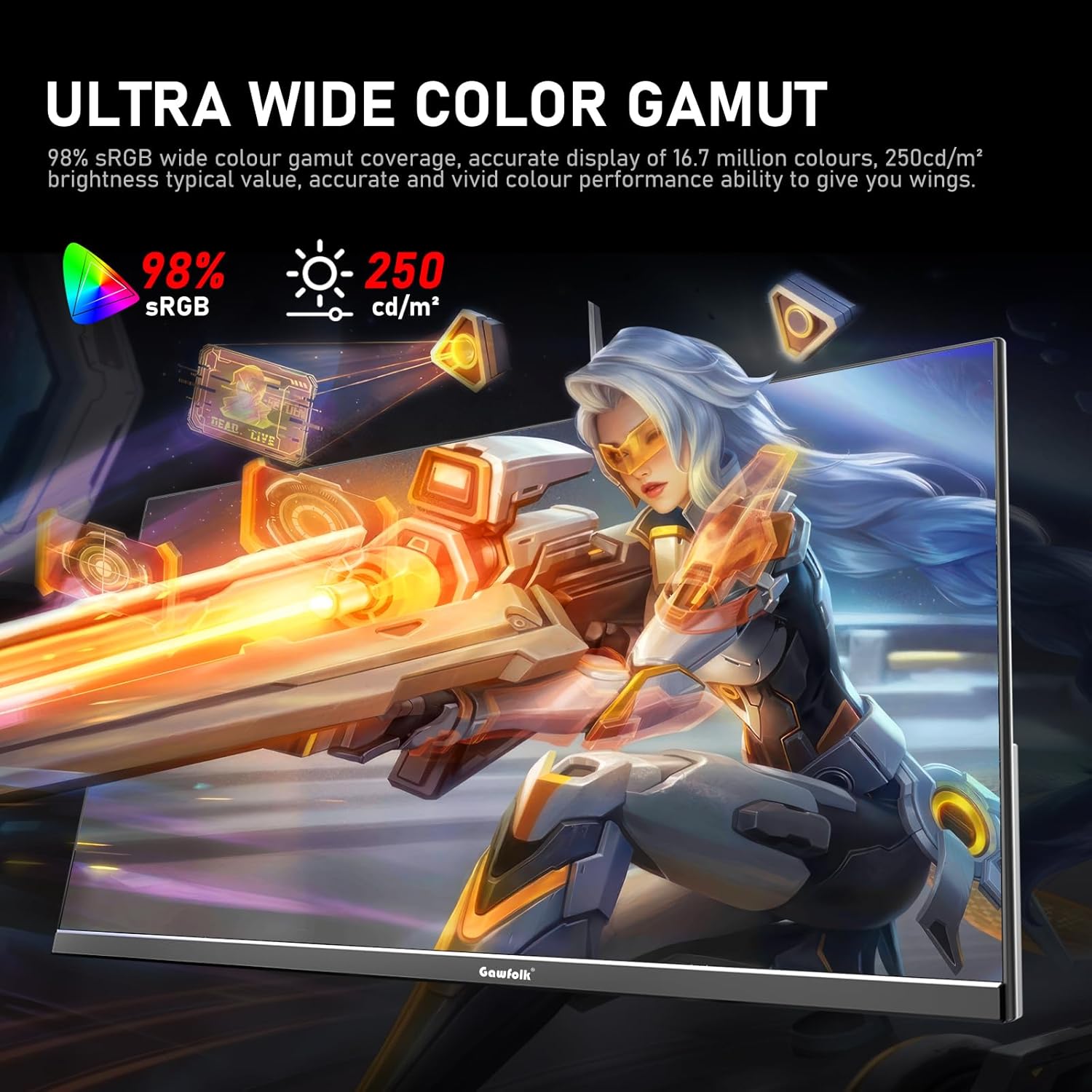
Figure 4: On-Screen Display (OSD) menu for monitor settings.
3.3 Input Selection
Access the OSD menu and navigate to the 'Input' or 'Source' section to select between HDMI and DisplayPort inputs.
3.4 Adjusting Display Settings
- Brightness/Contrast: Adjust these settings in the OSD menu to suit your viewing environment.
- Color Settings: Fine-tune color temperature, gamma, and other color parameters for optimal visual quality. The monitor supports 98% sRGB for rich colors.
- Refresh Rate: The monitor supports up to 300Hz via DisplayPort and up to 120Hz via HDMI. To change the refresh rate, connect the monitor via the appropriate cable and adjust the display settings within your computer's operating system.

Figure 5: Connectivity options and refresh rate capabilities.
3.5 Adaptive Sync Technology
This monitor supports Adaptive Sync (FreeSync/G-Sync compatible) to minimize input latency and reduce screen tearing and stuttering during gaming and video playback. Ensure Adaptive Sync is enabled in both the monitor's OSD menu and your graphics card settings.

Figure 6: Visual demonstration of Adaptive Sync technology reducing screen tearing.
3.6 Low Blue Light and Flicker-Free
The monitor incorporates DC global dimming technology for a flicker-free display and a low blue light mode. Activate the low blue light mode in the OSD menu to reduce eye strain during prolonged use.

Figure 7: Illustration of Flicker-Free Technology for eye comfort.
4. Maintenance
4.1 Cleaning the Monitor
- Always power off and unplug the monitor before cleaning.
- Use a soft, lint-free cloth lightly dampened with water or a mild, non-abrasive screen cleaner.
- Do not spray cleaner directly onto the screen.
- Avoid using alcohol, ammonia, or abrasive cleaners, as these can damage the screen surface.
4.2 General Care
- Keep the monitor away from direct sunlight, excessive heat, and humidity.
- Ensure adequate ventilation around the monitor to prevent overheating.
- Avoid placing heavy objects on the monitor or its cables.
5. Troubleshooting
If you encounter issues with your monitor, please refer to the following common solutions:
5.1 No Display / Black Screen
- Ensure the power cable is securely connected to both the monitor and the power outlet.
- Verify that the video cable (DP or HDMI) is firmly connected to both the monitor and your computer.
- Check if the correct input source is selected in the monitor's OSD menu.
- Restart your computer.
- Test the monitor with another device or cable if possible to isolate the issue.
5.2 Flickering Screen
- Ensure the video cable is securely connected. A loose connection can cause flickering.
- Check your graphics card drivers and update them if necessary.
- Disable Adaptive Sync in your graphics card settings and the monitor's OSD menu to see if the issue persists.
- Verify that the refresh rate is set correctly in your computer's display settings.
5.3 Image Quality Issues (Blurry, Distorted)
- Ensure the display resolution on your computer is set to the monitor's native resolution (1920x1080).
- Adjust the brightness, contrast, and color settings in the OSD menu.
- If using an analog connection (not applicable for this monitor's inputs but general advice), ensure auto-adjustment is performed.
5.4 No Audio from Monitor Speakers/Audio Out
- Ensure the audio output is selected correctly in your computer's sound settings.
- Check the volume level on both the monitor (via OSD) and your computer.
- If using external speakers/headphones, ensure they are properly connected to the monitor's audio output.
6. Specifications
| Feature | Specification |
|---|---|
| Brand | Gawfolk |
| Model Number | GF245C |
| Screen Size | 24.5 Inches |
| Resolution | FHD 1080p (1920 x 1080 Pixels) |
| Aspect Ratio | 16:9 |
| Refresh Rate | 300 Hz (DP), 120 Hz (HDMI) |
| Response Time | 1 Millisecond (GTG) |
| Display Technology | VA Panel |
| Viewing Angle | 178 Degrees |
| Brightness | 250 Candela |
| Color Gamut | 98% sRGB |
| Contrast Ratio | 3500:1 |
| Connectivity | DisplayPort, HDMI, 3.5mm Audio Out |
| Adaptive Sync | FreeSync, G-Sync Compatible |
| Additional Features | Flicker-Free, Low Blue Light, Frameless Design |
| Mounting Type | Desk Mount, VESA Wall Mount (75x75MM) |
| Item Dimensions (D x W x H) | 6.42"D x 21.93"W x 15.75"H |
| Item Weight | 3.48 Kilograms |
7. Warranty and Support
7.1 Warranty Information
The Gawfolk 24.5 Inch 300Hz Gaming Monitor (Model GF245C) comes with a one-year warranty covering quality problems from the date of purchase.
7.2 After-Sales Service
We provide a 12-month after-sales service. If you encounter any problems when using the monitor, please communicate with us in a timely manner for assistance. For support, please refer to the contact information provided with your purchase or visit the official Gawfolk website.