
1. Product Overview
The CAMECHO Android 15 Car Radio is an advanced multimedia system designed for seamless integration into VW Sharan II 7N and Seat Alhambra II models from 2012 to 2015. It features a 9-inch Incell touchscreen display, powered by Android 15 with 4GB RAM and 128GB ROM, ensuring smooth performance for all your in-car entertainment and navigation needs.
Key features include wireless Carplay and Android Auto, built-in GPS navigation, Wi-Fi connectivity, Bluetooth for hands-free calls and music streaming, FM/RDS radio, and support for a reversing camera. The system also offers a split-screen function for multitasking and customizable steering wheel controls.
2. Package Contents
Please verify that all items listed below are included in your package:
- 1 x Android Car Radio (with frame)
- 1 x User Manual
- 1 x External Microphone
- 1 x Rear View Camera
- 1 x CAM-IN Cable
- 1 x Power Cable
- 1 x Antenna Adapter
- 2 x USB Cables
- 1 x GPS Antenna
- 1 x RCA Cable
- 2 x Mounting Brackets
- 4 x Screws
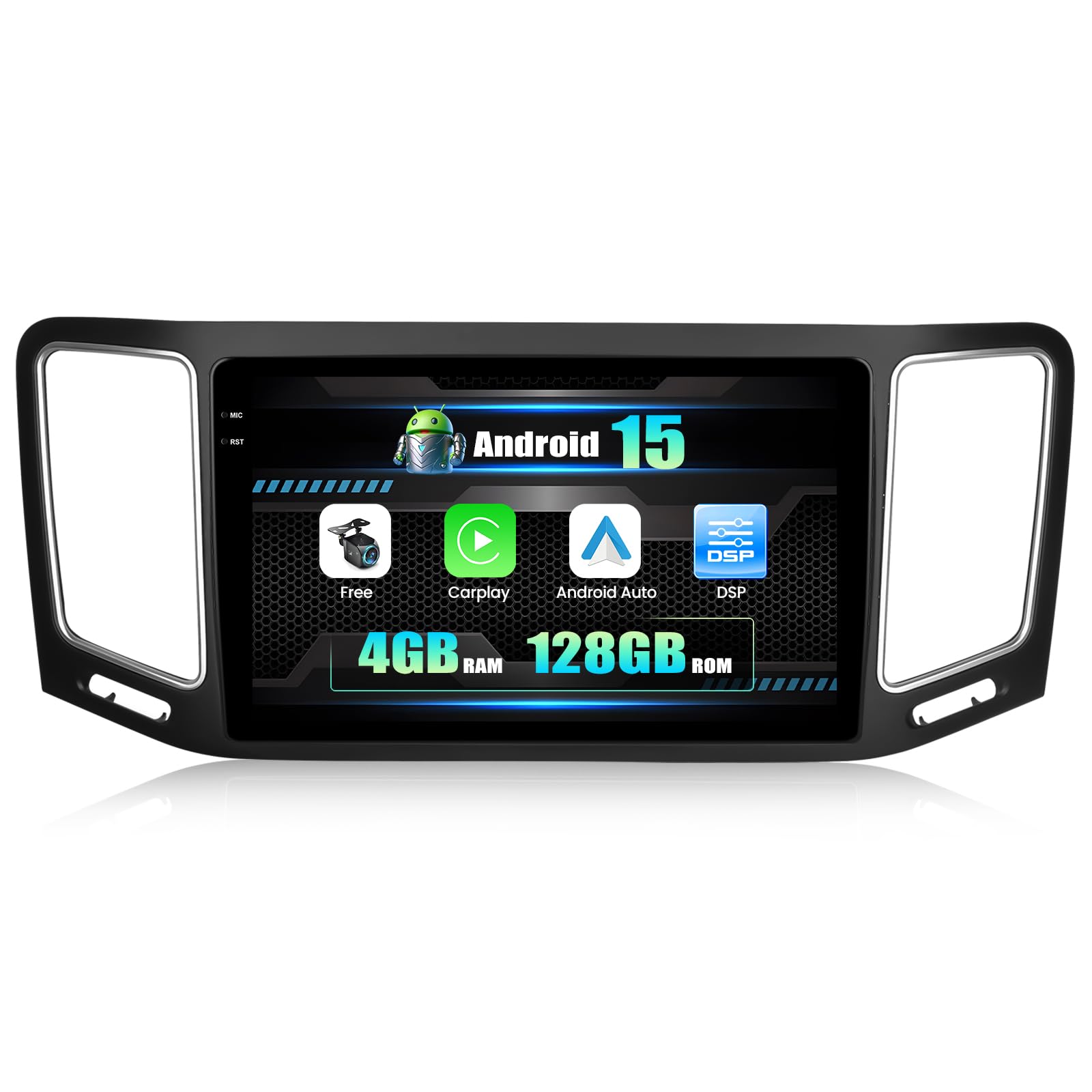
Figure 2.1: Included components and wiring diagram for the CAMECHO Android 15 Car Radio.
3. Setup and Installation
3.1 Pre-Installation Check
Before beginning installation, ensure your vehicle is compatible with the CAMECHO Android 15 Car Radio. This unit is designed for VW Sharan II 7N and Seat Alhambra II models manufactured between 2012 and 2015.

Figure 3.1: Comparison of dashboard before and after car radio installation. Note regarding RGB video converter for original rear view function.
3.2 Wiring Connections
Refer to the wiring diagram provided in Figure 2.1 and the included user manual for detailed connection instructions. Ensure all cables are securely connected to their respective ports.
- Power Cable: Connect to the vehicle's power supply.
- USB Cables: For connecting external devices or charging.
- RCA Input/Output: For audio and video connections.
- Reversing Camera Input: Connect the included rear view camera.
- GPS Antenna: Mount in a location with clear sky view for optimal signal.
- Radio Antenna: Connect for FM/RDS reception.
- External Microphone: Connect for improved call quality.
Important Note: If your vehicle's original CD player has a rear view function, a Volkswagen RGB video converter box may be required for proper integration with this unit. This converter box is not included and must be purchased separately.
4. Operating Instructions
4.1 Initial Power On and System Setup
After successful installation, turn on your vehicle's ignition. The car radio will power on automatically. Follow the on-screen prompts for initial setup, including language selection and time zone.
4.2 Wireless Carplay & Android Auto
This unit supports wireless Carplay for iPhone and Android Auto for Android phones. To connect:
- Ensure Bluetooth and Wi-Fi are enabled on your smartphone.
- On the car radio, navigate to the Carplay or Android Auto application.
- Follow the on-screen instructions to pair your device.

Figure 4.1: Wireless Carplay and Android Auto functionality display.
4.3 Bluetooth Connectivity
Pair your smartphone via Bluetooth for hands-free calling and audio streaming.
- Go to the Bluetooth settings on the car radio.
- Enable Bluetooth on your phone and search for available devices.
- Select the car radio's Bluetooth name (e.g., "CAMECHO BT") and confirm pairing.

Figure 4.2: Bluetooth hands-free calling and music playback interface.
4.4 GPS Navigation & Wi-Fi
The unit comes with built-in offline maps. Connect to Wi-Fi to download map data updates or use online navigation services. The integrated Wi-Fi also allows for internet browsing and app downloads.

Figure 4.3: GPS navigation and Wi-Fi connectivity display.
4.5 Split Screen Function
Utilize the split-screen feature to run two applications simultaneously, such as navigation and music playback.

Figure 4.4: Split-screen mode showing two applications side-by-side.
4.6 Steering Wheel Control
The unit supports learning and customizing your vehicle's original steering wheel controls. Access the steering wheel control settings in the system menu to map functions like volume, track skip, and call management.
4.7 Reversing Assistance
When the vehicle is shifted into reverse, the display automatically switches to the rear view camera feed, providing a clear view of the area behind your vehicle with guiding lines for safe parking.
4.8 Voice Assistant
The voice assistant feature allows for hands-free operation of various functions. Activation may be required through the system settings.
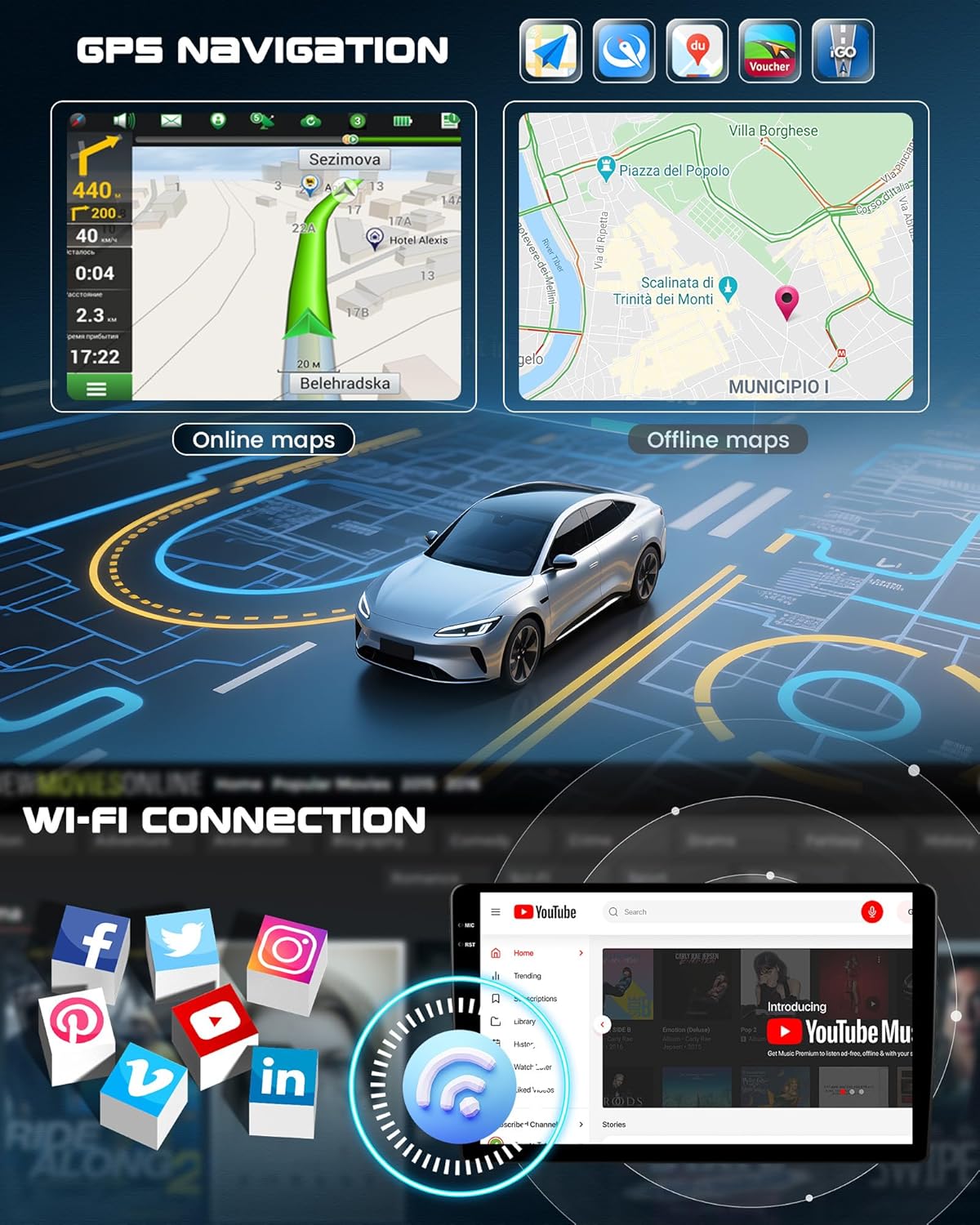
Figure 4.5: Overview of advanced operating features including reversing, voice control, and steering wheel integration.
4.9 DAB and OBD2 Functions
The car radio supports DAB (Digital Audio Broadcasting) and OBD2 (On-Board Diagnostics II) functions. Please note that a separate DAB module and OBD2 adapter must be purchased and connected to activate these features.
5. Specifications
| Feature | Specification |
|---|---|
| System | Android 15 |
| CPU | 4-Core (1.5 GHz) |
| RAM | 4 GB |
| ROM | 128 GB |
| Screen Size | 9 inches |
| Screen Material | Incell Touchscreen |
| Screen Resolution | 1280*720 |
| Bluetooth | Supported |
| Wi-Fi | Supported |
| GPS Navigation | Built-in (offline maps, online updates via Wi-Fi) |
| Radio Band | FM/RDS |
| Output Power | 4*45 W |
| Audio Output Mode | Stereo (5.1 channel surround sound configuration) |
| Equalizer | 32-band EQ |
| Operating Voltage | 9 V - 16 V |
| Operating Temperature | -20 ℃ to 70 ℃ |
| USB Interface | Dual USB |
| Reversing Input | AHD/CVBS |
| Video Formats | MKV/RMVB/AVI/MP4/MDV, etc. |
| Audio Formats | APE/FLAC/WAV/MP3/WMA, etc. |
| Image Formats | PNG/JPEG/JPG/GIF/WBMP/BNP, etc. |
6. Maintenance
To ensure the longevity and optimal performance of your CAMECHO Android 15 Car Radio, follow these general maintenance guidelines:
- Cleaning: Use a soft, dry cloth to clean the screen and exterior. Avoid abrasive cleaners or solvents.
- Software Updates: Periodically check for system software updates via Wi-Fi to ensure you have the latest features and security patches.
- Environmental Conditions: Operate the unit within the specified temperature range (-20℃ to 70℃) to prevent damage.
7. Troubleshooting
If you encounter any issues with your CAMECHO Android 15 Car Radio, please refer to the following general troubleshooting steps:
- No Power: Check all power connections and the vehicle's fuse box. Ensure the ignition is on.
- No Sound: Verify speaker connections, volume settings, and audio source selection.
- GPS Signal Issues: Ensure the GPS antenna is properly installed and has a clear view of the sky.
- Bluetooth Pairing Problems: Ensure Bluetooth is enabled on both devices and try restarting both the car radio and your smartphone.
- Touchscreen Unresponsive: Try restarting the unit. If the issue persists, a factory reset might be necessary (refer to the system settings).
For persistent issues or complex problems, please contact customer support.
8. Warranty and Support
CAMECHO products are designed for quality and reliability. For warranty information, please refer to the documentation included with your purchase or contact CAMECHO customer service directly.
8.1 Customer Support
For technical assistance, troubleshooting, or any inquiries regarding your product, please contact our support team:
- Email: CAMECHOVIP@126.com

Figure 8.1: CAMECHO Customer Support is available to assist you.