
1. Introduction
Thank you for choosing the ADDCOLOR X88 PRO 14 Android TV Box. This device transforms your television into a smart entertainment hub, offering access to a wide range of applications, streaming services, and media content. Powered by Android 14.0 and an RK3528 Quad-Core processor, it supports high-resolution video playback up to 8K, dual-band WiFi 6, and Bluetooth 5.0 for a seamless user experience. This manual provides essential information for setting up, operating, and maintaining your device.

An overview of the ADDCOLOR X88 PRO 14 Android TV Box, emphasizing its core capabilities including the Android 14 operating system, 4K video support, WiFi 6 connectivity, 10/100/1000M Ethernet, and Bluetooth 5.0.
2. Package Contents
Please check the box for the following items:
- 1 x ADDCOLOR X88 PRO 14 Android TV Box
- 1 x HDMI Cable
- 1 x Power Adapter (US plug)
- 1 x Voice Remote Control (batteries not included)
- 1 x User Manual

The ADDCOLOR X88 PRO 14 Android TV Box, shown alongside its dedicated remote control, featuring a sleek black design.
3. Product Overview
3.1 Device Features
- Operating System: Android 14.0
- Processor: RK3528 Quad-Core 64bit Cortex-A53
- GPU: Mali 450 MP2
- Memory: 4GB RAM, 32GB ROM
- Video Output: Supports 4K@60fps and up to 8K@30fps decoding, HDR10+
- Connectivity: 2.4G/5.0GHz Dual-band WiFi 6 (802.11 a/b/g/n/ac/ax), Bluetooth 5.0, 10/100M Ethernet
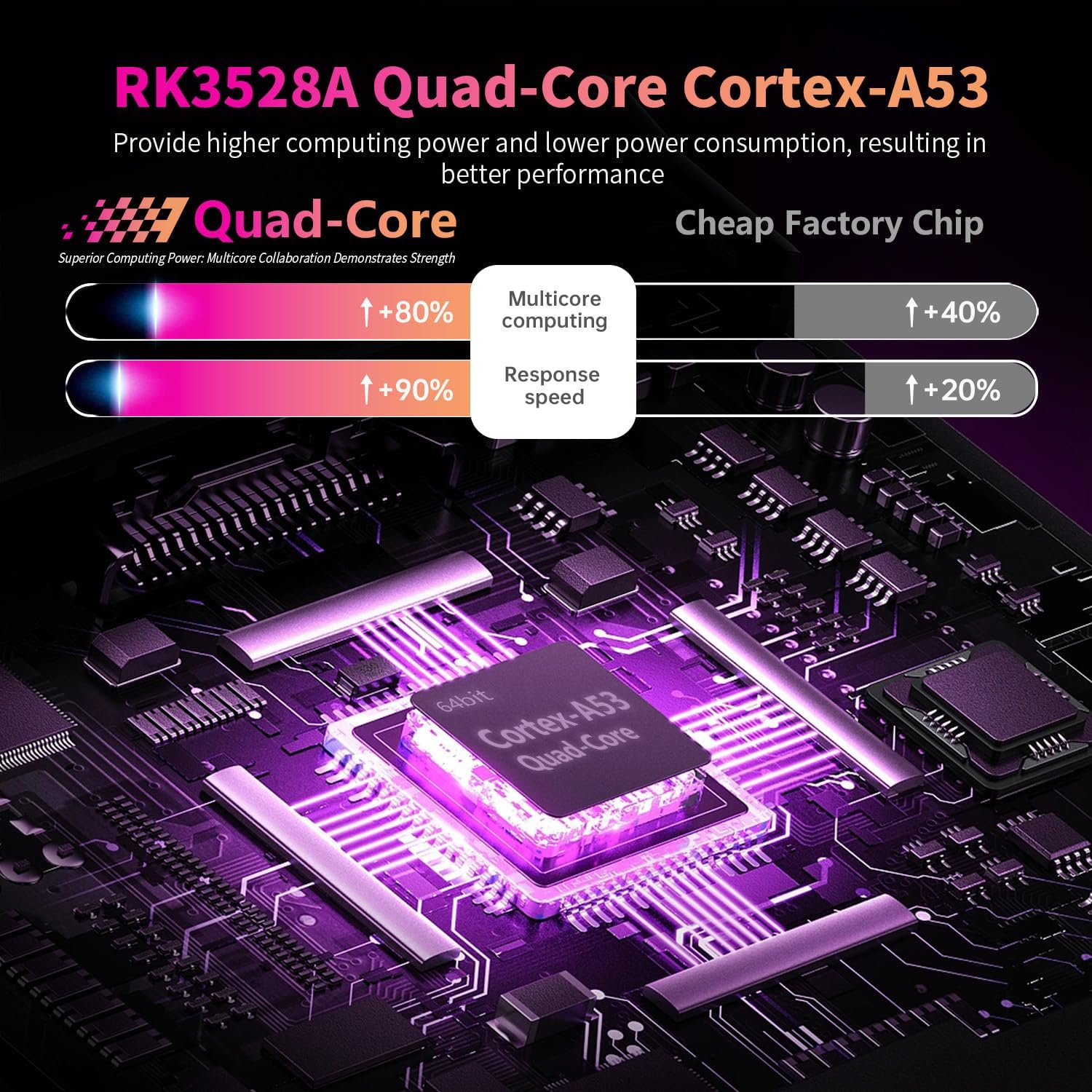
An internal view highlighting the RK3528A Quad-Core Cortex-A53 processor, which provides enhanced computing power and efficiency for the device.
3.2 Ports and Interfaces
The ADDCOLOR X88 PRO 14 TV Box is equipped with various ports for connectivity:
- DC: Power input port.
- SPDIF: Digital audio output.
- HD (HDMI): Connects to your TV or display for video and audio output.
- LAN: Ethernet port for wired network connection.
- AV: Analog video/audio output.
- USB 2.0: For connecting peripherals like keyboards, mice, or USB storage.
- USB 3.0: High-speed port for faster data transfer with compatible devices.
- TF: Micro SD card slot for expandable storage (up to 64GB).

A visual guide to the device's comprehensive interface, including DC power input, SPDIF, HD (HDMI), LAN (Ethernet), AV, USB 2.0, USB 3.0, and TF card slot.
4. Setup Guide
Follow these steps to set up your ADDCOLOR X88 PRO 14 Android TV Box:
- Connect to TV: Connect one end of the HDMI cable to the HD port on the TV Box and the other end to an HDMI input port on your television.
- Connect Power: Plug the power adapter into the DC port on the TV Box, then plug the adapter into a wall outlet.
- Power On: The TV Box should automatically power on. If not, press the power button on the remote control.
- Select Input: On your TV, select the correct HDMI input source using your TV's remote control.
- Initial Setup: Follow the on-screen instructions to complete the initial setup, including language selection and network configuration.
5. Operating Instructions
5.1 Remote Control Usage
The included voice remote control allows for easy navigation. Insert two AAA batteries (not included) into the remote. Use the directional pad to navigate menus and the 'OK' button to select items. The voice button activates voice commands for searching and controlling the device.

A user demonstrating the smart voice remote control, which allows for easy navigation, search, and control of the TV box using voice commands.
5.2 Network Connection
- Wi-Fi: Go to Settings > Network & Internet > Wi-Fi. Select your network and enter the password. The device supports 2.4G/5.0GHz dual-band WiFi 6.
- Ethernet: Connect an Ethernet cable from your router to the LAN port on the TV Box. The device will automatically detect the wired connection.

An illustration explaining the benefits of WiFi 6 technology, demonstrating its faster transmission rates and improved network efficiency compared to older WiFi standards.
5.3 App Management
- Install Apps: Access the Google Play Store or other pre-installed app stores to download and install applications.
- Uninstall Apps: Go to Settings > Apps > See all apps, select the desired app, and choose 'Uninstall'.
5.4 Media Playback
The TV Box supports various media formats and resolutions up to 8K. Use pre-installed media players or download your preferred ones. For optimal 4K/8K and HDR10+ experience, ensure your TV and content support these formats.

A visual representation of the superior image quality achieved with 4K HDR10+ support, showcasing vibrant colors and sharp contrast for an immersive viewing experience.
5.5 Bluetooth Device Connection
To connect Bluetooth devices (e.g., headphones, game controllers, keyboards):
- Enable Bluetooth on your external device and set it to pairing mode.
- On the TV Box, go to Settings > Connected devices > Pair new device.
- Select your device from the list to pair.

A collage illustrating the versatile applications of the Android TV Box, from entertainment like watching sports and movies, playing games, and listening to music, to practical uses like video chat and presentations.
6. Specifications
| Feature | Description |
|---|---|
| CPU | RK3528 Quad-Core 64bit Cortex-A53 |
| GPU | Mali 450 MP2 |
| RAM | 4GB |
| ROM | 32GB |
| Operating System | Android 14.0 |
| Wi-Fi | 2.4G/5.0GHz Dual-band WiFi 6 (802.11 a/b/g/n/ac/ax) |
| Bluetooth | Bluetooth 5.0 |
| Ethernet | 10/100M |
| Video Decoder | H.264/H.265/VP9 up to 8K@30fps, HDR10+ |
| Resolution | 4K (3840x2160 pixel) native, supports 8K |
| Card Reader | Micro SD cards, Max 64GB |
| USB Ports | 1x USB 2.0, 1x USB 3.0 |
| HDMI | HDMI 2.0b for 4K@60Hz |
| Power Supply | INPUT: 100-240V 50/60HZ, OUTPUT: DC 5V/2A |
| Operating Temperature | -10℃ to 45℃ |
7. Troubleshooting
- No Power: Ensure the power adapter is securely connected to the TV Box and the wall outlet. Try a different outlet.
- No Picture: Verify the HDMI cable is correctly connected to both the TV Box and the TV. Ensure your TV is set to the correct HDMI input source. Try a different HDMI cable.
- No Wi-Fi Connection: Check if your router is working correctly. Ensure the Wi-Fi password is entered correctly. Restart the TV Box and your router.
- Remote Control Not Working: Check if the batteries are inserted correctly and have sufficient charge. Ensure there are no obstructions between the remote and the TV Box.
- App Freezing/Crashing: Close and reopen the app. Clear the app's cache (Settings > Apps > [App Name] > Clear cache). If the issue persists, uninstall and reinstall the app.
- Slow Performance: Close unused background applications. Clear system cache (if available in settings). Consider expanding storage with a TF card or USB drive if internal storage is full.
8. Maintenance
- Cleaning: Use a soft, dry cloth to clean the device. Do not use liquid cleaners or abrasive materials.
- Ventilation: Ensure the TV Box is placed in a well-ventilated area to prevent overheating. Do not cover ventilation openings.
- Software Updates: Periodically check for system updates in Settings > Device Preferences > About > System update to ensure optimal performance and security.
- Storage Management: Regularly clear unnecessary files and uninstall unused applications to free up storage space.

An internal diagram illustrating the effective heat dissipation design of the TV box, ensuring stable operation and longevity of components.
9. Warranty and Support
For warranty information or technical support, please refer to the documentation provided at the time of purchase or contact ADDCOLOR customer service. Keep your purchase receipt as proof of purchase.