
1. Introduction
This manual provides detailed instructions for the installation, operation, and maintenance of the ZLYMTXHW E810-U15 FT232RL USB to RS485/RS422/RS232/TTL Industrial Converter. This device is designed to facilitate reliable communication between a host computer via USB and various industrial serial interfaces, including RS485, RS422, RS232, and TTL, with integrated power and signal isolation for enhanced stability and safety.
2. Product Overview
The E810-U15 is a robust industrial-grade converter featuring a Type-C USB interface for host connection and a versatile terminal block for industrial serial communication. It incorporates an FT232RL chip for reliable USB-to-serial conversion and includes LED indicators for power (PWR), transmit data (TXD), and receive data (RXD).
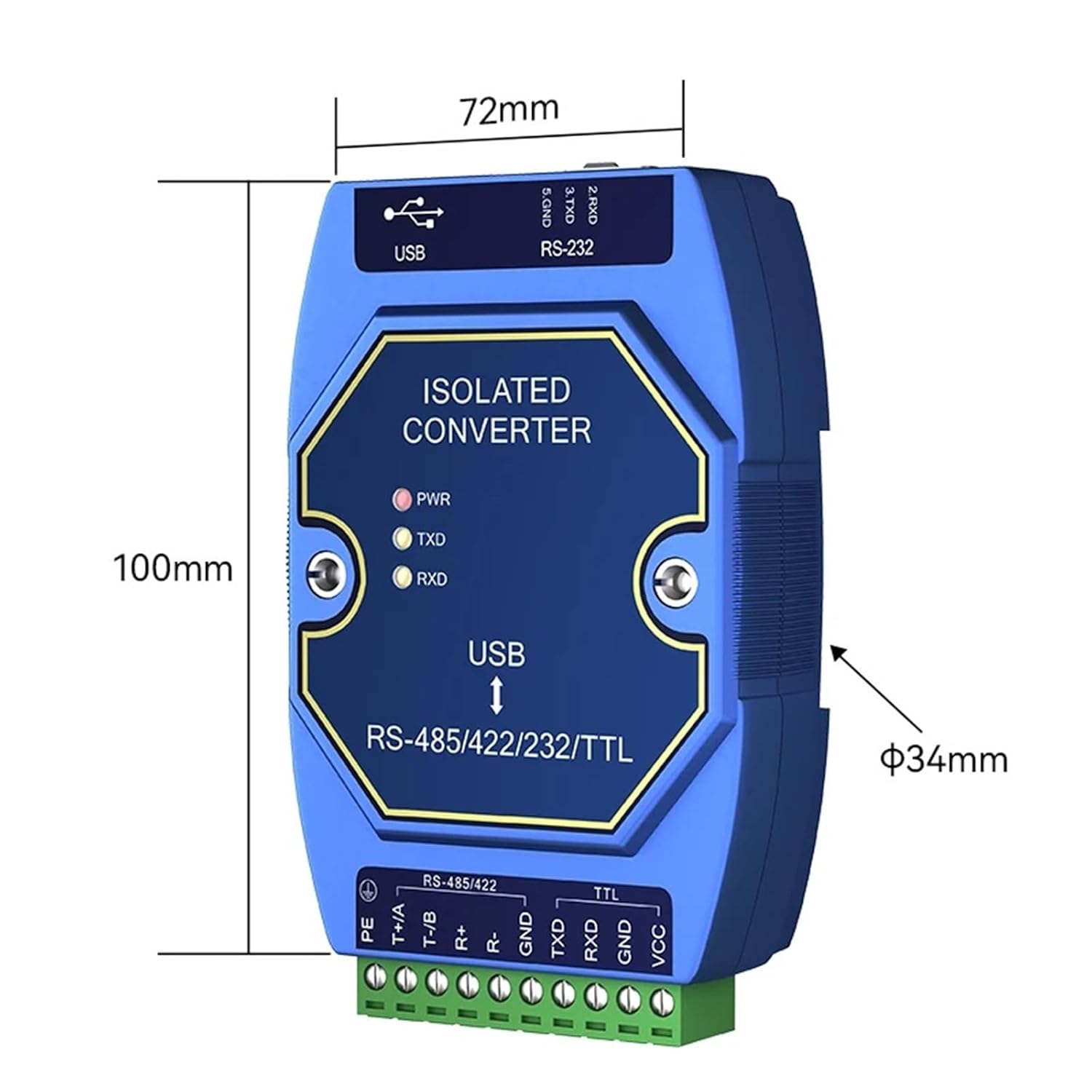
Figure 1: E810-U15 Industrial Converter with dimensions (100mm x 72mm x 34mm) and port labels for USB, RS-232, RS-485/422, and TTL.
The converter's compact design and clearly labeled interfaces ensure ease of integration into various industrial setups. The top panel includes a USB Type-C port and an RS-232 DB9 connector. The bottom panel features a screw terminal block for RS-485/422 and TTL connections.
3. Key Features
- FTDI FT232RL Chip: Utilizes the high-performance FTDI FT232RL chip, ensuring stable and reliable USB-to-serial communication.
- Type-C USB Interface: Equipped with a modern Type-C USB port for convenient and reversible connection to host devices.
- Power and Signal Isolation: Features double isolation for both power and signal lines, protecting connected devices from ground loops, voltage spikes, and electrical noise, enhancing system reliability and safety.
- Multi-Protocol Support: Supports RS485, RS422, RS232, and TTL serial communication standards, offering broad compatibility with various industrial equipment.
- Wide Operating System Compatibility: Compatible with Windows series, Mac OS, and Linux operating systems, ensuring flexible deployment across different computing environments.
- LED Indicators: PWR, TXD, and RXD LEDs provide visual feedback on power status and data transmission activity.

Figure 2: Illustration highlighting the FTDI FT232RL chip, emphasizing its role in easy integration, strong compatibility, and versatile functions.

Figure 3: Detailed view of the converter's Type-C USB and RS232 interfaces.

Figure 4: Visual representation of the signal and power double isolation features within the converter.

Figure 5: The converter supports Windows, Mac OS, and Linux operating systems.
4. Setup
4.1 Driver Installation
- The E810-U15 converter uses the FTDI FT232RL chip, which typically requires specific drivers for proper operation.
- For most modern operating systems (Windows 10/11, recent Linux distributions, Mac OS), drivers may install automatically upon connecting the device.
- If automatic installation fails, or if you are using an older operating system, download the latest VCP (Virtual COM Port) drivers directly from the FTDI website.
- Follow the installation instructions provided by FTDI for your specific operating system.
- After successful driver installation, the converter will appear as a Virtual COM Port (VCP) in your system's Device Manager (Windows) or equivalent utility. Note the assigned COM port number for later use.
4.2 Hardware Connection
- Connect to Host: Connect the USB Type-C port of the E810-U15 converter to a USB port on your computer using a standard USB Type-C cable. The PWR LED should illuminate, indicating power.
- Connect Industrial Device: Identify the serial interface required by your industrial device (RS485, RS422, RS232, or TTL).
- RS485/RS422 Connection: Use the screw terminal block at the bottom.
- RS485 (2-wire): Connect the A terminal (T+/A) and B terminal (T-/B) of the converter to the corresponding A and B terminals of your RS485 device. Ensure proper polarity. Connect GND if a common ground is required.
- RS422 (4-wire): Connect T+/A, T-/B, R+/A, R-/B terminals of the converter to the corresponding transmit and receive lines of your RS422 device. Connect GND if a common ground is required.
- RS232 Connection: Use a standard DB9 serial cable to connect the RS232 port on the converter to your RS232 device. Ensure pin assignments match (typically TXD, RXD, GND).
- TTL Connection: Use the screw terminal block at the bottom. Connect TXD, RXD, and GND terminals of the converter to the corresponding TTL-level serial pins on your device. VCC can be used to provide power to the TTL device if needed (DC4.5~5.5V).
- Grounding: For optimal performance and safety, ensure proper grounding of all connected devices, especially in industrial environments. The PE (Protective Earth) terminal can be used for chassis grounding.
5. Operating Instructions
5.1 Data Communication
- Once the drivers are installed and the hardware is connected, open your serial communication software (e.g., PuTTY, RealTerm, or a custom application).
- Select the COM port number assigned to the E810-U15 converter.
- Configure the serial port settings (baud rate, data bits, parity, stop bits, flow control) to match the requirements of your industrial device. These settings are crucial for successful communication.
- Initiate data transmission or reception. The TXD and RXD LEDs on the converter will flash to indicate active data flow.
5.2 Interface Selection
The E810-U15 automatically handles the direction control for RS485, simplifying its use. For RS422, RS232, and TTL, the communication is typically full-duplex (except for 2-wire RS485 which is half-duplex).
- RS485: Ideal for multi-drop networks over long distances. The converter automatically manages data direction.
- RS422: Suitable for full-duplex communication over long distances, often used in point-to-point or multi-drop (with a single master) configurations.
- RS232: A common standard for short-distance, point-to-point communication.
- TTL: Used for direct communication with microcontrollers and other logic-level devices.
6. Specifications
| Parameter | Value |
|---|---|
| Model | E810-U15 |
| USB Interface | USB Type-C |
| Input Voltage | DC 4.5V ~ 5.5V (via USB) |
| Serial Interfaces | RS485, RS422, RS232, TTL |
| Isolation | Power and Signal Isolation |
| USB Chip | FTDI FT232RL |
| Operating System Support | Windows series, Mac OS, Linux |
| Indicators | PWR, TXD, RXD LEDs |
| Dimensions (L x W x H) | 100mm x 72mm x 34mm (approx. 3.94 x 2.83 x 1.34 inches) |
| Item Weight | 1.76 ounces (approx. 50g) |
| Manufacturer | ZLYMTXHW |
7. Troubleshooting
- No Power (PWR LED Off): Ensure the USB Type-C cable is securely connected to both the converter and the host computer. Try a different USB port or cable.
- Drivers Not Installing: Manually download and install the latest FTDI VCP drivers from the official FTDI website. Verify that the device appears as a COM port in your system's device manager.
- No Data Transmission/Reception (TXD/RXD LEDs not flashing):
- Verify that the serial port settings (baud rate, data bits, parity, stop bits) in your software match those of the connected industrial device.
- Check the wiring connections for correctness, especially polarity for RS485/422 (A/B, T+/T-, R+/R-).
- Ensure the industrial device is powered on and functioning correctly.
- Confirm that the correct COM port is selected in your communication software.
- Garbled Data: This usually indicates a mismatch in serial port settings (baud rate is a common culprit) or incorrect wiring. Double-check all settings and connections.
- Intermittent Communication: Could be due to electrical noise, long cable runs without proper termination (for RS485/422), or grounding issues. Ensure proper grounding and consider adding termination resistors if applicable for RS485/422.
8. Maintenance
- Keep the converter clean and free from dust and debris. Use a soft, dry cloth for cleaning.
- Avoid exposing the device to extreme temperatures, humidity, or corrosive environments.
- Ensure all cable connections are secure to prevent intermittent issues.
- Do not attempt to open or modify the converter, as this may void the warranty and cause damage.
9. Warranty and Support
The ZLYMTXHW E810-U15 Industrial Converter is covered by a standard manufacturer's warranty. For specific warranty terms, technical support, or service inquiries, please refer to the documentation provided with your purchase or contact your vendor. Keep your proof of purchase for warranty claims.