
1. Introduction
This manual provides essential information for setting up, operating, maintaining, and troubleshooting your Empowered PC Mantis V2 Gaming Desktop. Please read this manual thoroughly before using your new system to ensure optimal performance and longevity.
2. What's in the Box
Your Empowered PC Mantis V2 package includes the following components:
- Mantis V2 Gaming Desktop Tower
- RGB Gamer Keyboard
- LED USB Mouse
- Power Cable
- Documentation (this manual)
3. Setup
Follow these steps to set up your Mantis V2 Gaming Desktop:
- Unpacking: Carefully remove the desktop tower and all accessories from the packaging. Retain packaging for future transport or warranty claims.
- Placement: Place the desktop tower on a stable, flat surface with adequate ventilation. Ensure there is clear space around the air intake and exhaust vents.
- Connect Peripherals:
- Connect your monitor(s) to the graphics card ports (DisplayPort or HDMI) located at the rear of the PC.
- Connect the USB keyboard and mouse to available USB ports.
- Connect any other peripherals such as speakers, headphones, or external drives.

Image: Front panel ports including USB 3.2 Type-C, USB 3.0 Type-A, and 3.5mm audio jacks for convenient peripheral connection.
- Power Connection: Connect the power cable to the power supply unit (PSU) at the rear of the PC, then plug it into a grounded electrical outlet.
- Initial Boot: Press the power button on the front panel of the desktop tower. The system will boot into Windows 11 Pro. Follow the on-screen instructions for initial Windows setup.
4. Operating Instructions
Power On/Off
- Power On: Press the power button located on the front panel.
- Shut Down: Click the Start button in Windows, then select Power > Shut down.
- Restart: Click the Start button in Windows, then select Power > Restart.
Connecting to the Internet
- Wi-Fi: The system includes internal Wi-Fi 6E. Access network settings in Windows to connect to your wireless network.
- Ethernet: For a wired connection, connect an Ethernet cable from your router to the Ethernet port on the rear of the PC.
RGB Lighting Control
The Mantis V2 features customizable ARGB lighting for the case and fans. Specific software or buttons may be provided to adjust lighting effects and colors. Refer to the system's pre-installed software for detailed customization options.
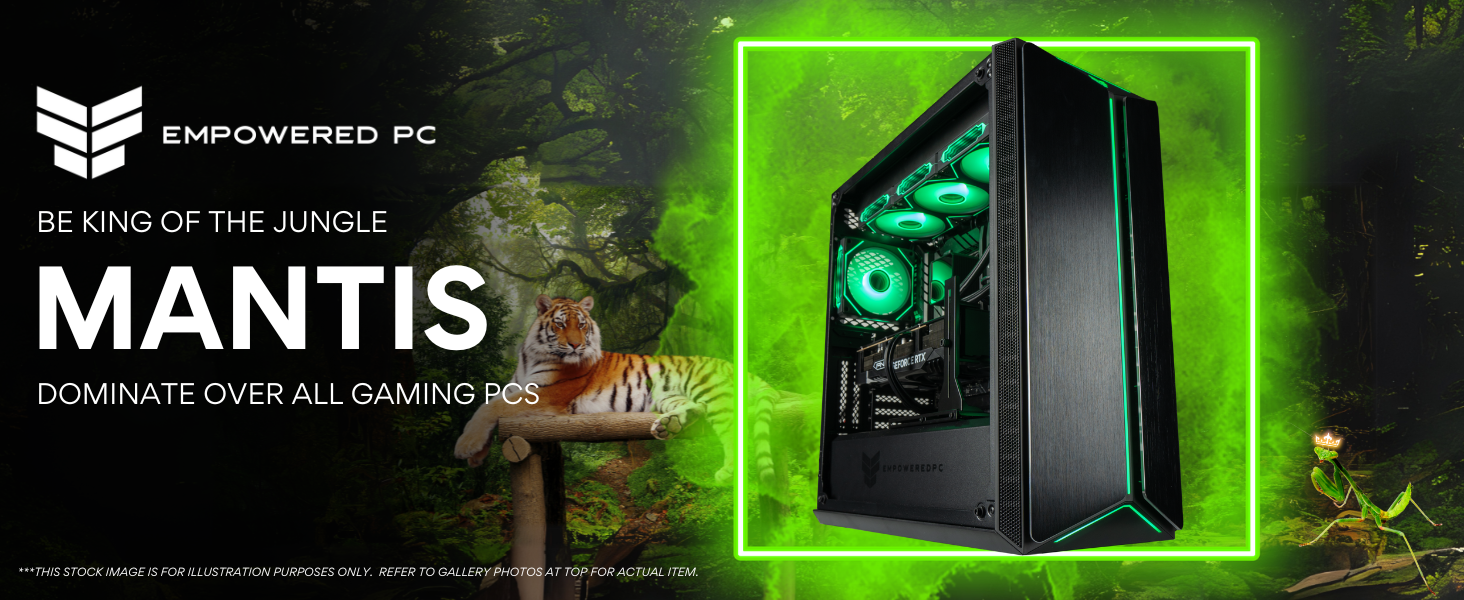
Image: The Mantis V2 desktop tower showcasing its bright and colorful RGB case lights.

Image: Close-up view of the six ARGB PWM fans inside the Mantis V2, illustrating their lighting capabilities.
5. Features Overview
- Processor: Intel Core i7-12700KF (12 Cores, 20 Threads, 2.7 GHz Base, up to 3.8GHz Max Boost)
- Graphics Card: NVIDIA GeForce RTX 5090 (32GB GDDR7 dedicated memory)
- RAM: 64GB DDR5 RAM (4800 MHz)
- Storage: 2TB PCIe Gen4 NVMe M.2 SSD
- Operating System: Windows 11 Pro x64
- Cooling: 6 ARGB PWM Fans for powerful airflow and dynamic speed control.
- Case: Mantis V2 Mid-Tower with Front Panel LEDs, Brushed Aluminum Front Panel Wings, and Tempered Glass Side Panel.
- Connectivity: Internal Wi-Fi 6E + Bluetooth, multiple USB ports (including USB 3.2 Type-C), 3.5mm audio jacks, 3x DisplayPort, and HDMI.

Image: Diagram showing the dimensions of the Mantis V2 Mid-Tower PC (20.6" x 8.6" x 19.5"), highlighting its premium metal chassis and RGB lighting.
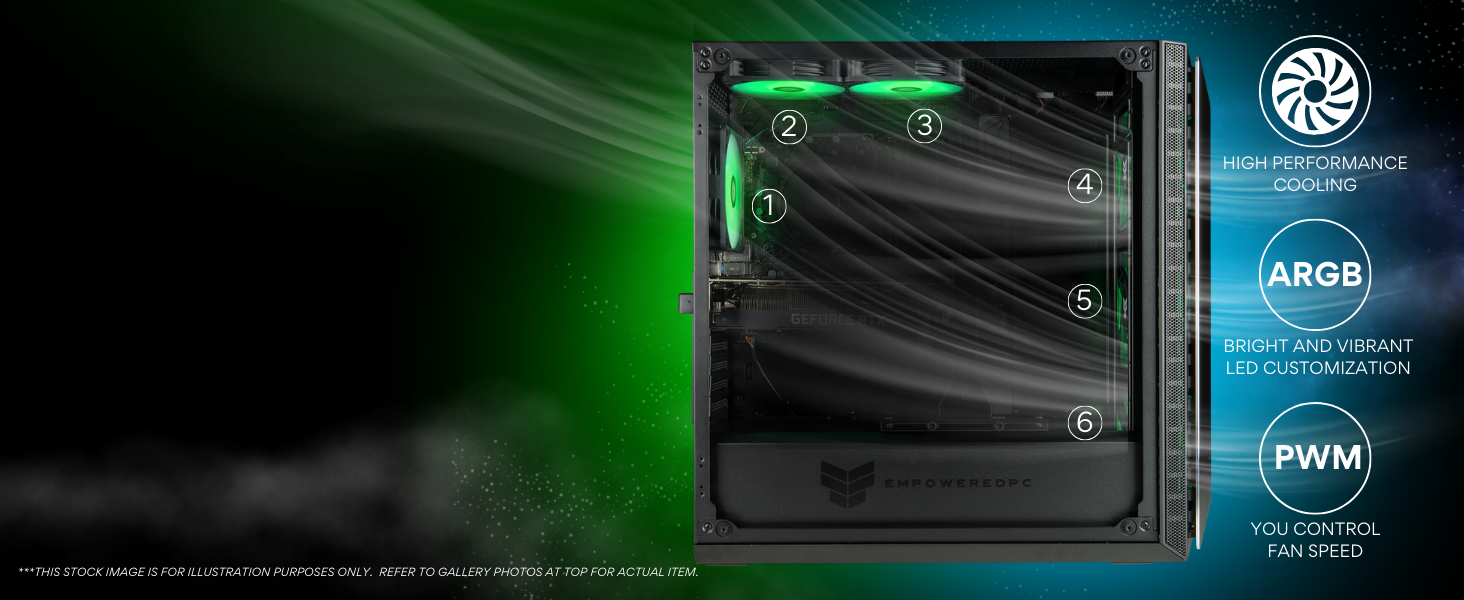
Image: An internal view of the Mantis V2 case illustrating the airflow path provided by the six fans for high-performance cooling.
6. Maintenance
Cleaning the System
Regular cleaning helps maintain optimal performance and extends the lifespan of your PC.
- Exterior: Use a soft, damp cloth to wipe down the exterior surfaces. Avoid abrasive cleaners.
- Dust Filters: The top panel features a magnetic dust filter. Regularly remove and clean this filter to prevent dust buildup inside the case.
- Internal Components: Periodically use compressed air to gently remove dust from internal components, especially fans and heatsinks. Ensure the PC is powered off and unplugged before performing internal cleaning.

Image: A hand removing the magnetic dust filter from the top panel of the Mantis V2 PC, demonstrating ease of cleaning.
7. Troubleshooting
If you encounter issues with your Mantis V2 Gaming Desktop, refer to the following common solutions:
- No Power:
- Ensure the power cable is securely connected to both the PC and the electrical outlet.
- Verify the power switch on the PSU (if present) is in the 'On' position.
- Try a different power outlet.
- No Display:
- Check that your monitor is powered on and connected to the graphics card ports (DisplayPort or HDMI) on the PC.
- Ensure the correct input source is selected on your monitor.
- If using multiple monitors, try connecting only one.
- System Freezes or Crashes:
- Ensure all drivers (especially graphics drivers) are up to date.
- Check for sufficient ventilation and clean dust filters to prevent overheating.
- Run a system diagnostic tool (available in Windows) to check for hardware issues.
- Peripheral Not Responding:
- Try connecting the peripheral to a different USB port.
- Ensure the peripheral's drivers are installed and up to date.
- Test the peripheral on another computer if possible.
For further assistance, please contact Empowered PC technical support.
8. Specifications
| Component | Specification |
|---|---|
| Processor | Intel Core i7-12700KF (12 Cores, 20 Threads, 2.7 GHz Base, up to 3.8GHz Max Boost) |
| Graphics Card | NVIDIA GeForce RTX 5090 (32GB GDDR7) |
| RAM | 64GB DDR5 SDRAM (4800 MHz) |
| Storage | 2TB PCIe Gen4 NVMe M.2 SSD |
| Operating System | Windows 11 Pro |
| Case Type | Mid-Tower |
| Cooling | 6 ARGB PWM Fans |
| Wireless Connectivity | Wi-Fi 6E, Bluetooth |
| Video Output | 3x DisplayPort, 1x HDMI (minimum, additional ports may vary) |
| Dimensions (LxWxH) | 20.6 x 8.6 x 19.5 inches |
| Weight | 30 pounds |
| Color | Black |
9. Warranty and Support
Empowered PC is committed to providing reliable products and support.
- Hardware Warranty: Your Mantis V2 Gaming Desktop comes with a 3-Year Limited Hardware Warranty.
- Technical Support: Lifetime Technical and Diagnostic Support is provided for your system.
- Contact: For warranty claims or technical assistance, please refer to the contact information provided with your purchase or visit the official Empowered PC website.


Images: Icons representing High Quality Design & Build, Lifetime Technical and Diagnostic Support, American Built & Supported, and Rigorous Stress Testing.