
Introduction
The INMUA AX3000 WiFi 6 Extender is designed to expand your existing wireless network coverage, eliminate dead zones, and provide faster, more reliable internet access throughout your home or office. Utilizing WiFi 6 technology, this dual-band extender supports speeds up to 3000 Mbps, making it suitable for demanding applications like 8K streaming and online gaming. This manual provides detailed instructions for setting up, operating, maintaining, and troubleshooting your device.
Package Contents
- INMUA AX3000 WiFi 6 Extender (Dual Band)
- User Manual
Setup Instructions
Follow these steps to set up your INMUA AX3000 WiFi 6 Extender in Repeater Mode. For Access Point (AP) Mode, refer to the 'Operating Modes' section.
1. Initial Placement and Power On
Plug the extender into an electrical outlet near your existing Wi-Fi router. Wait for the Wireless LED indicator on the extender to turn solid green, indicating it is ready for configuration.
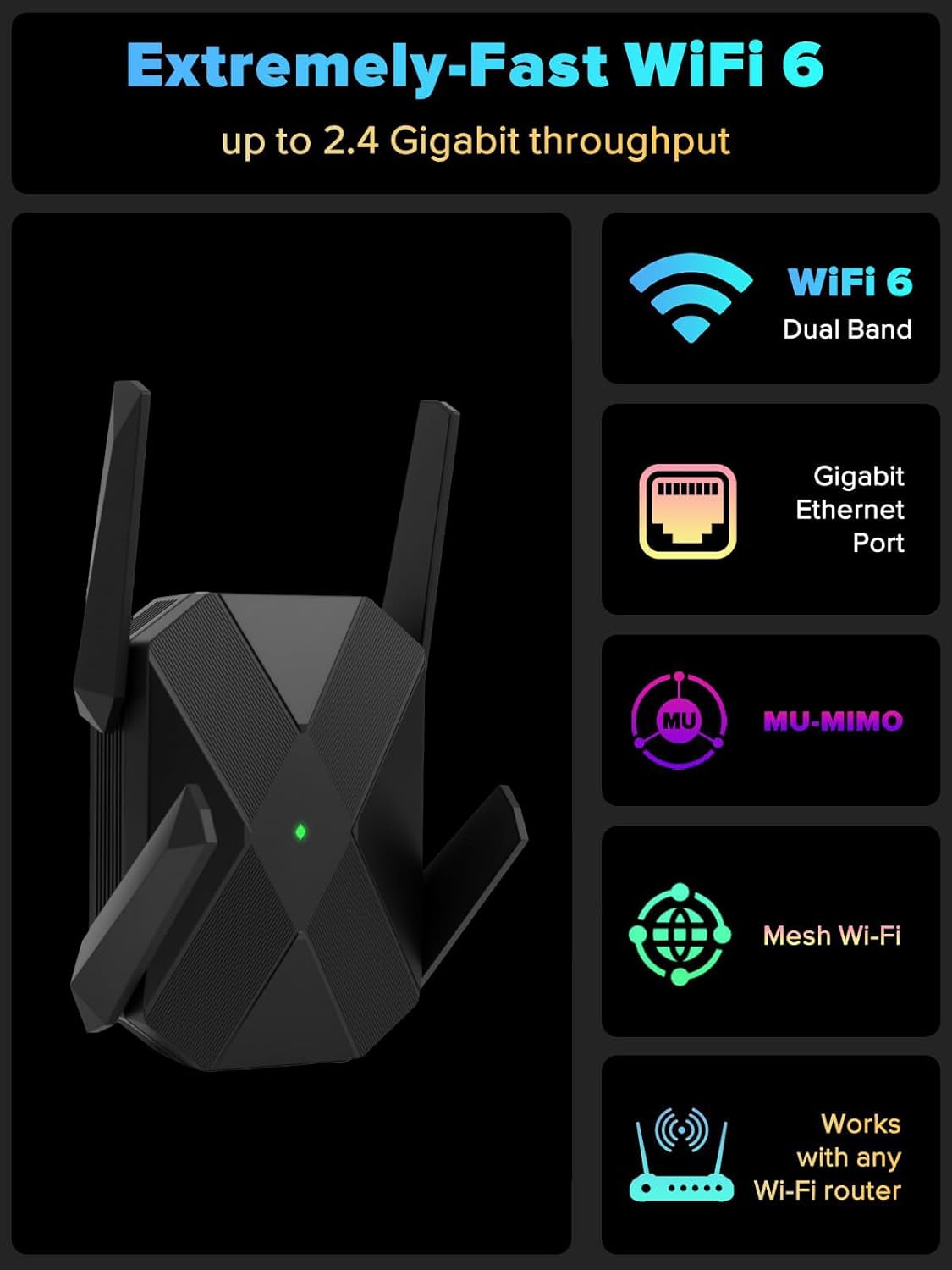
Image: The INMUA AX3000 WiFi 6 Extender plugged into a wall outlet, showing its compact design and the illuminated green LED, indicating power and readiness.
2. Connect to the Extender's Wi-Fi Network
On your mobile phone or computer, go to your Wi-Fi settings. Search for and connect to the network named "WiFi Extender_xxxx" or "WiFi Extender 5G_xxxx" (where 'xxxx' are the last 4 digits of the extender's SSID address). This is the extender's default network for initial setup.

Image: A smartphone displaying its Wi-Fi network list, with the extender's default SSIDs (e.g., "WiFi Extender_002C" and "WiFi Extender 5G_002C") visible for connection.
3. Access the Web Interface
After connecting, your device should automatically redirect you to the extender's login page. If not, open a web browser and enter the default IP address (usually found in the quick start guide or on the device label) or a specific web address (e.g., http://extender.setup). Click "LOGIN" to proceed.
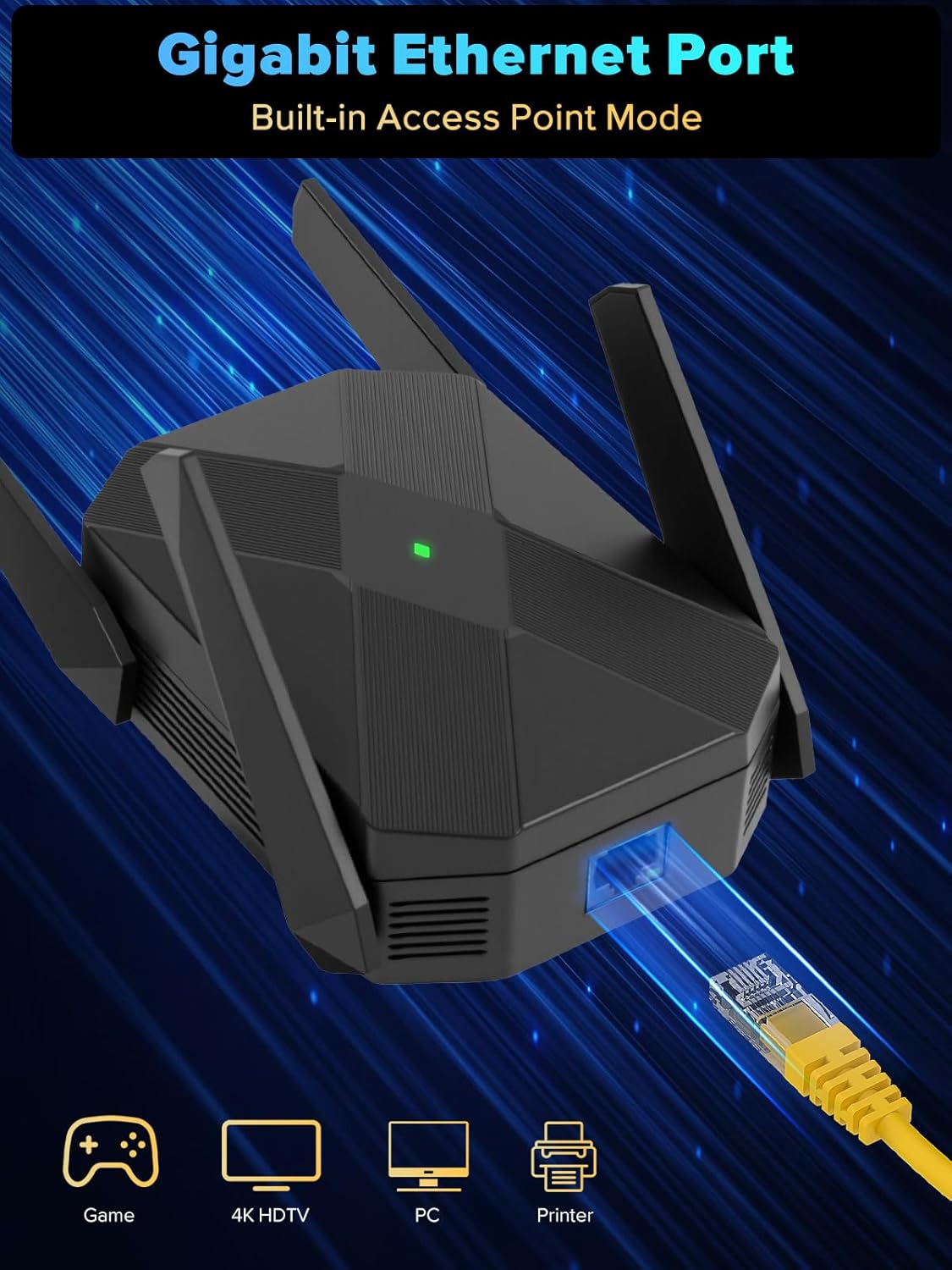
Image: The extender's web interface login screen on a smartphone, prompting for user login to access settings.
4. Select Connection Mode and Network
On the setup page, select "WiFi Extender Mode" (Repeater Mode) and click "NEXT". The extender will scan for available Wi-Fi networks. Choose the 2.4GHz or 5GHz network from your main router that you wish to extend. For optimal speed, it is suggested to extend the 5GHz network if available.
5. Enter Router Password and Configure Extended Network Name
Enter the password for your main router's Wi-Fi network. You can choose to keep the same network name (SSID) for the extended network or create a new one (e.g., adding "_EXT" to the original name). Click "NEXT" to continue.
6. Complete Configuration
Review your settings and click "FINISH" to complete the repeater mode configuration. The extender will restart and apply the new settings. Once complete, you can disconnect from the extender's setup network and connect to your newly extended Wi-Fi network.
Video: Official INMUA video demonstrating the setup process for the AX3000 WiFi 6 Extender in Repeater Mode, showing steps from plugging in to final configuration via a mobile device.
Operating Modes
The INMUA AX3000 WiFi 6 Extender supports two primary operating modes:
1. Repeater Mode (Default)
In Repeater Mode, the extender wirelessly connects to your existing router's Wi-Fi network and re-broadcasts it, extending the coverage area. This mode is ideal for eliminating Wi-Fi dead zones and improving signal strength in areas far from your main router.

Image: A visual representation of the extender's Repeater Mode, illustrating how it expands Wi-Fi coverage throughout a home, including areas like the garage and upper floors.
2. Access Point (AP) Mode
In AP Mode, the extender connects to your router via an Ethernet cable and creates a new wireless network. This mode is suitable for converting a wired network connection into a wireless one, providing a strong Wi-Fi signal in a specific area without relying on the main router's wireless signal strength.
To configure AP Mode:
- Connect the extender to your router using an Ethernet cable.
- Follow steps 2 and 3 from the Setup Instructions to access the web interface.
- Select "AP Mode Settings" instead of "WiFi Extender Mode".
- Configure the new Wi-Fi network name (SSID) and password.
- Click "FINISH" to apply settings.

Image: The extender with a Gigabit Ethernet cable connected, highlighting its capability to provide a stable wired connection for devices like gaming consoles or PCs, which is essential for AP Mode.
Key Features
- Dual-Band WiFi 6 (AX3000): Combines 2.4 GHz (600 Mbps) and 5.8 GHz (2400 Mbps) bands for a total of 3000 Mbps, supporting high-bandwidth activities.
- Extensive Coverage: Expands wireless signal up to 12,000 sq.ft., eliminating Wi-Fi dead zones.
- Gigabit Ethernet Port: Provides a fast, stable wired connection for devices like smart TVs, gaming consoles, or desktop PCs.
- OFDMA Technology: Efficiently communicates with multiple devices simultaneously, supporting over 99+ connected devices.
- WPA3 Security: Offers enhanced network security for your wireless connections.
- Easy Setup: Simple web-based interface for quick configuration without the need for a dedicated app.

Image: A graphic illustrating the core features of the INMUA AX3000 WiFi 6 Extender, including its WiFi 6 dual-band capability, Gigabit Ethernet port, MU-MIMO support, and universal compatibility.
Maintenance
- Optimal Placement: For best performance, place the extender halfway between your router and the Wi-Fi dead zone. Avoid placing it near large metal objects, concrete walls, or other electronic devices that may cause interference.
- Firmware Updates: Periodically check the manufacturer's website for firmware updates. Keeping your device's firmware up-to-date ensures optimal performance, security, and compatibility.
- Cleaning: Ensure the device is unplugged before cleaning. Use a soft, dry cloth to wipe the exterior. Do not use liquid cleaners or aerosols.
- Resetting: If the device is unresponsive or you wish to reconfigure it, use the reset button (usually a small pinhole button) to restore factory settings. Refer to the troubleshooting section for more details.
Troubleshooting
No Power / LED Off
Ensure the extender is securely plugged into a working electrical outlet. Try a different outlet to rule out power supply issues.
Cannot Connect to Extender's Setup Network
Make sure the extender is powered on and the Wireless LED is solid. If you've previously configured the extender, it might be broadcasting your extended network. Try resetting the extender to factory defaults (see below) and then attempt to connect to its default setup network.
Weak or Unstable Extended Signal
- Relocate the Extender: Move the extender closer to your main router, but still within the area where your router's signal is strong. The ideal placement is halfway between your router and the desired coverage area.
- Check for Interference: Avoid placing the extender near large electronic appliances (microwaves, cordless phones), metal objects, or thick walls that can obstruct Wi-Fi signals.
- Adjust Antennas: If applicable, try adjusting the extender's external antennas for better signal reception.
Slow Speeds on Extended Network
- Check Main Router Speed: Ensure your main router is providing adequate internet speed. The extender cannot boost speeds beyond what the main router provides.
- Band Selection: If your router supports both 2.4GHz and 5GHz, try connecting to the 5GHz extended network for faster speeds, as it generally offers higher throughput but shorter range.
- Reduce Network Congestion: Too many devices on the extended network can slow it down. Consider using the Gigabit Ethernet port for high-bandwidth devices.
How to Reset to Factory Defaults
With the extender powered on, use a paperclip or a thin object to press and hold the Reset button (usually located in a small pinhole) for approximately 5-10 seconds until the LEDs flash. Release the button, and the extender will restart with factory default settings. You will then need to reconfigure it.
Specifications
| Brand | INMUA |
| Model | AX3000 |
| Wireless Communication Standard | 2.4 GHz Radio Frequency, 5.8 GHz Radio Frequency, 802.11a/b/g/n/ac, 802.11ax (WiFi 6) |
| Data Transfer Rate | 3000 Megabits Per Second (Mbps) |
| Frequency Band Class | Dual-Band |
| Special Features | 1-Tap Setup, 360 Degree Coverage, Access Point Mode, LED Indicator |
| Item Weight | 11.3 ounces |
| Package Dimensions | 5.16 x 5.04 x 4.41 inches |
Warranty and Support
The INMUA AX3000 WiFi 6 Extender comes with a manufacturer's warranty. Please refer to the warranty card included in your package or visit the official INMUA website for detailed warranty terms and conditions.
For technical support, troubleshooting assistance, or any product-related inquiries, please contact INMUA customer support through their official website or the contact information provided in your product documentation.