1. Introduction
Thank you for choosing the VIXLW 4K HDMI to USB Video Capture Card. This device allows you to capture high-definition video and audio signals from various HDMI sources and transfer them to your computer or smartphone for recording, live streaming, or sharing. Designed for ease of use and broad compatibility, it supports resolutions up to 4K input and 1080p output, making it ideal for gaming, educational content creation, video conferencing, and more.
Please read this manual carefully to ensure proper setup and operation of your capture card.
2. Product Features
- High-Definition Capture: Supports a maximum input resolution of 3840x2160 @ 60Hz and a maximum output resolution of 1920x1080 @ 30Hz.
- USB 3.0 Technology: Utilizes USB 3.0 for high-speed data transfer, enabling smooth 30fps high-definition video recording directly to your hard drive without delay.
- Ultra-Low Latency: Features an HDMI output port for real-time monitoring, allowing for live gameplay without noticeable delay.
- Plug and Play: No driver installation required. The device integrates with current software for a seamless experience.
- Compact and Portable: Small size, no external power supply needed, and a directly integrated USB cable for convenient portability and connection.
- Universal Compatibility: Works with Windows, Mac OS, and Linux operating systems. Compatible with popular streaming and recording software such as OBS, Potplayer, and VLC.
- Wide Application: Suitable for various uses including video conferencing, educational recording, medical imaging, game entertainment, and live broadcasting.
3. Package Contents
Please verify that all items are present in your package:
- VIXLW 4K HDMI to USB Video Capture Card
- USB-C Adapter (for connecting to USB-C ports)
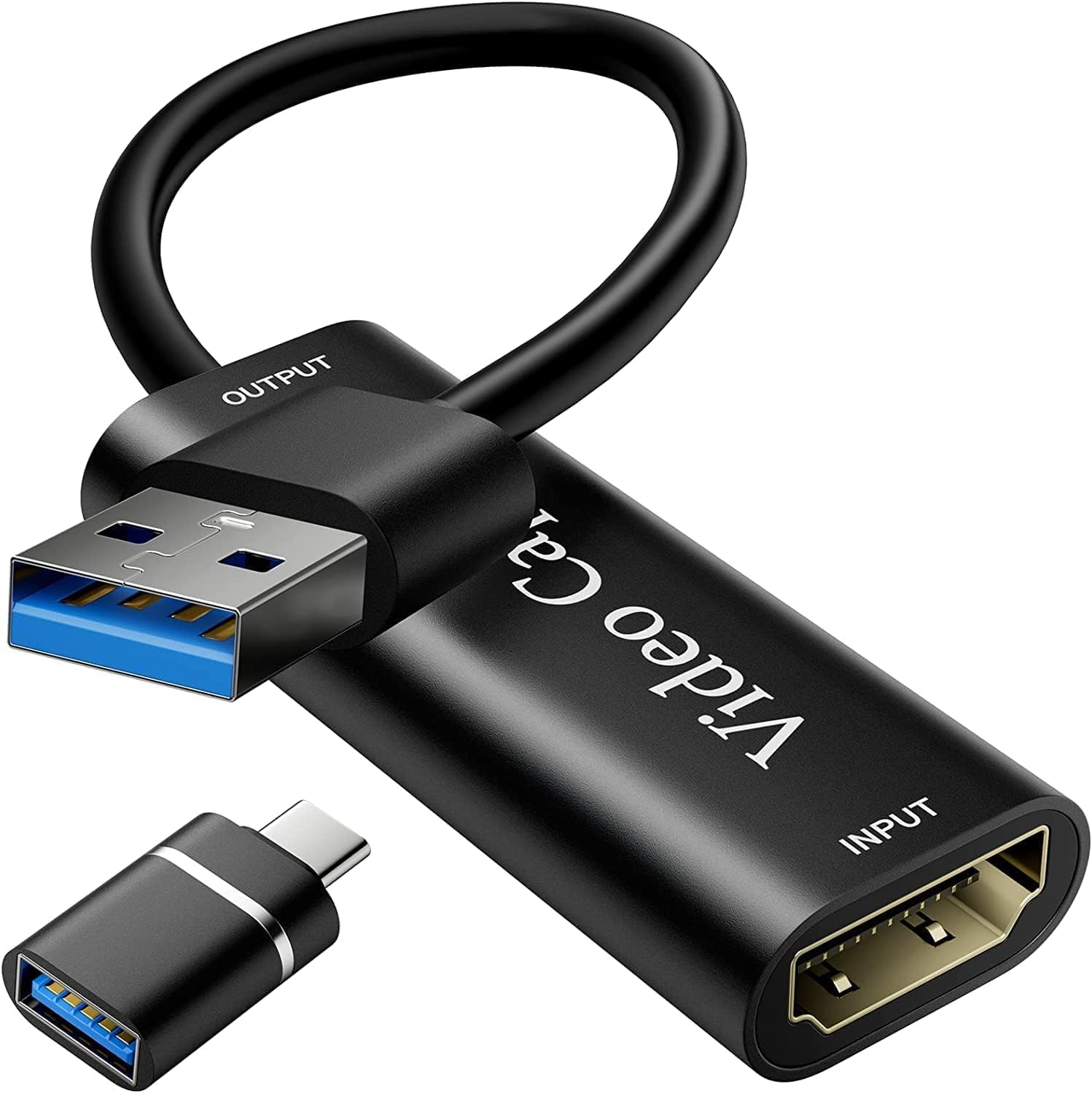
Image: The VIXLW 4K HDMI to USB Video Capture Card, showing its HDMI input, USB output, and an included USB-C adapter for broader compatibility.
4. Setup Guide
Follow these steps to set up your VIXLW Video Capture Card:
- Connect HDMI Source: Connect an HDMI cable from your source device (e.g., game console, camera, DVD player) to the HDMI input port on the VIXLW Video Capture Card.
- Connect to Computer/Smartphone: Connect the USB output cable of the capture card to a USB 3.0 port on your computer or smartphone. If your device has a USB-C port, use the provided USB-C adapter.
- Software Installation (if needed): The device is plug-and-play and generally does not require specific drivers. However, you will need compatible recording or streaming software (e.g., OBS Studio, VLC, Potplayer) installed on your computer or smartphone to utilize the capture card.

Image: The VIXLW Video Capture Card connected to a laptop's USB port, illustrating the plug-and-play connection.

Image: An equipment connection guide diagram. It shows HDMI input sources like DV cameras, projectors, PlayStation 4, Xbox, and phones connecting to the capture card. The capture card's USB output then connects to devices like HDTVs, laptops, or desktop computers.
5. Operating Instructions
This section provides general guidance for using the capture card with common software. For detailed software-specific instructions, please refer to the software's documentation.
Using with OBS Studio (Example)
- Launch OBS Studio: Open OBS Studio on your computer.
- Add Video Source: In the 'Sources' panel, click the '+' icon and select 'Video Capture Device'.
- Select Device: In the properties window, choose 'USB Video' from the 'Device' dropdown menu.
- Configure Video: Set the 'Resolution/FPS Type' to 'Custom' and select your desired resolution (e.g., 1920x1080) and FPS (e.g., 30). Ensure 'Match Output FPS' is selected.
- Configure Audio: Scroll down in the properties. For 'Audio Output Mode', select 'Output desktop audio (DirectSound)' or 'Use custom audio device'. If using custom, select 'Microphone (USB Digital Audio)' as the 'Audio Device'.
- Start Recording/Streaming: Once configured, you can start recording or streaming by clicking the respective buttons in OBS Studio.

Image: A visual guide demonstrating the four steps to configure the VIXLW Video Capture Card within OBS Studio, including adding a video capture device, selecting USB Video, setting resolution and FPS, and configuring audio input.
General Usage Tips
- Ensure your source device is powered on and outputting an HDMI signal.
- For optimal performance, connect the capture card to a USB 3.0 port on your computer.
- Adjust video and audio settings within your chosen software to match your requirements.
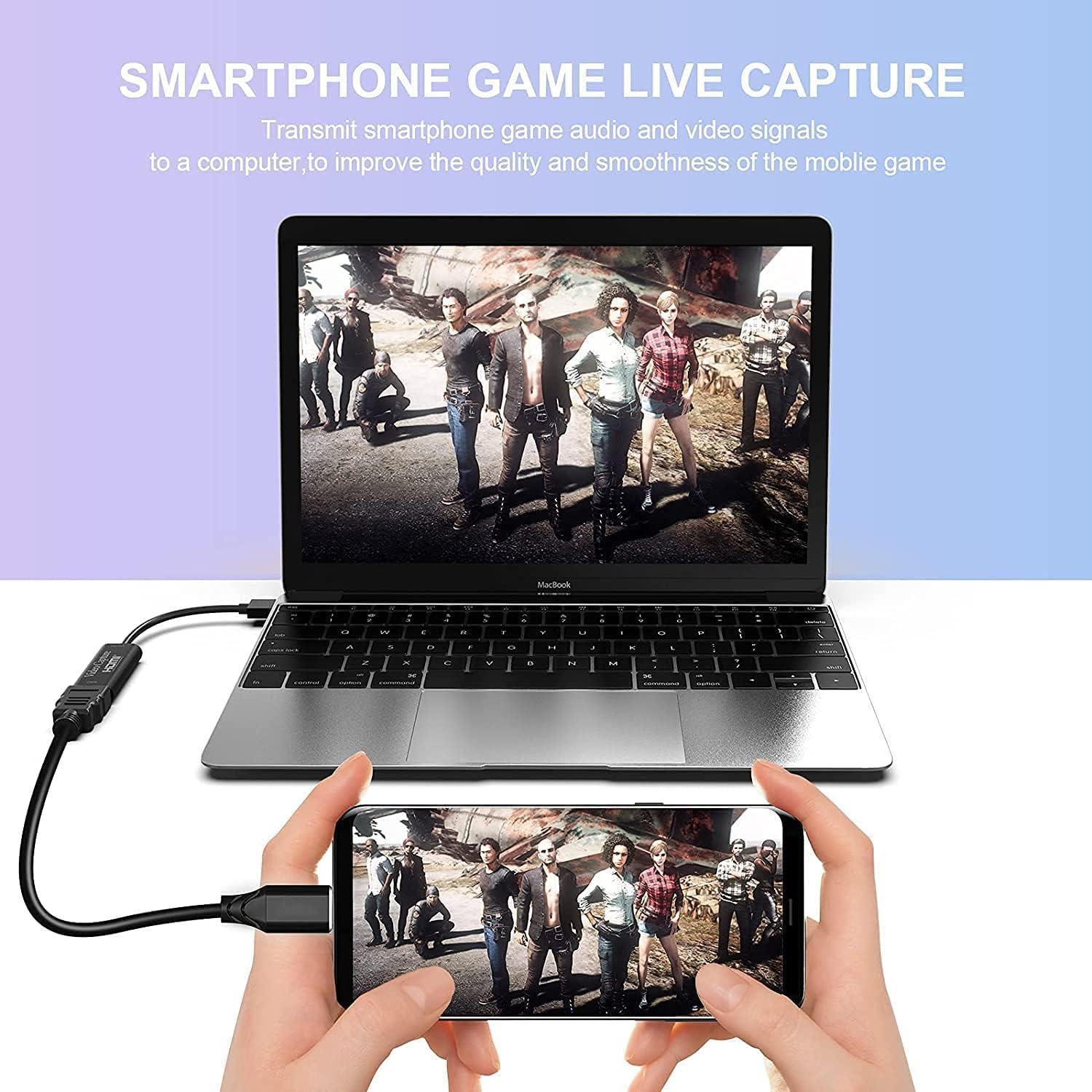
Image: A smartphone displaying a game, connected via the capture card to a laptop, demonstrating live game capture for streaming or recording.

Image: A collage illustrating diverse applications of the capture card, including conference recording, live broadcasting, video recording, and field education, highlighting its versatility for HD audio and video acquisition.
6. Maintenance
To ensure the longevity and optimal performance of your VIXLW Video Capture Card, please follow these maintenance guidelines:
- Cleaning: Use a soft, dry cloth to clean the exterior of the device. Avoid using liquid cleaners or solvents.
- Storage: Store the capture card in a cool, dry place away from direct sunlight and extreme temperatures.
- Handling: Handle the device with care. Avoid dropping it or subjecting it to strong impacts.
- Connectivity: Always disconnect cables by pulling the plug, not the cable itself, to prevent damage to the connectors.
7. Troubleshooting
If you encounter issues with your VIXLW Video Capture Card, refer to the following common problems and solutions:
- No Video Signal:
- Ensure all HDMI and USB connections are secure.
- Verify that the HDMI source device is powered on and outputting a signal.
- Check your software settings to ensure the correct video capture device ('USB Video') is selected and configured.
- Try a different HDMI cable or USB port on your computer.
- No Audio or Distorted Audio:
- Confirm that the audio settings in your capture software are correctly configured to use 'USB Digital Audio'.
- Check the audio output settings on your HDMI source device. Some capture devices may have difficulty processing Dolby Digital audio. If possible, configure your source device to output stereo audio (e.g., PCM stereo) instead of Dolby Digital.
- Ensure the volume levels are not muted or set too low in both your source device and capture software.
- Low Frame Rate or Lagging Video:
- Ensure the capture card is connected to a USB 3.0 port. USB 2.0 ports may not provide sufficient bandwidth for high-resolution capture.
- Reduce the output resolution or frame rate in your capture software settings.
- Close other demanding applications running on your computer to free up system resources.
- Ensure your computer meets the minimum system requirements for video capture and streaming.
- Device Not Recognized:
- Try connecting the device to a different USB port.
- Restart your computer.
- Ensure your operating system is up to date.
8. Specifications
| Feature | Specification |
|---|---|
| Brand | VIXLW |
| Model Name | U167B (USB HDMI) |
| Color | Black |
| Hardware Interface | USB 3.0 |
| Max HDMI Input Resolution | 3840x2160 @ 60Hz |
| Max Video Recording Resolution | 1920x1080 @ 30Hz |
| Operating System Compatibility | Windows, Mac OS, Linux |
| Compatible Devices | Devices with HDMI interface and USB 2.0/3.0 running Mac OS, Windows, or Linux |
| Special Feature | Compact, Plug and Play |
| Recommended Use | Video Recording, Live Streaming, Game Capture, Conference, Education |
9. Warranty and Support
VIXLW is committed to providing high-quality products and customer satisfaction.
- Warranty: This product comes with a 2-year warranty from the date of purchase.
- Support: We offer 24-hour technical support.
- Returns/Replacements: In case of product defects or dissatisfaction, we provide a full refund or free replacement within the warranty period.
If you have any questions, require technical assistance, or need to claim your warranty, please do not hesitate to contact us through the retailer's platform or our official support channels.


