
1. Introduction
This manual provides detailed instructions for the installation, operation, and maintenance of your SEVEKO Smart Door Lock Model 2031. This smart lock offers multiple unlocking methods including fingerprint, keypad, mobile application, physical keys, and IC cards. It is designed for residential and rental property use, providing enhanced security and convenience.
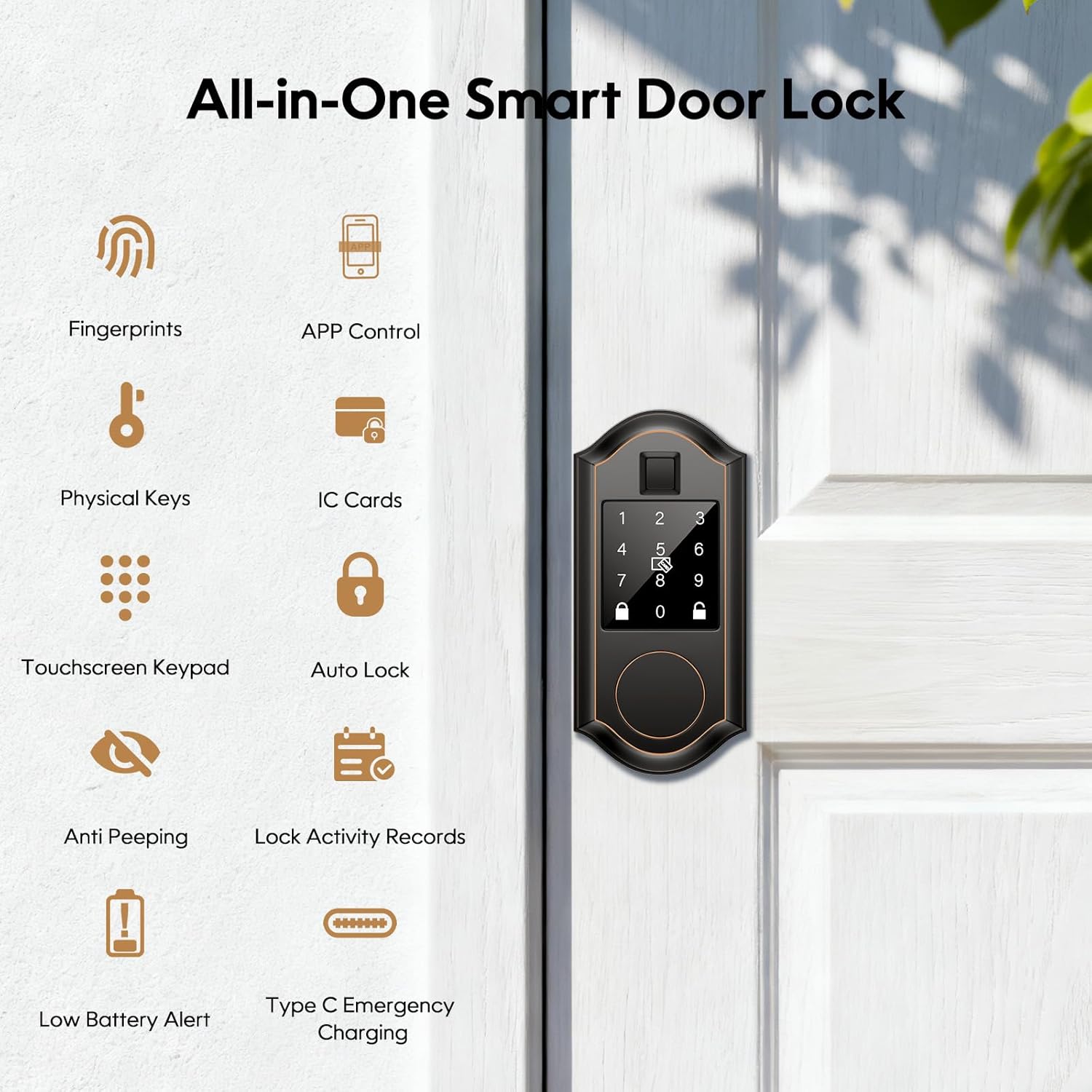
Image: Overview of the SEVEKO Smart Door Lock's features, including various unlocking methods and security functions.
2. Safety Information
- Read all instructions carefully before installation and use.
- Do not attempt to disassemble or repair the lock yourself. Contact customer support for assistance.
- Use only specified batteries. Do not mix old and new batteries or different types of batteries.
- Keep physical keys in a secure location outside the property, accessible only for emergencies.
- Protect your passcodes and fingerprints from unauthorized access.
- Ensure the door is properly aligned and closes smoothly before installing the lock to prevent damage.
3. Package Contents
Verify that all components are present in the package:
- Smart Door Lock Set with Deadbolt
- 2 Physical Keys
- 4 IC Cards
- Mounting Screws
- User Manual
4. Specifications
| Feature | Detail |
|---|---|
| Brand | SEVEKO |
| Model Name | 2031 |
| Lock Type | Deadbolt |
| Material | Metal, Zinc |
| Color | Oil Rubbed Bronze |
| Item Dimensions (L x W x H) | 2.64 x 1.96 x 6.57 inches (67 x 50 x 167 mm) |
| Item Weight | 2.64 pounds |
| Control Method | App |
| Connectivity Protocol | Bluetooth |
| Special Feature | Smart Deadbolt with Key Hole |
| Smart Home Compatibility | Google Home Assistant, Amazon Alexa (Gateway required) |
| Weather Resistance | IP54 (Dust and water splash resistant), Frost Resistant (down to -22°F), Heat Resistant (up to 158°F) |
| Power Source | Batteries (not included), Type-C Emergency Charging Port |

Image: The SEVEKO Smart Door Lock is designed to withstand various weather conditions, including frost, heat, and water splashes.
5. Setup & Installation
5.1 Pre-Installation Checks
- Door Thickness: Ensure your door thickness is between 1-3/8 inches to 1-3/4 inches (35mm to 45mm).
- Hole Diameter: The existing hole diameter should be 2-1/8 inches (54mm).
- Backset: The latch supports backsets of 2-3/8 inches (60mm) or 2-3/4 inches (70mm). Adjust the latch as needed.

Image: Door dimensions and latch adjustments required for proper installation of the smart lock.

Image: Correct orientation for the latch hole during installation to ensure proper lock function.
5.2 Installation Steps
Installation can be completed in minutes with a screwdriver. Refer to the detailed manual included in the package for step-by-step visual instructions.
- Prepare the door and frame according to the pre-installation checks.
- Install the latch into the door edge, ensuring it is vertically aligned.
- Install the exterior assembly, feeding the cable through the door hole.
- Install the interior mounting plate.
- Connect the cable to the interior assembly.
- Mount the interior assembly to the door.
- Install batteries (4 x AA, not included) into the interior assembly.
- Test the lock functionality.
5.3 App Setup (TT Lock)
Download the TT Lock app from your smartphone's app store. Follow the in-app instructions to pair your lock via Bluetooth and begin managing users and settings.
6. Operating Instructions
6.1 Unlocking Methods
- Fingerprint: Place your registered fingerprint on the sensor. The lock will unlock in approximately 0.3 seconds. The lock supports over 50 unique fingerprints with 99.9% recognition accuracy.

Image: Quick fingerprint unlock feature.
- Keypad Passwords: Enter your 6-digit passcode on the touchscreen keypad. For added security, use the anti-peeping feature by entering random numbers before and after your actual code. If an incorrect code is entered four times, the lock will temporarily disable for five minutes.

Image: Touchscreen keypad operation with anti-peeping functionality.
- APP Unlock: Use the TT Lock app on your smartphone to unlock the door via Bluetooth.
- Physical Keys: Insert and turn one of the provided physical keys into the keyhole for manual unlocking. This serves as an emergency backup.

Image: Emergency unlocking options using a physical key or Type-C power.
- IC Cards: Tap a registered IC card on the designated area of the lock to unlock.
6.2 Auto-Lock Function
The lock features an automatic locking function. You can set the auto-lock delay between 5 and 900 seconds via the TT Lock app. This ensures the door locks automatically after a set period, providing peace of mind.
Image: The auto-lock feature automatically secures the door after a user-defined time.
6.3 App Control Features (TT Lock)
The TT Lock app allows for comprehensive management of your smart lock:
- User Management: Add, modify, or delete users and their access methods (fingerprints, passcodes, IC cards).
- Activity Log: View a record of door lock activity, including who unlocked the door and when.
- Passcode Generation & Sharing: Create various types of passcodes (permanent, one-time, timed, recurring, custom) and share them with family, guests, or service providers.

Image: The TT Lock app enables easy management of access for various users.

Image: Steps for generating and sharing passcodes through the TT Lock app.
- Remote Management (Gateway Required): By connecting the optional G2 gateway (sold separately), you can monitor entry activity in real-time and manage access rights remotely from your phone, even when away from home.
6.4 Smart Home Integration
With the G2 gateway (sold separately), the SEVEKO Smart Door Lock can integrate with Google Home Assistant and Amazon Alexa, allowing for voice control of your lock.
Image: The smart lock can be controlled via voice commands through Amazon Alexa or Google Assistant when connected to a gateway.
7. Maintenance
7.1 Battery Management
- The lock will provide a low battery alert (audible beep) when the battery level is critical. Replace batteries promptly to ensure continuous operation.
- In case of complete battery depletion, use the Type-C emergency charging port with a power bank or the physical keys to unlock the door.
- Use 4 AA alkaline batteries. Do not use rechargeable batteries as they may not provide sufficient voltage.
7.2 Cleaning
Wipe the lock's exterior with a soft, dry cloth. Avoid using abrasive cleaners or solvents that could damage the finish or electronic components.
8. Troubleshooting
| Problem | Possible Cause | Solution |
|---|---|---|
| Lock does not respond | Dead batteries | Replace batteries or use Type-C emergency power. |
| Fingerprint not recognized | Finger is dirty, wet, or not placed correctly; fingerprint not registered. | Ensure finger is clean and dry. Reposition finger. Re-register fingerprint in the app. |
| Keypad not responding | Incorrect code entered multiple times; keypad malfunction. | Wait 5 minutes if locked out. Re-enter correct code. Check batteries. |
| App cannot connect to lock | Bluetooth is off; lock is out of range; app issue. | Ensure Bluetooth is enabled on your phone. Move closer to the lock. Restart the app or phone. |
| Auto-lock not working | Auto-lock feature disabled or incorrect time set in app. | Verify auto-lock settings in the TT Lock app. |
| Lock is stiff or difficult to operate | Misalignment during installation; debris in mechanism. | Check door and lock alignment. Ensure no obstructions. Re-installation may be required. |
9. Warranty & Support
SEVEKO provides 1-year professional factory support and lifetime assistance for every purchase. If you encounter any issues or have questions regarding your smart door lock, please contact SEVEKO customer support for a solution.
Contact information can typically be found on the product packaging or the official SEVEKO website.