
Introduction
This manual provides comprehensive instructions for the setup, operation, and maintenance of your Mingdaln M6jingang Smartwatch. Please read this manual thoroughly before using your device to ensure proper functionality and to maximize your user experience. This smartwatch is compatible with both Android and iOS devices.
What's in the Box
- Mingdaln M6jingang Smartwatch
- Charging Cable
- User Manual (this document)
Product Overview
The Mingdaln M6jingang Smartwatch features a 1.39-inch display and is designed for daily wear, offering fitness tracking, wireless call capabilities, and message notifications. Below is an illustration of the smartwatch and its display features.
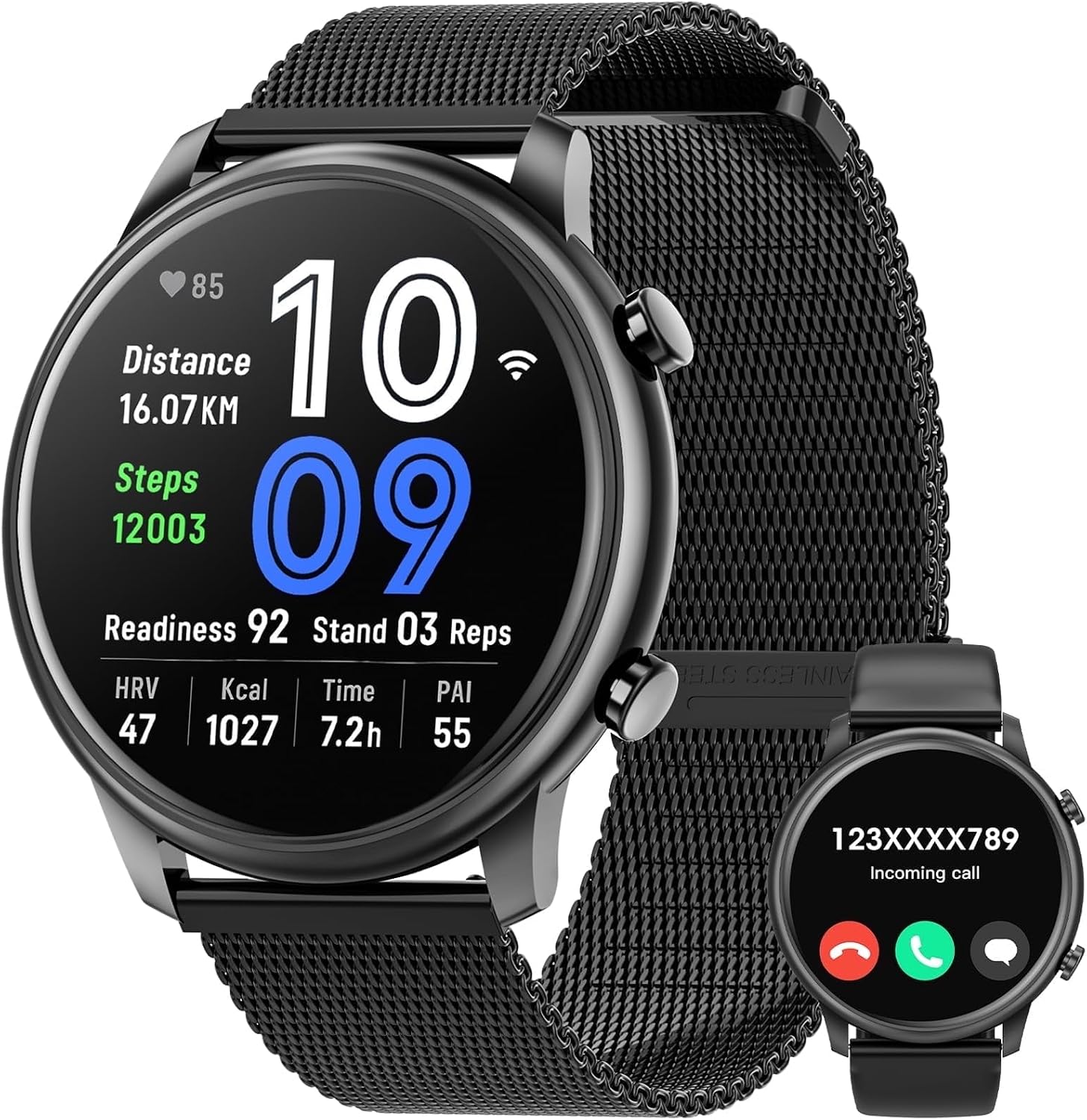
Figure 1: Mingdaln M6jingang Smartwatch Display
The image shows the Mingdaln M6jingang Smartwatch with a black alloy casing and a black mesh band. The watch face displays the time (10:09), heart rate (85), distance (16.07 KM), steps (12003), readiness (92), stand reps (03), HRV (47), Kcal (1027), time active (7.2h), and PAI (55). A smaller inset image shows the watch displaying an incoming call notification.
Setup
1. Charging the Smartwatch
- Connect the charging cable to the charging port on the back of the smartwatch.
- Plug the USB end of the charging cable into a standard USB power adapter (5V/1A recommended) or a computer's USB port.
- The watch display will indicate charging status. Ensure the watch is fully charged before first use (approximately 2-3 hours).
2. Installing the Companion App
To unlock full functionality, download and install the dedicated companion app on your smartphone. Refer to the packaging or the watch's initial setup screen for the app name or QR code.
- For Android: Search for the app in the Google Play Store.
- For iOS: Search for the app in the Apple App Store.
Follow the on-screen instructions within the app to create an account and set up your profile.
3. Pairing with Your Smartphone
- Ensure your smartwatch is charged and powered on.
- Enable Bluetooth on your smartphone.
- Open the companion app on your smartphone.
- Navigate to the "Device" or "Pairing" section within the app.
- Select your smartwatch (e.g., "M6jingang" or a similar name) from the list of available devices.
- Confirm the pairing request on both your smartphone and the smartwatch if prompted.
- Once paired, the watch will synchronize data with the app.
Operating Instructions
Basic Navigation
- Touchscreen: Swipe left/right, up/down to navigate through menus and features. Tap to select.
- Side Button: Press to return to the home screen or wake the display. Long press for power options.
Fitness Tracking
Your smartwatch continuously monitors various fitness metrics. Access these features by swiping through the watch interface or via the companion app.
- Steps & Distance: Tracks your daily step count and estimated distance covered.
- Heart Rate (HRV): Monitors your heart rate variability.
- Calories (Kcal): Estimates calories burned based on activity.
- PAI (Personal Activity Intelligence): A personalized activity score that helps you maintain a healthy heart.
- Sleep Tracking: Monitors sleep patterns (duration, deep sleep, light sleep).
Wireless Call and Message Notifications
- Incoming Calls: When paired, the watch will display incoming call notifications. You can accept or reject calls directly from the watch (requires Bluetooth call function enabled).
- Message Alerts: Receive notifications for SMS, emails, and app alerts directly on your wrist. Configure which app notifications to receive through the companion app.
Customization
Change watch faces and customize settings through the companion app to personalize your smartwatch experience.
Maintenance
Cleaning Your Smartwatch
- Wipe the watch screen and band regularly with a soft, damp, lint-free cloth.
- Avoid using harsh chemicals, abrasive cleaners, or solvents.
- Ensure the charging contacts are clean and dry before charging.
Battery Care
- Charge the device regularly, avoiding complete discharge for extended periods.
- Store the watch in a cool, dry place if not used for a long time.
Troubleshooting
- Watch not turning on: Ensure the watch is fully charged. Connect it to the charger and wait a few minutes before attempting to power it on again.
- Cannot pair with smartphone:
- Ensure Bluetooth is enabled on your smartphone.
- Make sure the watch is within range of your smartphone.
- Restart both the smartwatch and your smartphone.
- Try unpairing and re-pairing the device through the companion app.
- Notifications not received:
- Check app notification settings on your smartphone and within the companion app.
- Ensure the watch is properly paired and connected.
- Verify that the companion app is running in the background on your smartphone.
- Inaccurate fitness data: Ensure the watch is worn snugly on your wrist. Calibrate settings (e.g., stride length) in the companion app if available.
Specifications
| Brand | Mingdaln |
| Model Number | M6jingang |
| Display Size | 1.39-inch |
| Operating System | Wear OS 1.1 |
| Special Feature | Activity Tracker |
| GPS | No GPS |
| Color | Alloy Black (Watch), Black (Band) |
| Compatible Devices | Smartphone (Android and iOS) |
| UPC | 607603387721 |
| Manufacturer | Mingdaln |
| First Available | September 26, 2025 |
Warranty and Support
For warranty information and technical support, please refer to the official Mingdaln website or contact their customer service. Details are typically provided on the product packaging or within the companion application.