1. Introduction
This manual provides detailed instructions for the CUGEFRE Wireless CarPlay Adapter, Model B0FSRVRJRG. This device converts your vehicle's existing wired CarPlay system into a wireless one, allowing for seamless integration with your iPhone.
The adapter supports navigation, music playback, Siri assistant, phone calls, and text messages, maintaining the original CarPlay app functionality and vehicle controls.

Image Description: A visual showcasing the CUGEFRE Wireless CarPlay Adapter in a car interior, emphasizing its plug-and-play nature, high efficiency, stability, high resolution display, compact size, and portability.
2. Compatibility
2.1 Vehicle Compatibility
The CUGEFRE Wireless CarPlay Adapter is compatible with over 800 car models that feature factory-installed wired CarPlay. For vehicles manufactured before 2019, ensure your car supports CarPlay via a cable connection.
Important Note: This product is not compatible with vehicles running an Android operating system or vehicles that do not have wired CarPlay from the factory.
To verify your vehicle's compatibility, you can scan the QR code provided in the image below or visit the official Apple CarPlay website: Apple CarPlay Available Models.

Image Description: An image displaying a QR code for checking CarPlay compatibility, alongside a list of over 800 compatible car models from various manufacturers like Acura, Audi, Chevrolet, Honda, Jeep, Mercedes-Benz, and Volkswagen. It also notes that the adapter supports vehicles built from 2016 onwards and mobile phones with iOS 10 and above.
2.2 Phone Compatibility
This adapter works exclusively with iPhones running iOS 10 or higher.
3. Setup Instructions
The CUGEFRE Wireless CarPlay Adapter features a simple plug-and-play setup process. No additional drivers, applications, or complex system updates are required.
3.1 Initial Connection Steps
- Insert the Adapter: Connect the wireless CarPlay adapter to your vehicle's USB port. Use the appropriate cable (USB-A or USB-C) if your car requires a Type-C connection.
- Enable Bluetooth and Wi-Fi: On your iPhone, ensure both Bluetooth and Wi-Fi are turned on.
- Pair with the Adapter: On your car's infotainment screen, a Bluetooth pairing request will appear. Select the adapter (e.g., "Carplaybox-xxxx") and confirm the pairing on your iPhone. Follow any on-screen prompts to complete the connection.

Image Description: A visual guide showing the three steps for setting up the wireless CarPlay adapter: 1. Connect the adapter to the car's USB port. 2. Pair Bluetooth and Wi-Fi on the iPhone. 3. Enjoy wireless CarPlay on the car's display.

Image Description: A detailed visual showing the three steps for connecting the wireless CarPlay adapter: inserting the adapter into the car's USB port, enabling Wi-Fi and Bluetooth on the phone, and confirming the pairing request on the car's screen to start using wireless CarPlay.
3.2 Automatic Reconnection
After the initial successful connection, the adapter will automatically reconnect to your iPhone each time you start your vehicle, provided your iPhone's Bluetooth and Wi-Fi are enabled.

Image Description: An illustration depicting a man looking at his phone with a car in the background, symbolizing the automatic connection of the wireless CarPlay adapter to the iPhone when the vehicle starts, even from a distance of up to 100 meters.
4. Operation
4.1 Core Functionality
Once connected, the adapter enables all standard CarPlay features wirelessly, including:
- Navigation (Maps, Waze, Google Maps)
- Music and Audio Playback (Spotify, Apple Music, Podcasts)
- Siri Voice Assistant
- Phone Calls
- Text Messages

Image Description: An image showing the wireless CarPlay adapter connected, with various CarPlay applications displayed on a car's infotainment screen, including Music, Maps, Phone calls, and Messages, highlighting the support for all original CarPlay apps.
4.2 Control Methods
The adapter maintains compatibility with your vehicle's original control methods:
- Intelligent Voice Control: Utilize Siri Voice Wake-up for hands-free commands (e.g., "Hey Siri, call Lisa," "Play music").
- Steering Wheel Controls: Use your car's built-in steering wheel buttons for audio, calls, and navigation.
- OEM Controls: Operate CarPlay using your vehicle's original equipment manufacturer (OEM) control knobs and buttons.
- Touchscreen Control: Interact directly with the car's touchscreen display.

Image Description: An image illustrating the various ways to control CarPlay: intelligent voice control with Siri, steering wheel controls, OEM control knobs, and touchscreen interaction.

Image Description: A visual showing a user interacting with CarPlay via voice commands ("Hey Siri, call Lisa," "Play music") and demonstrating the use of steering wheel controls, OEM control knobs, and the car's touchscreen for CarPlay functions.
5. Maintenance
The CUGEFRE Wireless CarPlay Adapter requires minimal maintenance. Keep the device clean and dry. Avoid exposing it to extreme temperatures or direct sunlight for prolonged periods.
Ensure the USB port in your vehicle is free from dust and debris to maintain a stable connection.
6. Troubleshooting
- Connection Issues:
- Ensure your car has factory-wired CarPlay.
- Verify your iPhone's Bluetooth and Wi-Fi are enabled.
- Restart your iPhone and the car's infotainment system.
- Unplug and re-plug the adapter into the USB port.
- Forget the adapter from your iPhone's Bluetooth settings and re-pair.
- No Audio or Poor Audio Quality:
- Check the volume levels on both your iPhone and car's audio system.
- Ensure no other Bluetooth devices are interfering with the connection.
- Restart the adapter and your iPhone.
- Lag or Delays:
- Ensure your iPhone is running the latest iOS version.
- Minimize background apps on your iPhone.
- A slight delay (e.g., half a second) in track changes or Siri response is normal for wireless connections.
- Adapter Not Recognized:
- Try a different USB port in your vehicle, if available.
- Ensure the USB port provides sufficient power.
If you encounter persistent issues, please refer to the "Professional Technical Support" section for assistance.
7. Specifications
| Feature | Detail |
|---|---|
| Model Number | B0FSRVRJRG |
| Brand | CUGEFRE |
| Connectivity | Wireless (5.8GHz Wi-Fi, Bluetooth 5.3) |
| Input | USB Type-A (with Type-C adapter cable included) |
| Compatibility | Vehicles with factory-wired CarPlay, iPhone with iOS 10+ |
| Dimensions | Approximately 2.5 inches (length) x 0.98 inches (width) |
| Weight | 1.76 ounces |
| Power Plug Type | No Plug |
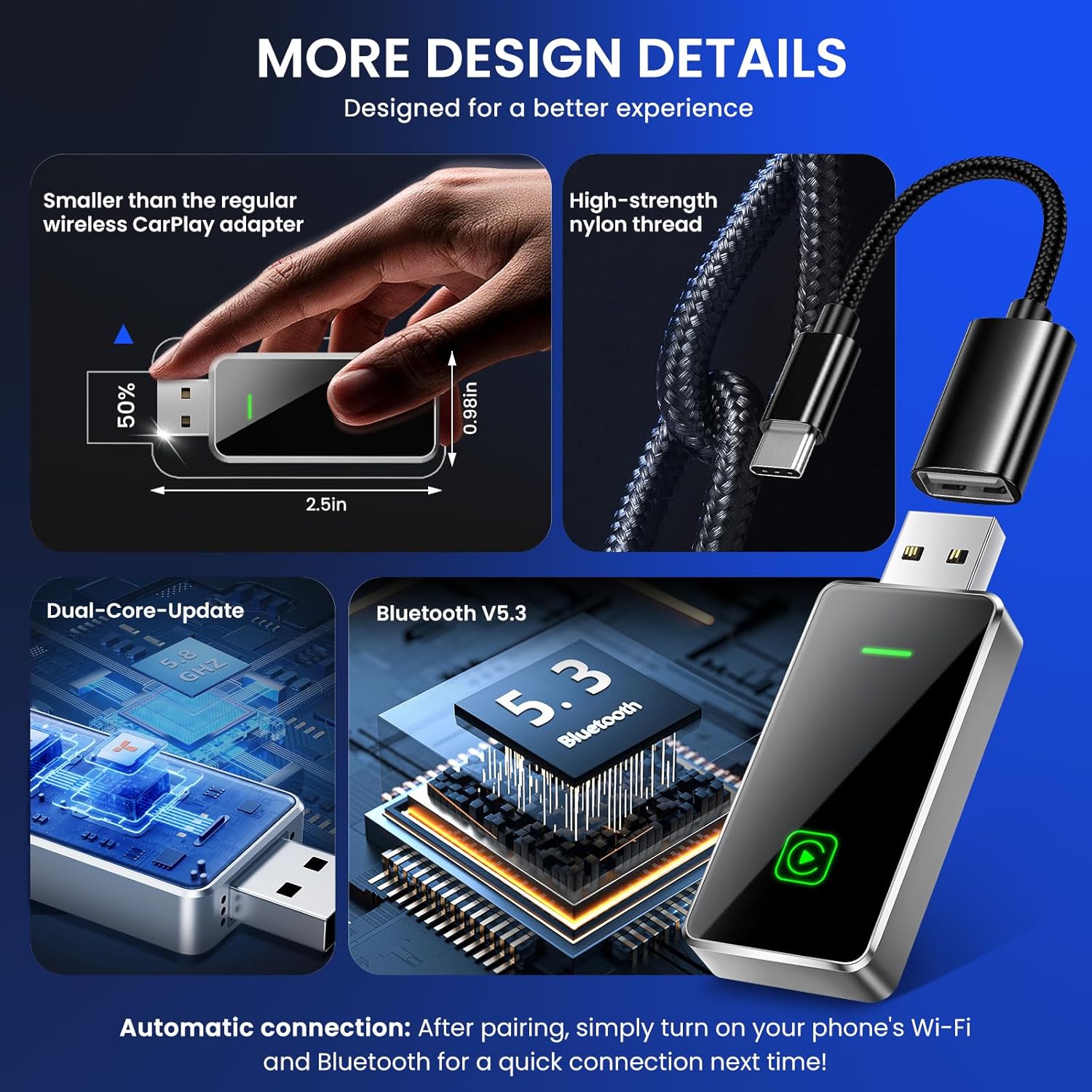
Image Description: A visual showcasing the compact design of the wireless CarPlay adapter, its dimensions (approximately 2.5 inches long), the inclusion of a high-strength nylon thread Type-C adapter cable, a dual-core update chip, and Bluetooth 5.3 technology.
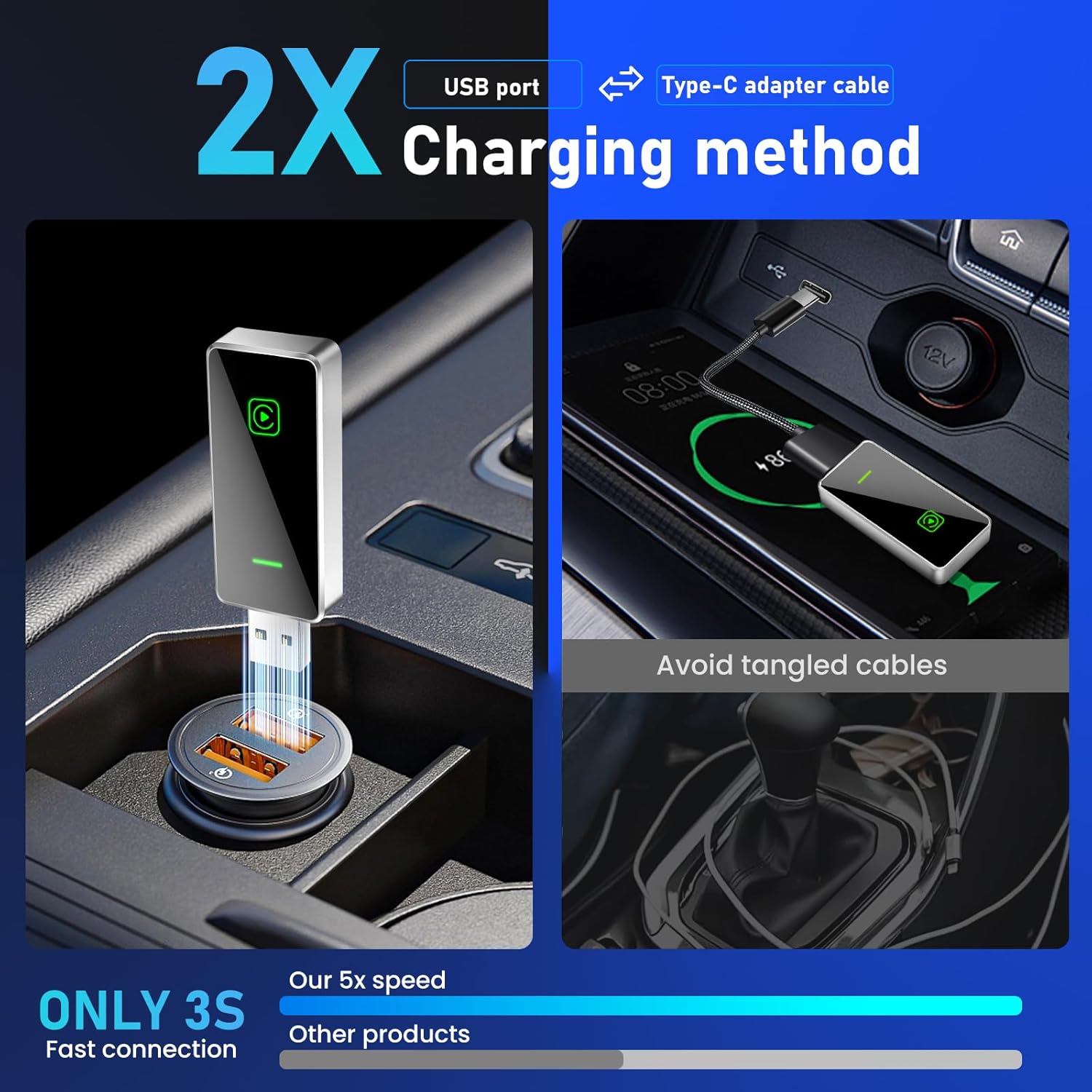
Image Description: An image of the wireless CarPlay adapter emphasizing its 5.8GHz transmission rate, high resolution, lossless audio, safe and stable operation, and low-power chip, along with various CarPlay app icons.

Image Description: A close-up view of the wireless CarPlay adapter's internal components, highlighting its 5.8GHz WiFi performance, and indicating support for wired, wireless, and Bluetooth connections.
8. Warranty and Support
For any installation issues, connection problems, or other technical inquiries, please contact our professional technical support team. We aim to resolve all issues within 24 hours.
(Specific warranty period and contact information are not provided in the source data. Please refer to your product packaging or purchase documentation for detailed warranty terms and contact methods.)