1. Introduction
This manual provides detailed instructions for the setup, operation, and maintenance of your MechLands Aula Mini60 HE PRO Wireless Hall Effect Gaming Keyboard. Please read this manual thoroughly to ensure optimal performance and longevity of your device.

Image 1: MechLands Aula Mini60 HE PRO Wireless Hall Effect Gaming Keyboard in black with RGB backlighting.
2. Package Contents
Verify that all items are present in your product packaging:
- MechLands Aula Mini60 HE PRO Keyboard
- USB Cable
- Keycap Puller
- User Manual

Video 1: Unboxing of Mini60 HE PRO Wireless Magnetic Keyboard. This video demonstrates the contents of the product packaging, including the keyboard, USB cable, keycap puller, and user manual.
3. Setup
3.1 Connectivity Modes
The Mini60 HE PRO supports three connectivity modes: USB-C wired, 2.4GHz wireless, and Bluetooth. You can switch between these modes to suit your device and usage needs.

Image 2: Overview of the keyboard's three connectivity modes: Bluetooth, 2.4GHz wireless, and USB-C wired, highlighting compatibility with various devices.
3.1.1 USB-C Wired Connection
- Connect the provided USB-C cable to the keyboard's port.
- Plug the other end of the cable into an available USB port on your computer.
- The keyboard will be automatically detected and ready for use.
3.1.2 2.4GHz Wireless Connection
- Locate the 2.4GHz USB dongle (usually stored in a compartment on the keyboard or in the packaging).
- Plug the USB dongle into an available USB port on your computer.
- Turn on the keyboard. It should automatically connect to the dongle.
3.1.3 Bluetooth Connection
- Ensure the keyboard is powered on and in Bluetooth pairing mode (refer to keyboard shortcuts for specific key combinations, typically Fn + Q/W/E).
- On your device (PC, Mac, tablet, smartphone), navigate to Bluetooth settings.
- Search for available devices and select "Mini60 HE PRO" (or similar name).
- Follow any on-screen prompts to complete the pairing process.
3.2 Charging
The keyboard is equipped with a 4000mAh battery. Connect the USB-C cable to the keyboard and a power source (computer USB port or USB wall adapter) to charge. The indicator light will show charging status.
4. Operating Instructions
4.1 Hall Effect Magnetic Switches and Adjustable Actuation
The Mini60 HE PRO features Hall Effect magnetic switches, offering precise and customizable actuation. The actuation point can be adjusted from 0.1mm for rapid responses in gaming to 3.4mm for deliberate typing, providing versatility for various tasks.

Image 3: Illustration of the adjustable actuation range (0.1mm to 3.4mm) for the Hall Effect magnetic switches.
4.2 Polling Rate and Scanning Rate
The keyboard supports an 8K polling rate and a 128KHz scanning rate, ensuring minimal input lag and high responsiveness, crucial for competitive gaming.
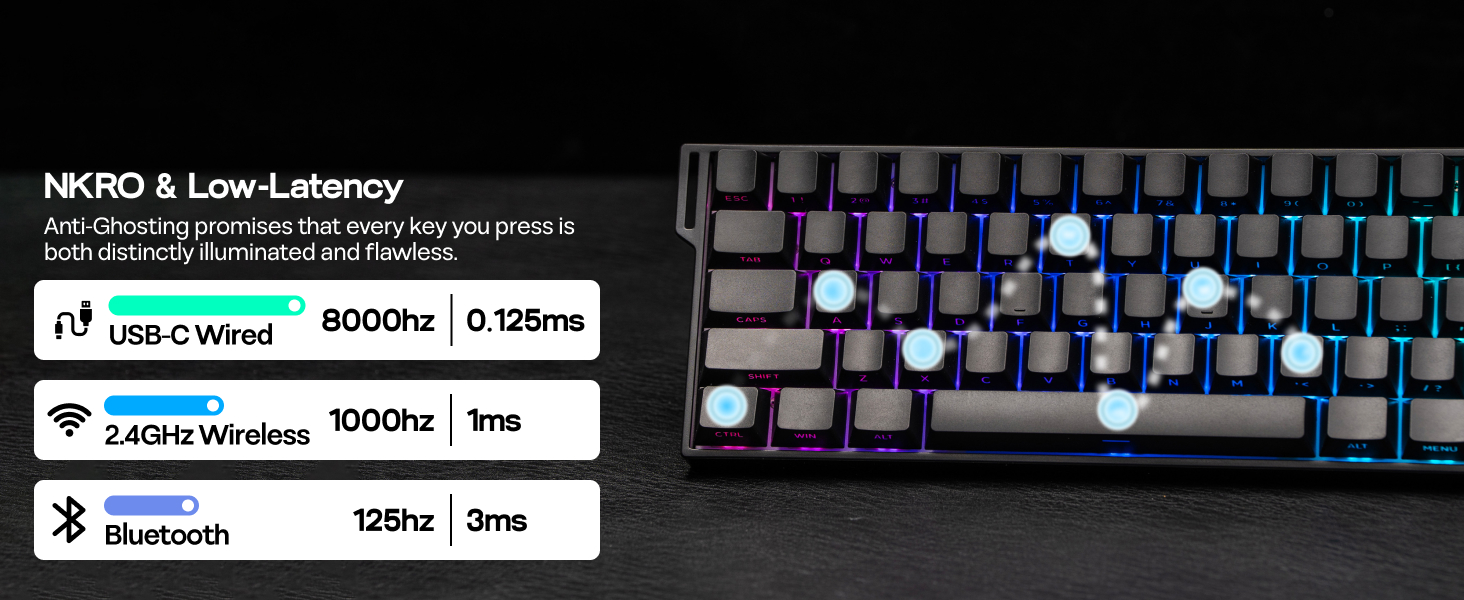
Image 4: Details on NKRO (N-Key Rollover) and low-latency performance across different connection types.
4.3 60% Compact Layout
The Mini60 HE PRO features a 60% layout, optimizing desk space. Essential functions typically found on larger keyboards are accessible via the Function (Fn) key combinations. Refer to the included shortcut card for specific commands.

Image 5: Visual representation of the keyboard's 60% compact layout and its physical dimensions.
4.4 RGB Backlighting
The keyboard features 16.8 million color RGB backlighting. Customize lighting effects and colors using the programmable web driver or specific Fn key combinations:
- Fn + \|: Toggle Backlight Effect
- Fn + Enter: Toggle Backlight Color
- Fn + Backspace: Turn On/Off Light

Image 6: The keyboard displaying its 16.8M RGB backlights, with instructions for changing effects and colors.

Video 2: RGB Backlits on Mini60 HE PRO Hall Effect Keyboard. This video demonstrates the dynamic and customizable RGB lighting effects of the keyboard.
4.5 Programmable Web Driver
The Mini60 HE PRO features a programmable web driver for advanced customization. This allows you to:
- Adjust actuation travel.
- Remap keys.
- Create macros.
- Customize backlighting.
Access the web driver through the official MechLands website to personalize your keyboard settings.

Image 7: The programmable web driver interface, illustrating customization options for actuation, key remapping, macros, and backlighting.
4.6 Advanced Key Functions (SOCD, DKS, TGL)
The web driver enables advanced key functions such as:
- Snap Key (SOCD): Prioritizes and activates the last key pressed when two opposing directions are simultaneously activated.
- Dynamic Keystroke (DKS) & Mod Tap (MT): Assign up to four functions to a single key based on press depth (DKS) or tap/hold actions (MT).
- Toggle Key (TGL): Set a key to initiate continuous input on 'hold' or 'double-click' and terminate on 'tap'.

Image 8: Explanation of the Snap Key (SOCD) functionality.

Image 9: Visual guide to Dynamic Keystroke (DKS) and Mod Tap (MT) functions.

Image 10: Explanation of the Toggle Key (TGL) functionality.
4.7 Dual Wake Modes
The keyboard supports dual wake modes: All-Key Wake-Up and Single-Key Wake-Up. This allows for flexible power management and quick activation.

Image 11: Visual representation of the two wake modes: All-Key Wake-Up and Single-Key Wake-Up.
5. Maintenance
To maintain your keyboard's performance and appearance:
- Regularly clean the keycaps and chassis with a soft, dry cloth.
- Use the provided keycap puller to remove keycaps for deeper cleaning or switch replacement.
- Avoid exposing the keyboard to liquids or extreme temperatures.
- Store in a cool, dry place when not in use.

Image 12: Close-up of the keyboard's premium PBT keycaps, highlighting their texture and Cherry profile.

Image 13: Details on the hot-swappable PCB, allowing for easy switch replacement without soldering.
6. Troubleshooting
- Keyboard not responding: Ensure the keyboard is charged and powered on. Check the connection mode (USB-C, 2.4GHz, or Bluetooth) and ensure it matches your device's connection. For 2.4GHz, ensure the dongle is properly inserted. For Bluetooth, re-pair the device if necessary.
- RGB lights not working: Check if the lights are turned off using the Fn + Backspace combination. Adjust brightness or effects using Fn + \| or Fn + Enter. Ensure the keyboard is not in a low-power state.
- Keys not registering correctly: Verify that the actuation point settings in the web driver are appropriate for your usage. If specific keys are faulty, consider replacing the hot-swappable switches.
- Connectivity issues: For wireless modes, ensure there are no strong interferences (e.g., other wireless devices, large metal objects) between the keyboard and your device. Try moving closer to the receiver or device.
7. Specifications
| Feature | Detail |
|---|---|
| Model | Mini60 HE PRO |
| Connectivity | USB-C, 2.4GHz Wireless, Bluetooth |
| Switches | Hall Effect Magnetic Switches (Stormrise Magnetic Switch) |
| Actuation Travel | Adjustable from 0.1mm to 3.4mm |
| Polling Rate | 8K (USB-C Wired) |
| Scanning Rate | 128KHz |
| Layout | 60% Compact (61 Keys) |
| Battery Capacity | 4000mAh |
| Backlighting | 16.8M RGB |
| Keycaps | PBT, Shine-Through, Cherry Profile |
| Special Features | Hot-Swappable, Programmable Keys, DKS/MT/TGL/Snap Key |
| Dimensions (L x W x H) | 29.9cm x 10.2cm x 2.8cm (11.8 x 4.0 x 1.1 inches) |
| Weight | 0.62kg (1.37 lbs) |

Image 14: Detailed specifications for the Stormrise Magnetic Switches used in the keyboard.
8. Warranty and Support
For warranty information and technical support, please refer to the official MechLands website or contact their customer service. Keep your purchase receipt for warranty claims.


