
Introduction
This manual provides comprehensive instructions for the installation, operation, and maintenance of your Hodozzy 1 DIN Car Stereo. This unit features a 10.1-inch rotatable touchscreen, wireless CarPlay and Android Auto compatibility, MirrorLink, Bluetooth connectivity, FM/RDS radio, customizable EQ settings, multiple interface options including USB and AUX, rear camera input, and steering wheel control support. Please read this manual thoroughly before using the product to ensure proper function and safety.
Product Features Overview
- 10.1-inch Rotatable Touchscreen: The display can be adjusted horizontally and vertically, and moved left or right for optimal viewing angles.
- Wireless CarPlay & Android Auto: Seamlessly integrate your smartphone for navigation, music, calls, and more.
- MirrorLink Support: Wired connection for mirroring your smartphone screen.
- Bluetooth Connectivity: Hands-free calling and wireless audio streaming.
- FM/RDS Radio: Access your favorite radio stations with real-time information display.
- EQ Sound Customization: Built-in equalizer settings to tailor your audio experience.
- Multiple Interfaces: Includes USB ports for charging and data transfer, AUX audio input, and TF card slot for media playback.
- Rear Camera Input: Supports connection to a reversing camera for enhanced safety during parking.
- Steering Wheel Control: Compatible with existing steering wheel controls for convenient operation.
- Colorful Backlight: Enhances visibility and usability in various lighting conditions.

Image: The Hodozzy 1 DIN Car Stereo displaying its wireless CarPlay and Android Auto capabilities, along with MirrorLink functionality via USB connection.

Image: Illustration of the screen rotation and vertical/horizontal movement design of the 10.1-inch display, allowing for flexible viewing angles.
Setup and Installation
Package Contents
Before installation, verify that all components are present in the package:
- Car Stereo Unit
- Power Cable
- Horn Cable
- D-BUS Cable
- Mounting Brackets
- Microphone (MIC)
- User Manual
- 12LED Rear Camera (if included in your specific model)

Image: Diagram showing the dimensions of the car stereo unit, the rear panel connections, and the included accessories such as power cables, mounting brackets, microphone, user manual, and rear camera.
Wiring Instructions
Refer to the wiring diagram provided in the package and below for correct connections. Incorrect wiring can damage the unit or your vehicle's electrical system. If you are unsure, consult a professional installer.
- Power Cable: Connect to your vehicle's power supply (ACC, B+, GND).
- Horn Cable: Connect to the vehicle's horn system if applicable.
- D-BUS: For specific data communication.
- Radio Antenna: Connect your car's radio antenna.
- CVBSIN: Video input for rear camera.
- SW (Steering Wheel Control): Connect to your vehicle's steering wheel control wires.
- USB Interface: Connect external USB devices.
- L-OUT/R-OUT: Audio output for external amplifiers.
- MIC: External microphone input.
Important: Ensure the vehicle's battery is disconnected before beginning installation to prevent electrical shorts.
Operating Instructions
Screen Rotation and Movement
The 10.1-inch display can be rotated and moved to optimize your viewing experience. Gently adjust the screen to your desired horizontal or vertical orientation. The screen can also be moved left and right to reduce glare or improve accessibility.
Wireless CarPlay and Android Auto
To use Wireless CarPlay or Android Auto, ensure your smartphone's Bluetooth and Wi-Fi are enabled. On the car stereo, select the CarPlay or Android Auto icon. Follow the on-screen prompts to pair your device. Once connected, you can access navigation, music, messages, and other compatible apps directly from the car stereo display.

Image: The car stereo screen displaying the user interface for Wireless CarPlay and Android Auto, showing various app icons.
MirrorLink (Wired Connection)
For MirrorLink functionality, connect your smartphone to the car stereo using a USB cable. Select the MirrorLink option on the stereo. Your phone's screen will be mirrored on the car stereo display, allowing you to interact with your phone's content.
Bluetooth Operation
To pair a Bluetooth device:
- Go to the Bluetooth menu on the car stereo.
- Enable Bluetooth on your smartphone and search for available devices.
- Select "Hodozzy" (or similar device name) from the list on your phone.
- Confirm the pairing code on both devices.
Once paired, you can make hands-free calls and stream audio wirelessly.

Image: The car stereo displaying the Bluetooth calling interface, an equalizer adjustment screen, and the FM/RDS radio interface with station information.
FM/RDS Radio
Select the "Radio" icon to access the FM/RDS tuner. You can scan for stations, save presets, and view RDS information (if available) such as station name and song title.
Audio Equalizer (EQ)
Navigate to the "EQ" settings to customize the audio output. Adjust bass, treble, and other frequency bands to match your preferences. Pre-set equalizer modes may also be available.
USB, AUX, and TF Card Media Playback
Insert a USB drive, TF card, or connect an external audio device via the AUX input. The stereo will automatically detect the media and allow you to browse and play audio or video files.

Image: Close-up view of the car stereo's multiple interface options, highlighting the TF card slot, AUX input, and dual USB ports for connectivity and media playback.
Rear Camera Input
When a compatible rear camera is connected and the vehicle is shifted into reverse gear, the car stereo display will automatically switch to the rear camera view, providing a clear view of the area behind your vehicle for safer parking and maneuvering.
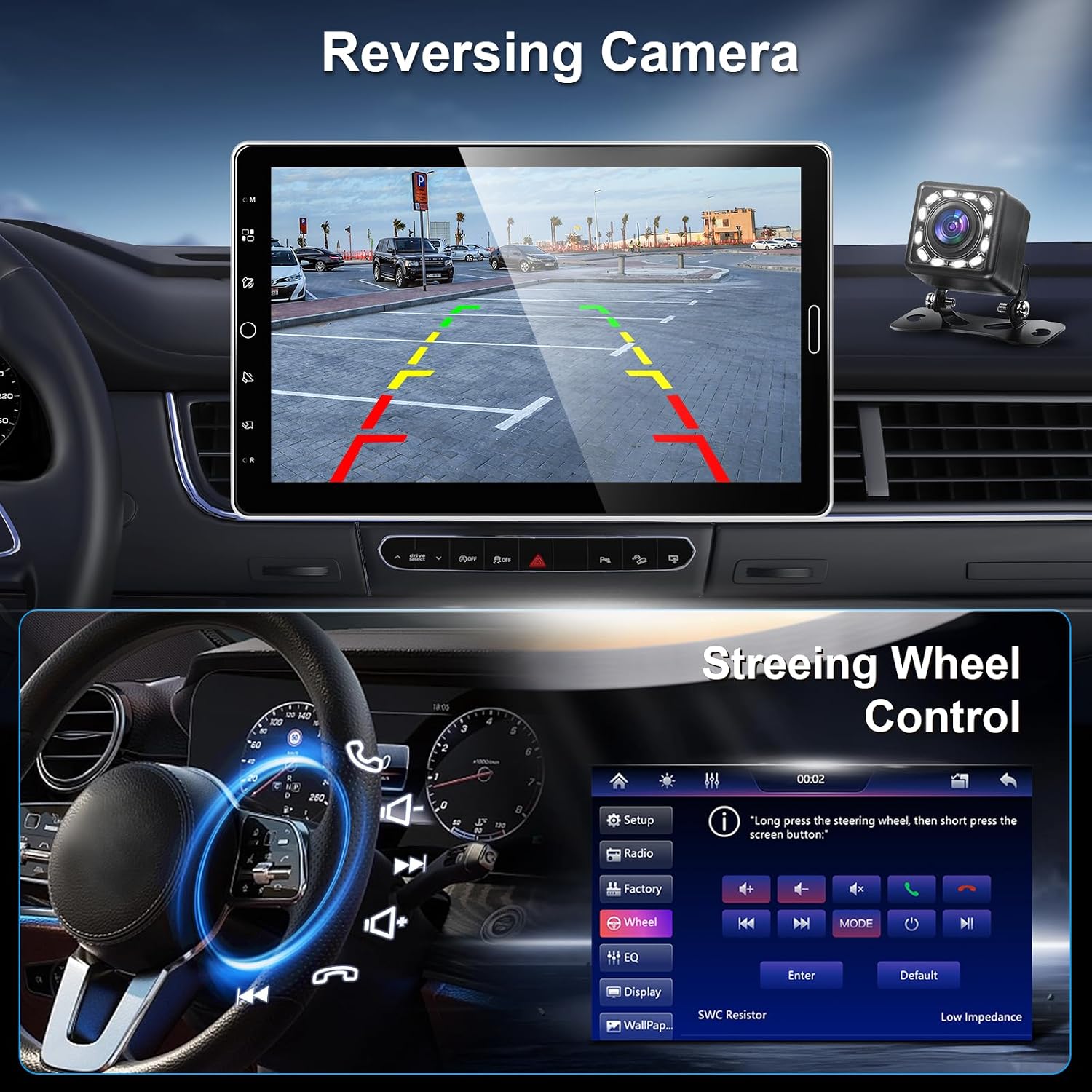
Image: The car stereo screen displaying the rear camera feed with parking guidelines, alongside an interface for configuring steering wheel controls.
Steering Wheel Control
If your vehicle supports steering wheel controls and they are correctly wired, you can program the stereo to respond to these controls. This allows you to adjust volume, change tracks, or answer calls without taking your hands off the steering wheel.
Maintenance
- Screen Cleaning: Use a soft, lint-free cloth to gently wipe the touchscreen. Do not use abrasive cleaners or solvents.
- General Cleaning: Keep the unit free from dust and debris. Use a dry cloth for cleaning the main body.
- Software Updates: Check the manufacturer's website periodically for any available software or firmware updates to ensure optimal performance and compatibility.
Troubleshooting
| Problem | Possible Cause | Solution |
|---|---|---|
| Unit does not power on. | Incorrect wiring; Blown fuse; Vehicle battery issue. | Check power cable connections (ACC, B+, GND). Inspect vehicle fuses. Verify vehicle battery charge. |
| No sound. | Volume too low; Mute activated; Speaker wiring issue. | Increase volume. Check if mute is active. Verify speaker connections. |
| Bluetooth not connecting. | Bluetooth not enabled on device/stereo; Device out of range; Interference. | Ensure Bluetooth is on for both devices. Move devices closer. Try re-pairing. |
| CarPlay/Android Auto not starting. | Incorrect phone settings; USB cable issue (for wired); Wi-Fi/Bluetooth issue (for wireless). | Check phone settings for CarPlay/Android Auto. Use a certified USB cable. Ensure Wi-Fi/Bluetooth are active and stable. |
| Rear camera not displaying. | Camera not connected; Incorrect wiring; Reverse trigger not detected. | Verify camera connection to CVBSIN. Check reverse trigger wire. Ensure camera is powered. |
Specifications
| Feature | Detail |
|---|---|
| Brand | Hodozzy |
| Model Number | A4077 |
| Screen Size | 10.1 inches |
| DIN Size | 1 DIN |
| Connectivity Technology | Bluetooth, USB, AUX, TF Card |
| Special Features | Wireless CarPlay, Android Auto, MirrorLink, FM/RDS Radio, EQ, Steering Wheel Control, Rear Camera Input |
| Included Components | Car Stereo, User Manual, Power Cable, Horn Cable, D-BUS Cable, Mounting Brackets, Microphone, 12LED Rear Camera |
| Origin | China |
Warranty and Support
This product comes with a standard warranty. Please refer to the warranty card included in your package for specific terms and conditions. For technical support, troubleshooting assistance, or warranty claims, please contact Hodozzy customer service through the retailer where you purchased the product or visit the official Hodozzy website for contact information.
Note: Unauthorized modifications or improper installation may void your warranty.