
1. Introduction
This manual provides essential information for the safe and efficient use of your Grundig 65 GQ 700A 65" 4K Ultra HD Google Smart QLED TV. Please read these instructions thoroughly before operating the device and retain them for future reference. This TV features Wide Color Gamut Technology for a vibrant viewing experience.
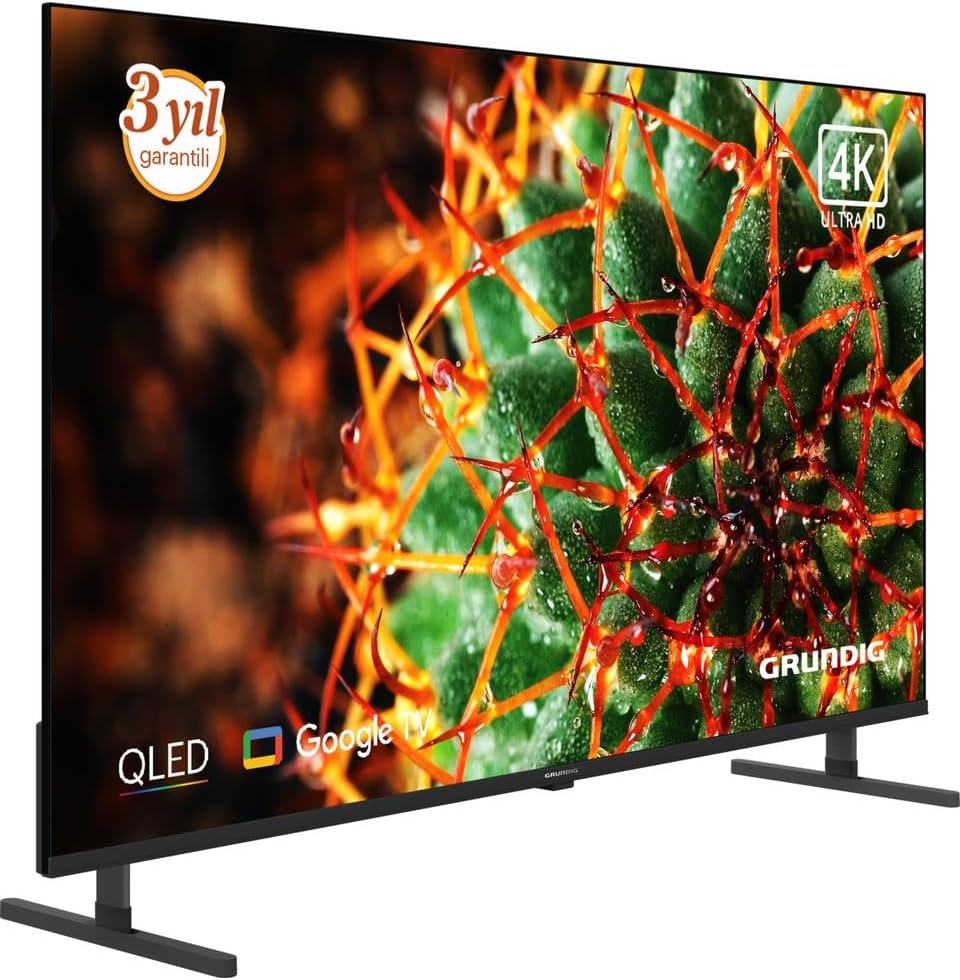
Figure 1: Front view of the Grundig 65 GQ 700A QLED TV.
2. Safety Information
Always observe the following safety precautions to prevent electric shock, fire, or injury:
- Do not expose the TV to rain or moisture.
- Do not open the TV casing; refer all servicing to qualified personnel.
- Ensure proper ventilation around the TV.
- Keep the TV away from direct sunlight, heat sources, and extreme temperatures.
- Use only the power adapter supplied with the TV.
- Position the TV on a stable, level surface or mount it securely to a wall.
- Keep small parts and packaging materials out of reach of children.
3. Setup
3.1 Unpacking
Carefully remove the TV and all accessories from the packaging. Check for any damage during transit. Retain the packaging for future transport or service needs.
3.2 Attaching the Stand
If you are not wall-mounting the TV, attach the included stand according to the instructions provided in the separate stand assembly guide. Ensure all screws are tightened securely.
3.3 Wall Mounting (Optional)
If you choose to wall-mount your TV, use a VESA-compatible wall mount kit (sold separately) and follow the wall mount manufacturer's instructions. Ensure the wall can support the weight of the TV and the mount. It is recommended to have professional installation for wall mounting.
3.4 Connecting Peripherals
Connect your external devices to the TV using the appropriate ports. Refer to the image below for port locations.

Figure 2: Rear panel connections of the TV.
- HDMI Ports: Connect Blu-ray players, game consoles, and other HDMI-enabled devices. This model features 2 HDMI ports.
- USB Ports: Connect USB storage devices for media playback.
- Ethernet (LAN) Port: Connect an Ethernet cable for a wired internet connection.
- Antenna/Cable Input: Connect your antenna or cable TV signal.
- Power Input: Connect the supplied power adapter.
3.5 Initial Power On and First-Time Setup
- Connect the power adapter to the TV and then to a power outlet.
- Press the power button on the TV or the remote control to turn on the TV.
- Follow the on-screen instructions to complete the initial setup, which includes:
- Language selection.
- Network connection (Wi-Fi or Ethernet).
- Google Account sign-in (for Google TV features).
- Channel scanning (for antenna/cable).
- Accepting terms and conditions.
4. Operating the TV
4.1 Remote Control Overview
The remote control allows you to access all functions of your TV. Ensure batteries are correctly inserted.
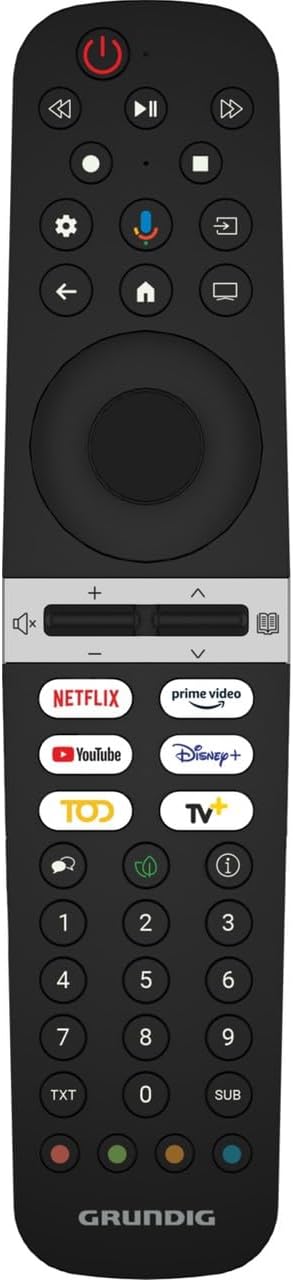
Figure 3: Grundig TV Remote Control.
- Power Button: Turns the TV on or off.
- Navigation Pad (Up/Down/Left/Right/OK): Navigates menus and confirms selections.
- Volume +/-: Adjusts the volume level.
- Channel +/-: Changes TV channels.
- Home Button: Returns to the Google TV home screen.
- Input Button: Selects input sources (HDMI, USB, TV).
- App Buttons: Direct access to popular streaming services like Netflix, Prime Video, YouTube, and Disney+.
- Google Assistant Button: Activates voice control.
4.2 Basic Functions
- Turning On/Off: Press the power button on the remote or TV.
- Volume Adjustment: Use the Volume +/- buttons.
- Channel Selection: Use the Channel +/- buttons or the number pad.
- Input Source Selection: Press the Input button and select the desired source from the menu.
4.3 Smart TV Features (Google TV)
Your TV runs on Google TV, providing access to a vast array of apps, streaming services, and smart features.
- Home Screen: Press the Home button to access personalized content recommendations, installed apps, and settings.
- Google Assistant: Press the Google Assistant button on your remote and speak into the microphone to search for content, control smart home devices, or get information.
- App Store: Download and install additional apps from the Google Play Store.
- Chromecast Built-in: Cast content from your compatible mobile devices or computer directly to the TV.
4.4 Picture and Sound Settings
Access the settings menu to customize picture and sound preferences:
- Picture Modes: Choose from various presets (e.g., Standard, Vivid, Movie, Game) or customize settings like brightness, contrast, color, and sharpness.
- Sound Modes: Select audio presets (e.g., Standard, Music, Movie, Speech) or adjust equalizer settings.
- Advanced Settings: Explore options for motion smoothing, local dimming, and audio output.
5. Maintenance
5.1 Cleaning the TV
- Always unplug the TV before cleaning.
- Screen: Gently wipe the screen with a soft, lint-free cloth. For stubborn marks, use a screen cleaner specifically designed for TVs, applied to the cloth, not directly to the screen.
- Casing: Wipe the TV casing with a soft, dry cloth. Do not use abrasive cleaners, waxes, or solvents.
5.2 Software Updates
Your TV may receive software updates to improve performance and add new features. Ensure your TV is connected to the internet to receive these updates. You can usually check for updates manually in the TV's settings menu.
6. Troubleshooting
If you encounter issues with your TV, refer to the following common solutions:
| Problem | Possible Solution |
|---|---|
| No power | Check if the power cord is securely connected to the TV and the power outlet. Ensure the power outlet is working. Try a different outlet. |
| No picture, but sound is present | Ensure the correct input source is selected. Check cable connections to external devices. Try restarting the TV. |
| No sound, but picture is present | Check the volume level and ensure the TV is not muted. Verify audio cable connections if using external speakers. Check sound output settings. |
| Remote control not working | Replace the batteries. Ensure there are no obstructions between the remote and the TV's IR sensor. Point the remote directly at the TV. |
| Cannot connect to Wi-Fi | Ensure your Wi-Fi router is on and working. Re-enter the Wi-Fi password. Try restarting both the TV and the router. Move the TV closer to the router if possible. |
| Picture quality issues (e.g., blurry, distorted) | Check the resolution settings of the input source. Adjust picture settings (brightness, contrast, sharpness). Ensure the input cable is not damaged. |
If the problem persists after trying these solutions, please contact Grundig customer support.
7. Specifications
The following are the technical specifications for the Grundig 65 GQ 700A TV (Model: GY8T00):
| Feature | Detail |
|---|---|
| Brand | Grundig |
| Model Name | GY8T00 |
| Screen Size | 65 Inches |
| Display Technology | QLED |
| Resolution | 4K Ultra HD |
| Refresh Rate | 60 Hz |
| Connectivity Technology | USB, HDMI, Ethernet (LAN) |
| Total HDMI Ports | 2 |
| Included Components | Power Adapter |
| Product Dimensions (D x W x H) | 1.4D x 3.53G x 1.4Y meters |
| Product Weight | 500 Grams |
| Backlight Technology | LED (Full Array Local Dimming) |
| Model Year | 2025 |
| Energy Efficiency Class | F |
Note: Product dimensions (1.4D x 3.53G x 1.4Y meters) and weight (500 Grams) provided in the source data appear to be incorrect for a 65-inch television and may refer to packaging or be a data entry error. Please refer to the official Grundig product page for accurate physical specifications.
8. Warranty & Support
8.1 Warranty Information
This product comes with a Distributor Guaranteed warranty. For specific terms and conditions, please refer to the warranty card included with your product or contact your local Grundig distributor.
8.2 Customer Support
For technical assistance, troubleshooting beyond this manual, or warranty claims, please contact Grundig customer support. You can find contact information on the official Grundig website or in the documentation provided with your TV.
Online Resources: Visit the official Grundig website for product registration, FAQs, and additional support materials.