1. Product Overview
The NEWPET Automatic Pet Feeder is designed to provide scheduled and controlled feeding for your pets. Featuring a 4-liter capacity, Wi-Fi connectivity, and Tuya APP integration, it allows for remote management of feeding schedules and portion sizes. This feeder is suitable for dry food only, with kibble sizes ranging from 5mm to 15mm.

Image 1.1: The NEWPET Automatic Pet Feeder, demonstrating its use with a dog and a cat, alongside a smartphone displaying the control app.
Key Features:
- Capacity: 4 liters, suitable for extended feeding periods.
- Food Compatibility: Designed for dry food only, kibble size 5mm to 15mm.
- Smart Control: Wi-Fi enabled (2.4 GHz) with Tuya APP for remote programming.
- Customizable Meals: Up to 15 meal plans per day, with 1 to 40 portions per meal (approx. 5g per portion).
- Voice Recorder: 10-second voice message recording to call your pet at meal times.
- Dual Power Supply: Operates via power adapter or 3x D-cell batteries (not included) for backup.
- Secure Design: Lid with safety lock to prevent pets from accessing food, and a sealed dry space to maintain food freshness.
2. Package Contents
Please check the package contents upon unboxing:
- NEWPET Automatic Pet Feeder Unit
- Food Bowl
- Power Adapter
- Instruction Manual (this document)
3. Setup Guide
3.1 Assembly
- Unpack: Carefully remove all components from the packaging.
- Place Bowl: Attach the food bowl to the main feeder unit. Ensure it is securely seated.
- Fill Food Tank: Open the lid of the food tank and pour dry pet food into the reservoir. Ensure the kibble size is between 5mm and 15mm. Close the lid securely.
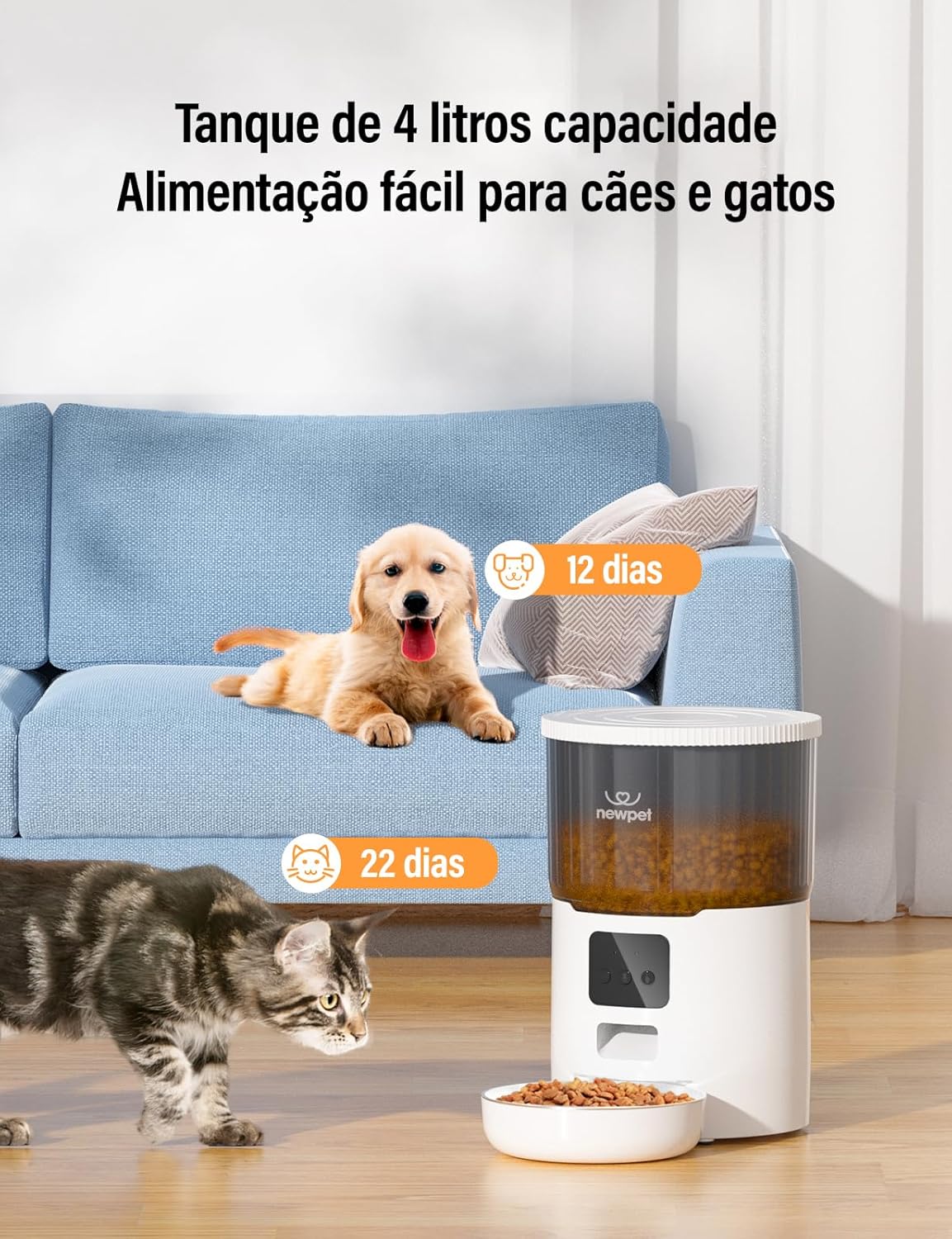
Image 3.1: The 4-liter food tank capacity, showing estimated feeding durations for a puppy (12 days) and a cat (22 days).
3.2 Power Supply
The feeder supports dual power options:
- Primary Power: Connect the provided power adapter to the feeder and a wall outlet.
- Backup Power: For uninterrupted operation during power outages, install 3x D-cell batteries (not included) in the battery compartment located at the bottom of the unit.
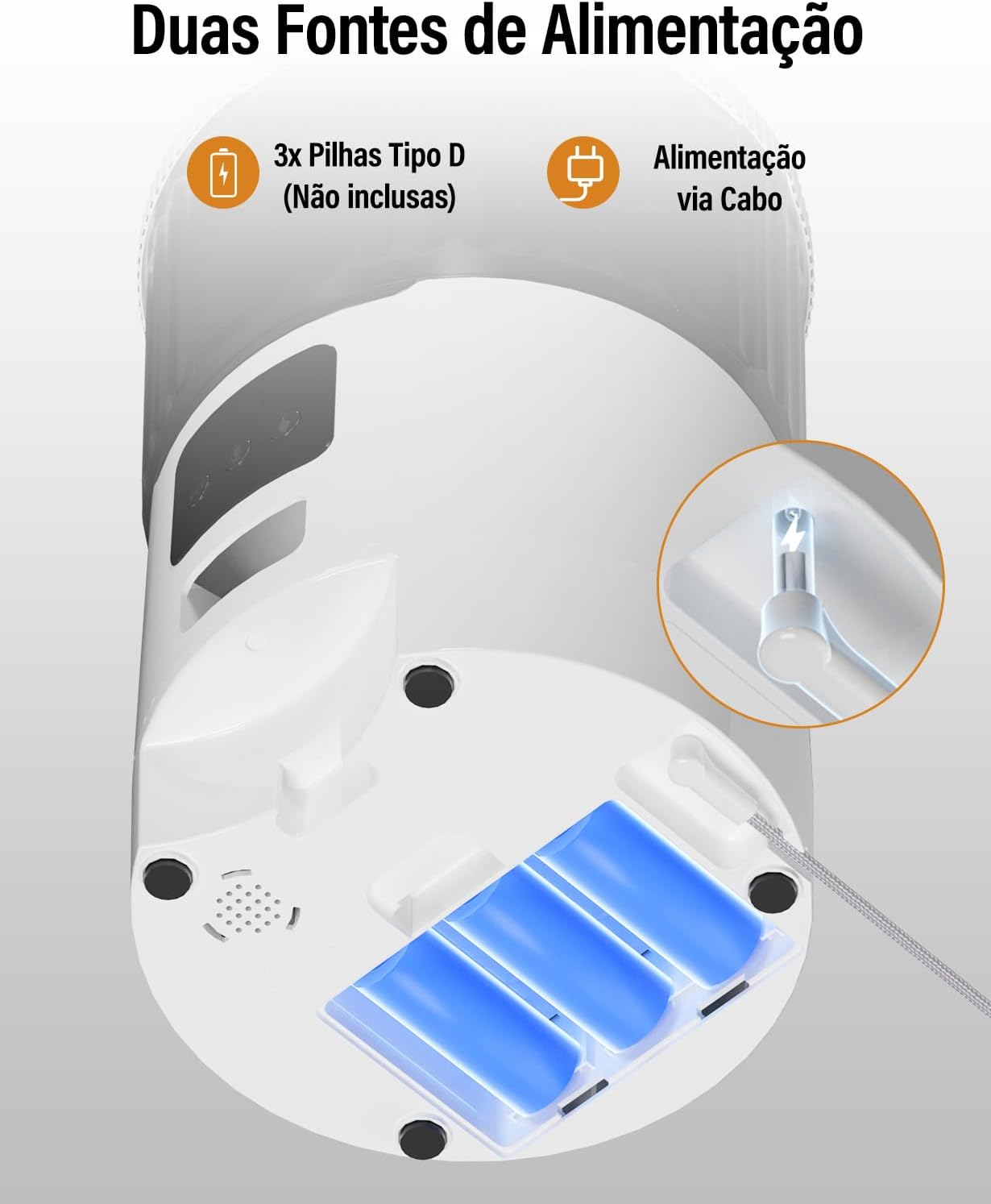
Image 3.2: Illustration of the dual power sources: 3x Type D batteries (not included) and power cable connection.
3.3 Wi-Fi Connection and App Installation
- Download App: Download the "Tuya Smart" or "Smart Life" app from your smartphone's app store (iOS or Android).
- Register/Login: Open the app and register a new account or log in if you already have one.
- Add Device:
- Ensure your phone is connected to a 2.4 GHz Wi-Fi network. The feeder does not support 5 GHz Wi-Fi.
- In the app, tap "+" to add a new device.
- Select "Small Home Appliances" or "Pet Feeder" from the device list.
- Follow the on-screen instructions to put the feeder into pairing mode (usually involves pressing and holding a button on the feeder until an indicator light flashes).
- Enter your Wi-Fi network password when prompted.
- Wait for the feeder to connect to the Wi-Fi network. Once connected, you can rename the device.

Image 3.3: The feeder supports 2.4 GHz Wi-Fi for broad compatibility, faster, and more stable connections.
4. Operating Instructions
4.1 Scheduling Meals via App
Once connected to the Tuya APP, you can program your pet's feeding schedule:
- Open the Tuya APP and select your NEWPET feeder.
- Navigate to the "Schedule" or "Feeding Plan" section.
- Tap "Add Meal" to create a new feeding event.
- Set the desired time for the meal.
- Select the number of portions (1 to 40 portions, approximately 5g per portion).
- Repeat for up to 15 meals per day.
- Save your settings. The feeder will now dispense food automatically according to your schedule.

Image 4.1: The feeder provides convenience, allowing owners to manage pet feeding while engaged in other activities.
4.2 Manual Feeding
To dispense food manually:
- Via App: On the feeder's control screen in the Tuya APP, there is usually a "Feed Now" or "Manual Feed" button. Tap it to dispense one portion immediately.
- Via Feeder Button: Press the manual feed button on the feeder unit (refer to the product diagram for exact location). Each press typically dispenses one portion.
4.3 Voice Recording
You can record a personalized 10-second voice message to play during meal times:
- In the Tuya APP, navigate to the feeder's settings.
- Find the "Voice Recording" or "Record Message" option.
- Follow the app's instructions to record your message. The message will play automatically when food is dispensed.

Image 4.2: The 10-second voice recording feature allows owners to call their pets for meals.
5. Maintenance
Regular cleaning ensures optimal performance and hygiene for your pet.
5.1 Cleaning the Food Bowl
- Remove the food bowl from the main unit.
- Wash the bowl with mild soap and water.
- Rinse thoroughly and dry completely before reattaching.
5.2 Cleaning the Food Tank and Dispenser
- Ensure the feeder is unplugged and any backup batteries are removed.
- Empty any remaining food from the tank.
- Wipe the inside of the food tank with a clean, damp cloth. Avoid using harsh chemicals.
- Use a small brush or cloth to clean the food dispensing mechanism, ensuring no kibble residue is blocking the path.
- Allow all parts to air dry completely before reassembling and refilling with food.
5.3 Battery Replacement
- If using backup batteries, monitor their charge.
- When batteries are low, replace all 3x D-cell batteries simultaneously to ensure consistent power.
- Dispose of old batteries responsibly.
6. Troubleshooting
- Feeder not dispensing food:
- Check power connection and ensure batteries (if used) are charged.
- Verify that the food tank is not empty.
- Ensure kibble size is within 5mm-15mm. Larger kibble may cause jams.
- Check for any obstructions in the dispensing mechanism.
- Review the feeding schedule in the Tuya APP to ensure it is correctly set.
- Wi-Fi connection issues:
- Ensure your Wi-Fi network is 2.4 GHz. The feeder does not support 5 GHz.
- Check if your Wi-Fi signal is strong enough at the feeder's location.
- Restart your Wi-Fi router and the feeder.
- Try re-pairing the device through the Tuya APP.
- Voice message not playing:
- Ensure a voice message has been successfully recorded and saved in the app.
- Check the volume settings within the app, if available.
- Food getting stale:
- Ensure the lid of the food tank is securely closed and the safety lock is engaged.
- The feeder is designed with a sealed dry space to help maintain freshness.
7. Specifications
| Model Number | NEWPET NP999 |
| Capacity | 4 Liters |
| Dimensions (L x W x H) | 19 x 18 x 19 cm |
| Weight | 1.18 kg |
| Material | Acrylonitrile Butadiene Styrene (ABS) |
| Food Type | Dry food only |
| Kibble Size | 5mm - 15mm |
| Feeding Portions | 1 to 40 portions per meal (approx. 5g per portion) |
| Max Meals per Day | Up to 15 (via Tuya APP) |
| Voice Recording | 10 seconds |
| Connectivity | 2.4 GHz Wi-Fi |
| App Compatibility | Tuya Smart / Smart Life |
| Power Supply | DC Power Adapter, 3x D-cell batteries (backup, not included) |
| Target Species | Dogs, Cats |
8. Warranty and Support
Information regarding product warranty and customer support is not provided in this manual. Please refer to the product packaging or the NEWPET official website for details on warranty coverage and how to contact customer service.