
1. Introduction
Thank you for choosing the REOLINK Argus Track 4K Dual-Lens Solar Security Camera. This manual provides essential information for setting up, operating, and maintaining your camera to ensure optimal performance and security. The Argus Track camera offers advanced features including 4K dual-lens video, auto-zoom tracking, smart AI detection, color night vision, and is powered by a 6W solar panel for continuous operation without subscriptions.
2. Package Contents
Verify that all components are present in your package:
- REOLINK Argus Track Camera
- 6W Solar Panel
- Mounting Screw Kit
- USB Cable
- Instruction Manual (this document)
3. Product Overview
The REOLINK Argus Track is a versatile 4K dual-lens security camera designed for both indoor and outdoor use. It features a wide-angle lens and a zoom lens, enabling comprehensive coverage and detailed close-ups. The camera is powered by a solar panel, ensuring continuous operation.
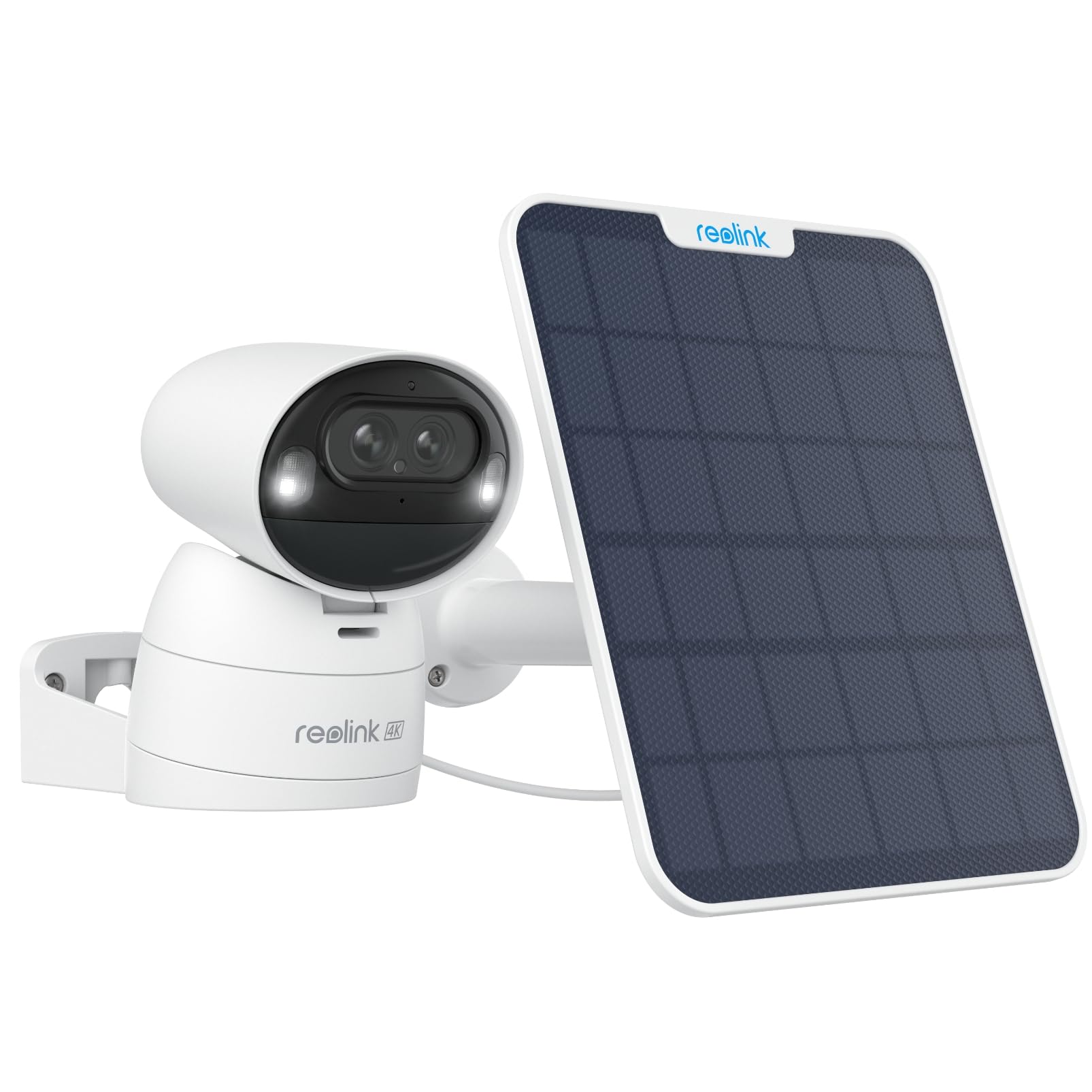
Image: Front view of the REOLINK Argus Track 4K Dual-Lens Solar Security Camera with its accompanying solar panel.
Video: An overview of the Reolink Argus Track camera and solar panel, highlighting its key features and design.
Camera Components
- Dual Lenses: One wide-angle 4K lens and one 2MP zoom lens for hybrid zoom and auto-tracking.
- Motion Sensor: Detects movement for smart alerts.
- Microphone & Speaker: For two-way audio communication.
- Spotlights: Enable color night vision.
- USB-C Port: For charging and connecting the solar panel.
- MicroSD Card Slot: For local storage (supports up to 128GB, card not included).
- Reset Button: To restore factory settings.
- Power Button: To turn the camera on/off.

Image: The back of the REOLINK Argus Track camera, displaying the QR code for setup, serial number (S/N: WLBE246A000484), power button, and USB-C port. The QR code is used for initial setup with the Reolink app.
4. Setup
4.1 Initial Camera Activation
- Charge the Camera: Before initial use, fully charge the camera using the provided USB cable or by connecting it to the solar panel under direct sunlight.
- Insert MicroSD Card (Optional): If local storage is desired, open the protective cover on the camera's underside and insert a microSD card (up to 128GB, not included) into the designated slot.
- Power On: Press and hold the power button located under the protective cover to turn on the camera. You will hear a startup chime.
4.2 App Installation and Configuration
- Download Reolink App: Download and install the "Reolink" app from your smartphone's app store (iOS or Android).
- Add Device: Open the Reolink app, tap the "+" icon in the top right corner, and scan the QR code located on the back of your camera.
- Network Connection: Follow the in-app instructions to connect the camera to your 2.4GHz or 5GHz Wi-Fi network. Ensure your Wi-Fi signal is strong at the camera's intended installation location.
- Set Up Password: Create a strong password for your camera.
- Live View: Once connected, you can access the live view of your camera.
4.3 Mounting the Camera and Solar Panel
The camera can be mounted indoors or outdoors. Choose a location with optimal Wi-Fi signal and direct sunlight exposure for the solar panel.
- Select Location: Identify a suitable mounting spot for the camera and the solar panel. The solar panel should receive several hours of direct sunlight daily.
- Install Mount: Use the provided mounting screws to securely attach the camera mount to a wall or ceiling.
- Attach Camera: Secure the camera to the installed mount. The camera's image can be flipped in the app if mounted upside down.
- Install Solar Panel: Mount the 6W solar panel in a location that maximizes sun exposure. Connect the solar panel cable to the camera's USB-C port. The long cable allows for flexible placement.

Image: The REOLINK Argus Track camera installed on an outdoor wall, connected to its solar panel for continuous power.

Image: Examples of flexible installation for the REOLINK Argus Track camera, showing it mounted on a wall, under an eave, and on a pole with the solar panel.
5. Operating Instructions
5.1 Live View and Playback
Access live video feed and recorded footage through the Reolink app or client software on your smartphone or computer.
- Live View: Open the app and select your camera to view the real-time feed.
- Playback: Navigate to the playback section to review recorded events stored on the microSD card.

Image: The Reolink app interface displayed on a smartphone, tablet, and computer, demonstrating multi-platform access to the camera feed.
5.2 Pan, Tilt, and Zoom (PTZ) Control
Remotely control the camera's viewing angle and zoom level via the app.
- Pan/Tilt: Use the directional controls in the app to rotate the camera horizontally (pan up to 355°) and vertically (tilt up to 50°).
- Zoom: Utilize the digital zoom function or rely on the camera's 6x hybrid zoom for detailed views.
- Preset Points: Set up to 32 preset viewing points for quick navigation to specific areas.

Image: The REOLINK Argus Track camera illustrating its pan and tilt capabilities, along with the concept of setting up to 32 preset points for monitoring key areas.
5.3 Auto-Tracking and Auto-Zoom
The camera can automatically track detected objects and zoom in for clarity.
- Enable Auto Tracking: In the app settings, navigate to "Detection Alarm" and enable "Auto Tracking."
- Set Tracking Type: Choose to track "Person," "Vehicle," or both.
- Detection Zone: Define specific areas for motion detection to minimize false alarms.
- Sensitivity: Adjust sensitivity levels for person and vehicle detection.
Video: A demonstration of how to set up auto-tracking in the Reolink app, showing the steps to enable the feature and select tracking types for persons and vehicles.

Image: The REOLINK Argus Track camera demonstrating its auto-tracking and auto-zoom capabilities, showing a wide view and a zoomed-in view of a vehicle.
6. Features
6.1 4K Dual-Lens, Dual-View & 6X Hybrid Zoom
Experience superior clarity with 4K resolution from the wide-angle lens, complemented by a dedicated 2MP lens for sharp, zoomed-in views. The 6x hybrid zoom ensures no detail is missed, whether near or far.

Image: A close-up view of the REOLINK Argus Track camera's dual lenses, highlighting the 4K wide-angle lens and the auto-tracking zoom lens.
6.2 100% Wireless & 6W Solar Panel
Enjoy complete freedom from wires with battery power and a robust 6W solar panel for continuous charging. The camera supports 2.4/5GHz Wi-Fi, offering flexible installation anywhere.

Image: The REOLINK 6W solar panel connected to the camera, illustrating its efficient charging capability under sunlight.
6.3 Smart AI Detection
Advanced AI technology accurately identifies people, vehicles, and animals, sending instant alerts to your smartphone and significantly reducing false alarms.

Image: The REOLINK Argus Track camera demonstrating its smart AI detection, highlighting the recognition of a person, a vehicle, and an animal within the camera's view.
6.4 4K Color Night Vision & Remote Pan/Tilt
Capture vivid, detailed footage day and night with 4K color night vision, enhanced by motion-activated spotlights. Remotely pan and tilt the camera to monitor larger areas and track movement effectively.

Image: A comparison showing the REOLINK Argus Track camera's color night vision with spotlights activated, providing clear and detailed footage in low-light conditions.
6.5 Local Storage & No Subscription
Store your footage locally on a microSD card (up to 128GB) without any monthly fees. Your data remains private and accessible directly from the camera.

Image: An illustration representing the local storage capability of the REOLINK camera via an SD card, emphasizing no monthly fees or hub requirements.
6.6 Smart Home Integration
The REOLINK Argus Track camera is compatible with smart home ecosystems like Amazon Alexa and Google Assistant, allowing for convenient voice control and integration into your smart home routines.

Image: The REOLINK camera integrated with a smart home display, showing compatibility with Google Assistant for hands-free control.
7. Maintenance
- Clean Lenses: Regularly clean the camera lenses with a soft, dry cloth to ensure clear image quality.
- Check Solar Panel: Ensure the solar panel is free from dirt, dust, or obstructions to maintain optimal charging efficiency.
- Firmware Updates: Check the Reolink app periodically for firmware updates to ensure your camera has the latest features and security enhancements.
- Battery Health: Monitor battery levels in the app. If the camera is not charging effectively, check the solar panel's placement and cleanliness.
8. Troubleshooting
| Problem | Solution |
|---|---|
| Camera not powering on. | Ensure the camera is fully charged. Press and hold the power button for a few seconds. |
| Cannot connect to Wi-Fi. | Verify Wi-Fi password. Ensure the camera is within range of your router. Try resetting the camera and re-pairing. The camera supports both 2.4GHz and 5GHz Wi-Fi. |
| Poor image quality. | Clean the camera lenses. Ensure sufficient lighting. Check network connection stability. |
| Auto-tracking not working correctly. | Ensure auto-tracking is enabled in the app settings. Adjust detection zones and sensitivity. Ensure there are no obstructions in the camera's view. Note that tracking performance might vary in very low light conditions with spotlights. |
| Solar panel not charging. | Ensure the solar panel is installed in direct sunlight and free from obstructions. Check the connection cable between the solar panel and the camera. |
| Frequent "device disconnected" messages. | Check your Wi-Fi signal strength at the camera's location. Restart your router and the camera. Ensure the Reolink app is updated to the latest version. |
9. Specifications
| Feature | Detail |
|---|---|
| Model Name | Argus Track |
| Video Resolution | 4K (8MP) |
| Connectivity | Wireless (2.4GHz/5GHz Wi-Fi) |
| Power Source | Solar Powered / Battery Powered (5V, 6W) |
| Special Features | 4K Dual-Lens, Auto-Zoom Tracking, Color Night Vision, PTZ Technology, Smart AI Detection (Person, Vehicle, Animal) |
| Pan/Tilt Range | 355° Pan, 50° Tilt |
| Optical Zoom | 6x Hybrid Zoom |
| Night Vision Range | Up to 33 feet (with spotlights) |
| Local Storage | MicroSD card (up to 128GB) |
| Water Resistance | IP65 Weatherproof |
| Dimensions | 3.33 x 3.3 x 4.64 inches |
| Compatible Devices | Smartphone (iOS/Android), Amazon Alexa, Google Assistant |
10. Warranty and Support
REOLINK products typically come with a limited warranty. For specific warranty details, please refer to the warranty card included in your package or visit the official REOLINK website. For technical support, product registration, or further assistance, please contact REOLINK customer service or visit their support portal.
- Official Website: www.reolink.com
- Support: Refer to the contact information provided on the official website for support options.


