
1. Introduction
Welcome to the AOOSTAR MACO AMD Ryzen 7 H255 Mini PC user manual. This guide provides essential information for setting up, operating, maintaining, and troubleshooting your new mini PC. Please read this manual thoroughly before using the device to ensure optimal performance and longevity.
2. Product Overview
2.1 Key Features
- AMD Ryzen 7 H255 Processor: High-end mobile processor with Zen 4 architecture, 4nm process, 8-core, 16-thread configuration, and up to 4.9 GHz boost frequency.
- Radeon 780M Graphics: Integrated RDNA 3 architecture for smooth graphics performance.
- Dual DDR5 & Dual PCIe4.0: Supports dual-channel DDR5 5600MHz RAM (expandable to 128GB) and dual M.2 2280 NVMe PCIe4.0x4 SSDs (expandable to 8TB).
- One-Touch Fingerprint Unlock: For instant access and enhanced security with enterprise-grade encryption.
- Four Display Support: Connect up to four 4K displays simultaneously for improved productivity.
- OCuLink Port: Extremely high bandwidth (64 Gbps) for external GPU solutions, offering faster support speeds and fewer transfer bottlenecks compared to Thunderbolt 4 and USB4.
- Multiple Interfaces: Includes OCuLink*1, USB4*2, USB3.2 Gen2*2, USB3.0*1, HD*1, DC*1, DP*1, Jack*1, 2.5G*2 for versatile peripheral compatibility.
- Efficient Cooling System: Designed for stable and cool full-power use.
2.2 Package Contents
The following items are included in your AOOSTAR MACO AMD Ryzen 7 H255 Mini PC package:
- 1 x AOOSTAR MACO AMD Ryzen 7 H255 Mini PC
- 1 x SSD Cooling Pad
- 1 x 120W 19V 6.32A Type-C Power Supply
2.3 Physical Components and Ports
Familiarize yourself with the various ports and components of your mini PC.
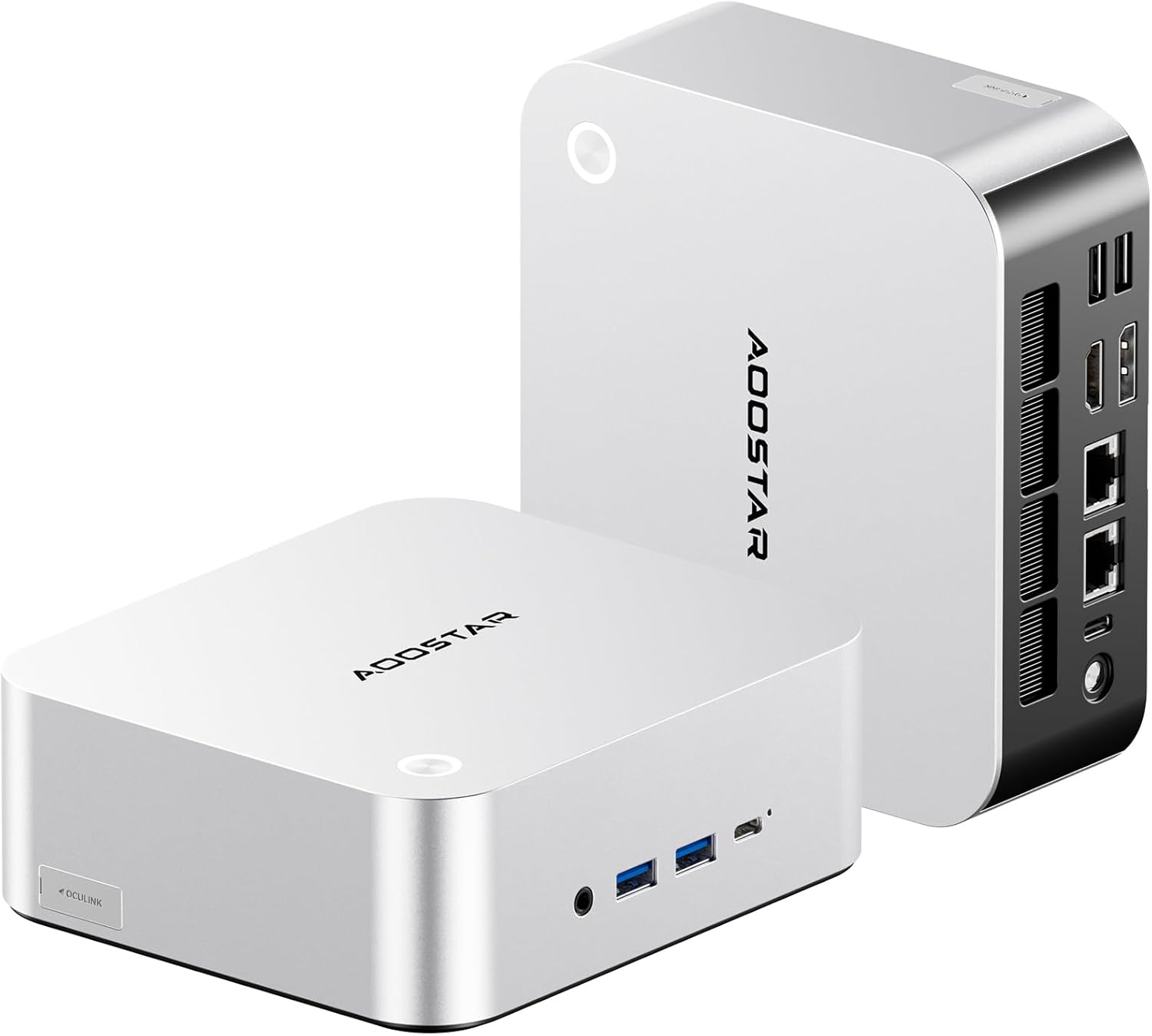
Image: Front and rear view of the AOOSTAR MACO AMD Ryzen 7 H255 Mini PC, showcasing its compact design and various connectivity options.

Image: An overview of the AOOSTAR MACO Mini PC's key features, including the AMD Ryzen PRO processor, one-piece formed metal casing, and various ports.
Front Panel:
- Power Button with Fingerprint Sensor: For powering on/off and secure login.
- Audio Jack: For headphones or microphones.
- USB 3.2 Gen2 Ports (x2): High-speed data transfer.
- USB4 Port (x1): High-speed data transfer and display output.
Rear Panel:
- DC Power Input: Connect the included power adapter.
- USB4 Port (x1): High-speed data transfer and display output.
- 2.5G LAN Ports (x2): For wired network connections.
- HDMI Port (x1): For display output.
- DisplayPort (DP) (x1): For display output.
- OCuLink Port (x1): For connecting external GPUs.
- USB 3.0 Ports (x2): For connecting peripherals.
2.4 Cooling System
The AOOSTAR MACO H255 Mini PC features an advanced cooling architecture to ensure stable performance even under heavy loads.

Image: Diagram illustrating the internal cooling system of the AOOSTAR MACO Mini PC, including the turbo fan, FIN heat dissipation, and VC heat spreader.
3. Setup
3.1 Initial Connection
- Connect Display: Connect your monitor(s) to the HDMI, DisplayPort, or USB4 ports using appropriate cables. The mini PC supports up to four displays.
- Connect Peripherals: Plug in your keyboard, mouse, and other USB devices into the available USB ports.
- Connect Network (Optional): For a wired connection, connect an Ethernet cable to one of the 2.5G LAN ports. For wireless, ensure your WiFi network is available.
- Connect Power: Plug the Type-C power adapter into the DC power input port on the rear panel, then connect the adapter to a power outlet.
3.2 First Boot
Press the power button on the front panel. The mini PC will power on, and the power indicator will illuminate. The device typically comes pre-configured with Windows 11.
3.3 Operating System Setup
Follow the on-screen instructions to complete the initial Windows 11 setup, including language, region, network connection, and user account creation. If prompted, you can set up the fingerprint unlock feature during this process or later via Windows settings.
4. Operating Instructions
4.1 Power On/Off
- Power On: Press the power button once.
- Shut Down: Click the Windows Start button, then select Power > Shut down.
- Restart: Click the Windows Start button, then select Power > Restart.
- Sleep: Click the Windows Start button, then select Power > Sleep.
4.2 Fingerprint Unlock
The integrated fingerprint sensor allows for quick and secure login. Ensure your fingerprint is registered in Windows Hello settings. Simply touch the power button with your registered finger to unlock the system.

Image: A hand demonstrating the one-touch fingerprint unlock feature on the AOOSTAR MACO Mini PC.
4.3 Connecting External Devices
- USB Devices: Connect USB keyboards, mice, external drives, and other peripherals to the available USB 3.2 Gen2 or USB 3.0 ports.
- OCuLink External GPU: For enhanced graphics performance, connect a compatible external GPU enclosure to the OCuLink port. Note: OCuLink connections are not hot-swappable. Ensure the system is powered off before connecting or disconnecting an OCuLink device.
- Multiple Displays: Utilize the HDMI, DisplayPort, and USB4 ports to connect up to four monitors. Adjust display settings in Windows for extended or mirrored desktop modes.
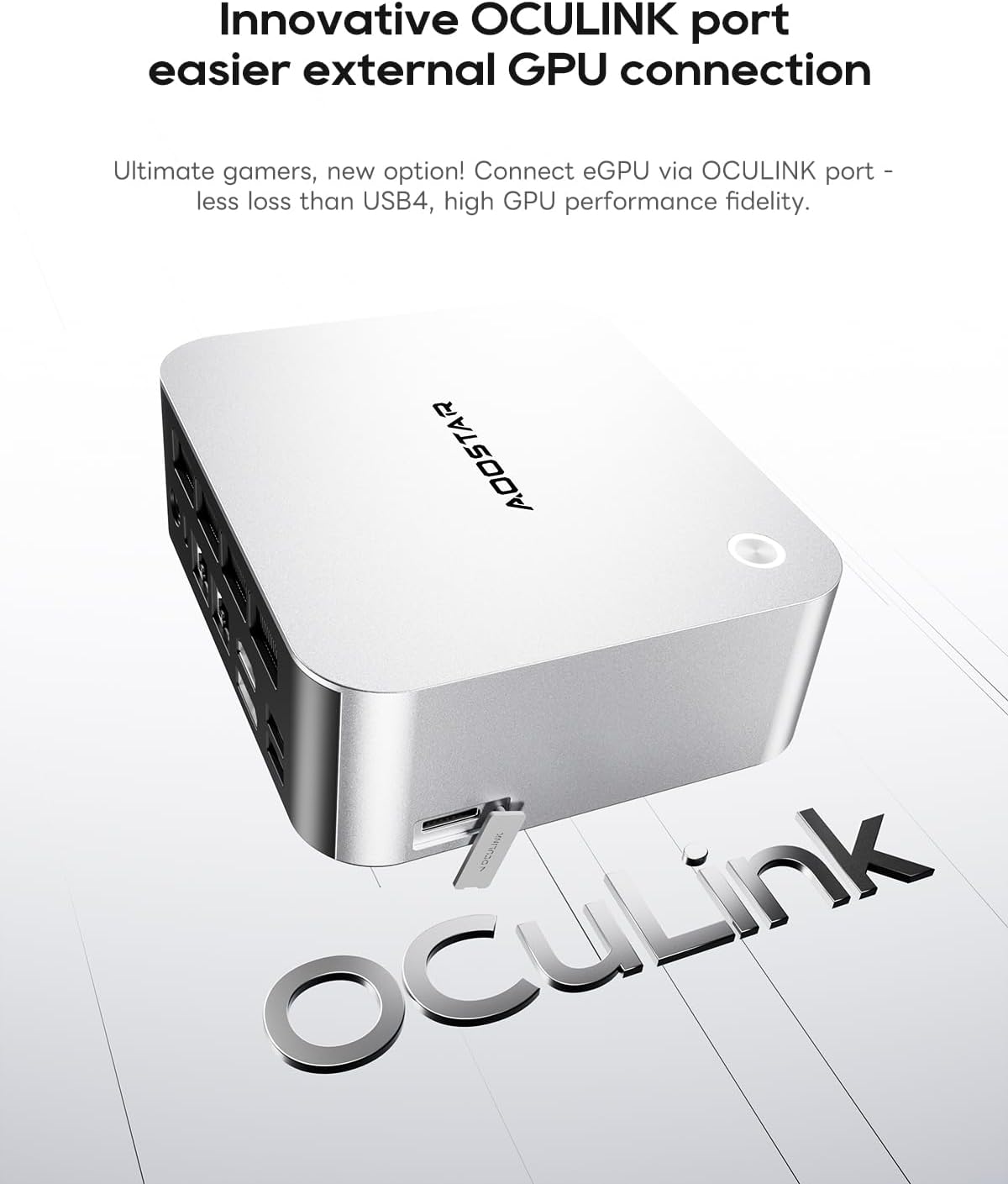
Image: Close-up of the OCuLink port on the AOOSTAR MACO Mini PC, designed for external GPU connections.

Image: Illustration showing the AOOSTAR MACO Mini PC connected to and supporting up to four external displays.
4.4 Network Connectivity
- Wired Connection: Connect an Ethernet cable to either of the 2.5G LAN ports for a high-speed wired network connection.
- Wireless Connection: The mini PC supports WiFi 6. To connect to a wireless network, go to Windows Settings > Network & Internet > Wi-Fi, then select your network and enter the password.
5. Maintenance
5.1 Cleaning
Regular cleaning helps maintain optimal performance and extends the lifespan of your mini PC.
- Exterior: Use a soft, dry, lint-free cloth to wipe the exterior. For stubborn marks, slightly dampen the cloth with water. Avoid harsh chemicals.
- Vents: Use compressed air to gently clear dust from the ventilation grilles to ensure proper airflow and cooling. Perform this periodically.
5.2 Software Updates
Keep your operating system and drivers updated to ensure security, stability, and optimal performance.
- Windows Updates: Go to Windows Settings > Update & Security > Windows Update to check for and install the latest OS updates.
- Driver Updates: Periodically check the AOOSTAR official website for updated drivers for your specific model, especially for graphics and chipset.
5.3 Storage Expansion
The AOOSTAR MACO H255 Mini PC supports dual M.2 2280 NVMe PCIe4.0x4 SSDs for storage expansion.
- Power Off: Ensure the mini PC is completely powered off and disconnected from the power supply.
- Access: Refer to the product's physical design for accessing the internal M.2 slots. Typically, this involves removing screws from the bottom panel.
- Install SSD: Carefully insert the new M.2 NVMe SSD into an available slot and secure it with the provided screw or retention mechanism.
- Reassemble: Securely reattach the bottom panel.
- Initialize: After booting, you may need to initialize and format the new SSD through Windows Disk Management before it can be used.

Image: Internal view of the AOOSTAR MACO Mini PC, highlighting the dual M.2 NVMe PCIe 4.0 SSD slots and dual-channel DDR5 memory.
6. Troubleshooting
This section addresses common issues you might encounter with your AOOSTAR MACO H255 Mini PC.
| Problem | Possible Cause | Solution |
|---|---|---|
| No power / PC does not turn on | Power cable not connected, faulty power adapter, power outlet issue. | Ensure the power adapter is securely connected to the PC and a working power outlet. Test the outlet with another device. |
| No display on monitor | Monitor not connected, incorrect input source, faulty cable, display driver issue. | Check display cable connections (HDMI, DP, USB4). Ensure monitor is on and set to the correct input source. Try a different cable or monitor. |
| No internet connection | Ethernet cable disconnected, WiFi disabled, router issue, driver issue. | For wired: Check Ethernet cable. For wireless: Ensure WiFi is enabled in Windows settings and connected to the correct network. Restart your router. Update network drivers. |
| Fingerprint unlock not working | Fingerprint not registered, sensor dirty, temporary software glitch. | Ensure your fingerprint is correctly registered in Windows Hello. Clean the sensor. Restart the PC. Try logging in with your PIN or password. |
| System slow or unresponsive | Too many applications running, low storage space, outdated drivers, overheating. | Close unnecessary applications. Free up disk space. Update drivers. Ensure proper ventilation and clean vents. |
7. Specifications
Detailed technical specifications for the AOOSTAR MACO AMD Ryzen 7 H255 Mini PC.
| Feature | Detail |
|---|---|
| Processor | AMD Ryzen 7 H255 (8C/16T, up to 4.9GHz) |
| Graphics Coprocessor | Radeon 780M |
| RAM | 32GB DDR5 5600MHz (Dual-channel, expandable to 128GB) |
| Storage | 1TB PCIe4.0 SSD (Dual M.2 2280 NVMe PCIe4.0x4, expandable to 8TB) |
| Operating System | OS (Typically Windows 11 pre-installed) |
| Connectivity | WiFi 6, Dual 2.5G LAN |
| Ports | OCuLink*1, USB4*2, USB3.2 Gen2*2, USB3.0*1, HDMI*1, DisplayPort*1, Audio Jack*1, DC Power*1 |
| Display Support | Up to Four 4K Displays |
| Dimensions (LxWxH) | 5.12 x 5.12 x 2.36 inches (13 x 13 x 6 cm) |
| Weight | 1.46 pounds (0.66 kg) |
8. Warranty and Support
AOOSTAR products are designed for reliability and performance. For warranty information, please refer to the documentation included with your purchase or visit the official AOOSTAR website. For technical support, product inquiries, or service requests, please contact AOOSTAR customer support through their official channels.
9. Product Videos
Watch the official product video for a visual overview of the AOOSTAR MACO H255 Mini PC.
Video: Official product video showcasing the AOOSTAR MACO R7 H255 Mini PC, its design, features, and connectivity options. This video is provided by AOOSTAR Direct.